Downloads do Windows 11 Pro: Guia seguro e genuíno
Upgrading to Windows 11 Pro is a crucial move for professionals and small business owners looking for stronger security and reliable compliance. Before making this transition, the challenge often lies in confirming hardware compatibility and securing a genuine license that guarantees full access to critical updates and features. This guide explains how to prepare your device and navigate official licensing options, so you can confidently achieve a seamless and secure Windows 11 Pro experience.
Índice
- Step 1: Prepare Your Device for Windows 11 Pro
- Step 2: Purchase a Genuine Windows 11 Pro License
- Step 3: Download the Official Windows 11 Pro Installer
- Step 4: Install and Activate Windows 11 Pro
- Step 5: Verify License Authenticity and System Compliance
Resumo rápido
| Ponto-chave | Explicação |
|---|---|
| 1. Verify System Compatibility | Check your device’s compatibility using the PC Health Check app before upgrading to Windows 11 Pro. |
| 2. Purchase Authentic License | Acquire a genuine Windows 11 Pro license from official sources to ensure full functionality and support. |
| 3. Use Official Installer | Download the Windows 11 Pro installer from the official Microsoft download platform for safety and security. |
| 4. Complete Installation Properly | Follow official installation methods and ensure your product key is valid to activate Windows 11 Pro successfully. |
| 5. Validate License and Compliance | Regularly verify your Windows activation status and ensure your license is legitimate to avoid system issues. |
Step 1: Prepare Your Device for Windows 11 Pro
Preparing your device for Windows 11 Pro requires careful compatibility verification and system assessment. Your goal is to ensure your computer meets Microsoft’s official system requirements before initiating the upgrade process.
To start, you’ll need to check PC system requirements using the PC Health Check app. Here are the critical hardware specifications you must confirm:
- 64-bit processor with at least 1 GHz clock speed
- 4 GB RAM minimum
- 64 GB storage or larger
- UEFI firmware with Secure Boot capability
- TPM (Trusted Platform Module) 2.0
- DirectX 12 compatible graphics
To verify your device’s readiness, download and run the Microsoft PC Health Check application. This tool will comprehensively scan your system and provide a detailed compatibility report. Pay special attention to any warnings or recommendations it generates.
Compatibility is key: Not all Windows 10 devices will automatically qualify for Windows 11 Pro upgrade.
If your current system falls short of requirements, you might need to consider hardware upgrades or purchasing a new device specifically designed for Windows 11 Pro. Some older machines may require BIOS updates or specific hardware modifications to become compatible.
Dica profissional: Always back up your critical data before initiating any major system upgrade to protect against potential data loss.
Step 2: Purchase a Genuine Windows 11 Pro License
Navigating the process of purchasing a genuine Windows 11 Pro license requires careful consideration to ensure you receive a legitimate and fully functional product. Your goal is to acquire a valid license that provides complete access to Windows 11 Pro features and ongoing system support.
When purchasing your license, verify license authenticity through official channels to protect your investment. You have several reliable options for acquiring a genuine Windows 11 Pro license:
- Direct purchase from Microsoft’s official website
- Authorized resellers with verified Microsoft partnerships
- Preinstalled licenses on new computer systems
- Volume licensing for business and enterprise users
Not all Windows 11 Pro licenses are created equal: Authenticity matters for long-term system performance and security.
Before completing your purchase, confirm the specific license type that matches your needs. Retail licenses offer maximum flexibility, allowing transfer between devices, while OEM licenses are typically more affordable but tied to a single hardware configuration. For individual users and small businesses, a retail license provides the most versatile option.
Here’s a quick comparison of Windows 11 Pro license types and their ideal use cases:
| Tipo de licença | Transferibilidade | Typical Audience | Key Benefit |
|---|---|---|---|
| Varejo | Can move to new device | Individuals & small businesses | Flexibility for hardware changes |
| OEM | Bound to original hardware | Manufacturers & budget users | Lower initial cost |
| Volume | Multiple devices allowed | Enterprises & organizations | Streamlined management, better pricing |
| Preinstalled | Device-specific, not transferable | Consumers buying new PCs | Immediate access, no setup hassle |
Pricing considerations will vary based on your specific requirements. Individual licenses typically range from $199 to $299, while volume licensing can offer more cost-effective solutions for multiple device deployments.
Dica profissional: Always keep your purchase receipt and license key in a secure digital location for future reference and potential warranty support.
Step 3: Download the Official Windows 11 Pro Installer
Downloading the official Windows 11 Pro installer requires precision and attention to detail to ensure you receive a legitimate and secure product. Your primary objective is to obtain the authentic Microsoft installation media directly from an official source.
To begin, navigate to the official Microsoft download platform and select the Windows 11 Pro version that matches your system requirements. You’ll need to follow these critical steps:
- Verify system compatibility before downloading
- Select the correct language and edition
- Choose between 32-bit or 64-bit versions
- Confirm your download source is Microsoft.com
Caution: Downloading from unauthorized sources can compromise your system’s security and performance.
The official download typically involves creating a Windows 11 Pro installation media, which can be either a bootable USB drive or an ISO file. Ensure you have a reliable internet connection with at least 8 GB of free space for the download and installation process.
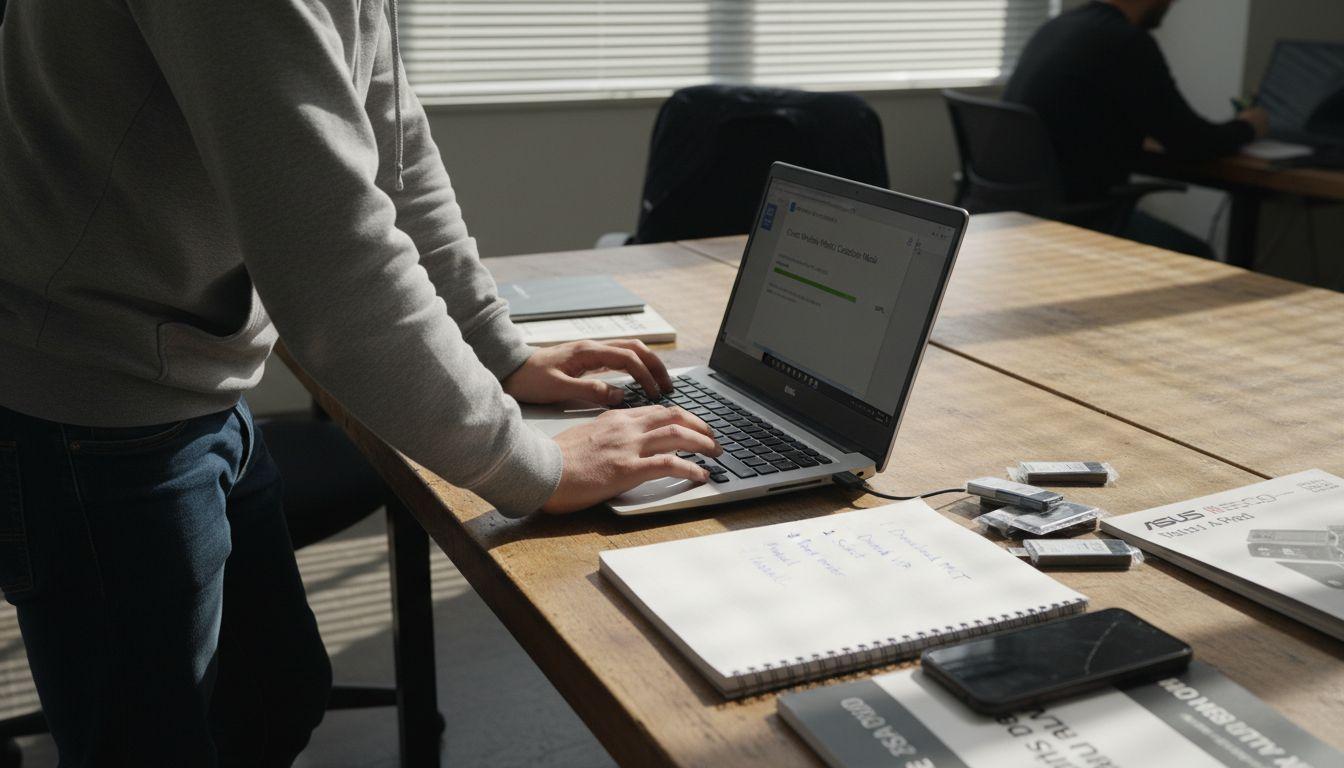
Microsoft provides multiple methods for obtaining the installer, including direct download, Media Creation Tool, and Windows Update. Each method offers specific advantages depending on your technical expertise and current system configuration.
Below is a summary of installer download methods and when to use each:
| Method | Melhor para | Technical Skill Needed | Unique Advantage |
|---|---|---|---|
| Ferramenta de criação de mídia | Custom installations | Moderado | Creates bootable USB or ISO |
| Direct Download | Simple upgrades | Básico | Quick access, minimal steps |
| Windows Update | In-place upgrades | Básico | Automated, preserves settings |
| Assistente de instalação | Devices needing guidance | Moderado | Step-by-step, easy setup |
Dica profissional: Always verify the file hash after downloading to confirm the installer’s integrity and authenticity.
Step 4: Install and Activate Windows 11 Pro
Installing and activating Windows 11 Pro requires careful execution to ensure a smooth and successful system upgrade. Your goal is to complete the installation process with a fully validated and functional operating system.
Begin by exploring official installation methods that suit your specific hardware and technical expertise. You have several installation pathways:
- Upgrade from existing Windows 10
- Clean installation using bootable USB
- In-place upgrade via Windows Update
- Installation Assistant direct download
Crucial Reminder: Successful activation requires a genuine product key and meeting all system prerequisites.
During installation, you will need to provide your Windows 11 Pro product key or link your Microsoft account. The activation process verifies your license authenticity and enables full system functionality. Some users might choose to defer activation temporarily, but completing this step ensures access to critical security updates and advanced features.
Make certain your computer meets all system requirements, including TPM 2.0, Secure Boot capabilities, and sufficient hardware specifications. Microsoft provides detailed compatibility checks to help you confirm your device’s readiness for Windows 11 Pro.
Dica profissional: Create a complete system backup before installation to safeguard your existing data and configuration.
Step 5: Verify License Authenticity and System Compliance
Verifying the authenticity of your Windows 11 Pro license and ensuring complete system compliance is crucial for maintaining optimal performance and security. Your objective is to confirm that your installation meets all Microsoft’s specified requirements and possesses a legitimate software license.
Begin by checking your Windows activation status through the official Microsoft verification tools. You’ll want to validate several critical aspects:
- Confirm product key legitimacy
- Verify digital license linkage
- Check system hardware compatibility
- Validate ongoing update eligibility
Warning: Unauthorized or improperly activated licenses can lead to system restrictions and potential security vulnerabilities.
Microsoft provides multiple methods for license verification, including system settings checks and the Windows Activation troubleshooter. Your licença digital can be linked directly to your Microsoft account, which offers an additional layer of authentication and simplifies future reactivation processes.
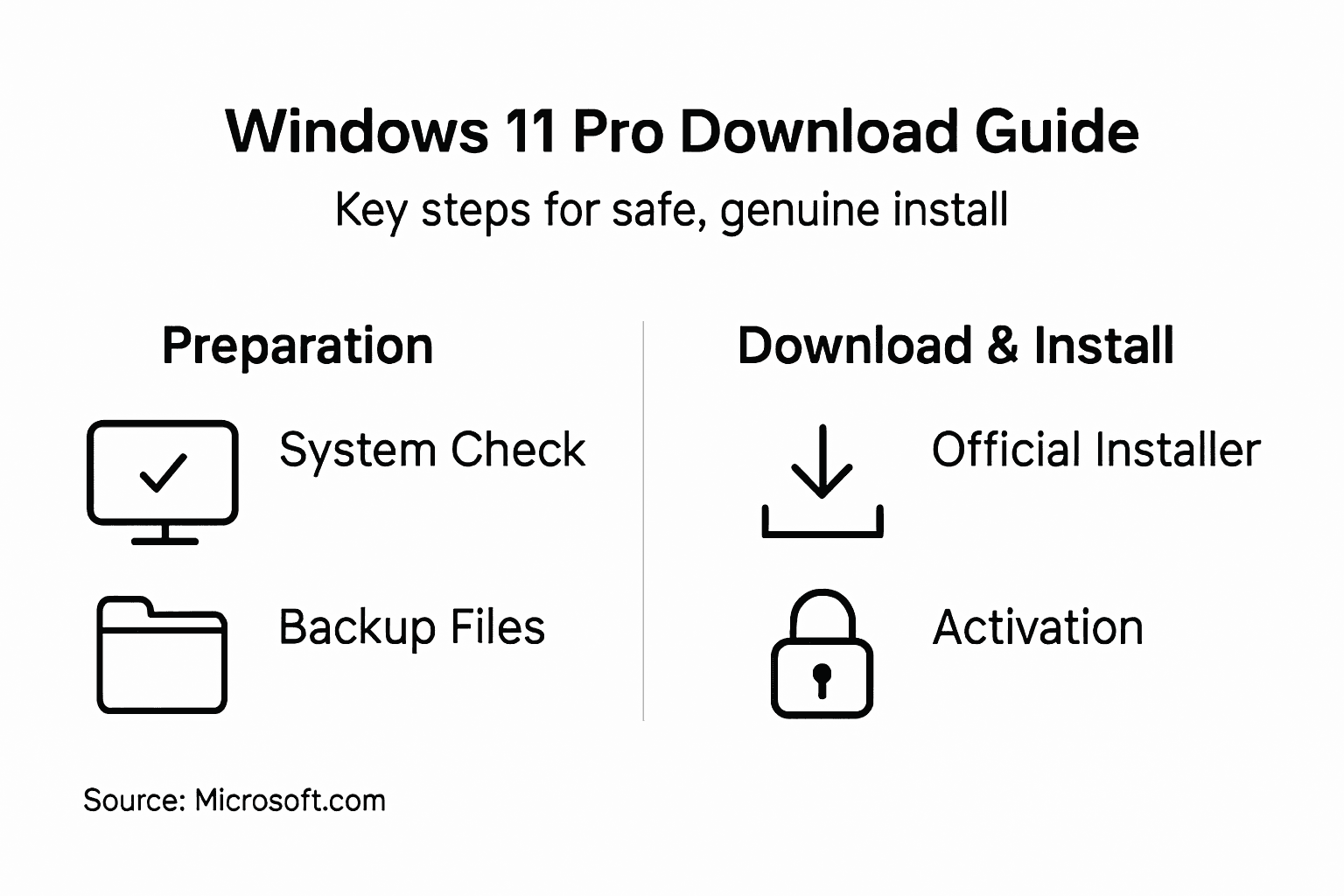
Pay particular attention to potential activation barriers such as hardware changes, which might temporarily interrupt your license validity. Understanding these nuances helps prevent unexpected system compliance issues and ensures uninterrupted access to Windows 11 Pro features.
Dica profissional: Keep a screenshot of your activation confirmation for future reference in case of technical support needs.
Secure Your Genuine Windows 11 Pro License with Confidence
Upgrading to Windows 11 Pro can be daunting with concerns about system compatibility and ensuring a trusted software license. This article highlights the critical need to verify hardware requirements, license authenticity, and secure installation sources to avoid costly errors or security risks. Don’t let the fear of unverified downloads or counterfeit keys hold you back from experiencing the full benefits of Windows 11 Pro.
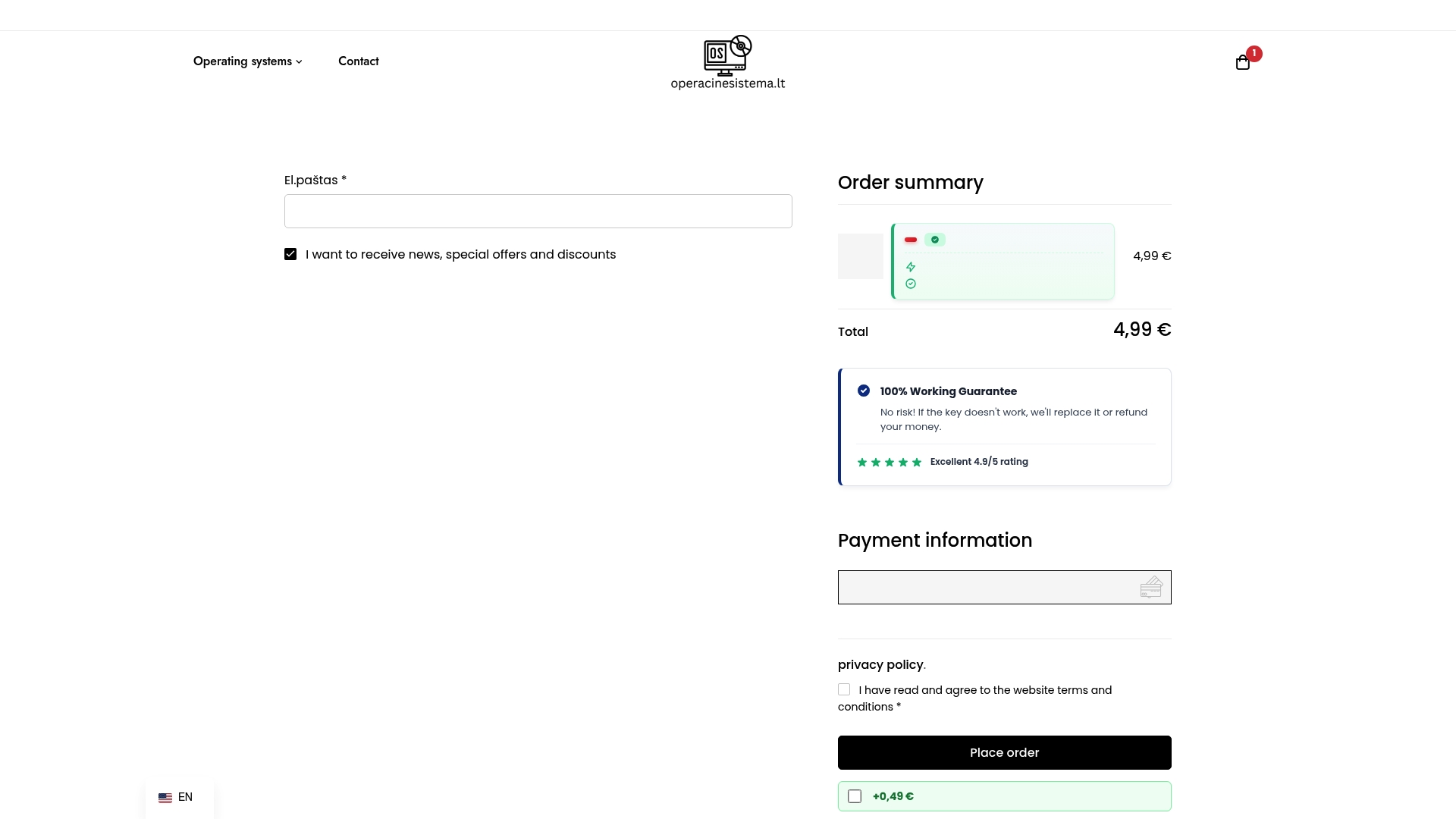
Choose operacinesistema.lt for a seamless solution. We specialize in providing 100% genuine Windows 11 Pro licenses, including OEM and retail keys, delivered instantly by email or as physical USB products. Our platform offers trusted authenticity, competitive pricing, and responsive customer support designed for individuals and small businesses alike. Take control of your upgrade today by visiting our official website and secure a legitimate Windows 11 Pro license that guarantees peace of mind and uninterrupted system performance.
Explore our offerings now and ensure your system runs genuine software that meets all Microsoft’s requirements. Visit https://operacinesistema.lt and upgrade your experience safely and confidently.
Perguntas frequentes
How do I check if my device is compatible with Windows 11 Pro before downloading?
To check your device’s compatibility with Windows 11 Pro, download and run the Microsoft PC Health Check application. This tool will identify if your hardware meets the necessary requirements within a few minutes.
What steps should I follow to purchase a genuine Windows 11 Pro license?
To purchase a genuine Windows 11 Pro license, visit the official Microsoft website or an authorized reseller. Make sure to verify the authenticity of the license before completing your purchase to ensure ongoing system support and updates.
How can I download the official Windows 11 Pro installer safely?
To safely download the official Windows 11 Pro installer, navigate to the Microsoft download platform and select the correct version for your system. Always confirm that the download source is Microsoft.com to avoid potential security risks.
What methods can I use to install Windows 11 Pro on my device?
You can install Windows 11 Pro using several methods, including upgrading from Windows 10, performing a clean installation with a bootable USB drive, or using Windows Update. Choose the method that best matches your technical expertise and current system setup.
How do I verify the authenticity of my Windows 11 Pro license after installation?
After installation, verify your Windows 11 Pro license by checking the activation status in the system settings. Ensure your product key is legitimate and linked to your Microsoft account for added security and easier reactivation in the future.
What should I do if my Windows 11 Pro license shows as not activated?
If your Windows 11 Pro license shows as not activated, ensure that you have entered the correct product key. If the problem persists, use the Windows Activation troubleshooter to diagnose and resolve any potential issues within a few minutes.
Recomendado
- 10 secret Windows 11 Pro features you might not have known about – operacinesistema.lt
- Activating Windows 11 Pro: How to install and activate the operating system without errors – operacinesistema.lt
- Recursos do Windows 11 Pro que não estão no Windows 11 Home - operacinesistema.lt
- Chaves de ativação gratuitas do Windows 11 e como ativar para sempre (2026 atualizado) - operacinesistema.lt
- Virtual Cloud Desktop Services On Demand – MaxCloudON
- WINDOWS 11 IOT – YCR Distribution – UKs Largest Independent POS VAR.