Windows 11 Pro: Features, Upgrades, and Licensing in 2026
TL;DR:
- Windows 11 Pro offers advanced security, remote access, and virtualization tools not available in Home.
- Hardware compatibility requires TPM 2.0 and Secure Boot, with support for upgrades via genuine keys.
- Proper licensing from reputable sellers ensures legitimate activation and long-term support.
Windows 11 Pro isn’t just for corporate IT departments managing hundreds of machines. If you’re a freelancer, a small business owner, or a power user who takes security seriously, Pro has features that Home simply can’t match. Most guides treat it like an enterprise luxury. It isn’t. This article breaks down exactly what Pro gives you, whether your hardware qualifies, how to upgrade without headaches, and how to buy a genuine license without getting burned by a fake key. By the end, you’ll know precisely what to do next.
Spis treści
- What sets Windows 11 Pro apart from Home?
- System requirements and compatibility: What you really need
- Upgrading to Windows 11 Pro: Paths, costs, and activation tips
- Buying a genuine Windows 11 Pro license: What matters most
- Why most users miss out on Windows 11 Pro’s true productivity benefits
- Find your perfect Windows 11 Pro license — safely and fast
- Frequently asked questions
Kluczowe wnioski
| Punkt | Szczegóły |
|---|---|
| Pro delivers real value | Windows 11 Pro unlocks security, management, and productivity features ideal for advanced users and small businesses. |
| Check hardware first | Meeting the official requirements—including TPM 2.0 and Secure Boot—is critical before upgrading to Pro. |
| Buy genuine, activate right | Purchase only from trusted sources and validate your license to avoid activation headaches. |
| Upgrading is straightforward | Moving from Home to Pro usually requires only a new Pro key—no need for a full reinstall. |
What sets Windows 11 Pro apart from Home?
With the stage set, let’s examine exactly what you gain when choosing Windows 11 Pro over Home.
The differences between Windows 11 Home and Pro go well beyond a marketing label. Pro adds a set of tools that genuinely change how you work, secure your data, and manage your devices. These aren’t features you’ll use once and forget. They’re tools that replace expensive third-party software and reduce your dependency on outside IT help.
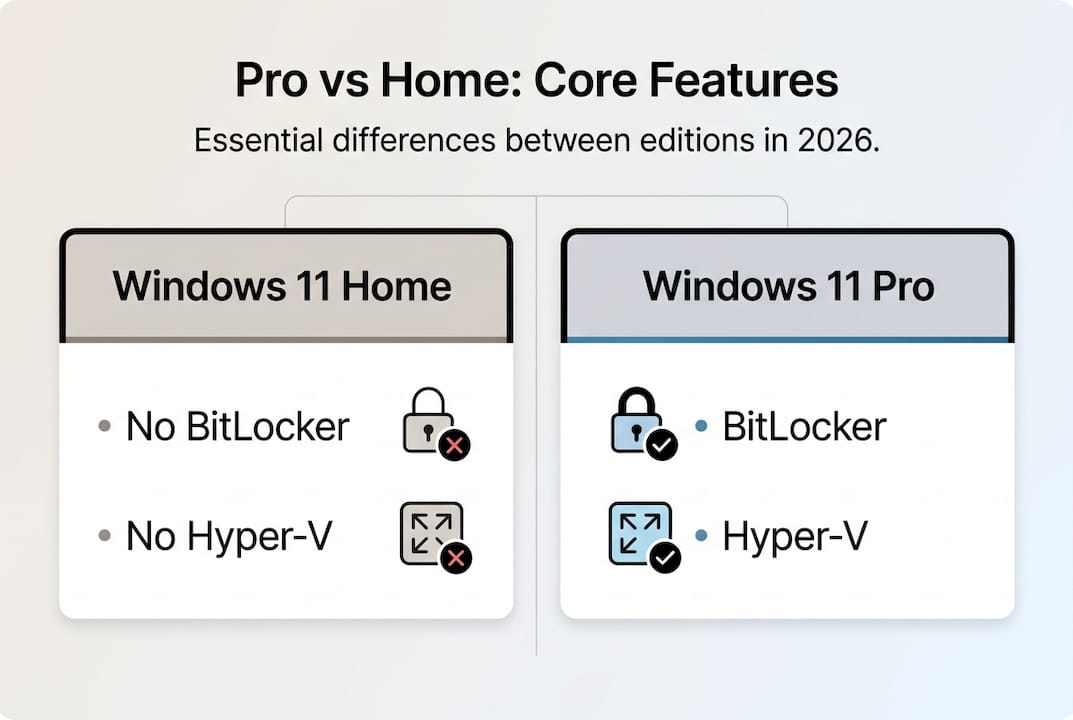
Here’s a quick look at the core feature differences:
| Cecha | Windows 11 Home | Windows 11 Pro |
|---|---|---|
| BitLocker encryption | ❌ | ✅ |
| Edytor zasad grupy | ❌ | ✅ |
| Remote Desktop (host) | ❌ | ✅ |
| Wirtualizacja Hyper-V | ❌ | ✅ |
| Windows Sandbox | ❌ | ✅ |
| Azure AD join | ❌ | ✅ |
| Assigned Access (kiosk mode) | ❌ | ✅ |
Let’s break down why these matter to you specifically.
BitLocker encrypts your entire drive. If your laptop is stolen, the data stays locked. For any business handling client information, this isn’t optional. It’s essential.
Edytor zasad grupy lets you control system behavior at a granular level without touching the registry manually. You can restrict app installations, enforce password rules, and lock down settings across your machine or a small network.
Pulpit zdalny lets you connect to your work PC from anywhere. No third-party app subscriptions needed. It’s built in and secure.
Hyper-V is Microsoft’s built-in virtualization tool. You can run a separate virtual machine (VM) for testing software, running Linux, or isolating risky tasks. This alone replaces paid VM software for many users.
As Windows 11 Home vs Pro shows, Pro is ideal for tech-savvy users and small businesses that need encryption, virtualization, and remote access. Home is sufficient for casual users, but if you need Group Policy or BitLocker, the upgrade is worth it.
Still on the fence? Check out the full list of Pro-exclusive features to see what you’d be gaining. And for the official Windows version release timeline, Windows 11 version requirements is the authoritative source.
🔥 Quick stat: Businesses using full-disk encryption like BitLocker report significantly lower data breach costs compared to those without encryption. That’s a real business case, not just a tech checkbox.
System requirements and compatibility: What you really need
Once you’ve decided that Windows 11 Pro’s features are what you need, the next challenge is ensuring your hardware is up to the task.
Microsoft’s requirements for Windows 11 Pro are stricter than previous versions. That surprised a lot of users when Windows 11 launched. Here’s what you officially need:
| Requirement | Minimum spec |
|---|---|
| Procesor | 1 GHz, 2+ cores, compatible 64-bit CPU |
| RAM | 4 GB |
| Przechowywanie | 64 GB |
| TPM | Version 2.0 |
| Bezpieczny rozruch | Required |
| Display | 720p, 9" or larger |
| Internet | Required for initial setup |
The two requirements that catch most people off guard are TPM 2.0 oraz Bezpieczny rozruch. TPM (Trusted Platform Module) is a security chip that handles encryption keys. Most PCs made after 2017 have it, but it’s sometimes disabled in BIOS settings. Secure Boot prevents unauthorized software from loading during startup.
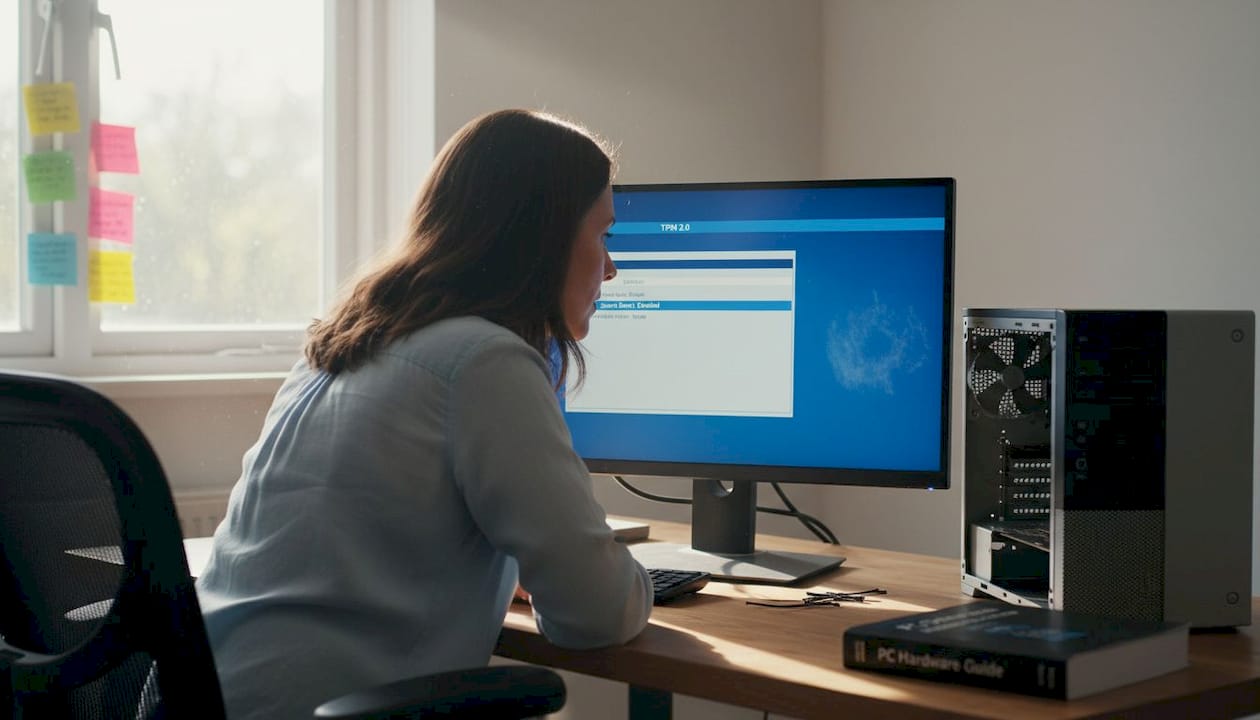
The current version 25H2 (released September 2025) confirms that Pro is serviced for 24 months per release. That means staying current matters for security patches and support.
What about older hardware? Some users bypass the TPM and CPU requirements via a registry edit. It works, technically. But Microsoft explicitly warns that unsupported configurations won’t receive future updates and may face driver or stability issues. It’s a short-term workaround with long-term risk.
Here’s what we recommend checking before you do anything else:
- ✅ Open Settings > System > About to see your current Windows version and device specs
- ✅ Check your CPU against Microsoft’s supported processor list
- ✅ Verify TPM status in Device Manager > Security Devices
- ✅ Confirm Secure Boot is enabled in your BIOS/UEFI settings
For a full walkthrough on getting your system ready, the upgrade guide covers every step in plain language.
Pro Tip: Download and run the PC Health Check tool from Microsoft before purchasing any license. It gives you a pass/fail result in seconds and tells you exactly what’s blocking compatibility. Do this first. Always.
Upgrading to Windows 11 Pro: Paths, costs, and activation tips
After checking compatibility, the next step is taking the plunge and upgrading to Windows 11 Pro.
You have two main paths for upgrading:
- In-place upgrade — You keep your files, apps, and settings. This is the easiest route if you’re currently on Windows 11 Home or Windows 10 Pro.
- Clean install — You wipe the drive and start fresh. More work, but often faster and cleaner, especially on older systems with years of software clutter.
Here’s how the in-place upgrade works step by step:
- Przejdź do Settings > System > Activation
- Kliknij Zmiana klucza produktu
- Enter your valid Windows 11 Pro license key
- Windows verifies the key and begins the upgrade automatically
- Restart when prompted. Done.
No reinstall. No lost files. It’s that straightforward when you have a genuine key.
For pricing, you have three main options:
- Microsoft directly: Full retail price, highest cost, but maximum peace of mind
- Authorized resellers: Often more affordable, still legitimate, with proper licensing terms
- Licensed third-party sellers: Can offer significant savings, but you must verify their legitimacy carefully
“Pro is ideal for tech-savvy users and small businesses needing encryption, virtualization, and remote access. If Group Policy or BitLocker is on your list, the upgrade from Home to Pro is a straightforward decision.” — ZDNet
If activation fails after entering your key, don’t panic. First, check for typos. Then run the Narzędzie do rozwiązywania problemów z aktywacją in Settings. If the key is valid and the issue persists, contact the seller immediately.
🛑 Watch out: Never enter a key from an unknown source or a suspiciously cheap listing. Fake keys can activate temporarily and then get blocked by Microsoft, leaving you with an unlicensed system.
Need legit upgrade keys with verified authenticity? Stick to sellers who provide clear license terms and a support channel.
Pro Tip: Always back up your system before any major OS upgrade. Use Windows Backup or a third-party tool to create a full image. If something goes wrong, you can restore in minutes instead of hours.
Buying a genuine Windows 11 Pro license: What matters most
With a clear upgrade plan, getting a legitimate Windows 11 Pro license is the final and most crucial step.
The internet is full of suspiciously cheap Windows keys. Some work for a while. Many don’t. And some are tied to volume licensing agreements that get revoked, leaving your system deactivated with no recourse. The risk isn’t worth it.
Here’s what to look for when evaluating a seller:
- ✅ Clear license type stated — OEM, retail, or volume. Each has different transfer rights.
- ✅ Refund or replacement policy — Legitimate sellers stand behind their keys.
- ✅ Verifiable contact and support — Email, chat, or phone support available before and after purchase.
- ✅ Customer reviews — Check third-party review platforms, not just testimonials on the seller’s own site.
- ✅ Instant delivery with documentation — You should receive your key and proof of license promptly.
- ❌ Avoid: Keys sold via social media DMs, auction-style listings with no seller history, or prices that seem impossibly low.
After you receive your key, verify it before assuming everything is fine. Go to Settings > System > Activation and confirm the status shows “Active.” You can also use online tools to check key validity before entering it into your system.
The current Windows 11 release cycle means Microsoft actively monitors and revokes keys that violate licensing terms. A key that activates today can be blocked tomorrow if it came from an illegitimate source.
For a secure purchase experience, check out our guide on safe Pro downloads to understand exactly what a legitimate license looks like and how to protect yourself.
Pro Tip: Always read the refund and guarantee terms before completing any purchase. A seller who won’t replace a non-working key is a seller you should avoid entirely.
Why most users miss out on Windows 11 Pro’s true productivity benefits
Here’s something most comparison guides won’t tell you: the real value of Windows 11 Pro isn’t in the feature list. It’s in what those features replace.
Group Policy alone can eliminate the need for third-party device management tools that cost hundreds per year. BitLocker removes the need for paid encryption software. Hyper-V replaces VMware or VirtualBox subscriptions for most everyday virtualization tasks. For a small business or a serious freelancer, that’s real money saved.
Mainstream reviews focus on spec comparisons. They rarely show you how a solo consultant uses Remote Desktop to access their office machine from a client site, or how a small team uses Windows Sandbox to safely test software without risking their main environment. These are the hidden Pro advantages that change daily workflows.
The honest truth? Most users who buy Pro use about 20% of what it offers. Not because the features are hard to use, but because nobody showed them what’s possible. Once you start using Group Policy and BitLocker together, going back to Home feels like working with one hand tied behind your back.
Find your perfect Windows 11 Pro license — safely and fast
Ready to enhance your personal or business setup with genuine Pro? Start here.
Przy operacinesistema.lt, we specialize in genuine Microsoft licenses delivered fast and securely. Whether you need a digital key for instant activation or want a physical USB version, we’ve got you covered with full support and clear licensing terms.
🎁 Buy a genuine Windows 11 Pro key and get instant email delivery with verified activation. Not sure if your current key is legitimate? Check if your key is valid using our quick online tool. And if you want full confidence before spending a cent, our step-by-step buying guide walks you through every decision from start to finish. Don’t leave your system’s security to chance.
Frequently asked questions
Can I upgrade from Windows 11 Home to Pro without reinstalling?
Yes, you can upgrade in-place by entering a valid Pro key in your system settings with no reinstall needed. Your files, apps, and settings stay exactly where they are, as in-place upgrades from Home to Pro are fully supported via activation.
What are the hardware requirements for Windows 11 Pro?
You’ll need a compatible CPU, TPM 2.0, Secure Boot, at least 4GB RAM, and 64GB storage. Older CPUs can bypass requirements via registry, but those configurations are unsupported and won’t receive future updates.
How can I tell if a Windows 11 Pro key is genuine?
Buy only from reputable retailers with clear license terms and use your Activation settings or an online validator to confirm status. A genuine Pro key will show “Active” in Settings immediately after entry.
What advanced features does Windows 11 Pro have that Home does not?
Pro adds BitLocker encryption, Group Policy Editor, Remote Desktop hosting, Hyper-V virtualization, and Windows Sandbox. These Pro-only tools are particularly valuable for small businesses and power users who need security and remote access built in.