Windows 11 Pro features not available in Windows 11 Home
When choosing between Windows 11 Home and Windows 11 Pro, it is important to understand the main differences. While the two versions look similar, Windows 11 Pro offers more features for business users, IT professionals and more advanced use. In this article, we'll look at the key features of Windows 11 Pro that you won't find in Home.
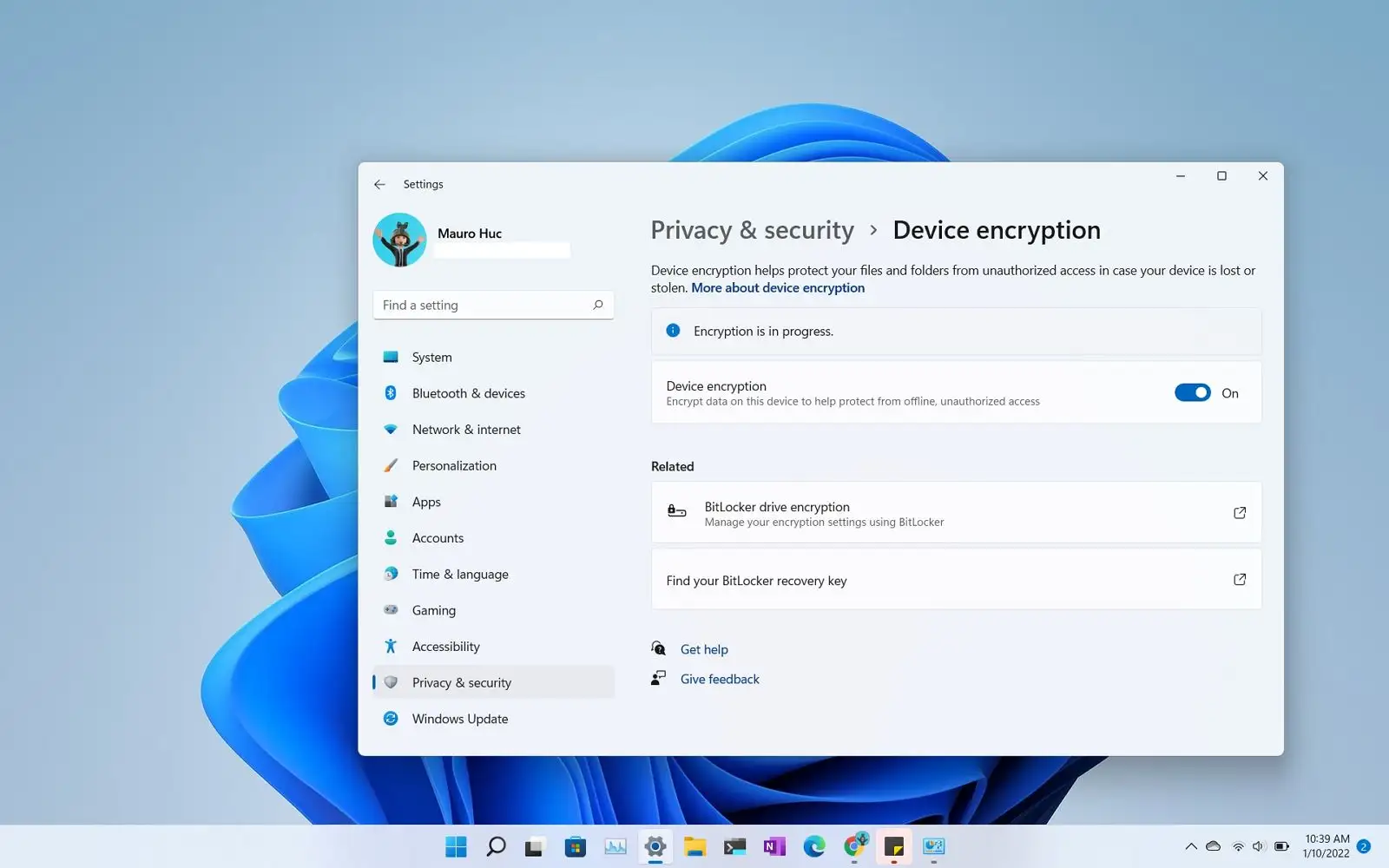
1. BitLocker disk encryption
BitLocker - is an advanced disk encryption technology that allows you to protect your data from unauthorised access, even if your computer is lost or stolen.
Why is this important? Windows 11 Home doesn't have BitLocker, so your data is less protected. For business users or those who store sensitive information, this feature is essential.
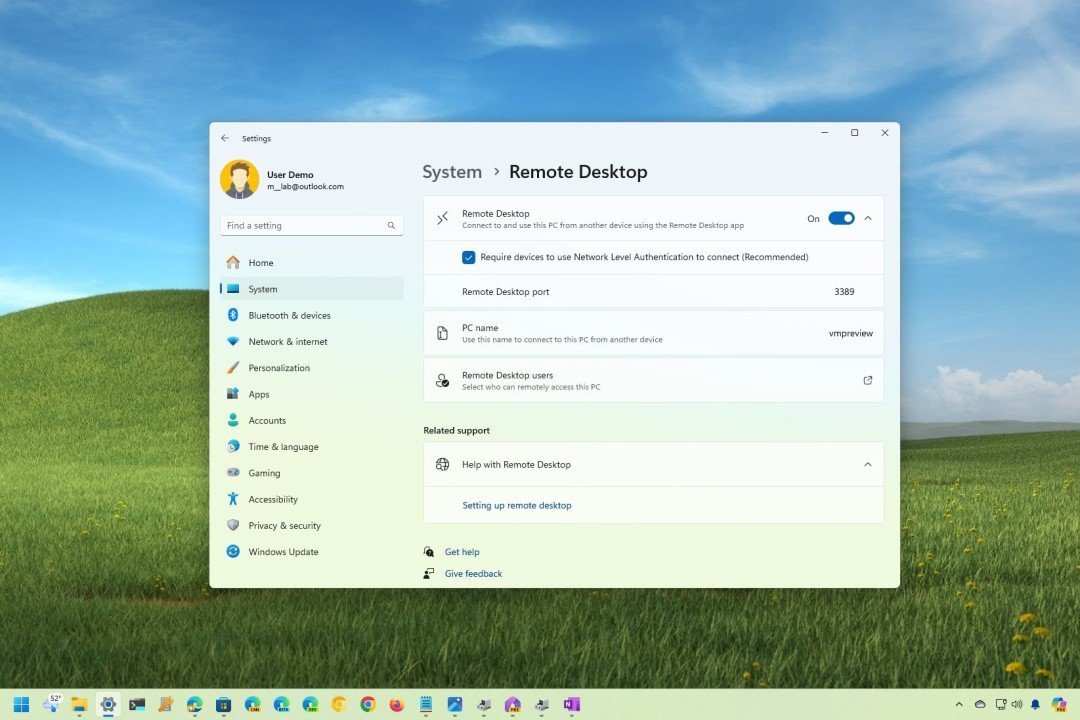
2. Remote Desktop access (Remote Desktop)
In Windows 11 Pro, you can log in to your PC remotely using Remote Desktop function.
Why is this useful?
- Allows you to work from anywhere, accessing your computer remotely.
- IT administrators can manage employees' computers via remote access.
- Windows 11 Home has only customer (you can connect to other computers, but your system can't be controlled remotely).
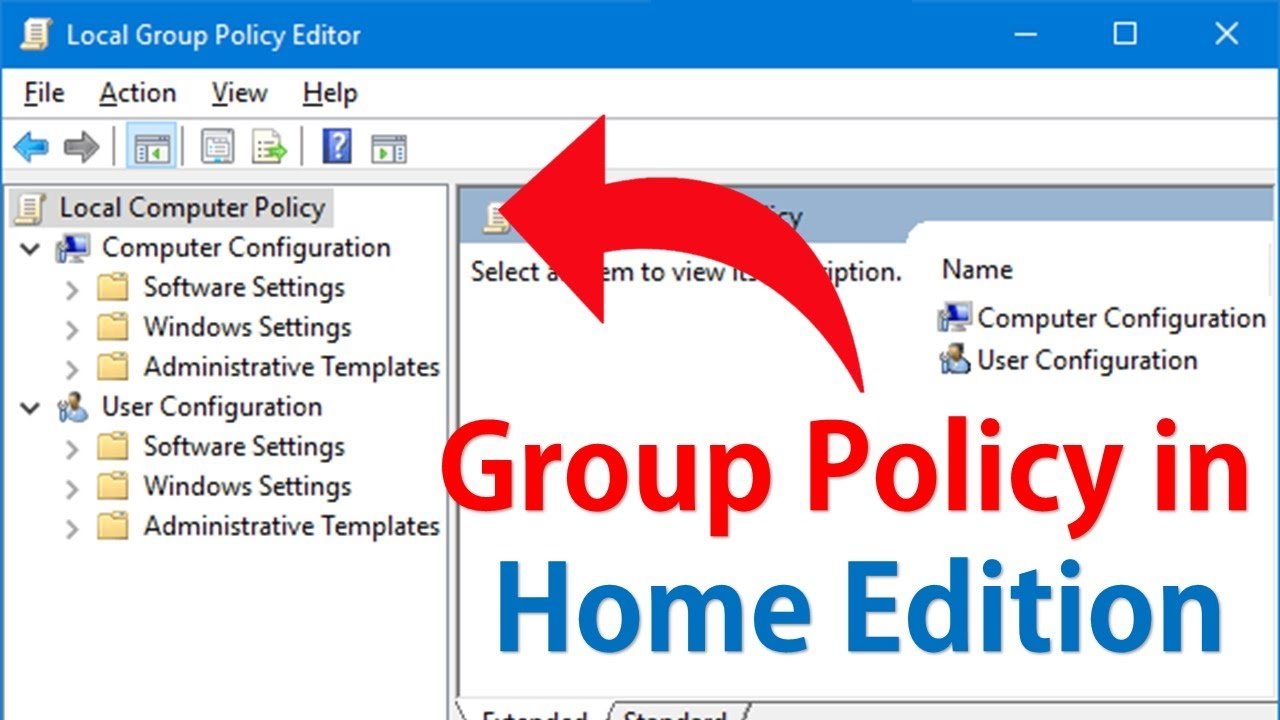
3. Managing Group Policy (Group Policy Editor - gpedit.msc)
Windows 11 Pro has Group Policy Editor, which allows administrators to set policies and restrictions on a computer.
Examples of use:
- Block certain apps or websites.
- Manage the automatic installation of updates.
- Configure password policy.
Windows 11 Home doesn't have this feature - you have to change all your settings in the Windows registry, which is more complicated.
4. Virtualisation and Hyper-V support
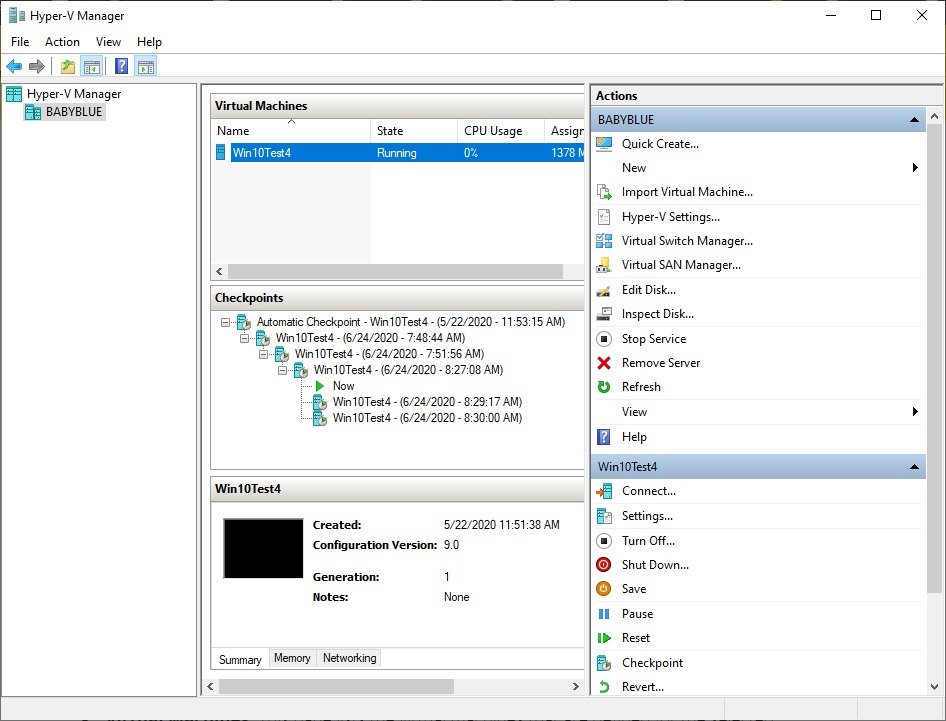
Windows 11 Pro lets you use Hyper-V - Microsoft's virtualisation technology, which allows you to run virtual operating systems directly inside Windows.
Why is this necessary?
- You can test different versions of Windows or Linux without additional software.
- Useful for developers testing applications on different operating systems.
Windows 11 Home does not have Hyper-V, so virtualisation would require third-party applications such as VirtualBox or VMware.
5. Windows Sandbox - a secure testing environment
Windows 11 Pro gives you access to Windows Sandbox - is an isolated, temporary copy of Windows where you can safely test unknown programs or files.
Benefits:
- No software from the Sandbox affects the main system.
- When you close the Sandbox, any actions you have taken in the Sandbox are automatically deleted.
This feature is not available in Windows 11 Home, so you have to use third-party software if you want to safely test apps.
6. Advanced security features Windows Information Protection (WIP)
Windows 11 Pro has Windows Information Protection (WIP) - is a business security feature that helps protect confidential data from leaks.
How does it work?
- Allows you to specify which files can be shared and which will remain protected.
- Protects company data even if a user accidentally opens an insecure file.
Windows 11 Home doesn't have this feature, so it may be too weak in terms of security for businesses.
Is Windows 11 Pro worth it?
If you're a casual user, Windows 11 Home is probably enough for you. But if you need extra security, remote control, virtualisation or advanced IT management tools, Windows 11 Pro is a much better choice.
Top reasons to choose Windows 11 Pro:
✅ Security (BitLocker, WIP)
✅ IT administration (Group Policy, Remote Desktop)
✅ Virtualisation (Hyper-V, Windows Sandbox)
✅ Business and professional user functions
🔗 Buy an official Windows 11 Pro licence!