Faça o upgrade do Win10 para o Win11 de forma segura com uma licença genuína
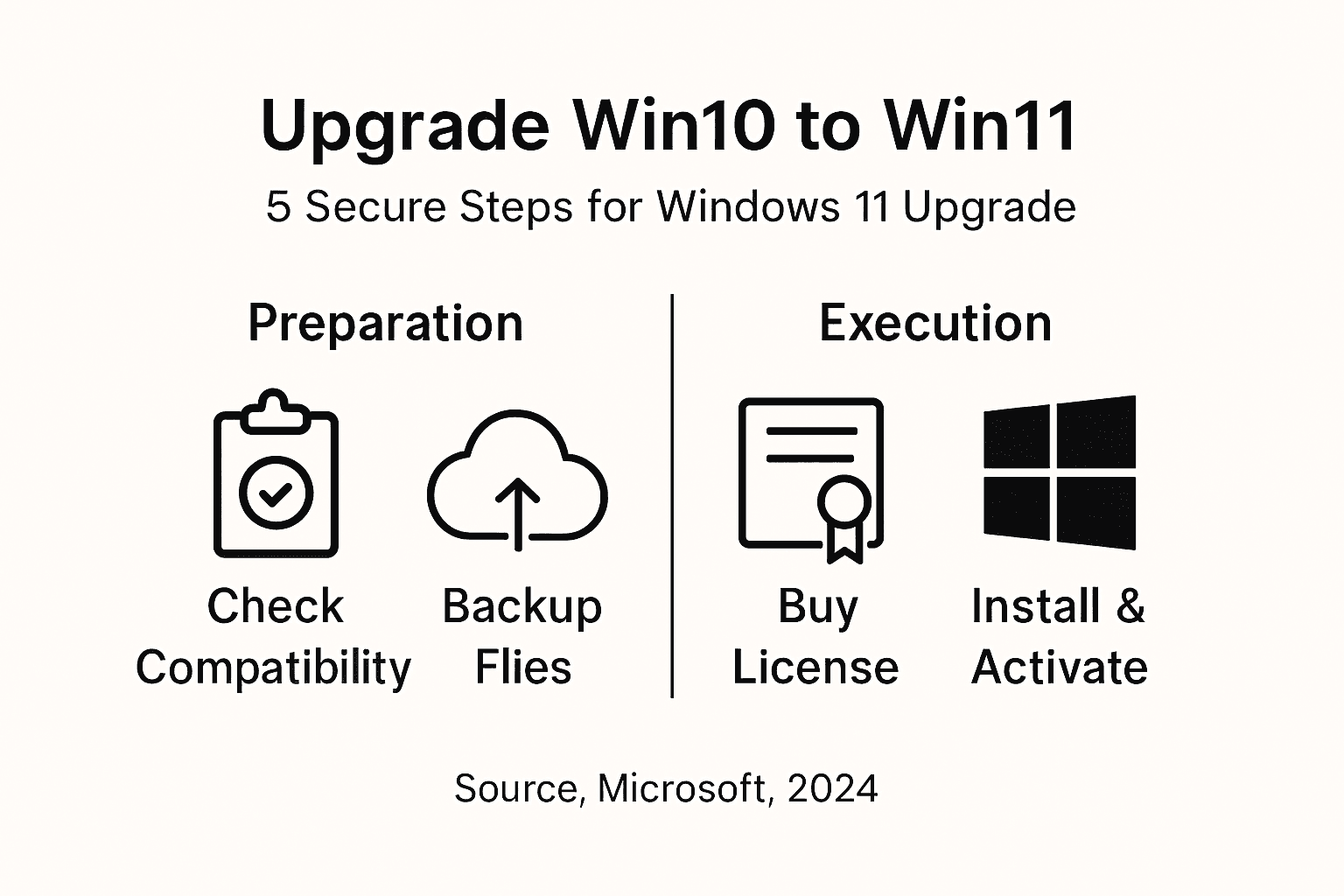
Upgrading from Windows 10 to Windows 11 can open the door to improved performance, better security, and new productivity features, but skipping crucial checks often leads to unwanted setbacks. Whether you are a tech enthusiast or a small business owner managing valuable systems worldwide, verifying device compatibility and holding a genuine software license are musts before you start. This guide gives you step-by-step insight on preventing headaches and making your transition to Windows 11 smooth, secure, and compliant.
Índice
- Step 1: Check Win10 Device Compatibility For Win11
- Step 2: Backup Critical Files And Settings
- Step 3: Obtain A Genuine Win11 License Or Key
- Step 4: Install Windows 11 And Activate Officially
- Step 5: Verify Upgrade Success And Reactivate Software
Quick Summary
| Key Point | Explanation |
|---|---|
| 1. Verify Device Compatibility | Use the PC Health Check app to check if your Windows 10 device meets Windows 11 requirements before upgrading. |
| 2. Backup Important Data | Create a complete backup of your files and settings to avoid data loss during the Windows 11 upgrade process. |
| 3. Obtain a Genuine License | Ensure you have a legitimate Windows 11 license to avoid activation issues and maintain system security. |
| 4. Choose Installation Method Wisely | Select the appropriate installation method based on your needs to ensure a smooth upgrade to Windows 11. |
| 5. Verify Activation After Upgrade | Confirm Windows 11 activation status post-installation to access all features and security updates fully. |
Step 1: Check Win10 Device Compatibility for Win11
Before upgrading to Windows 11, you need to verify that your current Windows 10 device meets the system requirements. This crucial check will prevent potential installation issues and ensure a smooth transition to the new operating system.
Microsoft provides several methods to check device compatibility. The most straightforward approach is using the PC Health Check app which evaluates your system against Windows 11 standards. Here are the key compatibility factors you’ll want to verify:
- Processor: Must support specific 64-bit Intel or AMD processors
- RAM: Minimum 4 GB, recommended 8 GB or more
- Storage: At least 64 GB of available disk space
- TPM: Trusted Platform Module (TPM) version 2.0
- Inicialização segura: Must be supported and enabled in your device’s firmware
To run the compatibility check, download the PC Health Check app directly from Microsoft’s website. The app will perform a comprehensive scan and provide a clear report on whether your device meets the Windows 11 upgrade requirements.
Important: Not all Windows 10 devices will be immediately eligible for the Windows 11 upgrade. Microsoft rolls out compatibility in phases based on hardware specifications.
Dica profissional: If your current device doesn’t meet all requirements, consider checking specific component upgrades that might make your system compatible, such as adding RAM or checking BIOS settings for TPM activation.
Step 2: Backup Critical Files and Settings
Before upgrading to Windows 11, creating a comprehensive backup of your current Windows 10 system is absolutely essential. This step ensures that all your important documents, personal settings, and installed applications are safely preserved before the upgrade process begins.
Microsoft offers multiple methods for backing up your data, with comprehensive backup solutions designed to protect your critical information. Here are the key strategies for safeguarding your data:
- Cloud Storage: Use OneDrive for automatic cloud backup of important files
- External Drive: Create a full system backup on an external hard drive
- File History: Enable Windows File History to continuously protect personal documents
- Settings Backup: Export critical system settings and user preferences
- Connect an external hard drive with sufficient storage capacity
- Open Windows Backup settings
- Selecione “Backup” and choose your external drive
- Select all critical folders and system files for backup
- Start the backup process and wait for completion
Warning: Never start a Windows 11 upgrade without first creating a complete backup of your existing system and files.
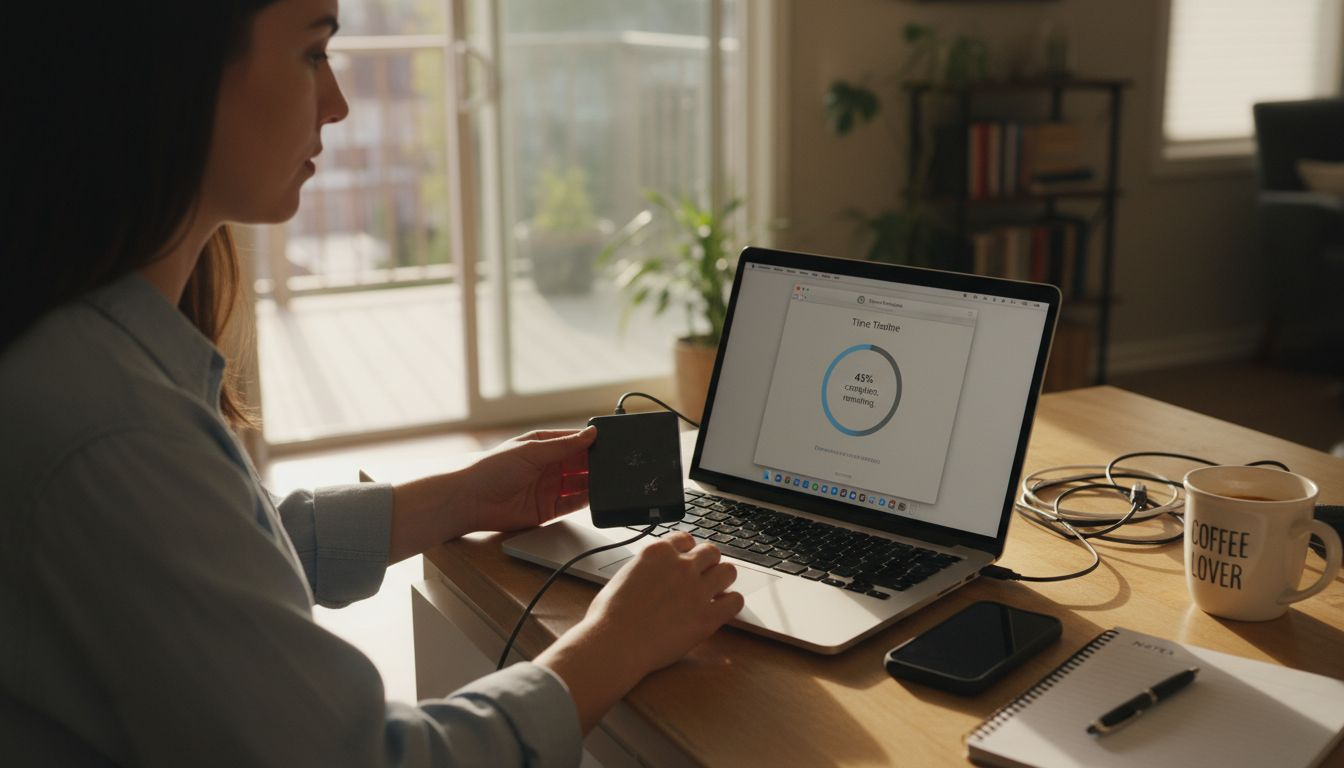
The backup process might take several hours depending on your total data volume, so plan accordingly and ensure your computer remains plugged in during the backup.
Dica profissional: Verify your backup by randomly checking a few restored files to confirm everything transferred correctly before proceeding with the Windows 11 upgrade.
Step 3: Obtain a Genuine Win11 License or Key
Securing a legitimate Windows 11 license is crucial to ensuring full system functionality, accessing critical updates, and maintaining your computer’s security. Understanding how to activate Windows correctly will help you avoid potential activation problems and unauthorized software risks.
You have several options for obtaining a genuine Windows 11 license:
Below is a summary of licensing choices for Windows 11 and their business implications:
| Tipo de licença | Ideal For | Nível de suporte | Upgrade Cost |
|---|---|---|---|
| OEM License | New devices | Device specific | Included in device |
| Retail Purchase | Individuals, upgrades | Full Microsoft support | Varies by edition |
| Volume Licensing | Businesses/enterprises | Advanced, multi-device | Negotiated per agreement |
| Free Upgrade | Valid Win10 users | Standard support | No extra charge |
- Upgrade from Windows 10: If you have a valid Windows 10 license, you can often upgrade for free
- Retail Purchase: Buy a digital license directly from Microsoft
- OEM License: Purchase a pre-installed license with a new computer
- Volume Licensing: For business and enterprise users
- Check your current Windows 10 activation status
- Verify your device meets Windows 11 system requirements
- Choose your preferred license acquisition method
- Complete the purchase or upgrade process
- Link your Microsoft account to the digital license
Caution: Avoid using unauthorized or pirated license keys, which can lead to system instability and security vulnerabilities.
Make sure to purchase your license from authorized retailers or directly from Microsoft to ensure authenticity and full support.
Dica profissional: Keep your product key or digital license receipt in a secure location, as you might need it for future system reinstallations or hardware changes.
Step 4: Install Windows 11 and Activate Officially
The final stage of your Windows upgrade journey involves carefully installing Windows 11 and ensuring official activation. Microsoft provides multiple official installation methods that guarantee a smooth and secure transition to your new operating system.
You can choose from several installation approaches depending on your specific needs and device compatibility:
Here’s a quick comparison of Windows 11 installation methods and their typical benefits:
| Installation Method | Typical Use Case | Speed | Customization Level |
|---|---|---|---|
| Windows Update | Standard upgrades | Fast | Minimal options |
| Installation Assistant | Manual, guided installs | Moderate | Moderate options |
| Media Creation Tool | Custom setups, clean install | Slow | High customization |
| Clean Installation | New builds or full resets | Slow | Maximum flexibility |
- Windows Update Method: Direct upgrade through system settings
- Installation Assistant: Download from Microsoft’s official website
- Media Creation Tool: Create bootable USB installation media
- Clean Installation: Complete fresh install using prepared media
- Confirm your device meets Windows 11 system requirements
- Back up all critical data and personal files
- Select your preferred installation method
- Begin the installation process
- Enter your genuine product key when prompted
- Complete initial setup and system configuration
Warning: Always use a legitimate product key to ensure full system functionality and security updates.
Ensure you have a stable internet connection and sufficient battery power or a direct power connection during the installation process to prevent any interruptions.
Dica profissional: Keep your installation media and product key receipt in a secure location for future reference and potential system recovery needs.
Step 5: Verify Upgrade Success and Reactivate Software
After completing your Windows 11 installation, you’ll want to confirm everything is set up correctly and your system is fully activated. Reactivating Windows after upgrade ensures you have full access to all system features and security updates.
To verify your upgrade and activation status, follow these essential steps:
- Check Activation Status: Open Settings > Update & Security > Activation
- Verify License Type: Confirm digital or product key license
- Link Microsoft Account: Connect your account for easier management
- Run Activation Troubleshooter: If any issues arise
- Open Windows Settings
- Navigate to Update & Security section
- Click on Ativação tab
- Verify Windows is activated status
- Ensure all system features are functioning correctly
Important: If activation fails, have your product key ready and be prepared to contact Microsoft support.
Make sure your internet connection is stable during the verification process, as some activation steps require online validation.
Dica profissional: Take screenshots of your activation confirmation and product key information as a backup for future reference.
Secure Your Windows 11 Upgrade with Genuine Licenses Today
Upgrading from Windows 10 to Windows 11 comes with challenges like ensuring device compatibility, safely backing up your data, and most importantly obtaining a genuine license to activate your new system without hassles. Avoid the risk of using unauthorized or pirated keys that put your security and system stability at stake. With a legitimate Windows 11 license, you gain peace of mind knowing your activation is secure and fully supported.
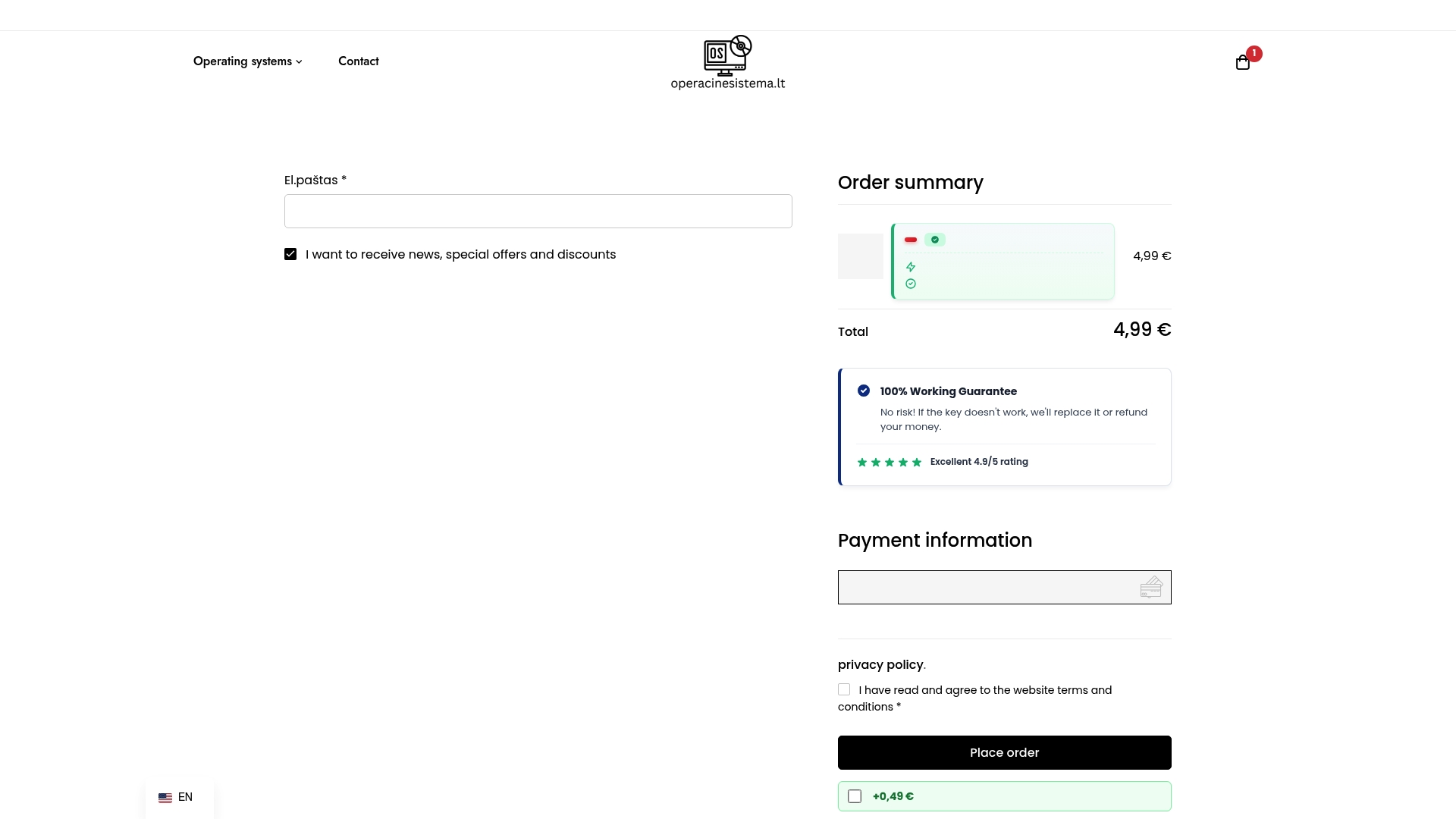
Take control of your upgrade now by purchasing authentic Windows 11 Pro digital keys from our secure checkout. Benefit from fast delivery, guaranteed legitimacy, and comprehensive customer support designed for technology users who demand reliability. Don’t wait until activation issues slow you down. Visit our official license purchase page to get your genuine Windows license and complete your upgrade confidently.
Perguntas frequentes
How can I check if my Windows 10 device is compatible with Windows 11?
To check if your Windows 10 device is compatible with Windows 11, download and run the PC Health Check app from Microsoft’s website. This app evaluates your system against the required specifications and lets you know if you can upgrade.
What steps should I take to back up my files before upgrading to Windows 11?
To back up your files, connect an external hard drive or use a cloud storage service to store your important documents and system settings. Ensure you have saved all critical data to prevent any loss during the upgrade process.
What are my options for obtaining a genuine Windows 11 license?
You can obtain a genuine Windows 11 license by upgrading from a valid Windows 10 license, purchasing a retail copy, or acquiring an OEM license with a new computer. Choose the method that best suits your needs and follow the necessary steps for activation.
How do I install Windows 11 after securing a genuine license?
To install Windows 11, choose your preferred installation method such as using Windows Update or the Installation Assistant. Follow the on-screen instructions, enter your genuine product key when prompted, and complete the setup process.
What should I do if my Windows 11 installation fails to activate?
If your Windows 11 installation fails to activate, check your activation status in the Update & Security settings. Use the activation troubleshooter if needed and be ready to enter your product key again to successfully activate your system.
How can I verify that my Windows 11 installation was successful?
To verify the success of your Windows 11 installation, go to Settings > Update & Security > Activation, and check that Windows is activated. Ensure that all system features are working correctly for a smooth experience.
Recomendado
- Free Windows 11 Activation Keys & How to Activate Forever (2026 Updated) – operacinesistema.lt
- Licença genuína do Windows 10/11 Pro: como diferenciar o verdadeiro do falso e escolher a melhor versão USB - operacinesistema.lt
- Como fazer upgrade de sistemas operacionais para o Windows Pro seguro
- Unlock Your OS: A Comprehensive Guide on How to Activate Windows 11 – operacinesistema.lt
- Secure Internet for Enterprise