Dicas comprovadas de segurança do Windows para proteger seu PC e sua empresa
TL;DR:
- Windows security constantly evolves due to increasing malware, phishing, and ransomware threats targeting personal and small business PCs. Implementing a secure baseline with Microsoft-recommended settings, maintaining automatic updates, and enabling built-in defenses like Windows Defender and Controlled Folder Access form the foundation of effective protection. Strengthening identity and account protections, deploying layered defenses such as application allowlisting, EDR, and testing backups regularly are essential to comprehensive Windows security.
Windows users face a security landscape that never stops shifting. New malware strains, phishing schemes, and ransomware attacks hit personal PCs and small businesses every single day. With dozens of settings, tools, and third-party products available, the real challenge is not finding security options but knowing which ones actually work together. This article gives you a prioritized, research-backed roadmap, covering baselines, built-in defenses, identity protection, and advanced layered controls so you can stop guessing and start building real Windows security.
Índice
- Start with secure Windows baselines and updates
- Essential built-in Windows defenses to enable
- Enhance account and identity protection
- Layered protection: from application control to EDR and backups
- Pitfalls and expert cautions when boosting Windows security
- Why most Windows security advice fails and what actually works
- Protect your Windows system with secure, compliant licensing
- Perguntas frequentes
Principais conclusões
| Ponto | Detalhes |
|---|---|
| Standardize security baseline | Applying Microsoft’s baselines and updates reduces the chances of attack dramatically. |
| Activate built-in protections | Enable features like Defender, firewall, and BitLocker for multiple layers of defense. |
| Prioritize identity security | Use passwordless logins and standard accounts to stop most breaches before they start. |
| Layer advanced controls | Add application allowlisting, EDR, and robust backups for enterprise-grade security. |
| Test before you implement | Always test stricter settings in a safe environment to avoid breaking workflows or software. |
Start with secure Windows baselines and updates
With the problem and challenge established, the first critical step is locking in a secure foundation with proven, standardized settings.
Most people jump straight to installing antivirus software. That is understandable, but it skips the most important step: setting up a secure baseline configuration for Windows itself.
What are Microsoft security baselines?
A security baseline is a standardized group of settings recommended by Microsoft for hardening Windows against common attack patterns. These settings cover application control, credential protection, exploit protection, and Secure Boot. Think of it as a professionally reviewed blueprint for your OS, rather than relying on default settings that are designed for convenience, not security.
Microsoft provides these baselines through the Security Compliance Toolkit, which is a free set of tools you can download and apply. For small businesses, applying these baselines across all workstations is one of the highest-value actions you can take before spending a dollar on third-party software.
Here is what a solid baseline covers:
- ✅ Secure Boot enabled to prevent malicious code loading before Windows starts
- ✅ Proteção de credenciais to protect login credentials from being stolen in memory
- ✅ Exploit protection settings that restrict how programs behave in memory
- ✅ Application control policies to block untrusted software
- ✅ BitLocker drive encryption to protect data if a device is lost or stolen
- ✅ Windows Defender Firewall set to block inbound connections by default
Automating updates is non-negotiable
Once your baseline is in place, your next priority is making sure Windows and every installed application stay current. Automatic updates patch vulnerabilities and reduce the window of opportunity for attackers. Microsoft has reported repeatedly that organizations and users who delay updates are significantly more likely to be compromised.
The numbers back this up strongly. Windows 11 hardware-backed protections result in a 62% drop in security incidents, three times fewer firmware-level attacks, and 2.9 times fewer identity thefts compared to older configurations without these features. That is not marketing language. Those are measured outcomes.
🔥 Stat callout: Windows 11 with hardware-level protections delivers a 62% reduction in reported security incidents. Firmware attacks drop 3x. Identity theft attempts drop nearly 3x. Upgrading and enabling these protections is not optional if you care about your data.
Pro Tip: Before you deploy baselines across multiple machines, review your security checklist 2026 to make sure every step is covered. Apply settings to a test machine first to catch any compatibility issues with your specific software environment.
Essential built-in Windows defenses to enable
With your baseline secure, it is time to turn on the advanced security tools already included in Windows.
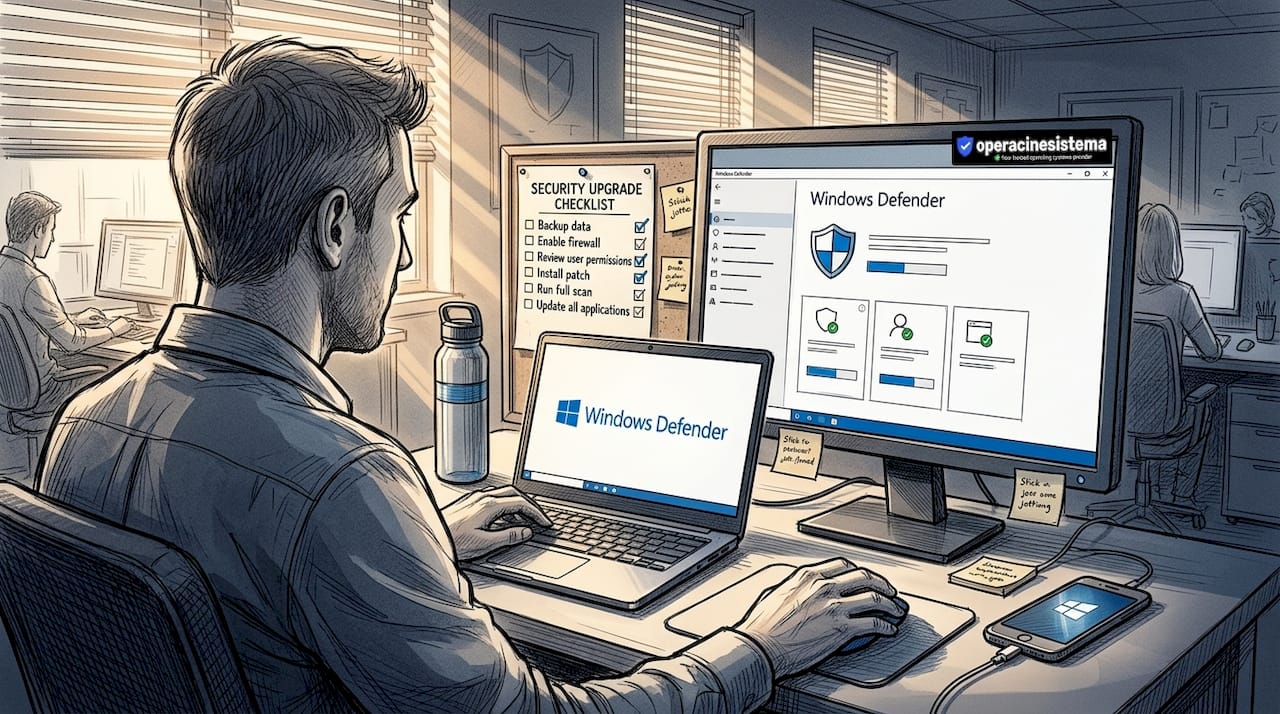
Windows 10 and Windows 11 come packed with security features that most users simply never activate. You are already paying for these through your license. So use them.
The core built-in protections you need active right now:
- 🛡️ Microsoft Defender Antivirus for real-time malware detection and removal
- 🛡️ Controle inteligente de aplicativos (Windows 11 only) to block unsigned or low-reputation apps
- 🛡️ Ransomware Protection via Controlled Folder Access, which blocks unauthorized changes to your documents and key folders
- 🛡️ Phishing Protection in Windows Security to warn you about dangerous sites and credential harvesting attempts
- 🛡️ Core Isolation and Memory Integrity to prevent malicious drivers from accessing your system
- 🛡️ Criptografia BitLocker for all drives, especially on laptops
- 🛡️ Windows Defender Firewall on all network profiles, including private and public
Você pode enable these features through the Windows Security app. Open it by searching “Windows Security” in the Start menu. Each protection has a clear on/off toggle.
How to enable Controlled Folder Access in four steps:
- Aberto Windows Security from the Start menu
- Clique em Virus & threat protection
- Scroll to Ransomware protection and click it
- Toggle Controlled folder access to On
Once activated, this feature stops untrusted apps from modifying files in your Documents, Pictures, and other protected folders. Ransomware relies on being able to encrypt these files. Block that access and you block a core part of how ransomware attacks succeed.
Do not ignore your network habits
Built-in tools only go so far if your network is insecure. Enable SmartScreen and your firewall, avoid public Wi-Fi without a VPN, and change the default password on your router. Most home routers ship with well-known default credentials. Attackers use automated tools to scan for them constantly.
Is Windows Defender enough on its own?
This is where things get nuanced. AV-Comparatives performance tests from April 2026 show that top antivirus products like McAfee and Kaspersky achieve real-world protection rates above 95% with a system performance impact of only 3 to 5%. Microsoft Defender performs well but scores lower on performance efficiency in these independent tests.
What does that mean practically? For most personal users, Defender combined with the built-in features above is sufficient. But if you handle sensitive client data or run a small business with multiple endpoints, investing in a third-party solution with better performance scores makes sense. Check out is Windows Defender enough for a deeper breakdown to help you decide.
Pro Tip: After enabling Core Isolation, restart your PC and run a full scan. Some PCs require a BIOS update to fully support Memory Integrity. If it shows as unavailable, check your motherboard manufacturer’s website for a firmware update.
Enhance account and identity protection
Active defenses are important, but preventing identity theft and restricting access reduces the impact of successful attacks.
Your Windows password is one of the weakest links in your security chain. Passwords get stolen, reused, or guessed. The good news is that Windows gives you better options right now.
Move beyond passwords with modern authentication
Windows Hello, passkeys, and Microsoft Authenticator replace traditional passwords with biometrics, device-based cryptography, or one-time codes. These methods are significantly harder to steal or phish because they never send a reusable credential across a network.
Here is what each option does:
- Windows Hello uses facial recognition or fingerprint scanning to unlock your PC. No password to steal.
- Passkeys are cryptographic credentials stored on your device. They work with websites and apps that support the FIDO2 standard.
- Microsoft Authenticator generates time-limited one-time codes or sends push notifications to approve sign-ins on your Microsoft account.
Enable multi-factor authentication (MFA) on every account that supports it, especially your Microsoft account, email, and any business tools. MFA alone stops the vast majority of automated account takeover attempts.
Run daily tasks as a standard user, not an admin
This is one of the most overlooked protections available. Using a standard user account for your everyday computing tasks dramatically limits what malware can do if it gets onto your machine. Most malware tries to escalate its own privileges. Without an admin account, that escalation path is blocked.
For small businesses, this means setting up staff accounts without administrative rights by default. Only IT administrators should have admin accounts, and those accounts should be used only when performing specific administrative tasks, never for browsing or checking email.
Key account protection practices:
- ✅ Create a separate admin account and use a standard account daily
- ✅ Enable Windows Hello on every device that supports it
- ✅ Turn on MFA for your Microsoft account and all cloud services
- ✅ Disable the built-in Administrator account if it is not needed
- ✅ Review user accounts periodically and remove old or unused ones
“UI Access processes can bypass Administrator Protection if exploited for code execution at high integrity.” This is a subtle but real edge case that advanced attackers can exploit. It reinforces why defense in depth matters. No single protection is perfect.
The principle of least privilege, which means giving users and applications only the permissions they actually need, is a foundational security concept that pays off in a very direct way. When a phishing email tricks an employee into running a malicious attachment, a standard user account means that attachment cannot install a rootkit or modify system files. That is a breach that gets contained rather than a breach that takes down your whole network.
Layered protection: from application control to EDR and backups
With your accounts protected, stronger defenses require layering technologies that go beyond what is built in.
Application allowlisting: your strongest technical control
Application allowlisting means only pre-approved, trusted applications can run on your system. Everything else is blocked automatically. It sounds strict, and it is. That strictness is exactly what makes it so effective.
WDAC (Windows Defender Application Control) blocked 100% of all tested attack campaigns from Microsoft’s 2025 DfE (Defending Forward Exercise) series. Every single one. No other single control achieved that result.
For small business owners reviewing a secure software purchase checklist, application allowlisting should be near the top of your evaluation list. WDAC is built into Windows and is free to use.
EDR, backups, and why email is your biggest risk
Endpoint Detection and Response (EDR) tools go far beyond traditional antivirus. They monitor behavior patterns, catch unusual activity, and allow IT teams to investigate and contain threats in real time. Behavioral EDR outperforms signature-based antivirus against novel ransomware because it does not need to recognize a specific virus signature. It just detects that something is behaving like ransomware.
Why does this matter for small businesses specifically? Because 94% of malware enters via email. Email is the attack surface that never closes. EDR gives you a way to detect and stop threats that slip through email filters before they spread. Explore how IT security for professionals integrates these tools at the enterprise level for more context.
Backups are your last line of defense. Immutable backups, meaning backups that cannot be modified or deleted by malware, and offline backups that are physically disconnected from your network, protect you when everything else fails. A backup that has not been tested is not a backup. Run restore tests regularly.
Quick-reference table: Advanced controls and their effectiveness
| Security Control | Threat It Stops | Melhor para | Custo |
|---|---|---|---|
| Application allowlisting (WDAC) | Malware, ransomware, unauthorized apps | Businesses, power users | Free (built-in) |
| Behavioral EDR | Novel ransomware, fileless attacks | Small to mid businesses | Paid subscription |
| Immutable/offline backups | Ransomware, data loss, accidental deletion | Everyone | Low to moderate |
| MFA on all accounts | Account takeover, phishing | Everyone | Free to low cost |
| Patch management | Known CVE exploits | Everyone | Free (Windows Update) |
| Incident response plan | Breach recovery, downtime reduction | Businesses | Time investment |
For small businesses, prioritize MFA, EDR, and offline backups with regular restore tests, combined with a patch management schedule and a documented incident response plan. These five controls together address the most common and most damaging attack vectors you face.
Pitfalls and expert cautions when boosting Windows security
Even the best security plan can stumble without recognizing hidden drawbacks or operational realities. Here is what experts warn about.
Baselines can break older applications
Microsoft’s security baselines enforce strong defaults but may cause problems with legacy software. An application that relies on outdated authentication methods or insecure protocols can stop functioning after baseline settings are applied. Always test in a non-production environment before rolling out broadly.
This is especially important for small businesses running older accounting software, industry-specific tools, or any application that has not been updated recently. The risk is real. One rollout without testing can mean a day of lost productivity while you troubleshoot a broken application.
Allowlisting scripts and DLLs: the tricky trade-off
Full application allowlisting is ideal. But extending allowlisting to scripts and DLLs (dynamic-link libraries, which are shared code files used by programs) increases compatibility issues and complexity. Excluding scripts and DLLs from allowlisting policies reduces overall security efficacy by approximately 11%. That is a meaningful gap, but for some environments, the compatibility benefit may justify it.
The key is knowing what you are trading away. Do not exclude scripts and DLLs from your policy and then assume you have the same protection level as a fully locked-down system.
Comparison: strict vs. flexible security configurations
| Configuração | Protection Level | Compatibility | Maintenance Effort |
|---|---|---|---|
| Full baseline + full allowlisting | Very high | May break legacy apps | Alta |
| Full baseline + allowlisting (no scripts/DLLs) | High (minus ~11%) | Better | Moderado |
| Baseline only, no allowlisting | Moderado | Good | Low to moderate |
| Default Windows settings, no changes | Baixa | Excellent | Minimal |
🛑 Never treat security as a one-time setup. Attackers adapt their tools and tactics continuously. A configuration that was secure six months ago may have gaps today. Schedule quarterly reviews of your settings, user accounts, and installed software.
Pro Tip: Keep a documented list of every security change you make. When something breaks, you can quickly identify which setting caused the problem and roll it back without undoing your entire security configuration.
Why most Windows security advice fails and what actually works
Here is something most security articles will not say: the majority of checklists and tip lists fail because they treat security as a one-time task rather than an ongoing practice. You apply the settings, check the boxes, and move on. That approach falls apart the moment attackers update their techniques.
Real security is iterative. We have seen businesses that followed every popular recommendation from two years ago get hit by ransomware in 2025, specifically because their tools were not updated to handle behavioral, fileless attacks. Their antivirus had perfect detection rates on known signatures. It just never saw those threats because the malware never dropped a file.
The uncomfortable truth is that no single tool, not Defender, not even a top-rated third-party AV, provides complete protection on its own. Security is a team effort. It involves your OS configuration, your user behavior, your admin practices, and your recovery planning working together.
The most overlooked and highest-return action for both individuals and small businesses is combining application allowlisting with regular, tested backups. Not because it is exciting, but because it works. Allowlisting prevents most attacks from executing. Tested backups ensure that anything that does get through does not permanently damage your operations.
We also see one specific pattern repeatedly: settings that users misunderstand or set incorrectly create false confidence. A business owner who enables BitLocker but stores the recovery key on the same encrypted drive. A home user who turns on Controlled Folder Access but never checks which apps have been blocked. A developer who uses admin credentials for daily work because it is convenient.
These are not exotic failures. They are common ones. And they are avoidable when you understand not just what to enable but why each setting matters. Take the time to understand your defenses. Read the reduce malware risk by 300% guide to see how software sourcing decisions compound your security posture in ways most people never consider.
Security is not a product you install. It is a practice you maintain. And the users and businesses who treat it that way are the ones who stay protected when everyone else gets caught off guard.
Protect your Windows system with secure, compliant licensing
All the security settings in the world cannot fully protect you if your Windows installation itself is compromised by a fake or unlicensed key. Unofficial keys often come bundled with malware, bypass genuine activation checks, or get blocked by Microsoft, leaving your system unprotected and out of compliance.
Em operacinesistema.lt, we provide 100% genuine, official Windows licenses with instant digital delivery and full support. Whether you need a clear Windows 10 licensing guide to make sense of your options or want to find the best software license for your needs, we make the process simple and secure. Ready to complete your protection strategy? Buy a Windows 11 Pro key today and activate your system with confidence, knowing it is official, supported, and fully compliant. 🔥
Perguntas frequentes
What is the most important Windows security setting to enable first?
Enabling automatic updates is the single most impactful first step because timely patches close the vulnerabilities that most attackers rely on. Without current patches, even the best security tools have gaps that are easy to exploit.
Do I still need antivirus if I use Windows Defender?
Windows Defender is solid, but independent tests show that leading third-party antivirus products achieve higher real-world protection rates above 95% with lower system performance impact. For businesses handling sensitive data, a top-rated third-party solution adds a measurable layer of protection.
How does application allowlisting improve security?
Allowlisting ensures only trusted, pre-approved apps can run, which means unknown or malicious programs are blocked before they execute. WDAC blocked 100% of all 2025 Microsoft DfE attack campaigns in controlled testing, making it the strongest single technical control available.
What are common mistakes to avoid when changing Windows security settings?
The biggest mistake is applying changes across all machines without testing first. Strict security baselines can break legacy apps, so always validate in a non-production environment before a full rollout to avoid costly downtime.
Why should I avoid using administrator accounts for daily tasks?
Using a standard user account daily limits what malware can do if it gets onto your machine, since most attacks require elevated privileges to cause serious damage. Keeping admin credentials separate and using them only when necessary is one of the simplest and most effective ways to contain a threat.
Recomendado
- Como o Windows aprimora a segurança de TI para profissionais em 2026
- Lista de verificação de segurança do sistema operacional da Microsoft 2026: corte o malware em 50%
- Recursos de segurança do software: 300% menor risco com licenças genuínas
- Windows 10 Pro: licenciamento seguro, recursos e conformidade