Ativação do Windows passo a passo: seu guia para 2026
TL;DR:
- Windows activation verifies that your operating system is genuine and properly licensed, providing full functionality and security updates. It can be completed quickly using the Settings menu with a valid product key or digital license; skipping it leaves your PC with restrictions and no security patches.
Windows activation is the process of verifying your operating system is genuine and properly licensed, unlocking full functionality, security updates, and Microsoft support. The windows activation step by step process applies to both Windows 10 and Windows 11, and you can complete it in under five minutes with a valid product key or digital license. Skipping activation leaves your PC with a visible watermark, blocked personalization settings, and no access to critical security patches. This guide covers every method, from the Settings menu to the command line, plus how to fix the errors that trip most people up.
What you need before starting the activation process
Preparation prevents the most common activation failures. Before you enter a single key, confirm you have these items ready.
- ✅ A valid 25-character product key or a digital license already linked to your Microsoft account
- ✅ A stable internet connection for online verification (offline methods are covered separately below)
- ✅ A Microsoft account if your license is a digital license rather than a physical key
- ✅ The correct Windows edition — a Home key will not activate a Pro installation, and vice versa
- ✅ Your hardware setup finalized — license binding to hardware means a motherboard swap can invalidate your activation
Checking your edition before activation saves significant frustration. Verifying edition compatibility with winver or the Settings app prevents the mismatch errors that account for a large share of failed activations. Open the Run dialog with Win + R, type winver, and press Enter. The dialog that appears tells you exactly which edition and build you are running.
Dica profissional: If you bought a retail box or received a digital key by email, write it down in a secure location before you start. Losing a product key after activation is a common and avoidable problem.
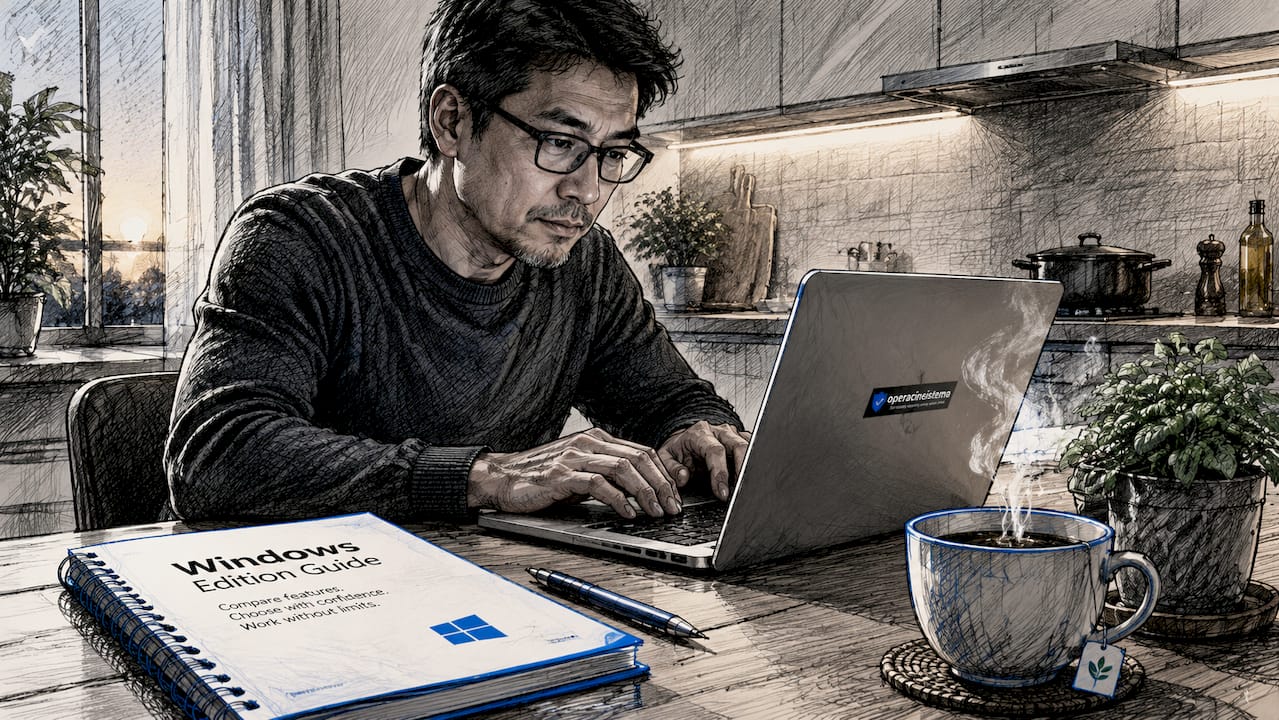
Understanding OEM versus retail licenses also matters here. OEM licenses are tied permanently to the original motherboard. Retail licenses can transfer to a new PC within Microsoft’s limits. Knowing which type you have shapes every decision you make during and after activation.
How to activate Windows step by step using the Settings menu
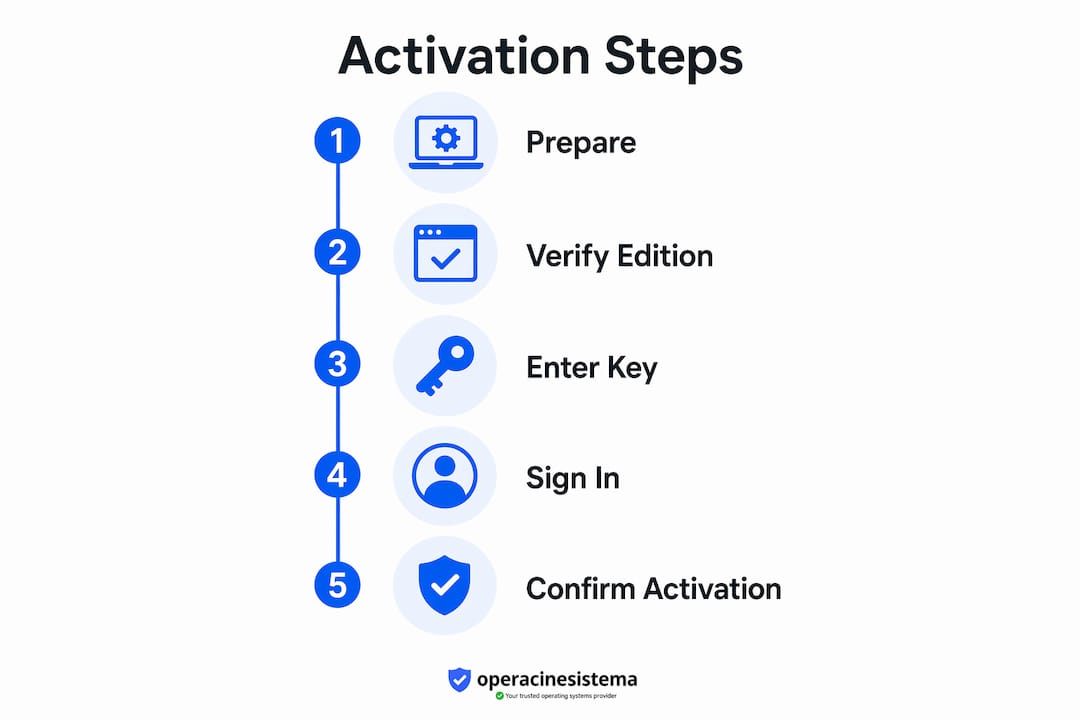
The Settings menu is the fastest and most straightforward activation path for most users. Activating via Settings takes under 5 minutes with a stable internet connection. Follow these steps exactly.
- Open Settings. Press Win + I or click the Start menu and select the gear icon.
- Go to System, then Activation. On Windows 11, the path is Settings > System > Activation. On Windows 10, it is Settings > Update & Security > Activation.
- Check your current activation status. The page shows whether Windows is activated, not activated, or activated with a digital license. If it already shows “Windows is activated,” you are done.
- Select “Change product key.” Click this option and type your 25-character key in the format XXXXX-XXXXX-XXXXX-XXXXX-XXXXX. Type carefully. One wrong character causes an immediate error.
- Click “Next” and then “Activate.” Windows contacts Microsoft’s servers to verify the key. This usually takes 10–30 seconds.
- Wait for the confirmation message. A message reading “Windows is activated” confirms success. If you see an error code instead, note it down before doing anything else.
For digital licenses, the process is slightly different. Instead of entering a key, you sign into your Microsoft account via Settings > Accounts > Your Info. Windows detects the digital license bound to your account and activates automatically. Linking your Microsoft account to your digital license is the single most reliable way to survive a reinstall or hardware change without losing activation.
Most users complete this entire process in under three minutes. The most common delay is a slow internet connection during server verification, not the steps themselves.
How to activate Windows offline or via the Product Activation Portal
Some situations require activation without a standard internet connection, or the online method simply fails. Microsoft replaced phone-based activation with an online portal as of december 3, 2025. The Product Activation Portal at visualsupport.microsoft.com is now the official alternative for perpetual licenses on Windows 10 and Windows 11.
Using the offline activation wizard
- Press Win + R to open the Run dialog.
- Type
4 servidoresand press Enter. - Select your country or region from the dropdown list.
- The wizard displays your Installation ID, a long numeric string. Write it down or copy it.
- Visit
https://visualsupport.microsoft.comon any internet-connected device. - Sign in with your Microsoft account and complete the captcha verification.
- Enter your Installation ID when prompted.
- The portal generates a Confirmation ID.
- Return to the
4 servidoreswizard on your PC and enter the Confirmation ID. - Click “Activate Windows.” The system confirms activation immediately.
What the portal replaces
The old method involved calling a toll-free number and reading your Installation ID to an automated system. Microsoft retired that system. The portal performs the same function but requires internet access on at least one device. If you have no internet access at all on any device, contact Microsoft Support directly for assisted activation.
Key facts about the portal:
- ✅ Works for both Windows 10 and Windows 11 perpetual licenses
- ✅ Supports OEM and retail license types
- Requires a Microsoft account for sign-in
- Does not work for volume licensing — those use the Volume Activation Management Tool (VAMT)
Common Windows activation errors and how to troubleshoot them
Activation failures follow predictable patterns. Most activation errors resolve after checking internet connectivity, correcting system date and time, and running the built-in Activation Troubleshooter. Start there before trying anything more complex.
Quick fixes to try first
- Run the Activation Troubleshooter. Go to Settings > System > Activation > Troubleshoot. Windows diagnoses the most common issues automatically and often fixes them without any manual input.
- Check your system date and time. Error code 0x80072F8F is caused by incorrect system time or network issues. Right-click the clock in the taskbar, select “Adjust date/time,” and turn on “Set time automatically.”
- Verify your internet connection. Open a browser and load any webpage. If that fails, fix your connection before retrying activation.
- Confirm your edition matches your key. A Pro key entered on a Home installation produces an immediate mismatch error. Use
winverto confirm your edition.
Using slmgr for advanced troubleshooting
O slmgr command-line tool gives you detailed activation diagnostics that the Settings GUI does not show. Advanced users rely on slmgr for precise status checks and forced activation attempts. Open Command Prompt as Administrator and try these commands:
| Command | What it does |
|---|---|
slmgr /dli |
Shows license name, type, and partial product key |
slmgr /dlv |
Shows extended license details including activation expiry |
slmgr /ato |
Forces an immediate online activation attempt |
slmgr /xpr |
Shows whether the current license is permanently activated |
Dica profissional: Always read the exact error code before making changes. Identifying the error code first prevents the “panic-clicking” that turns a simple fix into a bigger problem. Write the code down, then look it up.
Hardware changes and reactivation
OEM licenses bind permanently to the original motherboard. Replacing a motherboard with an OEM license causes activation failure, and Microsoft does not transfer OEM licenses to new hardware. Retail licenses are transferable, but you must deactivate the old PC first. If you linked your digital license to a Microsoft account before the hardware change, Windows often reactivates automatically after sign-in. If it does not, use the Activation Troubleshooter and select “I changed hardware on this device recently.”
How to verify and manage your Windows activation status
Knowing your activation status is not just a one-time check. You should verify it after any major Windows update, hardware change, or reinstall.
Where to check activation status
- Settings method: Go to Settings > System > Activation. The status line reads “Windows is activated,” “Windows is activated with a digital license,” or “Windows is not activated.”
- winver command: Press Win + R, type
winver, and press Enter. This shows your Windows edition and build number but not activation status directly. - slmgr /dli: Run this in an elevated Command Prompt for a detailed license report including license type and channel.
Understanding your license type
| Tipo de licença | Transferível? | Tied to hardware? | Linked to Microsoft account? |
|---|---|---|---|
| OEM | De | Yes (motherboard) | Optional |
| Varejo | Yes (within limits) | De | Recomendado |
| Licença digital | Depends on type | Yes (hardware hash) | Required for recovery |
Digital licenses linked to a Microsoft account enable automatic recovery after reinstalls or hardware changes. OEM licenses embedded in firmware do not offer this flexibility. If you have an OEM license and plan to upgrade your hardware, understand that you may need to purchase a new license. Retail licenses give you the most flexibility, which is why they cost more upfront. For a full breakdown of what each license type covers, the OEM, retail, and volume guide at Operacinesistema covers the differences in plain language.
Principais conclusões
Completing the Windows activation process correctly the first time requires a valid license, the right edition match, and a linked Microsoft account for long-term recovery.
| Ponto | Detalhes |
|---|---|
| Prepare before activating | Confirm your edition, license type, and internet connection before entering any key. |
| Settings menu is fastest | The GUI method in Settings > System > Activation completes in under 5 minutes online. |
| Portal replaces phone activation | Uso visualsupport.microsoft.com for offline or failed online activations as of december 2025. |
| slmgr diagnoses errors fast | Commands like slmgr /dli e slmgr /ato give detailed status and force activation attempts. |
| Link your Microsoft account | Binding your digital license to a Microsoft account protects activation through reinstalls and hardware changes. |
Danielius’s take: what I’ve learned from watching people struggle with activation
Most activation problems are self-inflicted. People rush the key entry, misread a character, or skip the edition check entirely. Then they spend an hour troubleshooting what was a typo from the start.
The single habit that prevents most failures is simple: slow down when entering the 25-character key. Read each block of five characters twice before moving to the next. A capital O and the number 0 look nearly identical in some fonts. The same goes for the letter I and the number 1. One wrong character means a failed activation and a confusing error code.
The second thing I always tell people is to link their Microsoft account before they need it. Most users only think about this after a reinstall or a motherboard swap, when they are already frustrated and locked out. Linking takes 30 seconds in Settings > Accounts > Your Info. Do it the day you activate, not the day something goes wrong.
Finally, stop treating the command line as a last resort. Running slmgr /dli takes five seconds and tells you exactly what type of license you have, whether it is active, and what channel it came from. That one command has saved me more time than any GUI troubleshooter ever has. If the Settings page gives you a vague error, open Command Prompt as Administrator and run slmgr /dli before doing anything else. The output is specific. Specific information leads to specific fixes.
— Danielius
Get your genuine Windows license from Operacinesistema
Activation only works when you start with a genuine license. A fake or recycled key produces error codes that no troubleshooter can fix, because the key itself is the problem.
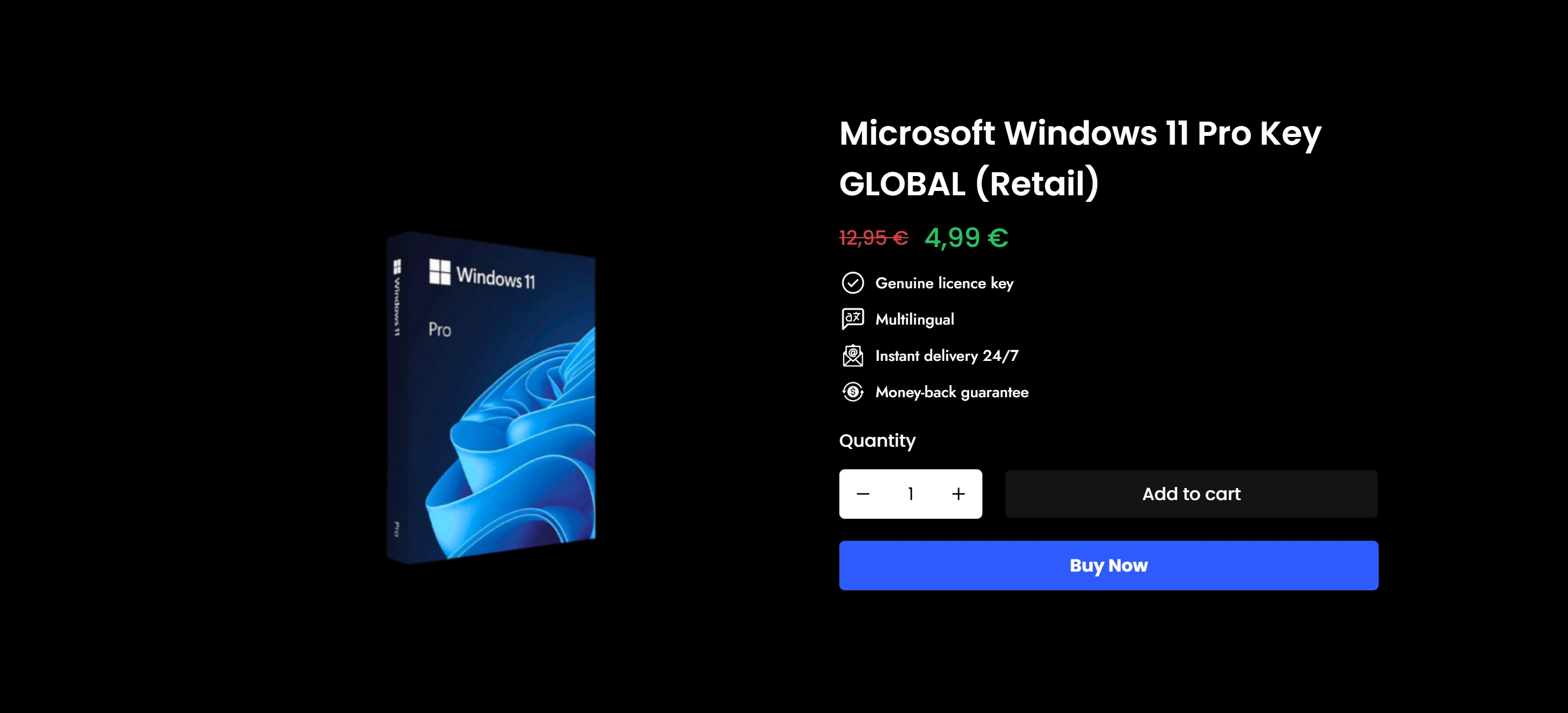
Operacinesistema specializes in genuine Windows 10 and Windows 11 Pro licenses, both digital keys and physical USB versions, with instant email delivery and full customer support. Every license sold is official and verified. Before you buy, use the Lista de verificação de licenças do Windows to confirm you are choosing the right license type for your situation. If you want to understand the difference between OEM, retail, and volume options before purchasing, the secure buying guide at Operacinesistema walks you through every step. Do not risk a blocked key. Start with a genuine license and the activation process works exactly as described above.
Perguntas frequentes
What is Windows activation and why does it matter?
Windows activation is Microsoft’s process for verifying that your copy of Windows is genuine and properly licensed. Without activation, Windows limits personalization features and eventually stops delivering security updates.
How do I activate Windows without a product key?
If you have a digital license linked to your Microsoft account, Windows activates automatically when you sign in. No product key entry is required. You can also find your existing key if one was previously assigned to your device.
What does error code 0x80072F8F mean?
Error 0x80072F8F is caused by incorrect system time or a network connectivity problem. Fix it by setting your date and time to automatic in Settings and confirming your internet connection works.
Can I transfer my Windows license to a new PC?
Retail licenses are transferable to a new PC within Microsoft’s limits. OEM licenses are permanently tied to the original motherboard and cannot be moved to new hardware.
What should I do if the Settings activation method fails?
Executar slmgr /ato in an elevated Command Prompt to force an activation attempt and see a specific error code. If that fails, use the Product Activation Portal at visualsupport.microsoft.com for the offline confirmation ID method.