Windows Command Line activeren voor licentiebeheer
Tech troubleshooting can suddenly grind to a halt when Windows activation errors block your workflow. Whether you are a small business owner managing devices across the United States or a tech enthusiast in Europe, having command line activation at your fingertips is a game changer for software management. By mastering elevated Command Prompt access and precise activation scripts, you gain the flexibility and control to deploy, verify, and troubleshoot Windows licensing with confidence across different hardware profiles.
Inhoudsopgave
- Step 1: Prepare Windows for Command Line Activation
- Step 2: Access Elevated Command Prompt Safely
- Step 3: Enter License Activation Commands Correctly
- Step 4: Verify Windows Activation Status
- Step 5: Troubleshoot Common Command Line Issues
Korte samenvatting
| Belangrijkste punt | Uitleg |
|---|---|
| 1. Prepare Windows for Activation | Ensure your Windows installation meets requirements, including administrative access and version support for volume activation methods. |
| 2. Access Elevated Command Prompt | Run Command Prompt as an administrator to execute activation commands without encountering security barriers. |
| 3. Use Correct License Activation Commands | Execute precise commands like "slmgr.vbs /ipk ` to install keys and activate Windows. |
| 4. Verify Activation Status Regularly | Use diagnostic commands to check your activation status, ensuring compliance and avoidance of service interruptions. |
| 5. Troubleshoot Activation Issues Methodically | Diagnose and resolve common problems by checking product key validity and internet connectivity for successful activation. |
Step 1: Prepare Windows for Command Line Activation
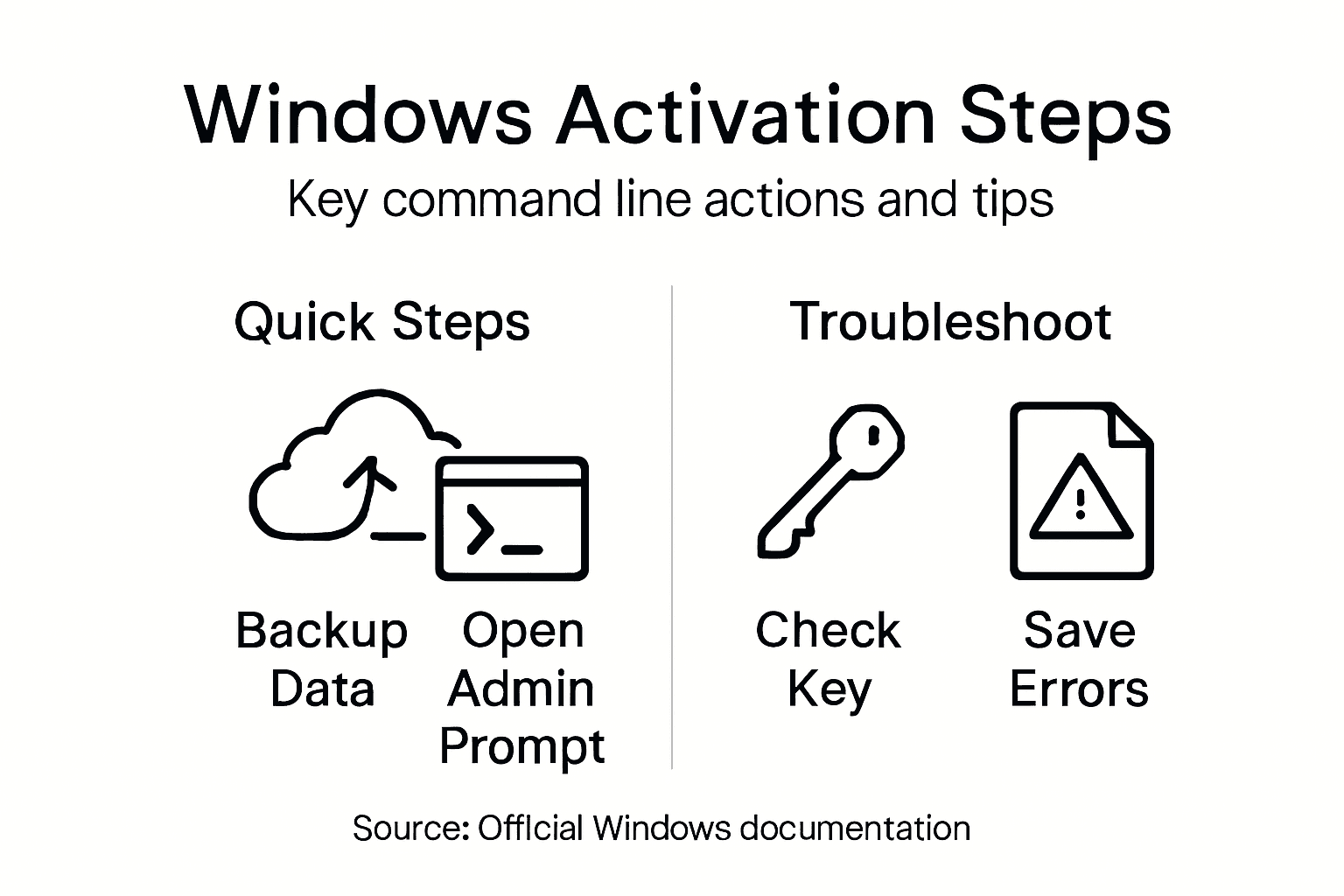
Preparing your Windows system for command line activation is crucial for ensuring smooth software deployment and licensing management. This step involves configuring your system to enable efficient activation processes that work seamlessly across different hardware configurations.
To prepare Windows for command line activation, you’ll need to take several strategic steps. First, verify that your Windows installation meets the basic requirements for command line activation. This means having an administrative account with full system permissions and ensuring your Windows version supports volume activation methods.
Start by opening the Opdrachtprompt with administrator privileges. You can do this by:
- Right-clicking the Command Prompt icon
- Selecting “Run as administrator”
- Confirming the User Account Control prompt
Next, you’ll want to verify system activation readiness through specific command line checks. This process involves removing system-specific information and preparing your Windows installation for potential redeployment.
Proper preparation ensures your Windows activation process will be smooth and efficient across multiple systems.
Pro tip: Always create a system backup before performing any command line activation procedures to protect your existing configuration and data.
Step 2: Access Elevated Command Prompt Safely
Accessing an elevated Command Prompt is a critical step in Windows license management, providing you with the necessary administrative permissions to execute system-level commands and activation scripts. This process ensures you can perform sensitive system modifications without encountering unnecessary security barriers.
To safely access an elevated Command Prompt, you’ll need to follow a precise sequence of steps. Secure administrative access requires careful navigation through Windows security protocols. Here are the most reliable methods:
- Right-click the Opdrachtprompt application
- Select “Run as administrator”
- Click “Yes” on the User Account Control (UAC) prompt
Alternatively, you can use the Windows search function:
- Press the Windows-toets
- Type “cmd”
- Right-click “Command Prompt”
- Choose “Run as administrator”
Accessing the Command Prompt with elevated privileges protects your system while enabling critical licensing management tasks.
Windows PowerShell provides another secure method for accessing administrative tools. PowerShell administrative rights can be particularly useful for advanced license management procedures.

Pro tip: Always verify you are in an elevated session by checking for the “Administrator: Command Prompt” title in the window header before executing any system commands.
Step 3: Enter License Activation Commands Correctly
Successfully activating Windows through the command line requires precision and understanding of specific scripting commands. Windows activation scripts demand careful execution to ensure your system receives proper licensing validation.
The primary tool for license management is the slmgr.vbs script, which handles critical activation processes. To enter license activation commands correctly, you’ll need to use specific parameters in a precise sequence:
- Install Product Key:
slmgr.vbs /ipk <your-product-key> - Activate Windows:
slmgr.vbs /ato - Check Activation Status:
slmgr.vbs /dli
Each command serves a unique purpose in the activation workflow:
- /ipk installs your product key
- /ato triggers the automatic activation process
- /dli displays detailed licensing information
Precise command syntax is crucial for successful Windows license management and avoiding potential activation errors.
For more complex scenarios, PowerShell activation procedures offer advanced license management capabilities that can handle enterprise-level activation requirements.
Here’s a quick comparison of command line tools used for Windows activation:
| Tool Name | Key Function | Typisch gebruik |
|---|---|---|
| Opdrachtprompt | Run activation scripts | Standard activation commands |
| PowerShell | Advanced scripting | Bulk or remote activation |
| slmgr.vbs | License management | Key management and activation |
Pro tip: Always run these commands in an elevated Command Prompt to ensure they have sufficient system permissions to execute successfully.
Step 4: Verify Windows Activation Status
Verifying your Windows activation status is a crucial step in ensuring your operating system remains fully functional and legally compliant. Windows activation verification provides immediate insights into your system’s licensing health.
To check your Windows activation status, you’ll use specific command line tools that provide comprehensive licensing information. Open your elevated Command Prompt and use these diagnostic commands:
- Detailed License Information:
slmgr.vbs /dli - Verbose License Details:
slmgr.vbs /dlv - Licensing Partial Product Key:
slmgr.vbs /dph
Each command reveals different layers of activation information:
- /dli shows basic licensing details
- /dlv provides extensive verbose licensing information
- /dph displays your partial product key
Regularly checking your activation status helps prevent unexpected licensing interruptions and system restrictions.
Looking to validate your Windows license key can provide additional verification beyond command line checks, ensuring complete licensing confidence.
Pro tip: Take screenshots of your activation status for future reference and potential technical support scenarios.
Step 5: Troubleshoot Common Command Line Issues
Navigating Windows activation command line challenges requires a systematic approach to resolving potential licensing and technical roadblocks. Windows activation troubleshooting demands careful diagnosis and strategic problem-solving techniques.
When encountering activation issues, focus on these critical diagnostic steps:
- Controleer Product Key Validity
- Check Internet Connectivity
- Ensure Administrative Privileges
- Validate System Date and Time
Specific troubleshooting commands can help diagnose activation problems:
slmgr.vbs /dli(displays current licensing information)slui 4(initiates telephone activation process)slmgr.vbs /ato(attempts reactivation)
Systematic troubleshooting prevents prolonged system activation complications and potential licensing disruptions.
If standard methods fail, activation troubleshooting techniques like using the Windows Activation Troubleshooter can provide additional resolution paths.
This table summarizes common activation issues and their business impact:
| Issue Type | Common Cause | Potential Impact |
|---|---|---|
| Invalid Product Key | Typo or wrong version | Activation failure, downtime |
| No Internet Access | Network misconfiguration | License cannot be validated |
| Lacking Privileges | Not running as admin | Commands fail, unresolved state |
| Incorrect Date/Time | System clock off | License errors, failed checks |
Pro tip: Keep a log of error codes and messages during troubleshooting to help technical support more effectively diagnose complex activation issues.
Simplify Your Windows Activation Process with Genuine Licenses
Navigating the challenges of Windows command line activation and license management demands precision and trusted resources. Whether you are troubleshooting activation errors or entering complex commands like slmgr.vbs for validating your Windows license, having a genuine and fully supported product key is essential for peace of mind and uninterrupted productivity. Avoid setbacks caused by invalid or unauthorized keys and ensure your system meets compliance standards with original Windows licenses.
Secure your authentic Windows 10 or Windows 11 Pro digital license today from our trusted checkout page. Benefit from fast email delivery, legitimate product keys, and dedicated customer support that helps you overcome activation hurdles quickly. Don’t risk activation complications or licensing disruptions—empower your system with official software licensing solutions that align with the command line activation procedures you rely on.
Veelgestelde vragen
How can I prepare my Windows system for command line activation?
To prepare your Windows system for command line activation, ensure you have an administrative account with full system permissions. Open the Command Prompt with administrator privileges and verify that your Windows installation meets the requirements for volume activation methods.
What steps should I follow to run an elevated Command Prompt?
To run an elevated Command Prompt, right-click on the Command Prompt application and select “Run as administrator.” Confirm the User Account Control prompt to gain the necessary permissions for executing system-level commands.
What commands do I need to enter for Windows license activation?
To activate Windows through the command line, you need to enter specific commands using the slmgr.vbs script. For example, use slmgr.vbs /ipk <your-product-key> to install the product key, followed by slmgr.vbs /ato to activate Windows.
How can I check my Windows activation status?
To check your Windows activation status, open an elevated Command Prompt and enter the command slmgr.vbs /dli. This will display basic licensing information, helping you confirm if your system is activated properly.
What should I do if I encounter issues during command line activation?
If you encounter issues during command line activation, first verify the validity of your product key and check your internet connectivity. Use the command slmgr.vbs /dli to view current licensing information and proceed with specific troubleshooting steps to resolve activation problems.
Can I use PowerShell for Windows license management?
Yes, you can use PowerShell for advanced Windows license management tasks. Access PowerShell with administrative rights and utilize it for more complex activation procedures and scripting capabilities.
Aanbevolen
- Windows 11 Activation CMD Free Hack? Read This Before You Try Anything – operacinesistema.lt
- The Ultimate Guide to Fixing Windows Activation Errors (2026 Updated) – operacinesistema.lt
- Een gratis Windows-productsleutel vinden: wat je moet weten in 2026 - operacinesistema.lt
- Free Windows Activation Key: Legitimate Options and Safe Activation Guide – operacinesistema.lt