Why isn't Wi-Fi working on my computer and how can I fix it?
Wi-Fi connectivity problems on your computer are one of the most common technical problems experienced by both home and office users. When the internet is down, we lose access to important work tools, entertainment and communication tools. Most often, Wi-Fi is down due to driver failures, incorrect settings or network configuration errors. In this article, we've come up with detailed and simple solutions to help you restore the missing internet connection problem on both Windows 10 and Windows 11 operating systems.
The most common reasons why Wi-Fi doesn't work
Before you start repairing your wifi connection, it's important to understand the main reasons why your computer's wifi is not working. Diagnosing the problem helps to find the right solution faster and avoid unnecessary actions that can further undermine the stability of the system.
Wi-Fi adapter switched off
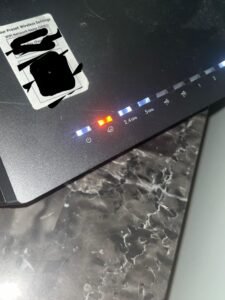
One of the simplest, but often overlooked, causes is when the wireless adapter is accidentally switched off. There are several ways to disable Wi-Fi on Windows systems: physical keys on the notebook case, a combination of function keys (e.g. Fn + F2), or via system settings. Alternatively, the adapter can be disabled in Device Manager or Airplane mode. You can check the status of the adapter by clicking on the network icon in the taskbar - if you see the Wi-Fi button in grey, just click on it to turn it on.
Corrupted network driver
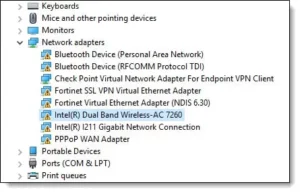
Network driver faults are one of the main reasons why Wi-Fi connections may be completely inoperable or unstable. Drivers can crash after an incorrect Windows update, antivirus conflicts or incorrectly shutting down your PC. The problem can be identified by a yellow exclamation mark next to the network adapter in the device manager or error messages when trying to connect to the network. Sometimes the driver may not be compatible with the latest version of Windows, so you need to check the manufacturer's website for updated versions.
Windows update errors
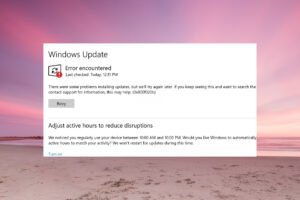
Windows system updates, while designed to improve security and functionality, sometimes cause unexpected Wi-Fi connectivity problems. This is especially common after major feature updates, when the network management architecture changes. Updates can change network settings, make older driver models incompatible, or introduce incorrect security protocols. If you notice that there is no internet connection immediately after a Windows update, it is worth checking your update history and reverting to a previous version of the system if necessary.
How to fix your Wi-Fi connection in Windows 11
The Windows 11 operating system offers a number of built-in tools and techniques to solve Wi-Fi problems. These solutions are arranged from the simplest to the most complex, so we recommend trying them in order.
Use Network Troubleshooter
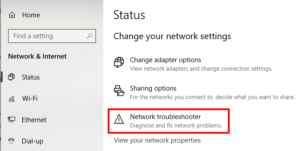
Windows 11 has a built-in troubleshooter that automatically detects and tries to fix common network problems. To start it, go to Settings > System > Troubleshoot > Other troubleshooters and select Network and Internet. The tool will check the adapter status, IP configuration, DNS settings and other important parameters. The process takes a few minutes and at the end you will receive a report with the problems found and the actions taken. If the automatic fix didn't work, the report will at least point out the specific problem, which you can then manually fix.
Reinstall the network drivers
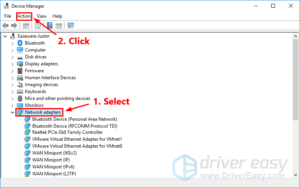
Reinstalling drivers often solves more complex Wi-Fi problems.In Windows 11, open Device Manager (right-click on the Start button), find the “Network adapters” tab and locate your Wi-Fi adapter. Right-click and select “Uninstall device”, tick the “Delete the driver software” checkbox and confirm. Then reboot your computer - Windows will automatically install the new version of the driver. If the automatic installation did not take place, you can download the latest driver from the website of the manufacturer of your computer or network card.
Reset your network settings
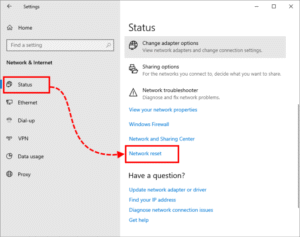
A full network reset is a radical but effective way to resolve persistent Wi-Fi problems.In Windows 11, go to Settings > Network & Internet > Advanced network settings > Network reset. This will uninstall and reinstall all network adapters and return TCP/IP, DNS and VPN settings to their original settings. Please note that after the reset, you will need to re-enter all Wi-Fi passwords and reconfigure VPN connections. The process takes about 5 minutes and the computer will automatically reboot.
When to upgrade to Windows 11 Pro
If you regularly experience Wi-Fi connectivity problems with Windows 11 Home, consider upgrade to Windows 11 Pro. Windows 11 Pro also includes more stable versions of network drivers, better compatibility with business-class networking equipment, and additional security protocols to ensure more reliable Wi-Fi connectivity in enterprise networks.
The Pro version is especially useful if you work from home or use your computer for professional purposes. It allows you to connect to domains, use Remote Desktop without restrictions and manage Windows Update so that updates don't interfere with important work. Investing in Windows 11 Pro can save you a lot of time and nerves when dealing with network problems in the future.
Frequently asked questions
How do I turn on Wi-Fi on my computer?
There are several ways to enable Wi-Fi on your computer. The easiest is to click the network icon in the taskbar (bottom right corner) and press the Wi-Fi button to turn it blue. You can also go to Settings > Network & Internet > Wi-Fi and toggle the switch to the “On” position. Laptops often have a physical Wi-Fi switch or key combination (e.g. Fn + F2, Fn + F3) that you press to turn the wireless connection on or off. If you don't see the Wi-Fi option, check Device Manager to make sure the network adapter is not turned off.
What if Wi-Fi works on my phone but not on my computer?
If Wi-Fi works on your phone or other devices, but the internet doesn't work on your computer, the problem is most likely with your computer itself. First check if your computer can see Wi-Fi networks - if it can't, it's a problem with the drivers or adapter. If it sees the networks but doesn't connect, check the password you entered, delete the saved network profile and try connecting again. It's also a good idea to temporarily disable your anti-virus and firewall, as these can block connections. Finally, run the command prompt as administrator and execute the commands “netsh winsock reset” and “netsh int ip reset”, then reboot your computer.
Conclusion
Wi-Fi connection problems on your computer can cause a lot of inconvenience, but most of them can be solved on your own using the methods described in this article. From simply switching on the adapter to updating drivers or resetting network settings, it's important to systematically check for possible causes. If the problem recurs frequently, it is worth considering upgrading the system to Windows 11 Pro, which provides more stable and reliable network management. Regular system and driver updates, proper anti-virus configuration and periodic checking of network settings will help prevent future Wi-Fi problems.