Cách cập nhật Windows 11 miễn phí: Hướng dẫn từng bước
Upgrading to Windows 11 brings excitement and a few important steps that cannot be skipped. Tech enthusiasts and small business owners worldwide need to verify compatibility before making the leap to avoid headaches later. Microsoft’s PC Health Check app assesses hardware eligibility and issues detailed reports, helping you stay compliant with licensing regulations and avoid unexpected interruptions. This guide walks you through key checkpoints so your upgrade process is smooth and secure from start to finish.
Mục lục
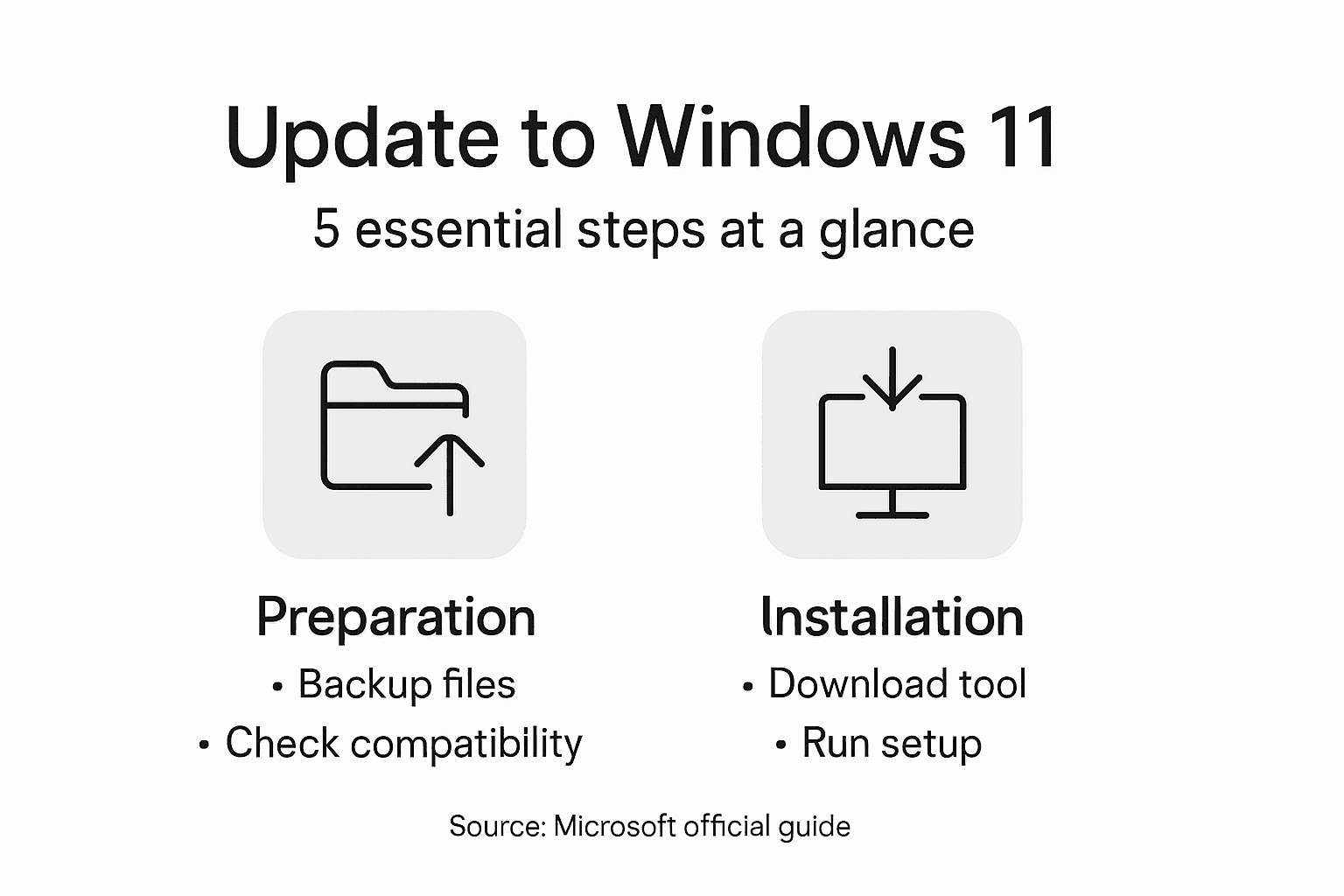
- Step 1: Check Device Compatibility For Windows 11
- Step 2: Back Up Important Files And Settings
- Step 3: Download Windows 11 Upgrade Tool From Microsoft
- Step 4: Install Windows 11 And Follow Setup Prompts
- Step 5: Verify Successful Windows 11 Installation
Tóm tắt nhanh
| Điểm chính | Giải thích |
|---|---|
| 1. Check device compatibility | Use the PC Health Check app to verify if your hardware meets Windows 11 requirements. |
| 2. Back up your important data | Ensure files are protected using cloud storage or an external drive before upgrading. |
| 3. Download the Windows 11 tool | Obtain the official installation tool from Microsoft for a smooth upgrade process. |
| 4. Follow installation prompts | Carefully adhere to the setup instructions to install Windows 11 successfully. |
| 5. Verify your installation | Confirm that Windows 11 is activated and all system components function correctly. |
Step 1: Check device compatibility for Windows 11
Before upgrading to Windows 11, you’ll need to verify your computer meets the necessary hardware specifications. This critical step ensures your device can smoothly run the latest operating system without performance issues or unexpected complications.
Microsoft provides an official Ứng dụng PC Health Check to help you determine your device’s compatibility. Here are the key system requirements you’ll need to check:
- Bộ xử lý: 64-bit processor, 1 GHz or faster
- RAM: 4 GB minimum
- Lưu trữ: 64 GB or larger
- Firmware: UEFI with Secure Boot
- TPM: Mô-đun nền tảng đáng tin cậy (TPM) phiên bản 2.0
To verify your device’s readiness, download and run the PC Health Check tool. This app will scan your system and provide a detailed report indicating whether your computer meets Windows 11 requirements. If any issues are detected, the tool will specify which hardware components need upgrading.
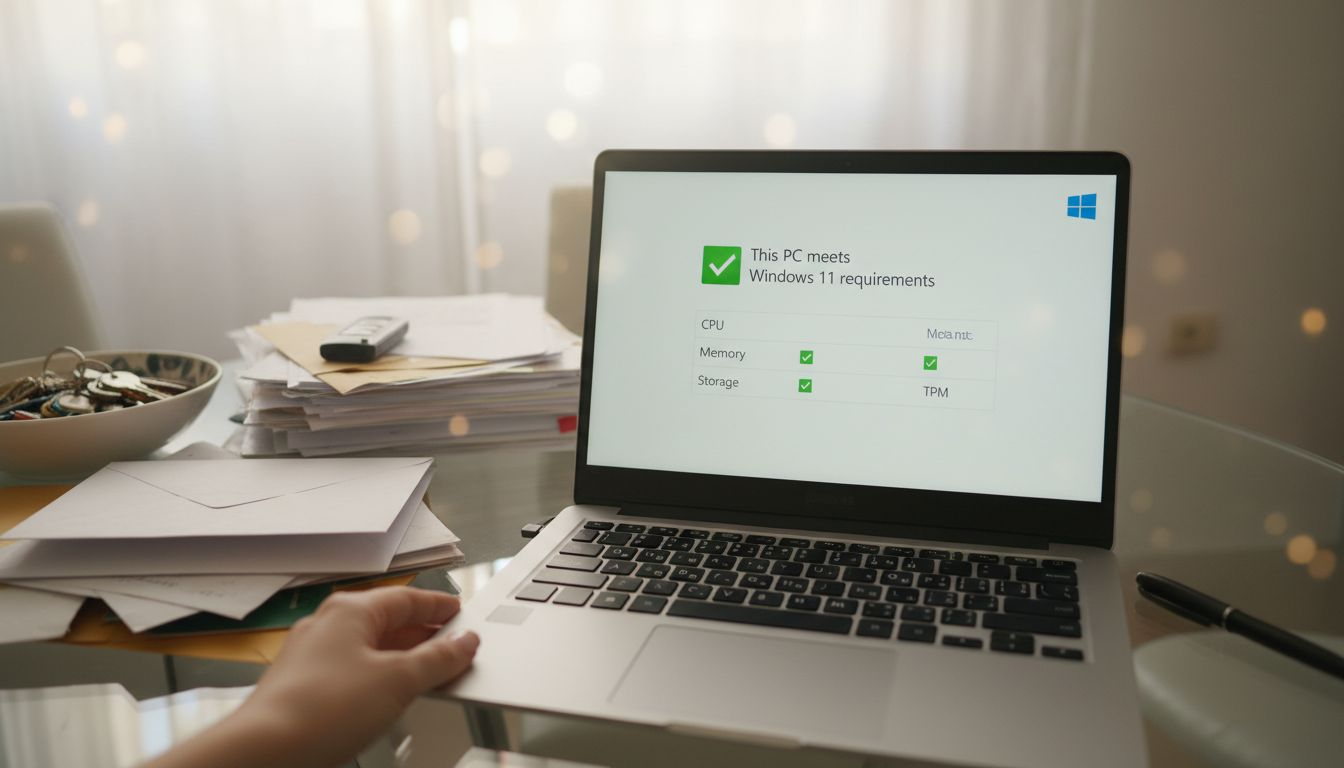
Here is a summary of essential device checks before upgrading to Windows 11:
| Check Type | Why It Matters | How to Verify |
|---|---|---|
| Bộ xử lý | Ensures speed and compatibility | PC Health Check tool |
| RAM | Prevents slowdowns and crashing | System Info utility |
| Lưu trữ | Allows room for upgrade and files | File Explorer capacity |
| Firmware/TPM | Secures and modernizes the system | BIOS/UEFI settings |
| Drivers | Supports hardware functionality | Device Manager status |
Windows 11 upgrades are rolled out gradually based on device eligibility, reliability, and age to ensure a smooth transition for users.
Mẹo chuyên nghiệp: Keep your current Windows version and hardware drivers updated before running the compatibility check to maximize your chances of a successful Windows 11 upgrade.
Step 2: Back up important files and settings
Before upgrading to Windows 11, protecting your digital assets is crucial. Backing up your files ensures that no important documents, photos, or personal settings are lost during the system upgrade process.
Windows offers multiple ways to safeguard your data, with Windows Backup options providing comprehensive protection. Here are the key methods to secure your files:
- Lưu trữ đám mây: Sync files to OneDrive
- Ổ đĩa ngoài: Create full system backup
- Selective Backup: Choose specific folders to protect
To begin backing up, sign in with your Microsoft account and enable automatic syncing for critical folders. The recommended folders to back up include:
Compare the main backup methods available before upgrading:
| Method | Data Security Level | Accessibility | Best Use Case |
|---|---|---|---|
| Lưu trữ đám mây | High (off-site) | Anywhere, multi-device | Documents, photos |
| Ổ đĩa ngoài | Moderate (on prem) | Local only | Full system backups |
| Selective Backup | Customizable | Varies by location | Specific folder recovery |
- Documents
- Pictures
- Desktop
- Downloads
- Personal configuration settings
Backing up protects your digital life from potential hardware failures, accidental deletions, or unexpected system changes.
Microsoft’s backup system allows you to restore your entire profile, including installed apps, themes, and Wi-Fi settings, on a new or upgraded device with just a few clicks.
Mẹo chuyên nghiệp: Always verify your backup is complete and test the restoration process before performing any major system upgrade to ensure all your important files are safely preserved.
Step 3: Download Windows 11 upgrade tool from Microsoft
To upgrade your Windows system, you’ll need to download the official Microsoft Windows 11 installation tool. This free utility enables you to create a bootable installation media and prepare your computer for the upcoming upgrade.
Visit the official Microsoft website and navigate to the Windows 11 download page. You’ll need to use the Windows 11 installation assistant to begin the download process. The tool offers several important features:
- Direct Download: Get the latest Windows 11 installation files
- Compatibility Check: Automatic system requirement verification
- Guided Installation: Step-by-step upgrade instructions
Before downloading, ensure you have:
- Stable internet connection
- At least 8 GB available storage
- Backup of important files
- Administrator account credentials
Downloading directly from Microsoft guarantees you receive the most current and secure version of Windows 11.
The installation assistant will walk you through each step, helping you create installation media on a USB drive or perform a direct upgrade to your existing system.
Mẹo chuyên nghiệp: Download the installation tool during off-peak hours to ensure faster download speeds and minimize potential internet congestion.
Step 4: Install Windows 11 and follow setup prompts
With your installation media ready, you’re prepared to upgrade your system to Windows 11. The installation process transforms your computer, bringing new features and improved performance.
Microsoft provides detailed installation instructions to guide you through the upgrade process. Here’s a breakdown of what to expect during installation:
- Bootable Media: Start from USB or installation tool
- Language Selection: Choose your preferred language
- Region Configuration: Set up regional settings
- Account Setup: Sign in with Microsoft account
The installation process involves several key steps:
- Restart your computer from installation media
- Select language and keyboard preferences
- Enter product key or skip for later activation
- Accept license terms
- Choose installation type (upgrade or clean install)
Windows 11 installation might take 20-40 minutes, depending on your computer’s specifications.
During setup, you’ll encounter various personalization screens where you can configure privacy settings, choose default apps, and customize your desktop experience. Patience is key as your system undergoes the transformation.
Mẹo chuyên nghiệp: Keep your installation media and product key accessible throughout the process in case you need to troubleshoot or perform a clean reinstall.
Step 5: Verify successful Windows 11 installation
After completing the Windows 11 installation, it’s crucial to confirm everything has been set up correctly. A thorough verification ensures your new operating system is fully functional and ready for use.
Microsoft recommends several system verification methods to check your installation’s integrity. Here are the key verification steps:
- System Information: Check Windows version
- Device Manager: Verify driver installations
- Activation Status: Confirm software licensing
- System Health: Run integrity checks
To verify your Windows 11 installation, follow these detailed steps:
- Open Settings > System > About
- Confirm Windows 11 version and build number
- Check Activation status is showing as activated
- Open Device Manager and verify no error icons
- Run Windows Update to ensure latest patches
A successful installation means all system components are functioning without any warning messages or error notifications.
Additionally, you can run system integrity commands like ‘sfc /scannow’ in Command Prompt to detect and repair any potential installation issues. These commands help ensure your Windows 11 system is stable and error-free.
Mẹo chuyên nghiệp: Restart your computer once after verification to allow all system processes to stabilize and complete their initial configuration.
Secure Your Genuine Windows 11 Upgrade with Confidence
Upgrading to Windows 11 can be exciting but also challenging if you don’t have an original and valid license. As the article shows, ensuring compatibility and backing up your data are just part of the journey. The critical next step is obtaining a genuine Microsoft Windows 11 license to unlock all features, receive official updates, and avoid security risks from unofficial software.
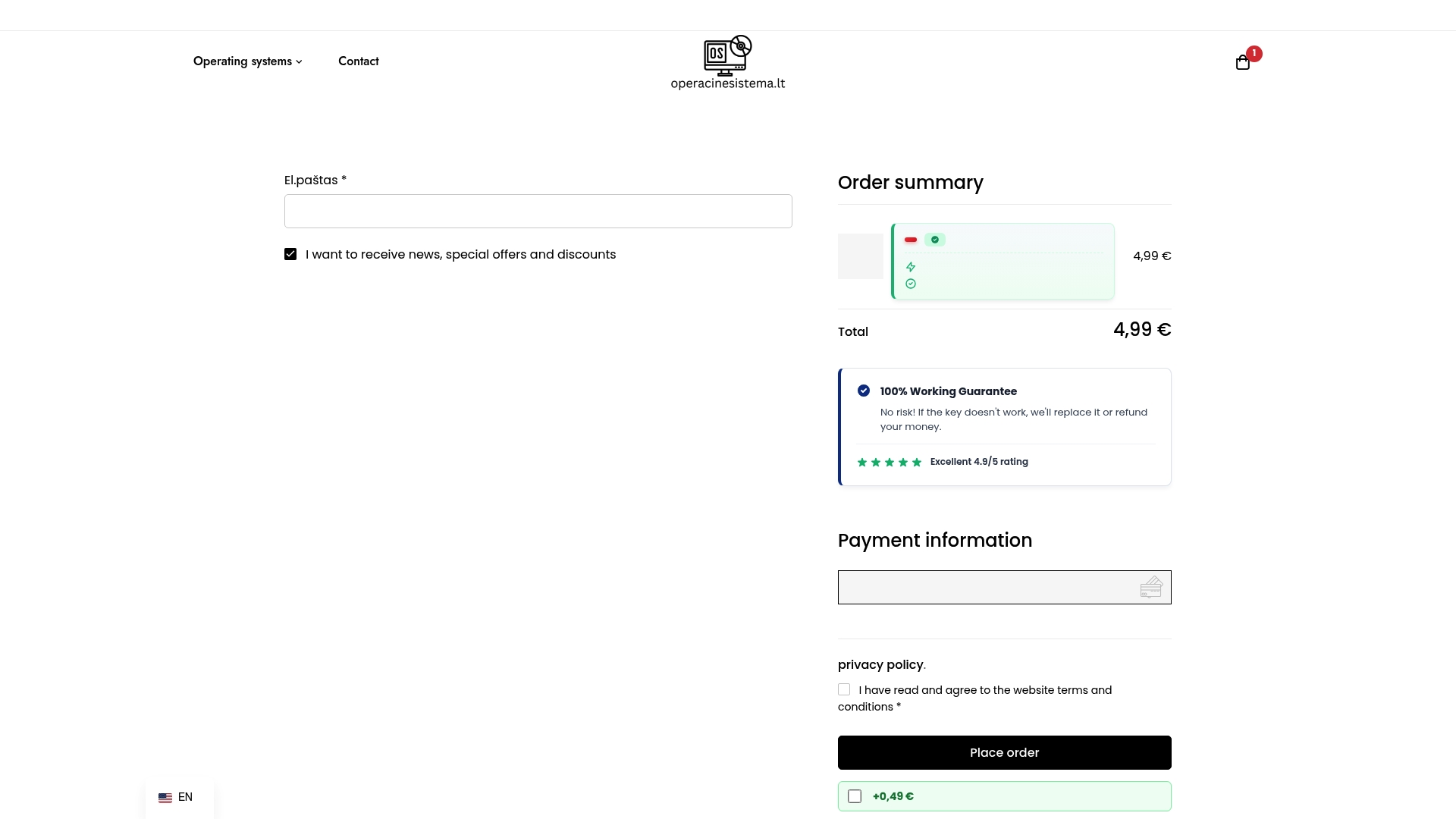
Don’t risk your device’s stability or your digital security. Visit hệ thống điều hành.lt to purchase official Windows 11 Pro digital keys with instant email delivery and full customer support. Whether you prefer an OEM or retail license, you get legitimacy, affordability, and peace of mind. Start your smooth upgrade today by choosing trusted Microsoft operating system licenses and empower your PC the right way. Explore secure licensing options now at Secure Windows Licenses and take control of your Windows 11 upgrade with confidence.
Câu hỏi thường gặp
What are the system requirements to update to Windows 11 for free?
To update to Windows 11 for free, your device must meet these minimum requirements: a 64-bit processor of 1 GHz or faster, 4 GB RAM, a storage capacity of at least 64 GB, UEFI firmware with Secure Boot, and TPM version 2.0. Check your device’s compatibility using the PC Health Check tool to ensure a smooth upgrade process.
How do I back up my important files before upgrading to Windows 11?
To back up important files, you can use Cloud Storage such as OneDrive, an external drive for a full system backup, or perform a selective backup of specific folders. Start by signing in with your Microsoft account and enable automatic syncing for folders like Documents and Pictures to secure your data.
How can I download the Windows 11 installation tool?
You can download the Windows 11 installation tool by visiting the official Microsoft website and navigating to the Windows 11 download page. Click on the installation assistant and follow the prompts to download the installation files directly to your device.
What should I expect during the Windows 11 installation process?
During the Windows 11 installation process, you will need to configure settings like language selection and regional preferences, sign in with your Microsoft account, and choose between an upgrade or a clean install. The entire installation can take 20-40 minutes, depending on your system’s specifications, so make sure to have patience as it completes.
How do I verify that my Windows 11 installation was successful?
To verify that your Windows 11 installation was successful, check the Windows version under Settings > System > About, confirm that the Activation status shows as activated, and ensure there are no errors in the Device Manager. Perform a system integrity check using the ‘sfc /scannow’ command in Command Prompt to further confirm all components are functioning correctly.
What should I do if my device is not compatible with Windows 11?
If your device is not compatible with Windows 11, you have a couple of options: either consider upgrading specific hardware components like the RAM or processor or continue using your current version of Windows. Regularly assess your device’s performance and check for any future updates that might support the New Windows OS.
Đề xuất
- Khóa kích hoạt Windows 11 miễn phí & Cách kích hoạt vĩnh viễn (Cập nhật năm 2026) – operacinesistema.lt
- Khóa kích hoạt Windows 11 miễn phí & Cách kích hoạt vĩnh viễn (Cập nhật năm 2026) – operacinesistema.lt
- 10 secret Windows 11 Pro features you might not have known about – operacinesistema.lt
- Activating Windows 11 Pro: How to install and activate the operating system without errors – operacinesistema.lt