Windows 10 vs 11: Essential differences explained for 2026
TL;DR:
- Windows 11 requires strict hardware features like TPM 2.0, Secure Boot, and newer CPUs.
- Support for Windows 10 ends in October 2025, leading to costly security update options.
- Upgrading to Windows 11 Pro offers better security, longer support, and cost-effective licensing for SMBs.
Your Windows 10 PC might feel perfectly capable, but that doesn’t mean it can run Windows 11. Microsoft drew a hard line with strict hardware and security requirements, leaving millions of devices ineligible for the upgrade. At the same time, Windows 10 support ended in October 2025, which means unpatched security risks are already piling up. Whether you’re managing a single workstation or a fleet of business devices, this guide covers the four key decision areas: hardware eligibility, support timelines, licensing costs, and real-world compatibility. By the end, you’ll know exactly where you stand and what to do next.
สารบัญ
- Hardware and security requirements: Is your system ready?
- Support timeline and security updates: What happens after 2025?
- Licensing and features: Choosing the best edition for your needs
- Compatibility, performance, and workarounds: What to expect
- Our take: The real upgrade calculus for tech-savvy users and SMBs
- Upgrade confidently: The smartest licensing and OS options for 2026
- คำถามที่พบบ่อย
ประเด็นสำคัญ
| จุด | รายละเอียด |
|---|---|
| Hardware eligibility crucial | Many Windows 10 PCs can’t upgrade to Windows 11 due to strict new requirements. |
| Support costs escalate | Windows 10 users must pay increasing fees for security updates after 2025. |
| SMB feature improvements | Windows 11 Pro offers advanced features that make upgrades worthwhile for businesses. |
| Compatibility is nuanced | Most apps work in Windows 11 but check all peripherals and legacy software before upgrading. |
Hardware and security requirements: Is your system ready?
Having previewed the stakes, let’s break down whether your current hardware is eligible for Windows 11 or if you’ll need to stick with Windows 10.
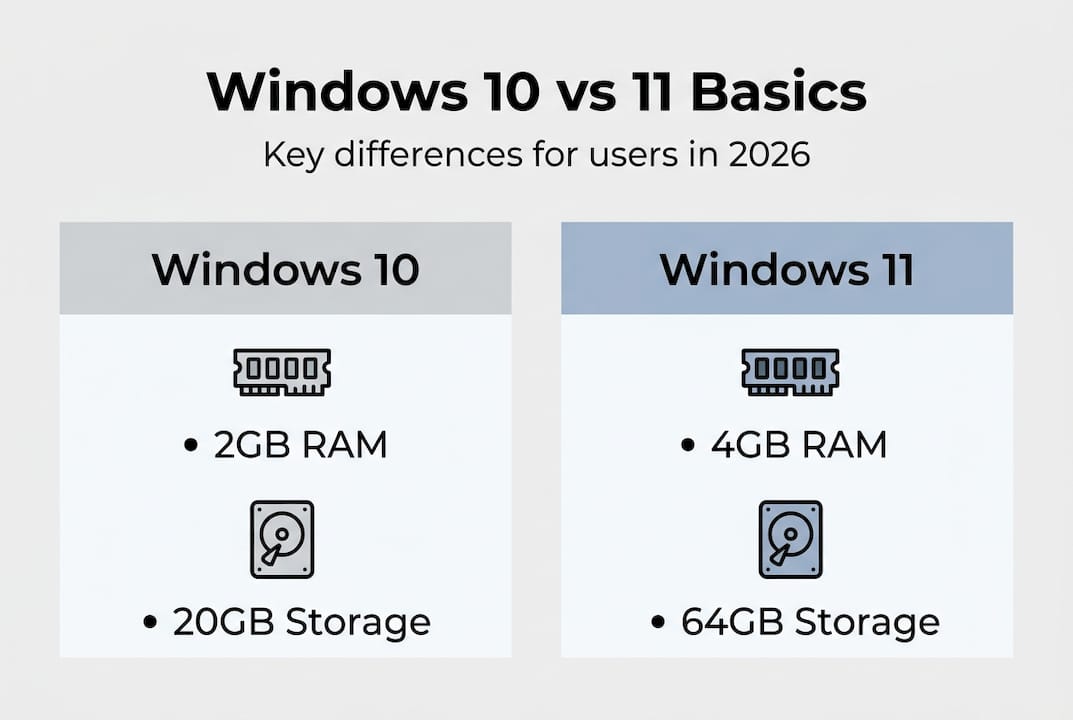
Windows 11 is not just a cosmetic upgrade. It demands a fundamentally different hardware baseline than Windows 10. Windows 11 mandates TPM 2.0, Secure Boot, 4GB RAM minimum (versus 2GB for Windows 10 64-bit), 64GB storage (versus 20GB), and compatible CPUs from Intel 8th gen or AMD Ryzen 2000 and newer. That last requirement is where most older business machines fail.
| Requirement | วินโดวส์ 10 | วินโดวส์ 11 |
|---|---|---|
| RAM | 2GB (64-bit) | 4GB minimum |
| การจัดเก็บ | 20GB | 64GB |
| TPM | Not required | TPM 2.0 mandatory |
| Secure Boot | Optional | Required |
| CPU | Broad support | Intel 8th gen+ / AMD Ryzen 2000+ |
| Display | 800×600 | 720p minimum, 9" screen |
The TPM requirement (Trusted Platform Module) is the most common blocker. TPM 2.0 is a dedicated security chip that handles encryption keys, secure boot verification, and hardware-based authentication. Many PCs built before 2018 either lack it entirely or have it disabled in BIOS settings.
Here’s what to check before assuming your device qualifies:
- ✅ Open ตัวจัดการอุปกรณ์ and look under Security Devices for TPM 2.0
- ✅ Run the PC Health Check app from Microsoft (free download)
- ✅ Verify Secure Boot status in your BIOS/UEFI settings
- ✅ Confirm your CPU model against Microsoft’s supported processor list
- 🛑 Don’t assume a fast processor means it’s supported. A 7th gen Intel Core i7 is still blocked.
For a side-by-side breakdown tailored to IT resellers and business buyers, the IT reseller Windows comparison guide goes deeper into fleet-level eligibility checks.
คำแนะนำจากผู้เชี่ยวชาญ: Enable TPM 2.0 in your BIOS before running the PC Health Check. Many machines have it disabled by default. Go to BIOS settings, find the Security or Advanced tab, and toggle TPM to “Enabled.” This alone can make an otherwise blocked PC eligible.
Some users try to bypass Windows 11’s hardware checks using registry edits or third-party tools. It works technically, but you’re trading short-term convenience for long-term risk. More on that in the compatibility section.
Support timeline and security updates: What happens after 2025?
Once you know if your hardware qualifies, the next step is to understand how Microsoft’s support policies shape your upgrade decision and ongoing costs.

Windows 10 reached end of mainstream support, and as of October 2025, it no longer receives free security patches. That’s not just an inconvenience. It means every new vulnerability discovered after that date goes unpatched unless you pay for Extended Security Updates (ESU).
The ESU pricing is steep and gets worse every year:
| Year | ESU cost per device |
|---|---|
| Year 1 (2025-2026) | $61 |
| Year 2 (2026-2027) | $122 |
| Year 3 (2027-2028) | $244 |
📊 Stat to note: A small business running 20 devices on Windows 10 ESU through all three years would spend over $8,500 just to stay patched. That’s money that could have funded new hardware and Windows 11 licenses instead.
Windows 11, by contrast, is supported until approximately 2031, giving you five or more years of free security updates and feature improvements. That’s a significant runway for any business making a hardware investment today.
For businesses evaluating the upgrading support timeline, the math is fairly clear. Staying on Windows 10 past Year 1 ESU starts to look expensive fast, especially when you factor in the compliance risks of running unpatched systems.
Key takeaways on support:
- 🛑 Windows 10 free support is already over
- ✅ ESU buys time but not indefinitely
- ✅ Windows 11 offers the longest free support window available today
- 🔥 SMBs with 10+ devices feel ESU costs most acutely
If your hardware is compatible, upgrading now avoids the ESU trap entirely. If it’s not, you’ll need to weigh short-term ESU costs against the cost of new hardware.
Licensing and features: Choosing the best edition for your needs
With support and upgrade costs clear, licensing and feature choices become key, especially if you manage several devices or want SMB-level security.
Here’s the pricing picture for both operating systems:
- Windows 11 Home: $139 one-time
- Windows 11 Pro: $199 one-time
- Windows 10 Pro: Still available but approaching end of sale
- Windows 11 Enterprise: Approximately $84 per year per device (subscription)
The free upgrade path from Windows 10 to Windows 11 is still available if your hardware qualifies. You don’t need to buy a new license if you already have a genuine Windows 10 activation. But if your device isn’t eligible, you’ll need a fresh license for a new machine.
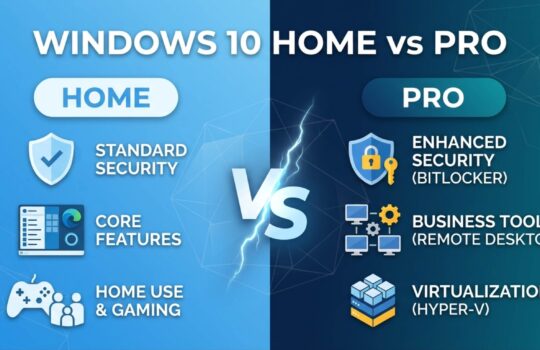
For most small businesses, วินโดวส์ 11 โปร is the sweet spot. Here’s what Pro adds over Home:
- 🔐 BitLocker encryption for full-disk data protection
- 🖥️ Remote Desktop for managing devices remotely
- 🖧 Domain join for Active Directory integration
- ⚙️ Hyper-V for running virtual machines locally
- 🛡️ Windows Sandbox for testing software safely
- 📋 Group Policy management for IT admins
Enterprise is overkill for most small businesses unless you need advanced features like DirectAccess or AppLocker at scale. Pro covers the vast majority of SMB use cases at a lower cost.
คำแนะนำจากผู้เชี่ยวชาญ: Avoid third-party “cheap key” sites that sell Windows licenses at suspiciously low prices. Many of those keys are volume licenses resold outside their terms, which means they can get blocked by Microsoft at any time. Always buy from a verified reseller. You can find legitimate Windows 11 Pro deals that are genuinely affordable without the risk.
If you want a detailed breakdown of what Pro features actually do for your workflow, the Pro features details page covers each one practically.
Compatibility, performance, and workarounds: What to expect
Now let’s look at how daily work and software use differs between the two Windows versions, including persistent compatibility and performance questions.
App compatibility is nearly identical between Windows 10 and Windows 11. If your software runs on one, it almost certainly runs on the other. The real friction shows up with older peripherals and drivers. Windows 11 is stricter about driver signing and legacy hardware support, which means some older printers, scanners, and specialized equipment may stop working.
Before you migrate, run through this checklist:
- ✅ List every peripheral connected to each device (printers, scanners, drawing tablets, dongles)
- ✅ Check the manufacturer’s website for Windows 11 driver availability
- ✅ Test any industry-specific or legacy software in a Windows 11 virtual machine first
- ✅ Verify that any USB-connected hardware has updated firmware
- 🛑 Don’t assume “it worked on Windows 10” means it works on Windows 11
On performance, Windows 11 introduces Virtualization-Based Security (VBS), which adds a layer of hardware-level isolation. This is great for security but can reduce gaming performance by a few percent on some systems. For business workloads, the impact is negligible. For serious gamers on older CPUs, it’s worth knowing.
Regarding bypasses: bypassing Windows 11 requirements via tools like Rufus or registry edits is technically possible, but Microsoft explicitly states these devices may not receive future updates. For a personal test machine, that’s a calculated risk. For a business device handling customer data or financial records, it’s a compliance problem waiting to happen.
คำแนะนำจากผู้เชี่ยวชาญ: Use the free WhyNotWin11 tool for a more detailed eligibility report than Microsoft’s official PC Health Check. It tells you exactly which requirement is failing and often suggests a fix.
For a broader look at upgrade performance and security tradeoffs, including real-world test data, that guide covers the specifics in depth. You can also explore hidden Windows 11 features that most users never discover after upgrading.
Our take: The real upgrade calculus for tech-savvy users and SMBs
Here’s what we’ve learned after deep dives and real-world transition projects: the conventional wisdom to upgrade immediately isn’t always right, but waiting indefinitely is rarely smart either.
If your hardware is compatible, upgrading to Windows 11 Pro now is the clearest path to long-term security and lower support costs. The upgrade decision for SMBs comes down to this: Windows 11 Pro offers the best combination of security features, update longevity, and compliance readiness. Windows 10 ESU is a viable short-term bridge, but the escalating cost makes it a poor long-term strategy.
The temptation to bypass hardware requirements is real, especially when a device feels perfectly functional. But for any machine handling sensitive data or connected to a business network, that shortcut creates liability. You lose update guarantees, and Microsoft can flag the installation as unsupported at any time.
Our honest advice: test your workflow-critical software before committing to the upgrade. Don’t rely solely on Microsoft’s compatibility claims. Run your actual tools in a Windows 11 environment first. Then make the call. The smart upgrade guide walks through exactly how to do that without disrupting your operations.
Upgrade confidently: The smartest licensing and OS options for 2026
If you’re ready to upgrade or explore smarter licensing for business or personal use, here’s where you can find trusted options.
🔥 Choosing the wrong license can cost you more than just money. Fake or out-of-terms keys get blocked, leaving your device unactivated and your business exposed. That’s a risk no one needs.
For a step-by-step breakdown of how to buy a genuine Windows license safely, the Windows license buying guide covers everything from OEM vs retail to activation methods. If you’re managing multiple devices, the license compliance checklist helps you stay audit-ready and avoid costly mistakes. Genuine licenses, fast delivery, and real support make the upgrade process straightforward.
คำถามที่พบบ่อย
Can I upgrade from Windows 10 to Windows 11 for free?
Yes, if your hardware meets Microsoft’s requirements, you can upgrade for free directly from Windows 10 using the built-in Windows Update tool. No new license purchase is needed.
What are the major hardware requirements for Windows 11?
Windows 11 requires TPM 2.0, Secure Boot, at least 4GB of RAM, 64GB storage, and a modern 64-bit CPU such as Intel 8th gen or newer or AMD Ryzen 2000 and above. Older CPUs are blocked regardless of overall performance.
Do Windows 10 apps work on Windows 11?
Most do. App compatibility is near-identical, but older peripherals and legacy drivers may not work due to Windows 11’s stricter hardware requirements. Always test critical tools before migrating.
Is it safe to bypass Windows 11 hardware restrictions?
Technically possible, but bypassing TPM requirements risks losing future updates, system instability, and reduced security. For business devices, this creates real compliance and liability exposure.
How much does Extended Security Update (ESU) cost for Windows 10?
ESU starts at $61 per device for the first year and escalates to $244 by the third year, making it an expensive long-term solution for any business with multiple devices.