รายการตรวจสอบความปลอดภัยทางไอที: ขั้นตอนสำคัญสำหรับซอฟต์แวร์ Microsoft
สรุปสั้น:
- Securing a Microsoft environment requires ongoing, tailored efforts due to evolving threats and specific tool usage.
- Implementing a security checklist based on frameworks like NIST and CIS, focusing on key areas like identity, device, and email security, enhances protection.
Securing a Microsoft environment isn’t a one-time task you check off and forget. Threats evolve weekly, attackers increasingly target small and midsize businesses, and generic security tips found on random blogs rarely account for the specific tools your team uses every day. If you run a Microsoft 365 tenant or manage Windows devices for your business, a purpose-built IT security checklist is one of the most practical investments you can make. This guide gives you a framework that actually fits your environment, covering the right checkpoints, the right order, and the reasoning behind each step.
สารบัญ
- How to build your Microsoft IT security checklist
- The must-have checklist items for Microsoft 365 and Windows
- Frameworks in action: Applying CIS, NIST, and Azure benchmarks
- Quick comparison: Preset Microsoft policies vs. full benchmarks
- Beyond checklists: The real-world test of IT security planning
- Secure your Microsoft environment with licensed solutions
- คำถามที่พบบ่อย
ประเด็นสำคัญ
| จุด | รายละเอียด |
|---|---|
| Framework-driven approach | Leverage NIST, CIS, and Azure Security Benchmarks to create an actionable and customized IT security checklist. |
| Must-have Microsoft steps | Enable MFA, restrict admin access, and manage device security as core checklist actions. |
| Benchmark vs. preset policies | Preset Microsoft security policies suit most SMBs, while full CIS/NIST benchmarks are ideal for formal compliance. |
| การปรับปรุงอย่างต่อเนื่อง | Regularly update your checklist and train staff to stay ahead of evolving cyber threats. |
How to build your Microsoft IT security checklist
With a sense of why off-the-shelf security isn’t enough, let’s examine what separates a generic checklist from one built specifically for Microsoft software.
Most free checklists floating around the internet were written for a generic IT environment. They mention firewalls and passwords but skip the Microsoft-specific controls that matter most to your setup, like conditional access policies, Microsoft Defender presets, or Azure Active Directory (now called Microsoft Entra ID) configurations. A checklist designed around your actual tools is far more useful.
Start with a security framework as your backbone. The NIST Cybersecurity Framework 2.0 structures security around six core functions: Govern, Identify, Protect, Detect, Respond, and Recover. Each function maps directly to Microsoft tools. For example, “Protect” aligns with Microsoft Defender and MFA, while “Detect” aligns with Microsoft Sentinel and Defender for Endpoint alerts. Using NIST as a guide means your checklist has a proven structure rather than a random collection of tips.

For small businesses, translating these frameworks into practical terms is the real challenge. You don’t need a full security operations center. You need a short, actionable list that you or a small IT team can work through in a few hours per month. That’s the goal here.
Essential categories for any Microsoft-focused checklist:
- ✅ Identity and access management (MFA, admin roles, conditional access)
- ✅ Device security (Windows Update, Defender, endpoint management)
- ✅ Email security (anti-phishing, anti-malware, safe links)
- ✅ Collaboration security (Teams, SharePoint, OneDrive permissions)
- ✅ Data protection (sensitivity labels, backup, DLP policies)
- ✅ Monitoring and alerts (sign-in logs, threat detection, audit trails)
- ✅ License and software compliance (genuine licenses, activation status)
If you want a broader look at the security landscape for Microsoft operating systems, the Microsoft OS security in 2026 breakdown is worth reading alongside this guide. Understanding Windows IT security enhancements at the OS level also helps you see how the platform itself has evolved to support these categories.
Pro Tip: Before you build your checklist, run a Microsoft Secure Score audit inside your Microsoft 365 admin center. It gives you a baseline number and a prioritized list of improvements specific to your tenant. Start there and work your way down by impact.
Building a checklist from scratch feels daunting. In practice, you’re mostly enabling settings that already exist in Microsoft 365. The platform ships with powerful security controls. The problem is that most businesses never turn them on.
The must-have checklist items for Microsoft 365 and Windows
Armed with criteria from earlier, here’s your practical step-by-step checklist tailored for Microsoft environments.
The Microsoft 365 for business security best practices document outlines ten key areas every business should address: MFA, protecting admin accounts, applying preset security policies, protecting devices, securing email, managing Teams collaboration, controlling file sharing settings, securing Microsoft 365 Apps, limiting calendar sharing, and maintaining the environment. Let’s break down each of these in a way you can actually act on.
Your step-by-step Microsoft 365 and Windows security checklist:
-
Enable multi-factor authentication (MFA) for all users. MFA blocks the vast majority of credential-based attacks. Go to the Microsoft 365 admin center, navigate to Active Users, and enable per-user MFA or use Security Defaults for a one-click setup. Don’t skip this step. It’s the single highest-impact action you can take.
-
Protect all admin accounts with dedicated credentials. Your global admin account should never be used for everyday tasks like reading email or browsing the web. Create a separate admin account used only for administrative work, and make sure it has MFA and ideally no licenses attached to reduce its attack surface.
-
Apply preset security policies for email. Microsoft 365 includes Standard and Strict preset security policies in the Defender portal. These automatically configure anti-phishing, anti-malware, and safe links protection. Enabling these takes under five minutes and delivers expert-level email protection without manual configuration.
-
Turn on Microsoft Defender Antivirus and keep it active. On all Windows devices, confirm that Microsoft Defender Antivirus is enabled and running. Use Microsoft Intune or Group Policy to enforce this across your fleet. Never disable Defender to install third-party tools unless you have a deliberate replacement strategy.
-
Enforce Windows Update and patch management. Unpatched software is one of the most common entry points for attackers. Use Windows Update for Business or Microsoft Intune to ensure all devices receive security patches within 30 days of release. Feature updates should follow a tested rollout process to avoid disruption.
-
Secure Microsoft Teams and SharePoint sharing. By default, Teams and SharePoint can be configured to share files externally. Review your sharing settings and limit external sharing to specific domains or disable it entirely unless required. Audit guest access in Teams channels regularly and remove guests who no longer need access.
-
Restrict calendar sharing to internal users only. Oversharing calendars is a surprisingly common information disclosure risk. An attacker who can see your calendar details can craft convincing phishing messages or determine when key staff are unavailable. In the Microsoft 365 admin center, set calendar sharing to show free/busy information only for external users.
-
Review and limit app permissions. Third-party apps connected to your Microsoft 365 environment via OAuth can access emails, calendars, and files. Use the Microsoft Entra ID enterprise applications panel to review all connected apps and revoke permissions for any app your team no longer uses or doesn’t recognize.
-
Configure Microsoft 365 Apps security settings. Enable macro restrictions, disable automatic execution of content from the internet, and enable Protected View in Microsoft Office applications. These settings prevent many malware infections that arrive via weaponized Word or Excel documents.
-
Maintain a regular review cycle. Security settings drift. New users get added without proper onboarding, licenses change, and new features get enabled without a security review. Schedule a monthly 30-minute review of your Microsoft Secure Score, sign-in logs, and sharing settings.
🔥 หมายเหตุทางสถิติ: Businesses that enable MFA reduce the risk of account compromise by over 99%, according to Microsoft’s own security data. That single checkbox delivers more protection than most other tools combined.
For more detailed Windows security tips covering device-level protection, that resource digs deeper into OS hardening steps that complement this checklist.
Pro Tip: Use Microsoft Secure Score in the Defender portal to track your progress over time. Every item you implement adds points and shows you clearly what’s still open. It’s the easiest way to stay motivated and show stakeholders that security is improving.
Frameworks in action: Applying CIS, NIST, and Azure benchmarks
Understanding best-practice checklist items is just the start. Let’s see how industry frameworks turn those into repeatable, compliant processes.
Two frameworks stand out for Microsoft environments. First, the CIS Microsoft 365 Benchmark provides prescriptive, ready-to-implement guidance covering Microsoft Entra ID, Exchange Online, SharePoint, OneDrive, Teams, and Power BI. Its Level 1 controls include essentials like enabling MFA for all users, blocking legacy authentication protocols, and limiting the number of global admin accounts. These are not theoretical suggestions. They are specific settings with documented implementation steps.
Second, the Azure Security Benchmark v3 aligns with CIS, NIST, and PCI-DSS (Payment Card Industry Data Security Standard), covering identity management, network security, and storage hardening for Azure workloads. If your business uses Azure virtual machines, Azure SQL, or Azure storage, this benchmark gives you a mapped control set that satisfies multiple compliance requirements at once.
For small businesses, the idea of implementing “benchmarks” can feel overwhelming. But the reality is that most CIS Level 1 controls are already available in the Microsoft 365 admin center or the Entra ID portal. You’re not deploying complex infrastructure. You’re enabling toggles that are already there.
| Framework | เหมาะที่สุดสำหรับ | Key focus areas | Time to implement |
|---|---|---|---|
| CIS Microsoft 365 Benchmark | SMBs on Microsoft 365 | Identity, email, Teams, SharePoint | 1 to 2 days |
| NIST CSF 2.0 | All business sizes | Govern, Identify, Protect, Detect, Respond, Recover | Ongoing |
| Azure Security Benchmark v3 | Azure workload users | Network, identity, storage, monitoring | 1 to 3 days |
| Microsoft Secure Score | Starting point audit | All Microsoft 365 services | Under 1 hour |
The table above gives you a practical way to decide which framework to start with. If you’re new to this, start with Microsoft Secure Score as your audit tool, then work through CIS Level 1 controls as your implementation guide. NIST gives you the broader governance structure that ties everything together.
“Applying a recognized framework transforms a checklist from a to-do list into a defensible security posture. When an auditor or client asks how you secure your environment, you can point to a named standard with documented evidence.”
Mapping your checklist to frameworks also creates a trail of evidence. If your business faces an audit, a breach investigation, or a customer questionnaire about your security practices, you can show exactly which controls are in place and why. That matters for contracts, insurance, and regulatory compliance.
Before buying or renewing any software, also consider reviewing a รายการตรวจสอบสำหรับการซื้อซอฟต์แวร์ที่ปลอดภัย to ensure your licensing choices support these framework requirements. An รายการตรวจสอบการปฏิบัติตามข้อกำหนดสำหรับธุรกิจขนาดกลางและขนาดเล็ก can also help you align procurement with security goals from the start.
Quick comparison: Preset Microsoft policies vs. full benchmarks
Now that you’ve seen actionable frameworks, let’s compare your baseline options for implementing these recommendations in the real world.
Microsoft ships preset security policies that are genuinely useful. They’re quick to enable, well-maintained by Microsoft’s own security team, and require no deep expertise to configure. But they’re not a complete security strategy. Here’s an honest comparison.
| คุณสมบัติ | Microsoft preset policies | CIS/NIST full benchmark |
|---|---|---|
| Setup speed | Very fast (minutes) | Slower (hours to days) |
| Expertise required | Minimal | ปานกลาง |
| Compliance coverage | Partial | เต็ม |
| Customization | จำกัด | Extensive |
| เหมาะที่สุดสำหรับ | SMBs getting started | Compliance-heavy industries |
| ค่าใช้จ่าย | Included in M365 | Free frameworks, internal time |
According to implementation experience, Microsoft preset policies are the right starting point for small businesses that need quick wins, while a full CIS or NIST-based approach is necessary for businesses operating in regulated industries like healthcare, finance, or legal services. Microsoft 365 Business Premium also enables advanced features like Microsoft Defender for Business, which bridges the gap between preset policies and full enterprise-grade protection.
When preset policies are enough:
- ✅ You’re a small team with limited IT resources
- ✅ You’re not in a regulated industry
- ✅ You need protection fast and will improve over time
- ✅ You’re starting your security journey and need a baseline
When to upgrade to a full benchmark:
- 🛑 You handle sensitive customer data (health, financial, legal)
- 🛑 A client or partner requires documented compliance
- 🛑 You’ve experienced a security incident and need a thorough review
- 🛑 You’re preparing for a security audit or certification
Pro Tip: Even if you use preset policies today, document what you’ve enabled and why. That documentation is the first step toward a formal compliance posture and makes future audits far less painful.
One resource worth bookmarking is the guide on Microsoft licensing security choices, which explains how your license tier directly determines which security features are available to you. Choosing the right license is itself a security decision.
Beyond checklists: The real-world test of IT security planning
You’ve seen technical steps. Now here’s how the most resilient businesses move from static lists to agile, actionable security culture.
Here’s something most security articles won’t say: a checklist, no matter how good, is only as useful as the culture around it. We’ve seen businesses tick every box and still suffer breaches because the checklist sat in a shared drive no one looked at. Security is a living process, not a document.
The most resilient SMBs we observe treat their security checklist the way smart businesses treat a financial report. It’s reviewed regularly, updated when circumstances change, and discussed by the people responsible for the business. A checklist you reviewed once 18 months ago is a liability, not a safeguard.
Automation changes everything for small teams. If you don’t have a dedicated security person, automation is your best ally. Tools like Microsoft Intune enforce device compliance automatically. Microsoft Defender for Business generates alerts without requiring you to watch dashboards. Conditional access policies block risky sign-ins without human intervention. These tools do more heavy lifting than any manual checklist process ever could.
But automation has a blind spot: people. Phishing attacks succeed not because they bypass technical controls but because they trick humans into taking actions that technical controls can’t stop. A well-crafted phishing email that convinces your finance manager to approve a wire transfer doesn’t trigger a single security alert. This is why regular staff training is non-negotiable.
Invest in short, practical security awareness training at least twice a year. Focus on real scenarios your team faces: fake invoice emails, suspicious Teams messages from unknown guests, unexpected password reset requests. Make it relevant, not theoretical. A 15-minute training session on recognizing phishing is more valuable than a 60-page security policy document no one reads.
There’s also a common mistake worth naming directly: treating security software as a substitute for a genuine, licensed operating system. Unlicensed or counterfeit Windows installations don’t receive full security updates, can block Microsoft Defender from functioning correctly, and may include pre-installed malware. You cannot build a secure checklist on a compromised foundation. For secure software buying tips that connect purchasing decisions to your security posture, that guide covers the risks clearly.
The honest takeaway is this: checklists are the map, not the journey. They tell you where to go, but they don’t walk the road for you. The businesses that stay secure are the ones that revisit the map regularly, adjust when the terrain changes, and make sure everyone on the team knows the route.
Secure your Microsoft environment with licensed solutions
Having reflected on your strategy, now is the time to turn insight into real protection.
Every step in this checklist depends on one thing being true: your Microsoft software is genuine and fully licensed. Without an authentic license, Windows Update may stop delivering security patches, Microsoft Defender may not function properly, and you lose access to the very tools this checklist relies on. Unlicensed software is not just a legal risk. It’s a direct security gap.
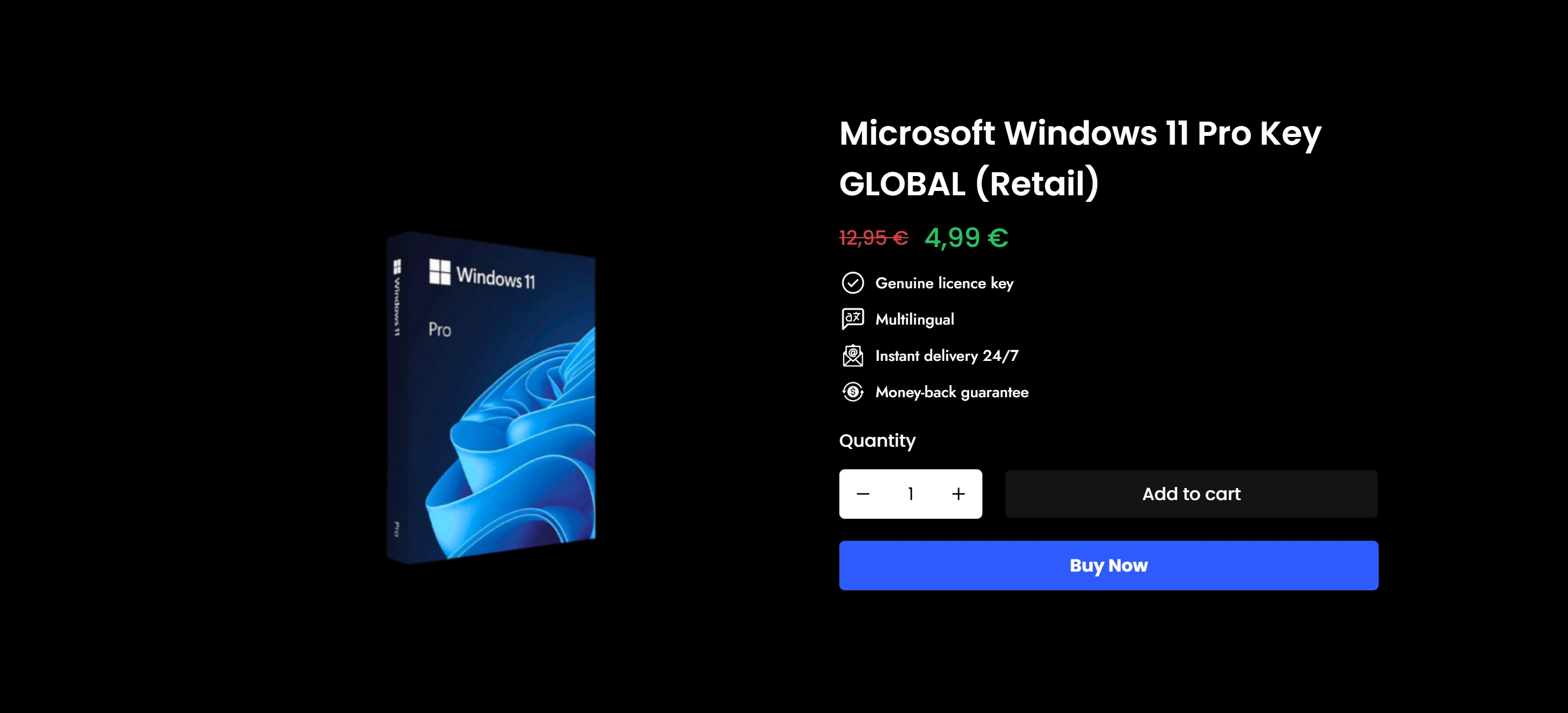
ที่ operacinesistema.lt, we supply genuine Windows 10 and Windows 11 Pro licenses, delivered instantly via email or as physical USB versions, so your business can build its security posture on a verified foundation. Whether you need a single license for a new device or multiple keys for a growing team, our secure Windows license guide walks you through exactly what to look for. For businesses managing multiple devices, our SMB software license guide helps you stay compliant and secure across your whole fleet. Start your checklist on solid ground. 🔥
คำถามที่พบบ่อย
What is the first step in a Microsoft IT security checklist?
Start by enabling multi-factor authentication (MFA) for all user accounts, as this single step blocks most common attacks on Microsoft 365 environments immediately.
Which security framework should small businesses use for Microsoft 365?
The CIS Microsoft 365 Benchmark offers clear, prescriptive controls at Level 1 that are realistic for small teams and cover the most critical areas like identity, email, and collaboration security.
Are Microsoft preset security policies enough for compliance?
Preset policies cover the basics well, but formal compliance with standards like NIST or PCI-DSS typically requires a full benchmark approach with documented evidence of each control implementation.
How often should you review your IT security checklist?
Review and update your checklist at least once per quarter, or immediately after any major system changes, new software deployments, or security incidents to keep it relevant and effective.
What are the top three protections every SMB needs for Microsoft software?
Enable MFA for all accounts, keep all Windows devices fully updated, and limit global admin privileges to dedicated accounts. These three security priorities deliver the greatest immediate reduction in risk for any small business using Microsoft software.
แนะนำ
- รายการตรวจสอบความปลอดภัยของระบบปฏิบัติการ Microsoft ปี 2026: ลดมัลแวร์ลง 50%
- Secure software purchase checklist for Microsoft OS licenses
- เคล็ดลับความปลอดภัยของ Windows ที่ได้รับการพิสูจน์แล้วเพื่อปกป้องคอมพิวเตอร์และธุรกิจของคุณ
- วิธีที่ความปลอดภัยขับเคลื่อนการตัดสินใจด้านลิขสิทธิ์ของไมโครซอฟท์อย่างชาญฉลาด