วิธีการตรวจสอบความถูกต้องของซอฟต์แวร์: คู่มือปฏิบัติ
สรุปสั้น:
- Verifying software authenticity through checksums and digital signatures is essential to prevent security breaches and data theft. Proper validation involves using multiple trusted sources, appropriate tools, and understanding license types, especially in regulated industries. Automated and integrated verification methods are the future, but current best practices demand diligent, manual checks to ensure trust and compliance.
Downloading software feels routine. But every unverified file you run is a gamble. Fake installers, tampered packages, and pirated tools are behind a shocking number of security breaches and data theft incidents targeting both individuals and businesses. Knowing how to verify software authenticity before installation is no longer optional. It’s the difference between a secure system and an expensive cleanup. This guide walks you through the exact tools, steps, and checks you need. No assumptions, no shortcuts.
สารบัญ
- ประเด็นสำคัญ
- Tools and preparation for software verification
- Step-by-step process to verify software authenticity
- Common mistakes that undermine verification
- How to verify software license validity
- My take on where software verification is headed
- Get genuine Windows licenses with confidence
- คำถามที่พบบ่อย
ประเด็นสำคัญ
| จุด | รายละเอียด |
|---|---|
| Checksums confirm integrity | SHA-256 checksums verify a file hasn’t changed, but they don’t prove who created it. |
| Digital signatures confirm origin | Only signature verification proves software came from the legitimate developer. |
| Use multiple key sources | Never rely on a single source for verification keys to avoid trusting compromised data. |
| License type affects verification | OEM, Retail, and Volume licenses each have distinct activation and validation methods. |
| Regulation is raising the bar | Regulated industries must document software validation or risk fines and blocked sales. |
Tools and preparation for software verification
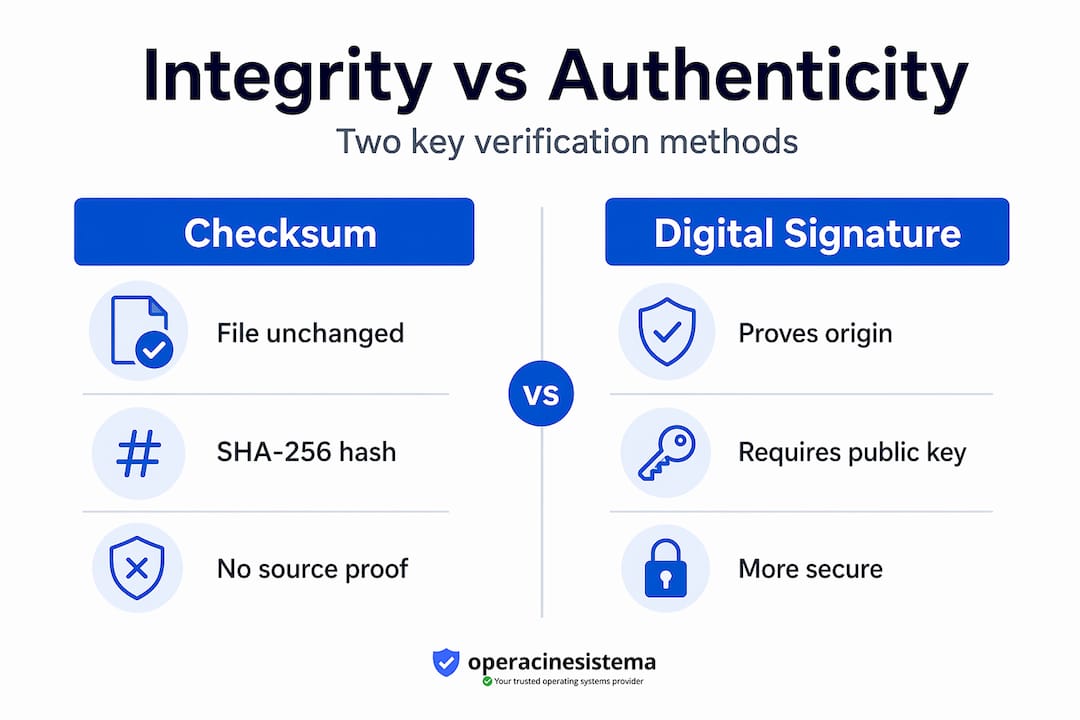
Before you run a single verification command, you need the right tools and a clear understanding of what you’re checking. There are two distinct concepts here: integrity และ authenticity. They are not the same thing.
Integrity checks confirm that a file hasn’t been altered in transit. Authenticity checks confirm it actually came from the claimed developer. You need both.
What checksums and digital signatures actually do
A checksum, most commonly SHA-256, produces a unique string of characters for any given file. Change even one byte in the file and the checksum changes completely. This makes it easy to spot corruption or tampering during download.
Digital signatures go further. A developer signs a file using their private key, and you verify it using their public key. Checksums alone don’t guarantee legitimacy because an attacker could replace both the file and its posted checksum. A valid digital signature, by contrast, proves the file was signed by someone holding the private key — and that it hasn’t been changed since.
Verification tools by platform
Here’s a quick breakdown of common tools:
- Windows: "CertUtil
,Get-FileHash(PowerShell), andsigcheck` from Sysinternals for signature checks - macOS:
shasumfor checksums,codesignและspctlfor app signature verification, andpkgutilfor.pkgfiles - Linux:
sha256sumis built in;gpghandles digital signature verification for most open source software - Cross-platform: Sigstore and its Rekor transparency log are increasingly used for cloud-native and open source projects, storing signing events that anyone can query by public key or artifact
Where to get official checksums and keys
Always download checksums and public keys from the developer’s official website. Don’t rely on third-party mirrors. For open source projects, many publish their public key fingerprints in multiple places: their official site, mailing list archives, and verified developer profiles on platforms like GitHub. Comparing the fingerprint across at least two or three independent sources is the safest approach.
คำแนะนำจากผู้เชี่ยวชาญ: Before downloading any software, search the developer’s name plus “public key fingerprint” to find multiple independent postings of their key. If you can only find it in one place, treat that as a yellow flag.
Step-by-step process to verify software authenticity
Now you’re ready to run actual software authenticity checks. The steps below cover the most common scenarios you’ll encounter on Windows, macOS, and Linux.
Verifying a checksum on Windows
- Download the software file and the official SHA-256 checksum file from the developer’s website.
- Open PowerShell and run:
Get-FileHash C:pathtoyourfile.exe -Algorithm SHA256 - Compare the output hash against the one published by the developer. They must match exactly, character for character.
- If they don’t match, delete the file. Don’t try to “fix” it or run it anyway.
Verifying a checksum on Linux or macOS
- Download the file and the
.sha256checksum file to the same directory. - Run:
sha256sum -c yourfile.sha256on Linux, orshasum -a 256 -c yourfile.sha256on macOS. - A passing result shows “OK.” Any other result means the file is suspect.
Verifying a digital signature on macOS (.pkg files)
macOS .pkg verification involves checking the certificate authority and the certificate fingerprint. Open Terminal and run pkgutil --check-signature yourfile.pkg. A valid result shows “signed by a developer certificate” along with the certificate details. Cross-reference the certificate name and fingerprint with the developer’s official documentation. A mismatch is a serious red flag.

Verifying a Java JAR file
วิ่ง jarsigner -verify -verbose -certs yourfile.jar in the terminal. A successful result displays “jar verified.” Look at the certificate chain shown and confirm it matches the official publisher. A result of “jar is unsigned” or “ERROR” means the file should not be trusted.
Using Sigstore and Rekor for cloud-native software
For software signed via Sigstore, the verification process uses the cosign tool. Run cosign verify --certificate-identity <email> --certificate-oidc-issuer <issuer> <image>. The Rekor transparency log stores all signing events publicly. You can query it with a public key or artifact hash to confirm a signing event was recorded, adding an extra layer of supply chain transparency.
| วิธีการ | What it confirms | Best platform | Limitation |
|---|---|---|---|
| SHA-256 checksum | File integrity | All platforms | Doesn’t confirm origin |
| Digital signature (GPG) | Origin + integrity | Linux, macOS | Requires managing public keys |
codesign / spctl |
Origin + integrity | macOS | Limited to macOS ecosystem |
| Sigstore / Rekor | Full supply chain | Cloud-native | Tooling updates required |
Interpreting errors and avoiding false positives
A “signature not trusted” warning doesn’t always mean malware. It can mean the developer’s certificate isn’t in your local trust store. Check whether the certificate is listed on the developer’s official site. If it matches, you can add it to your trust store manually. But don’t dismiss errors out of convenience. A mismatch between the certificate shown and the developer’s published records is a genuine problem.
คำแนะนำจากผู้เชี่ยวชาญ: Always verify software on a clean network connection. Performing verification checks over a compromised or public Wi-Fi network defeats the purpose, since attackers on the same network can interfere with unencrypted connections.
Common mistakes that undermine verification
Getting the verification steps right is only half the battle. These are the mistakes that quietly cancel out your effort.
Trusting a single source for keys
Never rely on one source for public key fingerprints. If the developer’s website is compromised, a single-source check is worthless. Compare fingerprints from the official site, archived mailing list posts, and independent developer profiles. This cross-referencing step takes two minutes and dramatically reduces the risk of trusting a swapped key.
Confusing integrity with authenticity
Calculating a SHA-256 hash and confirming it matches the posted value only proves the file wasn’t altered after the developer posted that hash. It says nothing about whether the developer is legitimate, or whether the posted hash itself was tampered. Digital signatures are required for genuine authenticity verification.
Assuming HTTPS means safe
HTTPS protects data in transit. It does not verify the software itself. A website using HTTPS can still distribute malware or counterfeit software. Many users see the padlock icon and stop there. That’s a significant gap in their verification process.
Ignoring non-reproducible build limitations
Most software builds are non-reproducible, meaning you can’t independently rebuild the software from source and confirm it matches the distributed binary. This is a known limitation. Cryptographic signatures and transparency logs are your practical alternative. Knowing this limitation helps you understand why signature verification is so critical.
Skipping tool updates
Outdated tools for transparency logs like Rekor v2 can produce false verification errors or fail silently. If your cosign or verification client is older, update it before running checks. A tool that appears to verify successfully but is misreading the log is worse than no verification at all.
| Mistake | Better practice |
|---|---|
| Using one key source | Cross-check across three independent sources |
| Relying only on checksums | Always pair with digital signature verification |
| Trusting HTTPS as sufficient | Run full signature and checksum checks regardless |
| Skipping tool updates | Update verification tools before each use |
| Ignoring certificate details | Check certificate name and fingerprint against official docs |
คำแนะนำจากผู้เชี่ยวชาญ: If you verify software regularly, build a simple checklist your team uses every time. Consistency is more valuable than an occasional thorough check followed by months of skipped steps.
How to verify software license validity
Running software with a genuine file signature is one thing. Confirming your license is legitimate and compliant is a separate process, and skipping it can cost more in the long run.
Understanding license types before you verify
License type matters for verification because each type has different activation and validation rules.
- ใบอนุญาต OEM are tied to a specific device. They activate once and cannot be transferred. If you’re buying a pre-built machine, the OEM key is typically embedded in the firmware.
- ใบอนุญาตค้าปลีก are transferable between devices. You can deactivate them on one machine and activate them on another. Verification involves checking the activation status through the OS settings and confirming the key was purchased from an authorized reseller.
- ใบอนุญาตแบบปริมาณ are issued to organizations with multiple devices. Verification typically involves the organization’s volume licensing portal and requires an administrator account.
Checking Windows license key validity
You can check your Windows key validity directly through Settings. Go to Settings > System > Activation. A genuinely activated copy shows “Windows is activated with a digital license” or similar. If it shows “Windows is not activated,” the key may be blocked, counterfeit, or already used on another device.
For a deeper check, open Command Prompt as administrator and run slmgr /dlv. This displays the license type, partial product key, and expiration status. Cross-reference the license type shown against what you purchased. An OEM key activated on a device it wasn’t tied to will often fail or activate only temporarily.
Best practices when buying software licenses
- ✅ Buy from authorized resellers or directly from the developer’s official store
- ✅ Ask for proof of license documentation, especially for Volume licenses
- ✅ Verify the supplier’s credibility through reviews, registration, and reseller certification
- ✅ Keep a record of your license key, purchase receipt, and activation confirmation
- Avoid unusually cheap keys from unknown sellers. If the price is 90% below retail, the license is almost certainly fake, blocked, or recycled.
Compliance and regulations you need to know
Regulated industries require documented software validation and lifecycle review. FDA 21 CFR Part 11, ISO 13485, and the EU Cyber Resilience Act all mandate software verification documentation. For businesses in healthcare, finance, or government contracting, failure to validate licensed software can result in fines, blocked product sales, or failed audits. Understanding software validation in compliance contexts is not optional in these sectors. It’s a legal requirement.
My take on where software verification is headed
I’ve watched verification practices evolve significantly over the past several years, and one thing is clear: the old model of trusting software because it came from a familiar name is broken. Supply chain attacks have proven that even well-known components can be compromised at the source. Trusting well-known components without verification is now understood as genuinely inadequate.
What I find encouraging is the rise of verification-centric approaches. The curl project is a good example. It now publishes signed releases and maintains a dedicated verification page so users can confirm authenticity themselves. Daniel Stenberg’s point about independent verification improving security even in small numbers is one that more software projects should take seriously.
My honest view is that most individuals and businesses are still stuck at the checksum stage. They run a hash, see it matches, and move on. That’s better than nothing. But it’s not enough in 2026. Digital signatures, transparency logs, and signed Software Bills of Materials (SBOMs) are quickly becoming the baseline standard. Regulation is actively driving SBOM adoption and signing requirements across industries. If you’re a business, don’t wait for a compliance deadline to force your hand. Build these checks into your software procurement and deployment workflow now.
The biggest shift I expect in the next few years is that verification tooling will become far more automated and integrated. Right now, running cosign หรือ gpg manually still requires deliberate effort. That friction is real and it leads to skipped checks. As these tools get embedded into package managers, CI/CD pipelines, and OS-level installers, the barrier drops. Until that happens, doing it manually is still your responsibility.
— ดาเนียลิอุส
Get genuine Windows licenses with confidence
Knowing how to verify software is only useful if you start with a trustworthy source. Buying from an unverified seller makes every downstream check harder, because you’re already starting with doubt.
At Operacinesistema, every Windows license sold is genuine, documented, and traceable. Whether you need an OEM key for a new build or a Retail license you can transfer between devices, the Windows license options are clearly explained so you know exactly what you’re buying before you pay. Licenses are delivered digitally, with full activation support. If you want to confirm what you already have before purchasing, use the key validity checker to see whether your current license is active and genuine. Verification starts at the point of purchase. Make sure yours does too.
คำถามที่พบบ่อย
What is the difference between a checksum and a digital signature?
A checksum confirms a file hasn’t been altered in transit, while a digital signature confirms the file was created by the claimed developer. You need both for complete software authenticity checks.
How do I verify software authenticity on Windows?
Use PowerShell’s Get-FileHash command to check the SHA-256 checksum against the developer’s published value, then use Sysinternals sigcheck or Windows built-in tools to verify the digital signature on the executable.
Can HTTPS alone confirm software is safe to install?
No. HTTPS protects data during transfer but does not verify the software file itself. Always run checksum and signature verification regardless of whether the download site uses HTTPS.
How do I check if my Windows license key is valid?
Go to Settings > System > Activation to see your activation status, or run slmgr /dlv in an elevated Command Prompt for detailed license information including type, partial key, and expiry.
What regulations require software license validation?
Industries covered by FDA 21 CFR Part 11, ISO 13485, and the EU Cyber Resilience Act must document software validation and compliance as part of their operational requirements, with revalidation required after significant software changes.
แนะนำ
- ทำไมความถูกต้องของซอฟต์แวร์จึงมีความสำคัญสำหรับธุรกิจขนาดเล็กในปี 2026
- วิธีการตรวจสอบใบอนุญาตซอฟต์แวร์ Windows และการปฏิบัติตามข้อกำหนด
- ทำไมความชอบธรรมของซอฟต์แวร์จึงมีความสำคัญสำหรับผู้ใช้ระบบปฏิบัติการของ Microsoft
- คู่มือการซื้อลิขสิทธิ์ Windows อย่างปลอดภัย: คู่มือแบบขั้นตอนต่อขั้นตอนสำหรับการซื้อซอฟต์แวร์