How to Verify Software Authenticity: A Practical Guide
TL;DR:
- Verifying software authenticity through checksums and digital signatures is essential to prevent security breaches and data theft. Proper validation involves using multiple trusted sources, appropriate tools, and understanding license types, especially in regulated industries. Automated and integrated verification methods are the future, but current best practices require diligent, manual checks to ensure trust and compliance.
Downloading software may seem like a routine task. But every unverified file you run is a gamble. Fake installers, tampered packages, and pirated tools are behind a shocking number of security breaches and data theft incidents targeting both individuals and businesses. Knowing how to verify a software’s authenticity before installation is no longer optional. It’s the difference between a secure system and a costly cleanup. This guide walks you through the exact tools, steps, and checks you need. No assumptions, no shortcuts.
Table of Contents
- Key takeaways
- Tools and Preparation for Software Verification
- Step-by-step process for verifying software authenticity
- Common mistakes that undermine verification
- How to Verify the Validity of a Software License
- My take on the future of software verification
- Get genuine Windows licenses with confidence
- FAQ
Key takeaways
| Point | Details |
|---|---|
| Checksums verify integrity | SHA-256 checksums verify that a file has not been altered, but they do not prove who created it. |
| Digital signatures confirm the origin | Only signature verification proves that the software came from the legitimate developer. |
| Use multiple key sources | Never rely on a single source for verification keys to avoid trusting compromised data. |
| The license type affects verification | OEM, Retail, and Volume licenses each have their own activation and validation methods. |
| Regulation is raising the bar | Regulated industries must document software validation or risk fines and sales restrictions. |
Tools and Preparation for Software Verification
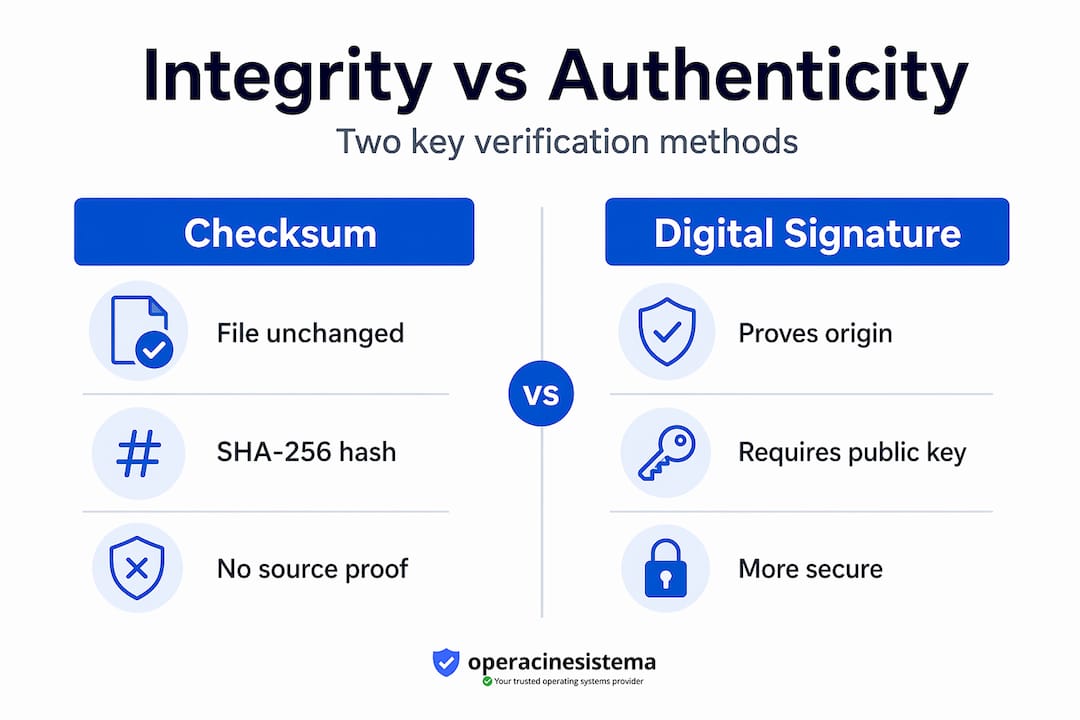
Before you run a single verification command, you need the right tools and a clear understanding of what you’re checking. There are two distinct concepts here: integrity and authenticity. They are not the same thing.
Integrity checks confirm that a file has not been altered during transmission. Authenticity checks confirm that it actually came from the developer who claimed to have created it. You need both.
What Checksums and Digital Signatures Actually Do
A checksum, most commonly SHA-256, produces a unique string of characters for any given file. If even a single byte in the file is changed, the checksum changes completely. This makes it easy to detect corruption or tampering during the download.
Digital signatures go a step further. A developer signs a file using their private key, and you verify it using their public key. Checksums alone do not guarantee legitimacy because an attacker could replace both the file and its posted checksum. A valid digital signature, by contrast, proves that the file was signed by someone holding the private key—and that it has not been altered since.
Verification tools by platform
Here’s a quick overview of common tools:
- Windows: "CertUtil
,Get-FileHash(PowerShell), and"sigcheck" from Sysinternals for signature checks - macOS:
shasumfor checksums,codesignandspctlfor app signature verification, andpkgutilfor.pkgfiles - Linux:
sha256sumis built in;gpghandles digital signature verification for most open-source software - Cross-platform: Sigstore and its Rekor transparency log are increasingly used for cloud-native and open-source projects, storing signing events that anyone can query by public key or artifact
Where to find official checksums and keys
Always download checksums and public keys from the developer’s official website. Do not rely on third-party mirrors. For open-source projects, many publish their public key fingerprints in multiple places: their official site, mailing list archives, and verified developer profiles on platforms like GitHub. Comparing the fingerprint across at least two or three independent sources is the safest approach.
Pro Tip: Before downloading any software, search for the developer’s name along with “public key fingerprint” to find multiple independent posts containing their key. If you can only find it in one place, consider that a red flag.
Step-by-step process for verifying software authenticity
Now you're ready to run actual software authenticity checks. The steps below cover the most common scenarios you'll encounter on Windows, macOS, and Linux.
Verifying a checksum on Windows
- Download the software file and the official SHA-256 checksum file from the developer’s website.
- Open PowerShell and run:
Get-FileHash C:path-to-your-file.exe -Algorithm SHA256 - Compare the output hash with the one published by the developer. They must match exactly, character for character.
- If they don't match, delete the file. Don't try to “fix” it or run it anyway.
Verifying a checksum on Linux or macOS
- Download the file and the
.sha256checksum file to the same directory. - Run:
sha256sum -c yourfile.sha256on Linux, orshasum -a 256 -c yourfile.sha256on macOS. - A passing result displays “OK.” Any other result indicates that the file is suspicious.
Verifying a digital signature on macOS (.pkg files)
macOS .pkg verification This involves verifying the certificate authority and the certificate fingerprint. Open Terminal and run pkgutil --check-signature yourfile.pkg. A valid result displays “signed by a developer certificate” along with the certificate details. Cross-reference the certificate name and fingerprint with the developer’s official documentation. A mismatch is a serious red flag.

Verifying a Java JAR file
Run jarsigner -verify -verbose -certs yourfile.jar in the terminal. A successful result displays “jar verified.” Review the certificate chain shown and verify that it matches the official publisher. A result of “jar is unsigned” or “ERROR” means the file should not be trusted.
Using Sigstore and Rekor for cloud-native software
For software signed via Sigstore, the verification process uses the cosign tool. Run cosign verify --certificate-identity --certificate-oidc-issuer. The Rekor transparency log publicly stores all signing events. You can query it using a public key or an artifact hash to confirm that a signing event was recorded, adding an extra layer of supply chain transparency.
| Method | What it confirms | Best platform | Limitation |
|---|---|---|---|
| SHA-256 checksum | File Integrity | All platforms | Does not confirm origin |
| Digital Signature (GPG) | Origin + Integrity | Linux, macOS | Requires managing public keys |
codesign / spctl |
Origin + Integrity | macOS | Limited to the macOS ecosystem |
| Sigstore / Rekor | Full supply chain | Cloud-native | Tooling updates are required |
Interpreting Errors and Avoiding False Positives
A “signature not trusted” warning doesn’t always mean malware. It may mean that the developer’s certificate isn’t in your local trust store. Check whether the certificate is listed on the developer’s official website. If it matches, you can add it to your trust store manually. But don’t ignore errors just for the sake of convenience. A discrepancy between the displayed certificate and the developer’s published records is a genuine problem.
Pro Tip: Always verify software using a secure network connection. Performing verification checks over a compromised or public Wi-Fi network defeats the purpose, since attackers on the same network can interfere with unencrypted connections.
Common mistakes that undermine verification
Getting the verification steps right is only half the battle. These are the mistakes that quietly undermine your efforts.
Relying on a single source for keys
Never rely on a single source for public key fingerprints. If the developer’s website is compromised, checking a single source is useless. Compare fingerprints from the official site, archived mailing list posts, and independent developer profiles. This cross-referencing step takes two minutes and dramatically reduces the risk of trusting a swapped key.
Confusing Integrity with Authenticity
Calculating a SHA-256 hash and confirming that it matches the posted value only proves that the file was not altered after the developer posted that hash. It says nothing about whether the developer is legitimate or whether the posted hash itself was tampered with. Digital signatures are required for genuine authenticity verification.
Assuming HTTPS means it's safe
HTTPS protects data in transit. It does not verify the software itself. A website using HTTPS can still distribute malware or counterfeit software. Many users see the padlock icon and stop there. That’s a significant gap in their verification process.
Ignoring limitations related to non-reproducible builds
Most software builds are not reproducible, which means you cannot independently rebuild the software from source code and verify that it matches the distributed binary. This is a known limitation. Cryptographic signatures and transparency logs are your practical alternatives. Understanding this limitation helps you appreciate why signature verification is so critical.
Skip tool updates
Outdated tools for transparency logs Like Rekor v2, it can produce false verification errors or fail silently. If your cosign If the verification client is outdated, update it before running the checks. A tool that appears to verify successfully but is misreading the log is worse than no verification at all.
| Mistake | Best Practices |
|---|---|
| Using a single key source | Cross-check against three independent sources |
| Relying solely on checksums | Always use digital signature verification |
| Trusting HTTPS as sufficient | Run full signature and checksum checks regardless |
| Skip tool updates | Update verification tools before each use |
| Ignoring certificate details | Verify the certificate name and fingerprint against the official documentation |
Pro Tip: If you verify software regularly, create a simple checklist that your team uses every time. Consistency is more valuable than an occasional thorough check followed by months of skipped steps.
How to Verify the Validity of a Software License
Running software with a genuine file signature is one thing. Verifying that your license is legitimate and compliant is a separate process, and skipping it can end up costing you more in the long run.
Understanding License Types Before You Verify
The license type is important for verification because each type has different activation and validation rules.
- OEM licences are tied to a specific device. They activate once and cannot be transferred. If you’re buying a pre-built computer, the OEM key is typically embedded in the firmware.
- Retail licences are transferable between devices. You can deactivate them on one device and activate them on another. Verification involves checking the activation status in the OS settings and confirming that the key was purchased from an authorized reseller.
- Volume licences are issued to organizations with multiple devices. Verification typically involves the organization’s volume licensing portal and requires an administrator account.
Checking the Validity of a Windows License Key
You can Check the validity of your Windows key directly through Settings. Go to Settings > System > Activation. A properly activated copy will display “Windows is activated with a digital license” or something similar. If it says “Windows is not activated,” the key may be blocked, counterfeit, or already used on another device.
For a more thorough check, open Command Prompt as an administrator and run slmgr /dlv. This displays the license type, partial product key, and expiration status. Compare the license type shown with what you purchased. An OEM key activated on a device it wasn’t tied to will often fail or activate only temporarily.
Best Practices for Purchasing Software Licenses
- ✅ Buy from authorized resellers or directly from the developer’s official store
- ✅ Ask for proof of license documentation, especially for Volume licenses
- ✅ Verify the supplier’s credibility through reviews, registration, and reseller certification
- ✅ Keep a record of your license key, purchase receipt, and activation confirmation
- Avoid unusually cheap keys from unknown sellers. If the price is 90% below retail, the license is almost certainly fake, blocked, or recycled.
Compliance and regulations you need to know
Regulated industries require documented software validation and lifecycle review. FDA 21 CFR Part 11, ISO 13485, and the EU Cyber Resilience Act all mandate software verification documentation. For businesses in healthcare, finance, or government contracting, failure to validate licensed software can result in fines, blocked product sales, or failed audits. Understanding software validation in compliance contexts is not optional in these sectors. It’s a legal requirement.
My take on the future of software verification
I’ve watched verification practices evolve significantly over the past several years, and one thing is clear: the old model of trusting software because it came from a familiar name is broken. Supply chain attacks have proven that even well-known components can be compromised at the source. Trusting well-known components without verification is now understood as genuinely inadequate.
What I find encouraging is the rise of verification-centric approaches. The curl project is a good example. It now publishes signed releases and maintains a dedicated verification page so users can confirm authenticity themselves. Daniel Stenberg’s point about independent verification improving security even in small numbers is one that more software projects should take seriously.
My honest view is that most individuals and businesses are still stuck at the checksum stage. They run a hash, see it matches, and move on. That’s better than nothing. But it’s not enough in 2026. Digital signatures, transparency logs, and signed Software Bills of Materials (SBOMs) are quickly becoming the baseline standard. Regulation is actively driving SBOM adoption and signing requirements across industries. If you’re a business, don’t wait for a compliance deadline to force your hand. Build these checks into your software procurement and deployment workflow now.
The biggest shift I expect in the next few years is that verification tooling will become far more automated and integrated. Right now, running cosign or gpg manually still requires deliberate effort. That friction is real and it leads to skipped checks. As these tools get embedded into package managers, CI/CD pipelines, and OS-level installers, the barrier drops. Until that happens, doing it manually is still your responsibility.
— Danielius
Get genuine Windows licenses with confidence
Knowing how to verify software is only useful if you start with a trustworthy source. Buying from an unverified seller makes every downstream check harder, because you’re already starting with doubt.
At Operacinesistema, every Windows license sold is genuine, documented, and traceable. Whether you need an OEM key for a new build or a Retail license you can transfer between devices, the Windows license options are clearly explained so you know exactly what you’re buying before you pay. Licenses are delivered digitally, with full activation support. If you want to confirm what you already have before purchasing, use the key validity checker to see whether your current license is active and genuine. Verification starts at the point of purchase. Make sure yours does too.
FAQ
What is the difference between a checksum and a digital signature?
A checksum confirms a file hasn’t been altered in transit, while a digital signature confirms the file was created by the claimed developer. You need both for complete software authenticity checks.
How do I verify the authenticity of software on Windows?
Use PowerShell’s Get-FileHash command to check the SHA-256 checksum against the developer’s published value, then use Sysinternals sigcheck or Windows built-in tools to verify the digital signature on the executable.
Can HTTPS alone confirm that software is safe to install?
No. HTTPS protects data during transmission but does not verify the software file itself. Always perform checksum and signature verification, regardless of whether the download site uses HTTPS.
How do I check if my Windows license key is valid?
Go to Settings > System > Activation to see your activation status, or run slmgr /dlv in an elevated Command Prompt for detailed license information including type, partial key, and expiry.
Which regulations require software license validation?
Industries subject to FDA 21 CFR Part 11, ISO 13485, and the EU Cyber Resilience Act must document software validation and compliance as part of their operational requirements, with revalidation required following significant software changes.