Windows 11 Home vs Pro: Which Edition Fits Your Needs?
TL;DR:
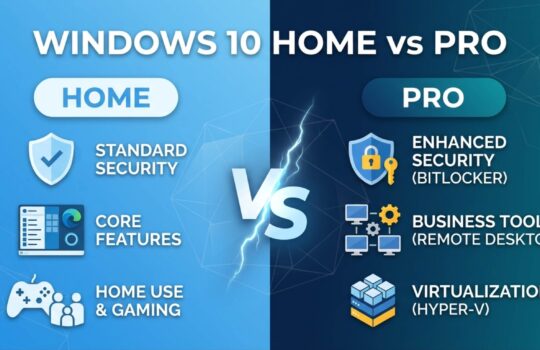
- Windows 11 Home and Pro share core features like AI tools and gaming, suitable for personal use.
- Pro includes advanced security and management tools such as BitLocker, Remote Desktop, and Group Policy.
- Most users don’t need Pro; it’s essential mainly for small businesses and power users requiring specific features.
Most people assume Windows 11 Home and Pro are nearly identical, with Pro being just a slightly fancier version you probably don’t need. That assumption can cost you, literally. Whether you’re a student, a freelancer, or running a small business with five workstations, picking the wrong edition means either overpaying for tools you’ll never touch or leaving your data dangerously exposed. This guide cuts through the noise. We’ll break down every meaningful difference between Home and Pro, show you exactly who benefits from each, and help you make a confident, informed decision before spending a single dollar.
Índice
- Core features in Windows 11 Home and Pro
- Security and management: Where Pro stands out
- Performance, hardware limits, and virtualization
- Pricing, upgrade paths, and choosing the right edition
- Why most people get Windows 11 editions wrong
- Find the right Windows license for your goals
- Frequently asked questions
Principais conclusões
| Ponto | Detalhes |
|---|---|
| Pro adds security tools | Windows 11 Pro offers BitLocker and advanced device management missing from Home. |
| Most users need Home only | For 90% of individuals, Windows 11 Home includes all essential features and entertainment capabilities. |
| Businesses need Pro | Small business owners benefit from Pro’s remote access, Group Policy, and data protection tools. |
| Price difference explained | There’s a $60 retail gap—upgrade only if you truly need Pro’s extra features. |
Core features in Windows 11 Home and Pro
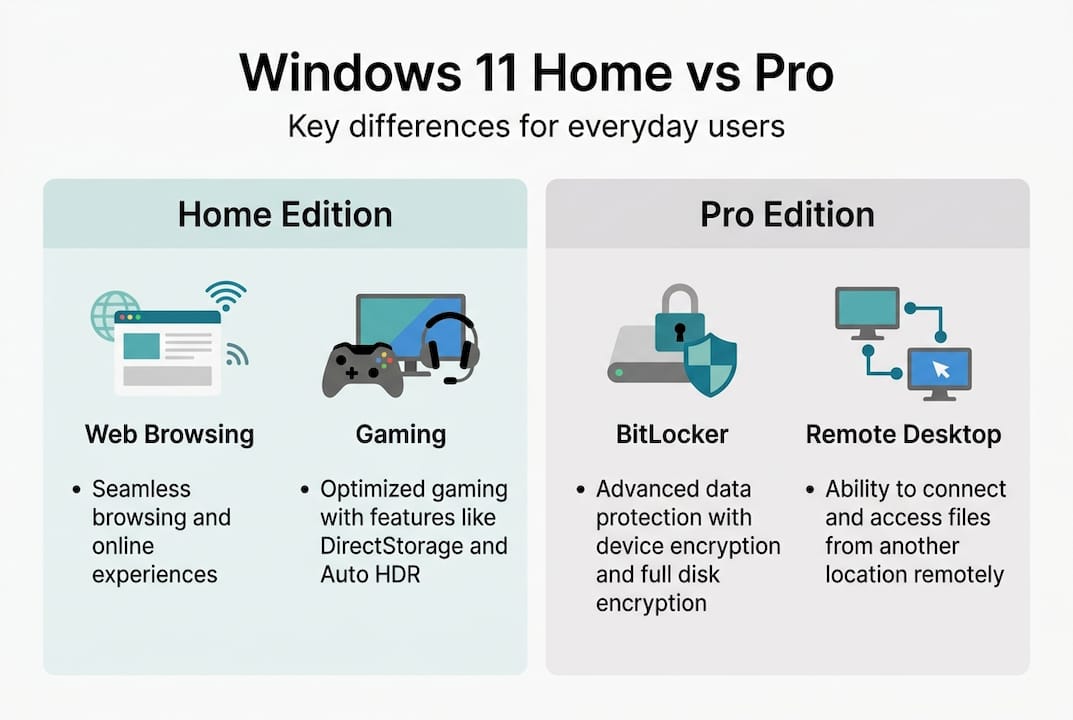
Both editions share the same modern Windows 11 interface, including the centered taskbar, Snap Layouts, and the redesigned Start menu. You also get the same consumer AI tools, full gaming support via DirectX 12 Ultimate and Xbox Game Pass integration, Windows Hello biometric login, and Microsoft Defender for baseline security. For most everyday users, consumer features like AI and gaming are present in both editions, which means Home is genuinely capable for personal use.
Where things diverge is in the tools built for business and power users. Windows 11 Pro adds a layer of features that Home simply doesn’t include. Here’s a quick look at what sets them apart:
| Recurso | Windows 11 Home | Windows 11 Pro |
|---|---|---|
| BitLocker encryption | ✗ | ✓ |
| Editor de política de grupo | ✗ | ✓ |
| Hyper-V virtualization | ✗ | ✓ |
| Windows Sandbox | ✗ | ✓ |
| Domain join | ✗ | ✓ |
| Remote Desktop (host) | ✗ | ✓ |
| Assigned Access | ✗ | ✓ |
| Microsoft Defender App Guard | ✗ | ✓ |
| AI tools and gaming | ✓ | ✓ |
| Windows Hello | ✓ | ✓ |
O Windows 11 Pro exclusive features listed above aren’t marketing fluff. They solve real problems for real workflows. But they’re also completely irrelevant if you’re just browsing, streaming, and working in Office.
For a side-by-side breakdown from an independent source, the CNET comparison is a solid reference. You can also explore less-known Pro features that rarely get mentioned in mainstream articles.
Pro Tip: If your daily tasks include web browsing, video calls, creative work, or gaming, Windows 11 Home covers everything you need without any compromise.
Security and management: Where Pro stands out
Understanding the basic features, it’s crucial to look deeper at why security and management options tip the scales for certain users.
The biggest security gap between the two editions is encryption. Home offers basic device encryption, which is tied to your Microsoft account and limited in scope. Pro includes BitLocker full-drive encryption, which encrypts every byte on your drive and lets you manage recovery keys independently. That’s a critical difference if your laptop gets stolen.

| Security feature | Windows 11 Home | Windows 11 Pro |
|---|---|---|
| Basic device encryption | ✓ | ✓ |
| BitLocker full-drive encryption | ✗ | ✓ |
| Editor de política de grupo | ✗ | ✓ |
| Microsoft Defender App Guard | ✗ | ✓ |
| Assigned Access (kiosk mode) | ✗ | ✓ |
| Domain join / Azure AD | ✗ | ✓ |
Windows 11 Pro also adds Group Policy, domain join, and App Guard, which are tools that IT administrators rely on to control device behavior across an entire organization. Group Policy lets you enforce rules like disabling USB ports or restricting app installations. Domain join connects your PC to a company network with centralized authentication.
Here are four real-world scenarios where Pro’s security tools make a genuine difference:
- A freelancer with client contracts on their laptop — BitLocker ensures that if the device is lost or stolen, sensitive files can’t be accessed without the recovery key.
- A small retail business running a customer-facing kiosk — Assigned Access locks the device to a single app, preventing customers from accessing anything else.
- A remote team sharing company resources — Domain join and Azure Active Directory allow centralized login management across multiple machines.
- An employee handling sensitive financial data — Microsoft Defender App Guard isolates browser sessions so malware can’t escape into the main system.
“Pro is recommended for BitLocker (data security), Remote Desktop (remote access), Hyper-V (testing virtual machines), and Group Policy (device configurations).” — CNET
For a deeper look at business features in Pro and how they apply to small teams, the differences go well beyond just encryption. You can also check remote access differences between editions if Remote Desktop is a priority for your workflow.
Performance, hardware limits, and virtualization
Securing your system is one side, but how does each edition handle demanding tasks or hardware?
Both editions run on the same Windows 11 kernel, so raw performance for everyday tasks is identical. The differences show up at the hardware ceiling and in advanced tools like virtualization.
Here’s how the hardware limits break down by edition:
- Windows 11 Home: Supports 1 physical CPU, up to 64 cores, and a maximum of 128GB of RAM
- Windows 11 Pro: Supports 2 physical CPUs, up to 128 cores, and up to 2TB of RAM
For the vast majority of laptops and desktops sold today, these limits are completely irrelevant. A typical home user with 16GB or 32GB of RAM will never come close to Home’s ceiling. These limits matter for workstations running data processing, scientific modeling, or server-adjacent tasks.
Where Pro pulls ahead for power users is virtualization. Hyper-V and Windows Sandbox are exclusive to Windows 11 Pro. Hyper-V is Microsoft’s built-in tool for running virtual machines (VMs), meaning you can run a separate operating system inside a window on your desktop. Developers use this to test software in different environments. IT professionals use it to simulate networks.
Windows Sandbox is a lighter version of the same idea. It spins up a temporary, isolated Windows environment in seconds. You can open a suspicious file or test an app inside the Sandbox, and when you close it, everything disappears. It’s a genuinely useful safety net.
- Hyper-V use cases: Software development, network simulation, running Linux alongside Windows
- Windows Sandbox use cases: Testing unknown files, evaluating new software safely, training scenarios
🛑 Some guides suggest enabling Hyper-V on Windows 11 Home through workarounds. These methods are unstable, unsupported by Microsoft, and can cause system issues. If virtualization matters to you, go with Pro from the start.
You can explore the full range of virtualization tools available in Pro and how they compare to third-party alternatives.
Pro Tip: If your machine has less than 128GB of RAM and you’re not running VMs, Home’s hardware limits will never affect you. Don’t let specs on paper drive your decision.
Pricing, upgrade paths, and choosing the right edition
All these features may sound important, but what about cost, and how do you make the final call?
Here’s what Microsoft charges at retail:
- Windows 11 Home: $139 to $140
- Windows 11 Pro: $199 to $200
- Upgrade from Home to Pro: $99 through Microsoft
That $60 gap between editions is meaningful. But it’s also worth noting that genuine OEM and retail licenses are often available at significantly lower prices through authorized resellers. Check best Pro license deals if you want to avoid paying full Microsoft retail pricing.
If you already have Home and realize you need Pro, the Home to Pro upgrade options are straightforward and don’t require reinstalling Windows. You simply enter a Pro license key and the system upgrades in place.
Here’s a simple four-step process to decide which edition is right for you:
- List your actual use cases. Do you need BitLocker, Remote Desktop, or Group Policy? If none of those ring a bell, Home is likely enough.
- Check your hardware. If you’re running a multi-CPU workstation or need virtualization, Pro is the right call.
- Assess your risk exposure. Small business owners handling client data, financial records, or employee information should prioritize BitLocker and domain management.
- Compare your budget against the upgrade cost. If you’re price-sensitive, start with Home and upgrade later for $99 if your needs change.
🔥 Roughly 90% of individual users will never need the features exclusive to Windows 11 Pro. But for small businesses, skipping Pro can leave critical gaps in security and device management.
Who should choose Home: Students, home users, gamers, creatives, and anyone whose work stays on a single personal device.
Who should choose Pro: Small business owners, IT professionals, developers, remote workers needing Remote Desktop, and anyone handling sensitive data. For the full upgrade path details, PCMag’s breakdown is worth reading before you commit.
Why most people get Windows 11 editions wrong
Here’s the honest take: the most common mistake isn’t choosing the wrong edition. It’s choosing without actually thinking about workflow.
We see two patterns repeat constantly. First, individuals buy Pro because it sounds more powerful, then never touch a single Pro-exclusive feature. They paid $60 extra for nothing. Second, small business owners grab Home to save money, then realize six months later that they can’t encrypt drives, can’t join a domain, and can’t manage devices centrally. That oversight costs far more to fix than the original price difference.
The default advice of “always buy the most powerful version” is lazy. Power only matters if it maps to something you actually do. The overlooked Pro features aren’t hidden gems for everyone. For a home user, they’re just clutter. For a business owner, they’re essential infrastructure.
Before you buy, write down three things: what you store on this machine, who else accesses it, and whether you’ll ever need to manage it remotely. Those three answers will tell you everything.
Find the right Windows license for your goals
Ready to make your decision? Here’s where to secure a genuine license and avoid common pitfalls.
At operacinesistema.lt, we make it straightforward to get a legitimate Windows 11 license, whether you need Home or Pro. You can grab a secure Pro license with instant email delivery and full activation support. Not sure which license type fits your setup? Our types of software licenses guide walks you through OEM versus retail options clearly. For small business owners, we also offer a compliance checklist to make sure your software setup meets legal and operational standards. Genuine licenses protect you from blocked activations, missing updates, and security vulnerabilities. Don’t risk it on fake keys.
Frequently asked questions
Does Windows 11 Home include BitLocker?
No, BitLocker is exclusive to Pro, and Home edition only offers basic device encryption tied to your Microsoft account.
Can I upgrade from Windows 11 Home to Pro later?
Yes, you can upgrade at any time without reinstalling Windows, and the standard upgrade costs $99 through Microsoft.
Who should choose Windows 11 Pro instead of Home?
Small business owners or users needing BitLocker, Hyper-V, or Remote Desktop host functions should choose Pro, as Pro is recommended for data security and remote access scenarios.
Are there differences in gaming or AI features between Home and Pro?
No, both editions include full gaming support and consumer-facing AI tools, so neither edition has an edge for most everyday users.