Windows instalēšanas kontrolsaraksts 2026: nodrošiniet īstu instalēšanu
Installing Windows correctly with proper licensing protects you from compliance issues and ensures your system runs smoothly. Many users skip critical steps like verifying hardware compatibility or securing genuine activation keys, leading to frustrating errors or legal risks down the road. This checklist walks you through every essential phase, from hardware verification and data backup to clean installation and activation. Following these structured steps helps you avoid common pitfalls while maintaining full licensing compliance throughout 2026.
Satura rādītājs
- Verify Hardware Compatibility And Prepare Your Device
- Backup Data And Gather All Necessary Activation Keys
- Perform The Clean Installation Of Windows
- Activate Windows And Ensure Licensing Compliance
- Get Genuine Windows Licenses And Support For 2026
- How Do I Know If My Hardware Supports Windows 11?
- What Roles Do I Need To Access Volume Licensing Keys?
- Can I Install Windows Without A Product Key?
- Should I Format My Drive Or Upgrade In Place?
- How Long Does Windows Activation Take After Installation?
Galvenie secinājumi
| Punkts | Sīkāka informācija |
|---|---|
| Hardware and license verification | Confirm your device meets Windows 11 requirements and obtain genuine product keys before starting installation. |
| Data backup is essential | Back up all important files to external or cloud storage since clean installs wipe existing data completely. |
| Volume licensing access requires roles | Only users with Product keys reader or VL Administrator roles can view and export volume license keys. |
| Activation ensures compliance | Use valid retail, OEM, or volume licensing keys to activate Windows and reduce risk of licensing violations. |
| Checklist prevents installation errors | Following each step systematically minimizes setup problems and ensures a legally compliant Windows environment. |
Verify hardware compatibility and prepare your device
Before touching installation media, confirm your device meets Windows 11 minimum hardware requirements including processor specifications, RAM capacity, storage space, TPM 2.0, and Secure Boot capability. Skipping this verification step causes installation failures or performance issues that waste hours of troubleshooting. Microsoft provides the PC Health Check tool to scan your system automatically and flag any incompatible components within seconds.
Understanding the difference between upgrading and performing a clean installation helps you choose the right approach. Upgrading preserves your files and settings but carries forward old system clutter that can slow performance. Clean installations wipe everything and start fresh, delivering optimal speed and stability. If you’re upgrading from Windows 7 to Windows 11, a clean install often proves more reliable than attempting an in-place upgrade across multiple OS generations.
Check these specific hardware components before proceeding:
- Processor: 1 GHz or faster with at least two cores on a compatible 64-bit processor
- RAM: Minimum 4 GB for smooth operation
- Storage: 64 GB or larger storage device with available space
- System firmware: UEFI firmware with Secure Boot capability enabled
- TPM: Trusted Platform Module version 2.0 for security features
- Graphics card: DirectX 12 compatible with WDDM 2.0 driver
- Display: High definition 720p screen, greater than 9 inches diagonally
Pro Tip: Run the Microsoft PC Health Check utility before purchasing Windows licenses to avoid compatibility surprises. The tool generates a detailed report showing which components pass or fail requirements, letting you upgrade specific hardware if needed before installation day.
Once compatibility checks pass, gather your installation media and prepare workspace with adequate lighting and power supply. Rushing through hardware verification creates frustration later when installations fail halfway through or Windows refuses to activate due to TPM issues. Taking ten minutes now to confirm specifications saves hours of troubleshooting and potential hardware purchases. For detailed setup guidance, review our step-by-step Windows 11 installation guide covering the complete process.

Backup data and gather all necessary activation keys
Clean installations wipe all existing OS data completely, making comprehensive backups absolutely essential before proceeding. Transfer important documents, photos, videos, and application data to external hard drives, USB storage, or cloud services like OneDrive or Google Drive. Many users forget browser bookmarks, email archives, or custom application settings that take months to recreate from memory.
Create a systematic backup checklist covering these critical areas:
- Personal files: Documents, downloads, desktop items, pictures, videos, music libraries
- Browser data: Bookmarks, saved passwords, browsing history, extensions
- Email archives: Local PST files, message folders, contact lists
- Application settings: Custom configurations, license files, saved game progress
- System drivers: Network adapter, graphics card, specialized hardware drivers
Windows product keys come in several formats depending on how you acquired your license. Retail keys purchased from stores offer maximum flexibility for transferring between devices. OEM keys ship pre-installed with new computers and tie permanently to that specific hardware. Volume licensing keys serve organizations managing multiple installations through centralized agreements. Understanding which key type you possess determines activation procedures and compliance requirements.
Volume licensing product keys require specific user roles to access and export from the Microsoft 365 admin center. Only accounts assigned Product keys reader or VL Administrator roles can view these keys, protecting organizational license security. If you manage business licenses, verify your admin center permissions before installation day to avoid activation delays. Organizations can export keys for offline reference, though keeping them secure prevents unauthorized use.
Pro Tip: Document your current Windows activation status and product key before wiping drives. Run the command slmgr /dlv in Command Prompt to display detailed licensing information you can photograph or transcribe. This backup proves invaluable if activation issues arise post-installation.
For users exploring legitimate activation options, our safe activation guide explains legal methods and warns against risky key generators. Always verify your Windows license key validity before installation to confirm you possess a genuine product key. Organizations managing volume licensing should review role requirements to ensure proper key access during deployment.
Perform the clean installation of Windows
Creating bootable installation media starts the actual setup process. Download the official Windows Media Creation Tool from Microsoft’s website and use it to prepare a USB drive with at least 8 GB capacity. The tool formats the drive automatically and copies all necessary installation files, creating a portable Windows installer you can boot from on any compatible device.
Follow these steps to execute a clean Windows 11 installation:
- Insert the bootable USB drive into your target device and restart the computer completely.
- Access the boot menu by pressing F12, F2, Delete, or ESC during startup, depending on your motherboard manufacturer.
- Select the USB drive from the boot device list to launch Windows Setup instead of your existing operating system.
- Choose your language, time format, and keyboard layout preferences on the initial setup screen.
- Click Install Now and accept the license terms to proceed with installation.
- Select Custom: Install Windows only (advanced) when prompted to choose installation type.
- Format your existing OS drive or select an empty drive partition for the new Windows installation.
- Wait while Setup copies files, installs features, and configures your system, which typically takes 20 to 40 minutes.
- Complete the Out of Box Experience by configuring privacy settings, creating user accounts, and connecting to networks.
The Out of Box Experience (OOBE) presents several configuration screens after the core installation finishes. You’ll set your region, keyboard layout, network connection, Microsoft account or local account, and privacy preferences during this phase. Take time reviewing privacy options rather than rushing through, as these settings control data collection and feature behavior throughout your Windows experience.
Expert installers recommend formatting the OS drive completely rather than attempting upgrade installations when moving between major Windows versions. Clean installs eliminate compatibility issues from legacy drivers and conflicting software, delivering the most stable foundation for your new operating system.
Monitor installation progress carefully and avoid interrupting power or removing the USB drive until setup completes fully. Modern installations include automatic restarts, so don’t panic when your screen goes black briefly during the process. The system configures hardware drivers, applies updates, and prepares your desktop environment automatically. For comprehensive guidance covering each setup screen, consult our detailed Windows 11 installation steps tutorial.
Activate Windows and ensure licensing compliance
Activation connects your installed Windows copy to a valid license, unlocking all features and proving compliance with Microsoft’s terms. Volume licensing keys use specialized roles for management through the Microsoft 365 admin center, while retail and OEM keys activate directly through Windows Settings. Understanding which activation method applies to your license type prevents confusion and ensures proper compliance.
This comparison table clarifies different activation approaches:
| Activation Method | Atslēgas tips | Typical Users | Access Requirements |
|---|---|---|---|
| Mazumtirdzniecības atslēga | 25-character product key | Individual consumers, small businesses | Purchase receipt, key label |
| OEM atslēga | Pre-installed license | New PC buyers | Certificate of Authenticity sticker |
| Apjoma licencēšana | MAK or KMS keys | Enterprises, organizations | Product keys reader or VL Administrator role |
| Digitālā licence | Linked to Microsoft account | Upgraders, previous Windows 10 users | Microsoft account credentials |
Activate Windows immediately after installation completes by opening Settings, navigating to System, then Activation. Enter your 25-character product key when prompted or sign in with your Microsoft account if you possess a digital license. The system connects to Microsoft’s activation servers and validates your license within seconds under normal conditions. If activation fails, double-check your key for typos or verify your internet connection works properly.
Organizations using volume licensing must ensure users possess appropriate admin center roles before attempting key retrieval. The Product keys reader role grants view-only access to license keys, while VL Administrator provides full management capabilities including key export and assignment. Contact your IT administrator if you lack necessary permissions, as standard user accounts cannot access volume licensing keys regardless of their organizational position.
Maintaining licensing compliance reduces risks of violations that can trigger audits or legal issues. Keep detailed records of all product keys, purchase receipts, and activation dates in secure storage separate from your devices. Regular compliance checks verify each Windows installation matches available licenses, preventing accidental over-deployment that violates agreement terms.
Pro Tip: Verify activation status regularly by running slmgr /xpr in Command Prompt to confirm your license remains active. This quick check catches activation problems early before they escalate into compliance issues or feature limitations.
For users seeking legitimate licenses, explore our Windows 11 Pro activation keys for 2026 or learn command line license management techniques for advanced control. Organizations should review volume licensing key requirements to understand role-based access and export procedures fully.
Get genuine Windows licenses and support for 2026
Securing authentic Windows licenses eliminates compliance worries and ensures you receive full Microsoft support throughout 2026. Our platform specializes in genuine Windows 10 and Windows 11 Pro licenses delivered instantly via email or physical USB, giving you flexible options matching your installation preferences. Every license comes with comprehensive support and money-back guarantees if products remain unopened, providing peace of mind for your investment.
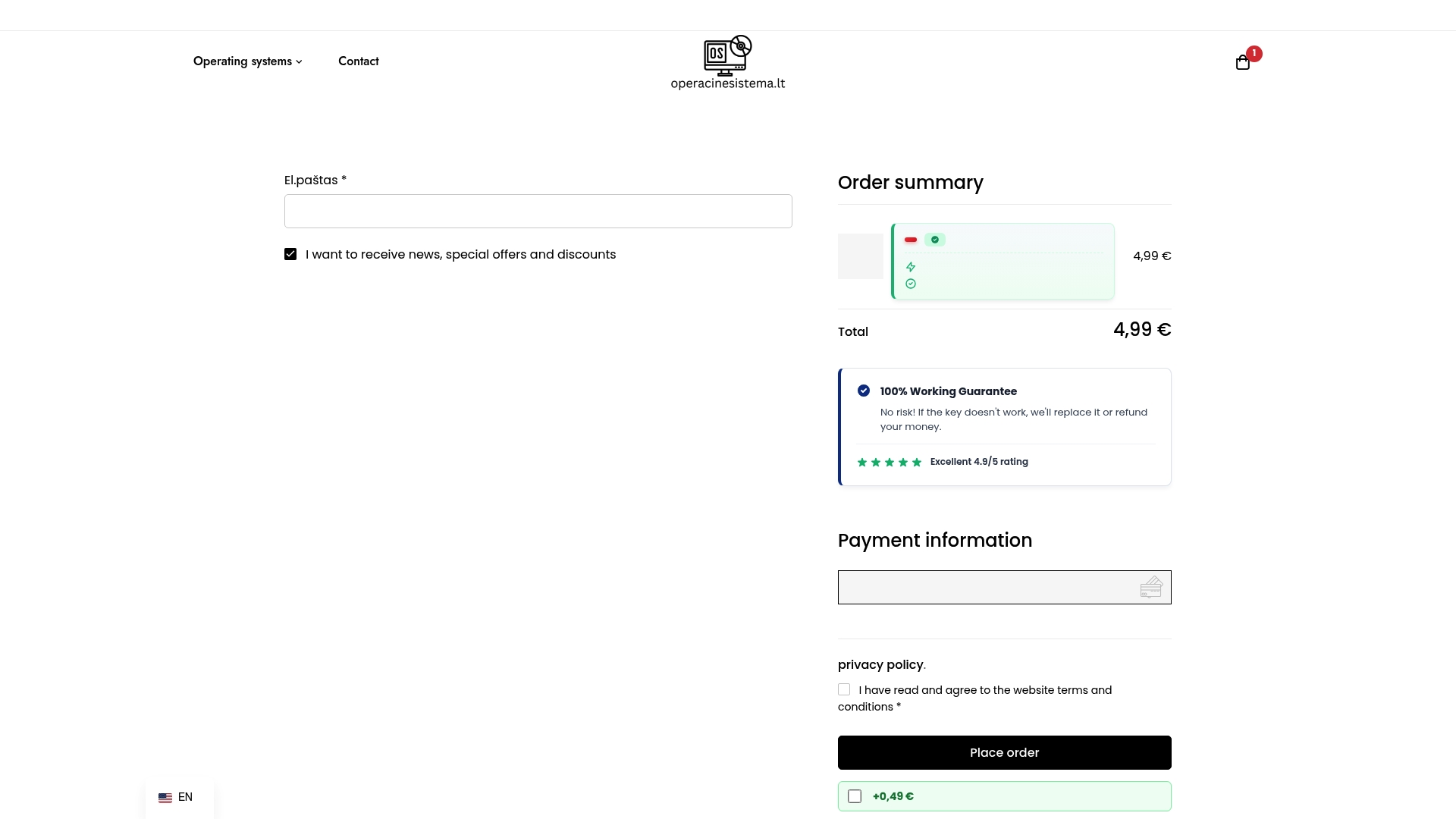
Navigating legal activation options becomes straightforward when you work with trusted license providers. We help you verify Windows license key validity before purchase and offer updated 2026 activation key solutions that comply fully with Microsoft’s licensing terms. Whether you need a single home license or volume keys for business deployments, purchasing genuine Windows licenses ensures your systems remain legally compliant and fully supported.
How do I know if my hardware supports Windows 11?
Use tools like Microsoft PC Health Check to verify minimum requirements easily. The utility scans your processor, RAM, storage, TPM module, and Secure Boot settings automatically, generating a detailed compatibility report within seconds. If components fail requirements, the tool specifies exactly which hardware needs upgrading before installation. Check our hardware compatibility guide for Windows 11 upgrades for detailed component specifications.
What roles do I need to access volume licensing keys?
Only users with Product keys reader or VL Administrator roles can view or export volume license keys from the Microsoft 365 admin center. This role-based security protects organizational licenses from unauthorized access and ensures proper compliance tracking. Standard user accounts cannot retrieve volume keys regardless of their position, so contact your IT administrator to request appropriate role assignment. Learn more about Windows license roles and management for advanced deployment scenarios.
Can I install Windows without a product key?
Some Windows editions allow skipping key entry during installation for later activation. The setup process includes a “I don’t have a product key” option that lets you complete installation and activate within 30 days using Settings. However, certain features remain limited until activation completes, and the system displays watermarks reminding you to activate. Always verify product descriptions for key requirements before installation. Check Windows license key necessity guidelines to understand when keys are mandatory versus optional.
Should I format my drive or upgrade in place?
Formatting delivers cleaner installations by removing old system files, conflicting drivers, and accumulated software clutter completely. Upgrades preserve your files and settings but can carry forward compatibility issues that degrade performance or stability. For major version jumps or systems experiencing persistent problems, formatting provides the most reliable foundation. Always back up critical data before formatting since the process erases everything permanently.
How long does Windows activation take after installation?
Activation typically completes within seconds once you enter a valid product key and connect to the internet. The system contacts Microsoft’s activation servers, validates your license, and unlocks all features automatically without requiring restarts. If activation fails immediately, verify your internet connection works and double-check the product key for typing errors. Persistent activation problems may indicate invalid keys or hardware changes that triggered reactivation requirements.
Ieteicamais
- Operētājsistēmas instalēšanas ceļvedis: droša Windows iestatīšana
- Atjaunināt Win10 uz Win11 droši ar īstu licenci
- Windows 11 Pro lejupielādes: droša un īsta rokasgrāmata
- Checklista för nätverksinstallation 2026: säker setup
- 6 Essentiële punten voor een elektrische installatie checklist – Holland Electric Duurzaam