How to Upgrade Operating Systems for Secure Windows Pro
Upgrading your office computers can feel risky when your business depends on every file and workflow. For tech-savvy small business owners, making the jump to genuine Windows 10 or 11 Pro brings tangible improvements for security and daily operations. With careful planning and a focus on authentic licensing, you gain the confidence of full access to updates and features—and avoid the frustrations tied to unsupported or counterfeit software. This step-by-step guide covers the most reliable practices to prepare your system, safeguard your data, and secure long-term value from your investment.
Table of Contents
- Step 1: Assess System Compatibility and Backup Data
- Step 2: Obtain Genuine Windows License from Trusted Source
- Step 3: Create Installation Media and Initiate Upgrade
- Step 4: Follow Guided Installation and Activate License
- Step 5: Verify Successful Upgrade and Optimize Settings
Quick Summary
| Key Point | Explanation |
|---|---|
| 1. Verify System Compatibility | Check CPU, RAM, and storage against new Windows version requirements before upgrading your operating system. |
| 2. Backup Important Data | Create a comprehensive backup using external drives or cloud services to safeguard your critical files prior to the upgrade. |
| 3. Obtain a Genuine Windows License | Purchase a legitimate license from authorized sellers to ensure full system capabilities and compatibility with updates. |
| 4. Create Bootable Installation Media | Use the Microsoft Media Creation Tool to prepare a bootable USB drive for a smooth installation process. |
| 5. Optimize System Post-Upgrade | Conduct thorough checks on updates, drivers, and settings to ensure optimal functionality and security after installation. |
Step 1: Assess System Compatibility and Backup Data
Before upgrading your Windows operating system, you need to systematically prepare your computer by checking its hardware compatibility and protecting your valuable data. This step ensures a smooth transition and prevents potential data loss during the upgrade process.
Start by verifying your system meets the minimum requirements for the new Windows version. Check hardware compatibility by examining your computer’s processor, RAM, and storage specifications. Here are the key items to verify:
- CPU compatibility with 64-bit instruction sets
- Minimum 4GB RAM (8GB recommended)
- At least 64GB of free storage space
- Updated BIOS and firmware
Parallel to assessing compatibility, create a comprehensive backup of all critical data. Connect an external hard drive and use Windows built-in backup tools or third-party software to copy:
Here’s a quick overview of common backup options and their unique advantages:
| Backup Method | Storage Medium | Data Security Level | Accessibility |
|---|---|---|---|
| External Hard Drive | Physical device at home | High with encryption | Fast, locally accessed |
| Online Cloud Backup | Remote internet storage | Very high, off-site | Accessible anywhere |
| Network Attached Storage (NAS) | Home/office network device | High, network-restricted | Accessible on local network |
| USB Flash Drive | Portable physical device | Moderate, portable | Easy, but limited space |
- Personal documents
- Work files
- Photos and multimedia
- Browser bookmarks
- Application settings
Important: Always verify your backup is complete and accessible before proceeding with any system upgrade.
Official cybersecurity guidelines recommend enabling automatic updates and ensuring all current system patches are installed before attempting a major operating system upgrade. This minimizes potential compatibility and security risks.
Pro tip: Create multiple backup copies on different storage devices and consider using cloud storage as an additional safeguard for your most critical files.
Step 2: Obtain Genuine Windows License from Trusted Source
Securing a legitimate Windows license is crucial for maintaining system security, accessing critical updates, and ensuring your operating system functions optimally. Your goal in this step is to acquire an authentic license that provides full system capabilities and legal protection.
Windows Genuine Advantage validation ensures that your license is authentic and grants you complete access to Microsoft’s features and support. When purchasing a Windows license, consider these important factors:
- Official Microsoft channels
- Authorized resellers
- Verified digital product keys
- Transparent pricing and documentation
To protect yourself from potential scams, follow these steps when purchasing a Windows license:
- Research authorized sellers
- Verify seller credentials
- Check product key authenticity
- Compare pricing with official sources
Genuine software licenses protect your system from potential security risks and ensure full functionality.
Authentic software purchasing guidelines recommend buying directly from reputable sources that provide clear documentation and customer support. Look for sellers who offer:

This table compares methods for verifying software licenses:
| Verification Method | Process Details | Benefit to User |
|---|---|---|
| Seller Credential Check | Review business history | Reduces counterfeit risk |
| Product Key Validation | Test key with Microsoft | Confirms authenticity |
| Documentation Review | Ensure paper/digital proof | Legal protection in disputes |
| Support Access | Confirm seller support | Easier issue resolution |
- Instant digital delivery
- Clear activation instructions
- Customer support services
- Refund or replacement guarantees
Pro tip: Always keep your purchase receipt and product key documentation in a secure digital folder for future reference and potential warranty claims.
Step 3: Create Installation Media and Initiate Upgrade
Preparing the right installation media is crucial for a smooth Windows upgrade process. Your goal is to create a bootable USB drive that will allow you to safely install your new operating system with minimal complications.
Bootable USB creation techniques require careful preparation and the right tools. You’ll need the following equipment to get started:
- USB drive (minimum 16GB)
- Reliable internet connection
- Microsoft Media Creation Tool
- Computer with current Windows installation
Follow these steps to create your installation media:
- Download Microsoft Media Creation Tool
- Connect your USB drive
- Run the tool and select USB drive option
- Choose your Windows version
- Allow tool to download and prepare installation files
Ensure your USB drive is completely empty before starting the media creation process to prevent potential file conflicts.
Windows Preinstallation Environment offers advanced users additional deployment options for more complex installations. For most users, the standard Microsoft tool provides the simplest path to creating bootable installation media.
During the installation, your computer will restart multiple times. Stay patient and do not interrupt the process. Keep your computer plugged in and avoid any unnecessary interactions during the upgrade.
Pro tip: Create a system restore point before beginning the installation to provide a safety net in case any unexpected issues arise during the upgrade process.
Step 4: Follow Guided Installation and Activate License
The final stage of your Windows upgrade involves completing the installation process and successfully activating your new operating system. This critical step ensures you have full access to all Windows features and ongoing system updates.
Windows activation methods require precise execution to link your product key with your device hardware. You’ll need to prepare the following items before beginning:
- Product key from your purchase
- Computer connected to the internet
- Administrative access to your device
- Valid email associated with Microsoft account
Follow these activation steps carefully:
- Open Windows Settings
- Navigate to Update & Security
- Select ‘Activation’ tab
- Click ‘Change product key’
- Enter your 25-character product key
Accurate product key entry is crucial for successful Windows activation and accessing all system features.
Key Management Services provide alternative activation methods for organizations and advanced users. Most individual users will complete activation through the standard Settings menu process.
If activation fails, double-check your product key and ensure your internet connection is stable. Some licenses might require manual phone activation or support from your software vendor.
Pro tip: Screenshot your product key and activation confirmation for future reference, storing the image in a secure, encrypted folder.
Step 5: Verify Successful Upgrade and Optimize Settings
With your Windows upgrade complete, the next crucial phase is confirming the installation’s success and fine-tuning your system for optimal performance and security. This final step ensures your new operating system runs smoothly and meets your specific needs.
Post-upgrade verification steps require a systematic approach to check system readiness and functionality. You’ll want to focus on several key areas of system configuration:
- Windows Update settings
- Device driver compatibility
- System security configurations
- Performance optimization
Perform these verification checks in order:
- Open Windows Update and check for additional updates
- Review installed device drivers
- Check system performance and stability
- Verify application compatibility
- Configure privacy and security settings
Thorough post-upgrade verification prevents potential system issues and ensures optimal performance.
Security configuration benchmarks provide comprehensive guidelines for hardening your new Windows installation. These recommendations help protect your system from potential cyber threats while maximizing operational efficiency.
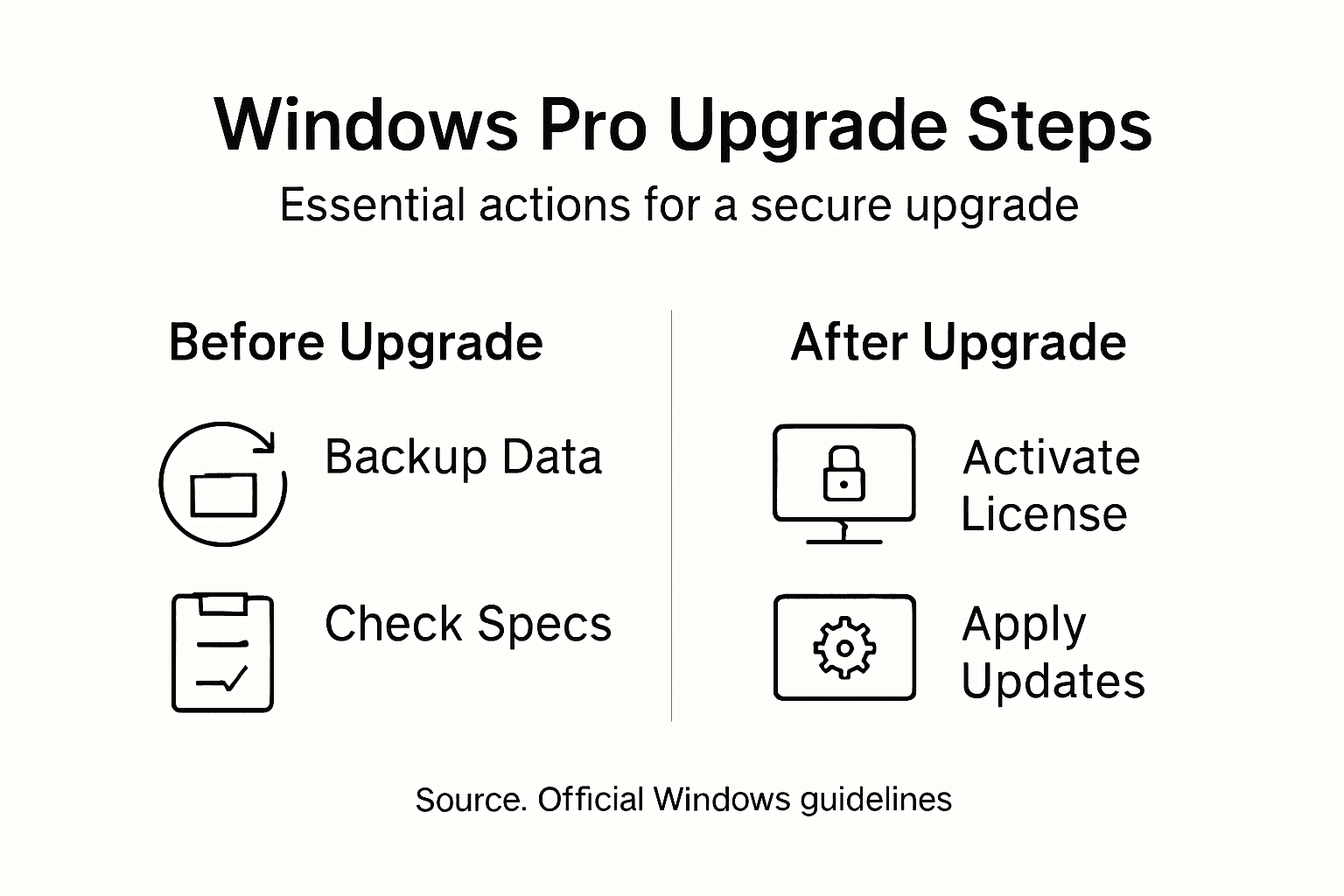
Immediately update all system drivers and run Windows Update to ensure you have the latest security patches and performance improvements. Pay special attention to hardware-specific drivers that might require manual updates.
Pro tip: Create a system restore point immediately after completing your optimization checks to provide a safety net for future troubleshooting.
Secure Your Windows Upgrade with Genuine Licenses You Can Trust
Upgrading your Windows operating system involves crucial steps like verifying compatibility, creating installation media, and activating your product key. These stages demand a genuine Windows license to avoid activation issues and ensure full access to security updates and features. If you want peace of mind and a smooth upgrade on your journey to a secure Windows Pro environment, authentic software is the foundation.
Discover original Windows 10 and Windows 11 Pro digital keys and physical USB versions at operacinesistema.lt/en. Our platform specializes in providing genuine Microsoft operating system licenses with fast delivery, clear activation guidance, and comprehensive support. Don’t risk counterfeit keys or late activation problems. Visit our website now to buy your secure, legal Windows license and power your upgrade confidently. Your next-level Windows experience starts here.
Frequently Asked Questions
How can I check if my computer is compatible with the new Windows operating system?
Before upgrading, verify your computer’s processor, RAM, and storage specifications to ensure they meet the minimum requirements for the new Windows version. Look for a CPU that supports 64-bit instructions, at least 4GB of RAM, and a minimum of 64GB of free storage.
What should I do to back up my data before upgrading my Windows operating system?
Create a comprehensive backup by connecting an external hard drive or using cloud storage. Copy important files such as personal documents, work files, and multimedia, and ensure you verify the backup’s integrity before proceeding with the upgrade.
How do I create a bootable USB drive for my Windows upgrade?
To create a bootable USB drive, download the Microsoft Media Creation Tool, connect a USB drive of at least 16GB, and follow the tool’s instructions to download and prepare the installation files. Make sure to use an empty USB drive to avoid file conflicts during the process.
What steps should I follow to activate my Windows operating system after upgrading?
After installation, go to Windows Settings, navigate to Update & Security, and select the ‘Activation’ tab. Enter your 25-character product key to activate your operating system and ensure you have full access to all Windows features.
How can I optimize my new Windows operating system after the upgrade?
Check Windows Update for additional updates, ensure that all device drivers are up to date, and configure system security settings. Regularly running these checks helps maintain optimal performance and protect your system from cyber threats.
What should I do if my Windows activation fails?
If activation fails, double-check that you’ve entered the correct product key and ensure your internet connection is stable. If issues persist, you may need to pursue manual phone activation or contact customer support for assistance.