Windows License Checklist for Individuals and SMBs
संक्षेप में:
- Proper Windows licensing involves verifying the license type, activation status, and linking it to a Microsoft account for recovery. Regular audits and using commands like "slmgr /dlv` ensure ongoing compliance and help prevent activation issues after hardware changes. Building a structured license management process reduces risks of revoked keys, blocked updates, and compliance penalties.
A Windows license checklist is a step-by-step validation process that confirms you have the correct license type, proper activation status, and legal compliance for your Windows installation. Whether you are setting up a single home PC or deploying Windows across a small business, skipping this process exposes you to blocked updates, security vulnerabilities, and compliance penalties. Microsoft’s built-in tools like slmgr, the Activation Troubleshooter, and the Settings activation panel give you everything you need to verify a legitimate license before problems arise. This guide walks you through every item on that checklist, from identifying your license channel to managing renewals and deployments in 2026.
1. Windows license checklist: start with license type identification
The first item on any software license verification checklist is knowing exactly what kind of license you have. Microsoft issues three main license channels: Retail, OEM, and Volume. Each behaves differently, costs differently, and transfers differently. Buying the wrong type for your situation is one of the most common and costly mistakes individuals and small business owners make.

The fastest way to identify your license channel is with the command slmgr /dlv. Run it in an elevated Command Prompt and it outputs your Activation ID, Application ID, license type, and expiration information. This is the authoritative source. Stickers and reseller claims are not reliable indicators of your actual license channel.
Here is what each type means for you:
- ✅ Retail license: Purchased directly from Microsoft or an authorized reseller. Fully transferable to a new device. Best for individuals who upgrade hardware regularly.
- OEM license: Tied to the original device it was installed on. Non-transferable between devices and typically cheaper. Common on pre-built PCs and laptops.
- Volume license: Designed for organizations. Activated through Key Management Service (KMS) or Multiple Activation Key (MAK) methods. Not appropriate for individual personal use.
Knowing your license channel avoids costly mistakes like purchasing unnecessary replacement licenses or attempting invalid upgrades. If you are unsure whether your current key is genuine, a product key validation guide can walk you through the authentication process.
प्रो टिप: Never rely on the sticker on the bottom of your laptop or a screenshot from a reseller. Always run slmgr /dlv in Command Prompt as administrator to get the true license channel directly from Windows.
2. How to link your digital license to your Microsoft account
Linking your digital license to a Microsoft account is one of the most underused steps in the Windows activation guide, and one of the most valuable. When your license is tied to your account rather than just your hardware, you can recover activation after a motherboard replacement or a full system reinstall without calling Microsoft support.
Follow these steps to link your license:
- खोलें सेटिंग्स and go to प्रणाली.
- चुनें सक्रियण.
- क्लिक करें Add an account under the “Windows is activated with a digital license” message.
- Sign in with your Microsoft account credentials.
- Confirm the account is now shown as linked on the Activation page.
Linking your digital license to a Microsoft account enables activation recovery after hardware changes. This is especially useful for small business owners who refresh hardware on a regular cycle. Without this link, a motherboard swap can trigger a deactivation that requires manual intervention.
Two common issues prevent successful linking. First, you may be signed into Windows with a local administrator account rather than a Microsoft account. You need to switch to a Microsoft account in Settings before the “Add an account” option appears. Second, if your license is OEM, linking is still possible but activation recovery after a device transfer is not guaranteed since OEM licenses are device-locked.
प्रो टिप: Complete the account linking step immediately after activating a new Windows installation. Doing it later, after a hardware failure, is often too late to make recovery easy.
3. How to check Windows activation status and fix common errors
Confirming your activation status is a non-negotiable step in any Windows license requirements review. Windows can appear to function normally while running in a deactivated state, but you will eventually see watermarks, blocked personalization settings, and restricted updates.
दौड़ो slmgr /xpr in an elevated Command Prompt to check whether your license is permanently activated or set to expire. The slmgr command set also includes /आईपीके to install a new key, /अन्य to trigger online activation, and /upk to uninstall a license. These are the tools you need for any activation troubleshooting scenario.
Common causes of activation failure include:
- Hardware changes: Replacing a motherboard or multiple components at once can cause Windows to see the device as a new machine, triggering deactivation.
- Expired or invalid keys: Keys purchased from unauthorized third-party sellers are frequently revoked by Microsoft after initial activation.
- KMS server issues: In business environments, a KMS server that goes offline or loses connectivity will cause Volume license activations to lapse after 180 days.
When online activation fails, use the सक्रियण समस्या निवारक by going to Settings → Activation → Troubleshoot. This tool detects the most common causes and guides you through a fix automatically. If the troubleshooter cannot resolve the issue, run अनुभाग 4 to start the manual phone activation process.
Manual phone activation works as a guided exchange: Windows generates an Installation ID, you provide it to Microsoft by phone or online, and Microsoft returns a Confirmation ID that completes the activation. This two-step method is the fallback when online activation fails after significant hardware changes.
For a deeper walkthrough of error codes and resolution steps, the Windows activation errors guide covers the most frequent failure scenarios with specific fixes.
4. Checklist for OS upgrades and small business deployments
Small business owners face a different set of licensing risks than individual users. Deploying Windows across multiple devices without a structured process leads to compliance gaps, missed activations, and wasted budget. The following checklist addresses the full deployment lifecycle.
- Audit existing licenses before upgrading. Count active devices, identify license types in use, and flag any OEM licenses that cannot be transferred. Quarterly licensing reviews for IT and finance teams should include license counts, role mapping, add-ons, renewal dates, and compliance checks.
- Pilot on representative devices first. Test 5 to 10 devices for at least one week before rolling out to the full organization. This catches licensing incompatibilities, driver issues, and activation failures at a manageable scale.
- Back up all data and plan a rollback window. No deployment should proceed without confirmed backups and a defined rollback period. A failed activation during a live deployment can take systems offline.
- Align license types with hardware and user roles. Assign Retail licenses to users who travel or swap devices. Use OEM licenses for fixed workstations that will not change hardware. Reserve Volume licensing for environments with 5 or more seats.
- Verify Intune and MDM enrollment requirements. Windows Autopatch requires devices to be enrolled in Microsoft Intune as the MDM authority and to run supported Windows Enterprise or Education editions. Many SMBs purchase the right licenses but fail to meet these enrollment prerequisites, causing deployment failures.
- Schedule recurring compliance reviews. Set a calendar reminder for quarterly license audits. Review license counts against active users, check renewal dates, and confirm that no licenses have been revoked or expired.
प्रो टिप: Build a simple spreadsheet that maps each device to its license type, activation date, and linked Microsoft account. This single document will save hours of troubleshooting during your next hardware refresh or audit.
| Deployment phase | Key action |
|---|---|
| Pre-deployment | Audit license types and counts against active devices |
| Pilot phase | Activate and test on 5 to 10 representative devices for one week |
| Full rollout | Confirm activation status on every device with slmgr /xpr |
| Post-deployment | Link all digital licenses to Microsoft accounts and document |
| जारी | Quarterly review of license counts, roles, and renewal dates |
5. Comparing Windows license types: which one fits your situation?
Choosing the right license type is not just a budget decision. It affects whether you can move the license to a new device, how activation works, and what support options you have. Here is a direct comparison to help you decide.
| License type | स्थानांतरणीय | के लिए सर्वोत्तम | Activation method | लागत |
|---|---|---|---|---|
| खुदरा | ✅ हाँ | Individuals, mobile users | Online or phone | उच्चतर |
| ओईएम | नहीं | Fixed workstations, pre-built PCs | Online (device-locked) | निम्न |
| Volume (KMS/MAK) | विभिन्न | Organizations with 5+ seats | KMS server or MAK key | Per agreement |
Retail licenses cost more upfront but pay for themselves when you upgrade hardware. You simply deactivate on the old machine and activate on the new one. OEM licenses are cheaper and perfectly legal, but they are permanently tied to the original device. If that device fails beyond repair, the license is gone. Volume licenses require a Microsoft agreement and are not appropriate for individual users or very small businesses with fewer than five seats.
For budget-conscious buyers, an OEM license from a trusted reseller is the most cost-effective path for a fixed desktop or a laptop that will not change hardware. For anyone who upgrades their PC every two to three years, a Retail license is the smarter long-term investment. You can review the full breakdown of license channels to understand the legal implications of each before purchasing.
Watch out for: Licenses sold at unusually low prices on auction sites or unverified marketplaces. These are frequently revoked OEM keys being resold in violation of Microsoft’s terms, or outright fake keys that activate temporarily and then get blocked.
6. How to verify your license is genuine before and after purchase
Validating Windows installation authenticity is a step many buyers skip, and it is the step that causes the most regret. A key that activates on day one can be revoked weeks later if it was sourced from an unauthorized channel.
Before purchasing, check that the seller is a Microsoft Authorized Reseller or a verified digital license retailer. After purchase, use these verification steps:
- दौड़ो
slmgr /atoimmediately after entering your key to trigger online activation. A successful response confirms the key is valid with Microsoft’s servers at that moment. - दौड़ो
slmgr /dlvto confirm the license channel matches what you purchased. If you bought a Retail key and the output shows OEM or Volume, the key is not what was advertised. - Check the Windows Settings activation page (Settings → System → Activation) to confirm the status reads “Windows is activated with a digital license” or “Windows is activated with a product key.”
- Wait 30 days and check again. Revoked keys typically get flagged within the first month as Microsoft’s validation systems process bulk key audits.
For a structured approach to verifying Windows licenses and staying compliant, Operacinesistema provides detailed guidance tailored for both individual users and IT teams managing multiple devices.
प्रो टिप: Screenshot your slmgr /dlv output and save it with your purchase receipt. If a dispute arises with a seller, this output is your proof of what license type was actually delivered.
7. Ongoing license management: keeping your Windows installation compliant
License compliance is not a one-time event. It requires periodic checks, especially when hardware changes, employees join or leave, or Microsoft updates its licensing terms. The following practices keep you on the right side of compliance without requiring significant time investment.
Set a recurring reminder every 90 days to run slmgr /xpr on all managed devices. This command confirms whether each device’s license is permanently activated or approaching expiration, which matters most in KMS-managed Volume license environments where activation must be renewed every 180 days.
Review your Microsoft account linked licenses annually. Sign into your Microsoft account at account.microsoft.com and navigate to Devices to see which licenses are associated with which hardware. Remove devices you no longer own and confirm that active devices show valid licenses. This is also the place to troubleshoot activation after a hardware change, since the account-linked license can be reassigned through the troubleshooter without a phone call.
For small businesses, align your license review schedule with your software budget cycle. Reviewing licenses quarterly or before renewals prevents you from paying for seats you no longer use or missing renewals that leave devices unprotected. The SMB compliance checklist from Operacinesistema provides a structured template for this process, covering license counts, role mapping, and renewal tracking in one document.
मुख्य बातें
A legitimate Windows license requires correct license type identification, verified activation status, and ongoing compliance reviews to remain valid and secure.
| बिंदु | विवरण |
|---|---|
| Identify license type first | दौड़ो slmgr /dlv to confirm whether your license is Retail, OEM, or Volume before anything else. |
| Link to Microsoft account | Connect your digital license to a Microsoft account immediately to enable recovery after hardware changes. |
| Verify activation with commands | Use slmgr /xpr and the Activation page to confirm genuine activation, not just assumed activation. |
| Pilot before full deployment | Test 5 to 10 devices for one week before rolling out Windows across a business environment. |
| Review licenses quarterly | Schedule recurring audits to catch expired, revoked, or misaligned licenses before they cause disruptions. |
Why I stopped trusting stickers and started trusting commands
By Danielius
I spent years managing Windows deployments for small businesses, and the single most common mistake I saw was trusting the wrong source of truth. A sticker on a laptop, a screenshot in an email, a reseller’s word. None of those tell you what Windows actually thinks about your license.
The moment I started requiring slmgr /dlv output as part of every device handoff, the number of activation surprises dropped to near zero. That one command tells you everything: the license channel, the activation status, and the expiration date if one exists. It takes 10 seconds and it is the most reliable piece of software license verification available without any third-party tool.
The other habit that changed how I work is linking every digital license to a Microsoft account on day one. I learned this the hard way after a motherboard failure on a device with an unlinked Retail license. The recovery process took three hours and a phone call. After that, account linking became the first post-activation step on every device I touched.
For small business owners, the checklist mindset matters more than any individual step. Compliance is not a one-time checkbox. It is a process. Quarterly reviews, documented license maps, and pilot deployments before full rollouts are not bureaucracy. They are the difference between a smooth operation and a scramble when an audit or a hardware failure hits at the worst possible time. Build the process once and it runs itself.
— Danielius
Get your Windows license right from the start
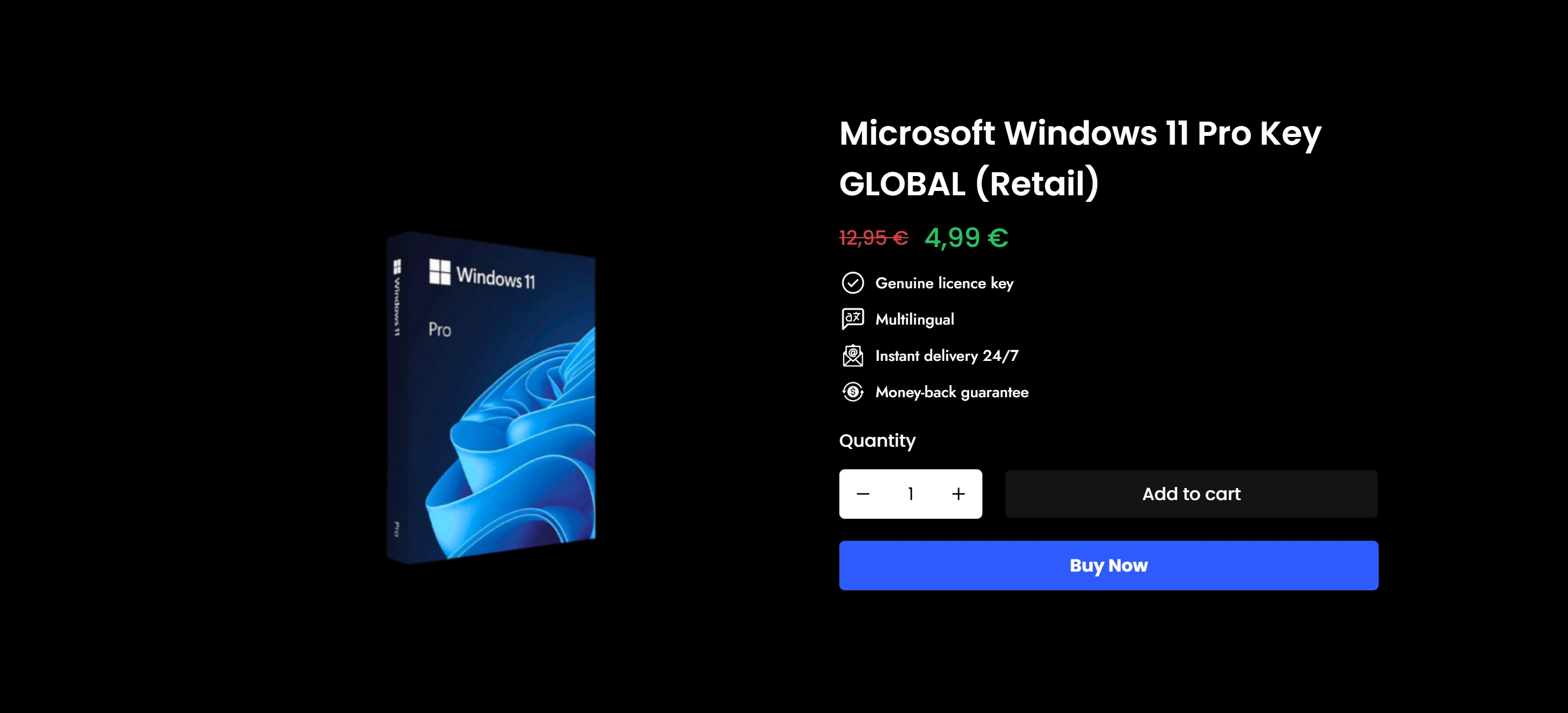
Getting your Windows license right from day one saves you from revoked keys, blocked updates, and compliance headaches down the road. Operacinesistema specializes in genuine Microsoft Windows 10 and Windows 11 Pro licenses, delivered instantly by email or shipped as physical USB versions. Every license sold is official, verified, and backed by full customer support. If you are a small business owner looking for a structured approach to license compliance, the SMB compliance checklist covers license counts, role mapping, version alignment, and renewal tracking in one place. Start with a legitimate license and a clear process, and you will never need to troubleshoot a revoked key again.
अक्सर पूछे जाने वाले प्रश्न
What does a Windows license checklist include?
A Windows license checklist covers license type identification, activation status verification, Microsoft account linking, and ongoing compliance reviews. It applies to both individual users and small business deployments.
How do I check my Windows license type?
दौड़ो slmgr /dlv in an elevated Command Prompt. The output shows your license channel (Retail, OEM, or Volume), Activation ID, and current activation status.
Can I transfer my Windows license to a new PC?
Retail licenses are fully transferable to a new device after deactivating on the old one. OEM licenses are permanently tied to the original device and cannot be transferred.
What should I do if Windows activation fails after a hardware change?
Open Settings → Activation → Troubleshoot to run the Activation Troubleshooter. If that does not resolve the issue, run अनुभाग 4 to start manual phone activation, which uses an Installation ID and Confirmation ID exchange to complete the process.
How often should small businesses review their Windows licenses?
Quarterly reviews are the standard for IT and finance teams, covering license counts, role mapping, renewal dates, and compliance checks. Reviews should also occur before any major hardware refresh or software upgrade cycle.