Activating Windows 11 Pro: How do I install and activate the operating system without errors?
Why is it important to install Windows 11 Pro correctly?
Windows 11 Pro is a more advanced version of the operating system, with more security, control and personalisation options. However, incorrect installation or activation can lead to errors that can limit functionality or even interfere with the system.
In this article, we'll explain how to install and activate Windows 11 Pro smoothly to avoid problems.
How do I install Windows 11 Pro from a USB stick?
If you have purchased Windows 11 Pro USB version, here's how to install it correctly:
1. Prepare your computer for installation
- Make sure your computer complies with Windows 11 Pro system requirements:
- At least 4 GB RAM
- At least 64 GB free disk space
- UEFI BIOS with on Secure Boot Function
- TPM 2.0 support
2. Start your computer from the USB stick
- Insert Windows 11 Pro USB media on your computer.
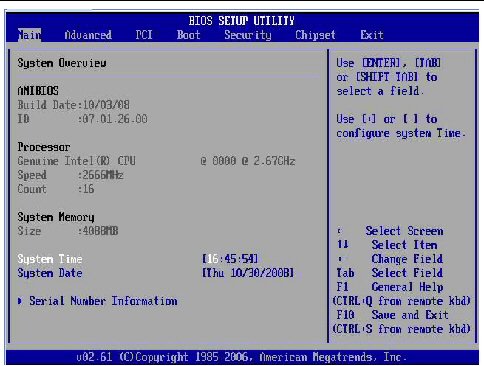
- Reboot your computer and enter the BIOS (F2, F12, Delete or ESC keys, depending on the manufacturer).
- Choose USB as the first charging device and save your settings.
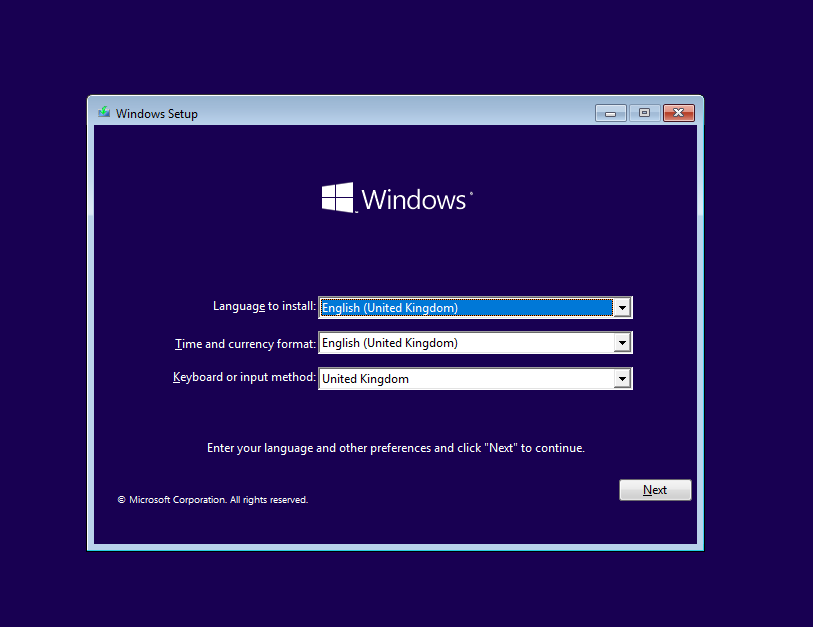
- Reboot your computer - you should see Windows 11 installation screen.
3. Install Windows 11 Pro
- Choose language, time and keyboard layout.
- Click „Install Now“.
- Enter Windows 11 Pro product key, if the system requires it.
- Choose „Custom installation“ (if you want a clean installation).
- Select the disc on which the system will be installed and follow the on-screen instructions.
- Wait until the system is installed and your computer has automatically rebooted.
How do I activate Windows 11 Pro?
If Windows 11 Pro is not yet activated, follow these steps:
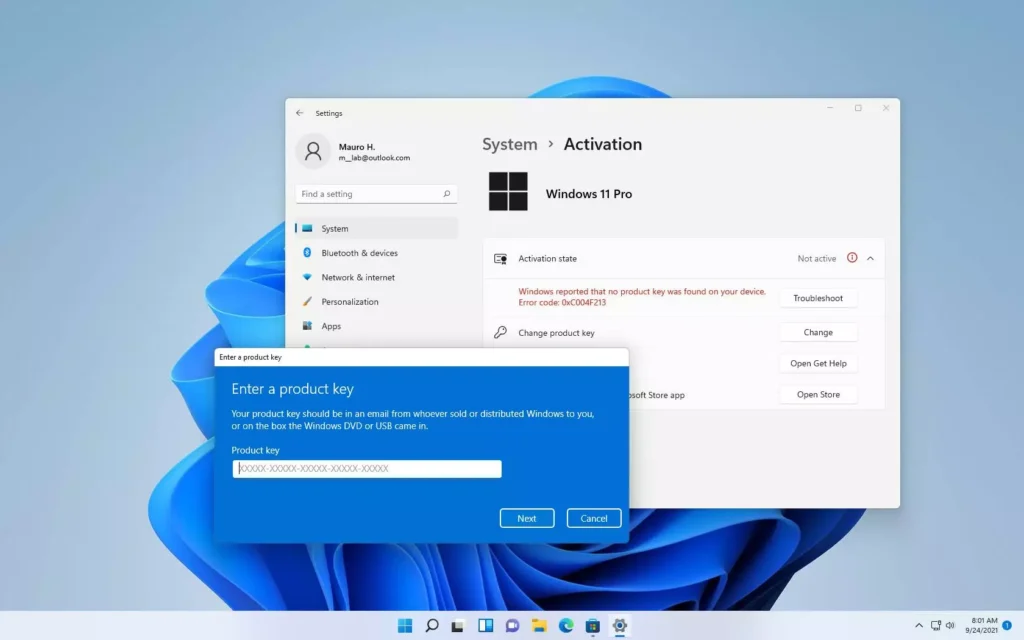
- Open the settings: Go to Settings → System → Activation.
- Enter your activation key: Click „Change product key“ and enter the licence code.
- Check the activation status: After a few seconds, you should see the message „Windows is activated“.
If the activation fails, please try again:
- Check your internet connection.
- Make sure you use the correct product key.
- Run the Troubleshoot activation tool via „Settings → Activation“.
Common Windows 11 Pro activation problems
- „This product key is already in use“ - may indicate that the key has already been used. In this case, please contact your dealer.
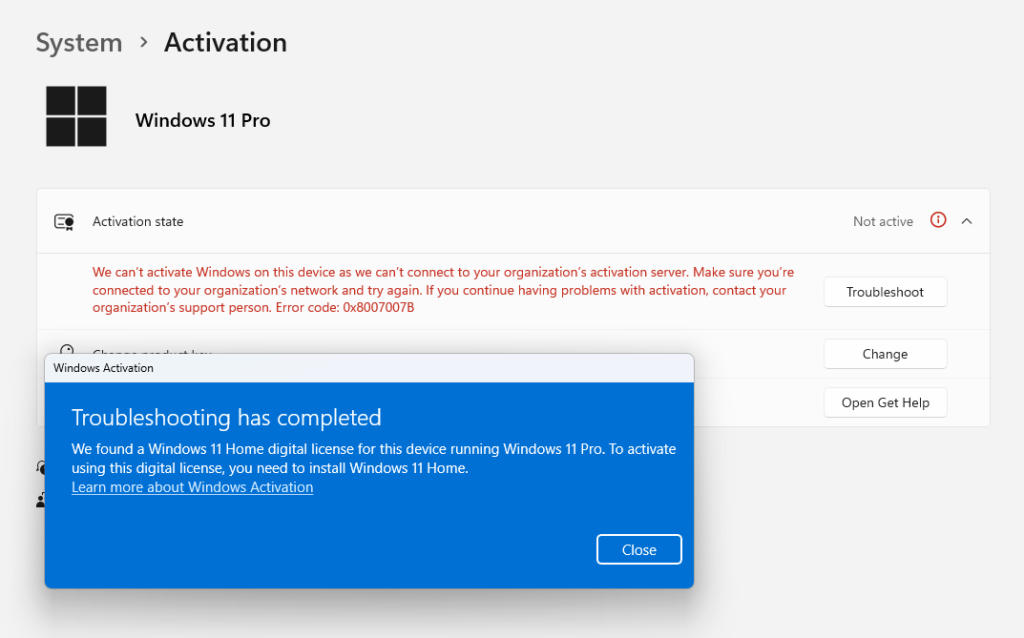
- „We can't activate Windows on this device“ - the problem could be caused by network connectivity or licence discrepancies. Try activating later or use the Troubleshoot tool.
- „Windows 11 Pro unavailable after update“ - If you've upgraded from Windows Home, you may need to reinstall Windows 11 Pro with the correct key.
Windows 11 Pro USB: The trusted way to install the official operating system
If you don't have an official Windows 11 Pro USB version, we recommend that you buy it from a reputable supplier. This ensures that you get an official and secure licence, avoid activation problems and have All the features of Windows 11 Pro.
👉 Get Windows 11 Pro USB here: Windows 11 Pro USB