10 secret Windows 11 Pro features you might not have known about
Windows 11 Pro isn't just about a new design and faster performance. It's an operating system that hides a number of secrets that can help you work more productively, safely and comfortably. If you're someone who uses Windows every day, you'll be surprised by these productivity tricks and the best settings in Windows 11.
1. Focus Sessions - for distraction-free working
The new Focus Sessions feature is integrated with the Clock app. It allows you to set up periods of inactivity during which you won't receive notifications, and you can link to Spotify to mark your progress.
Why is this useful?
- Less interference during work
- Helps plan work/rest intervals

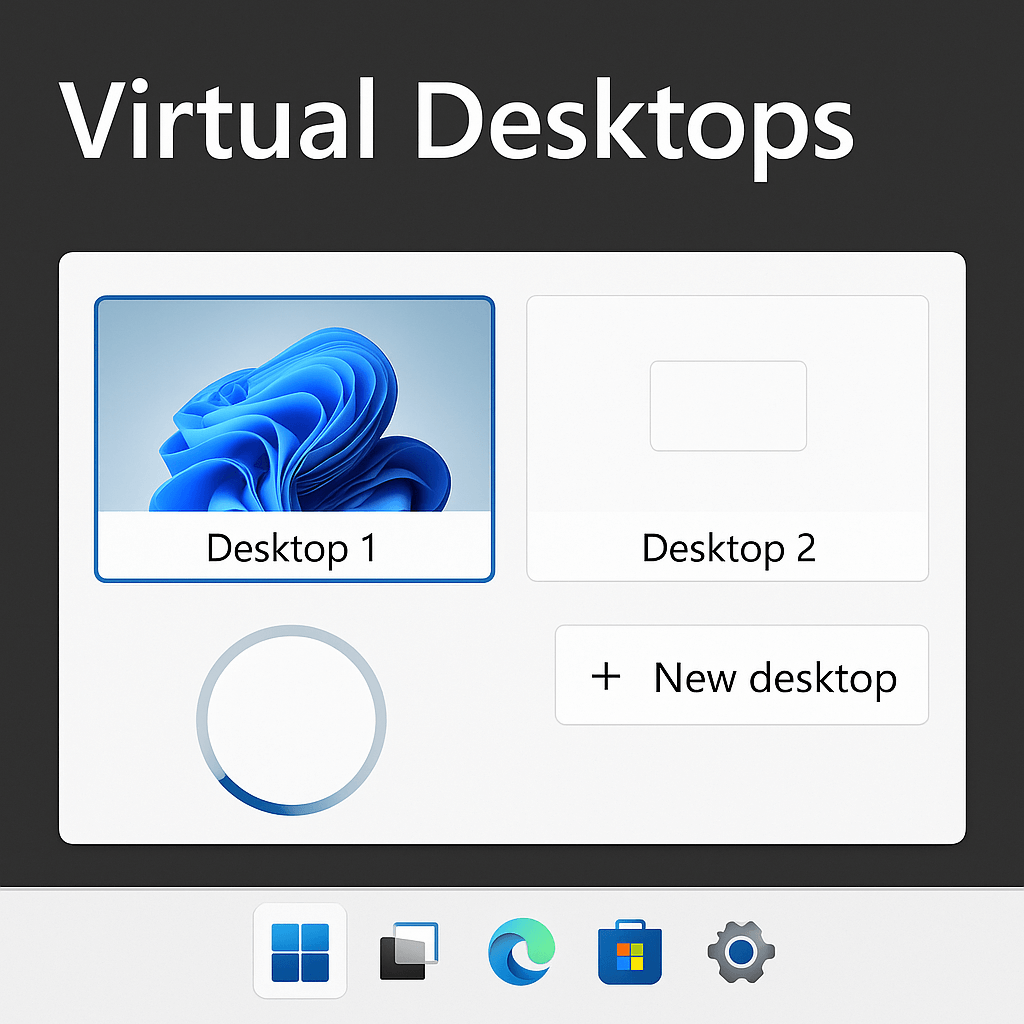
2. Virtual Desktops
Windows 11 Pro lets you create multiple virtual desktops so you can separate work, study and leisure. Each desktop can have different apps, windows and even backgrounds.
The trick: use a key combination Win + Ctrl + D, to quickly create a new desktop.
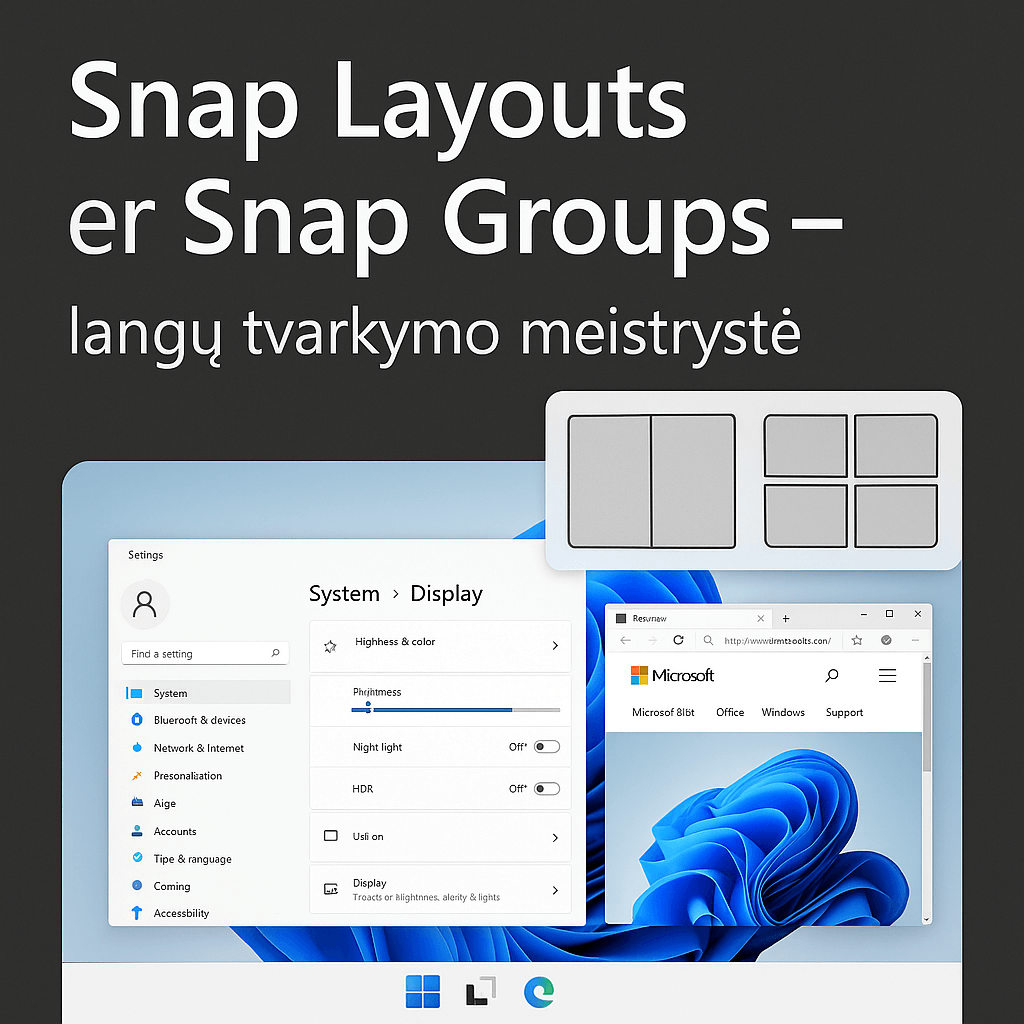
3. Snap Layouts and Snap Groups - the master of window management
This is one of the best innovations. You can quickly split the screen into several parts with predefined layouts.
How to use:
- Hover your mouse over the “maximize” button at the top of the window and select one of the available layouts.
Snap Groups remembers your grouped windows and lets you undo them with a click.
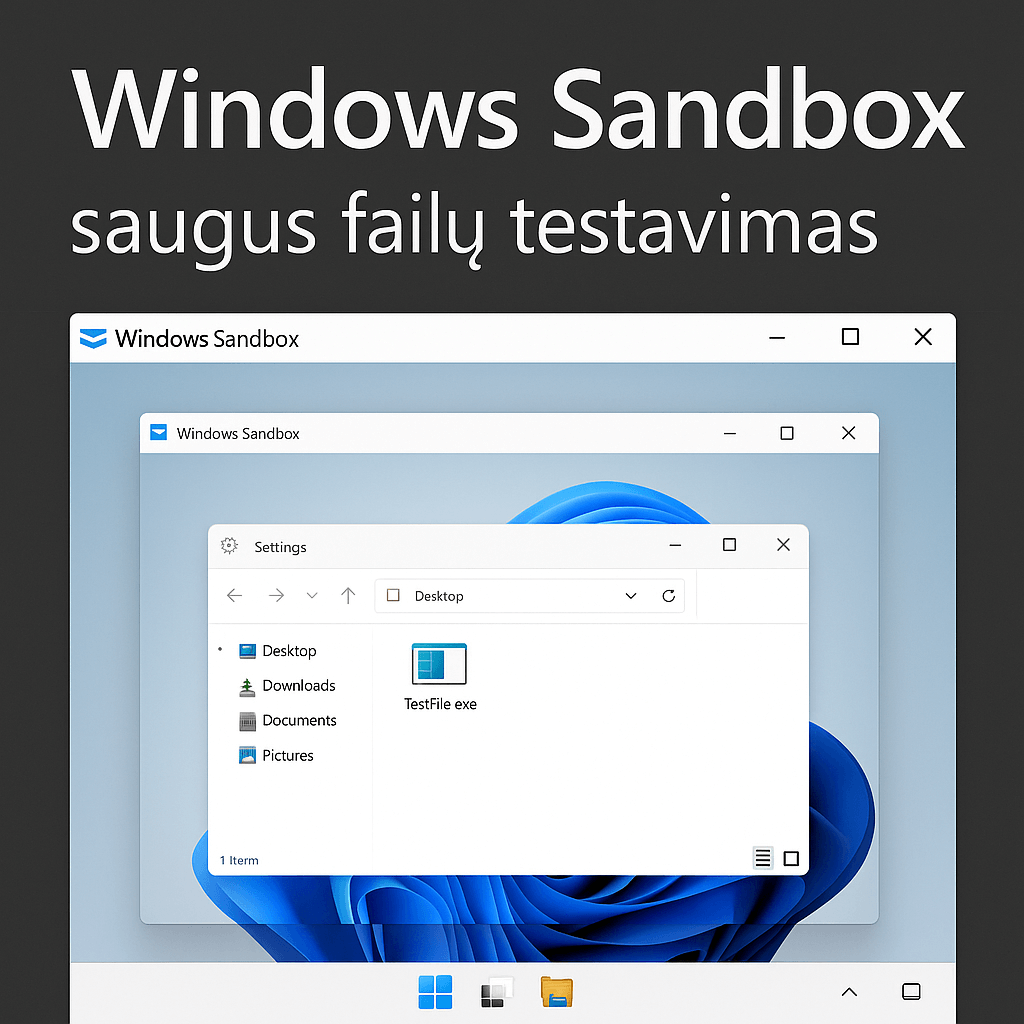
4. Windows Sandbox - secure file testing
Pro version only! This is an isolated environment where you can run untrusted files or applications without damaging the main system.
Activation:
- Go to “Turn Windows features on or off” and turn on Windows Sandbox“
5. BitLocker disk encryption
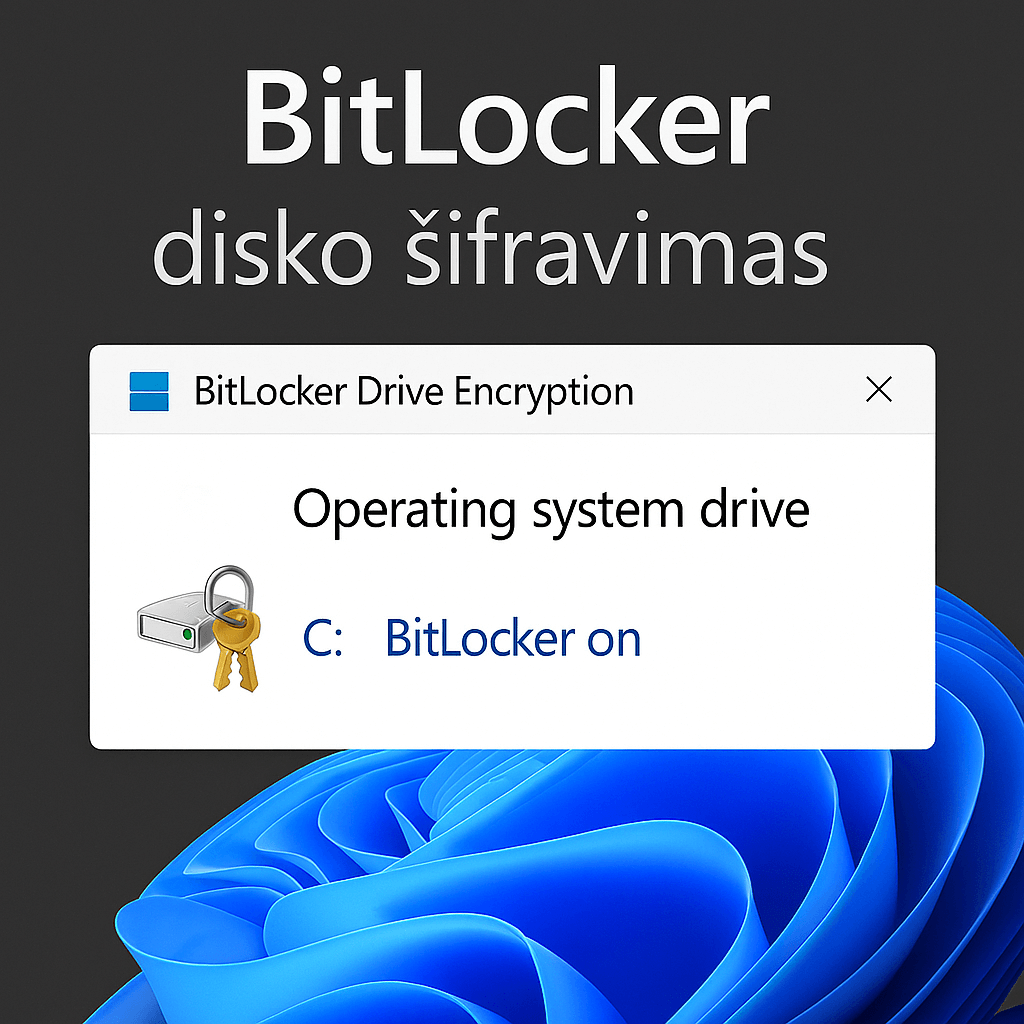
Windows 11 Pro lets you use BitLocker - a feature that protects your data by encrypting your drive. Even if your device is stolen, no one will be able to access your information without your password.
Useful for business and personal use, especially if you keep sensitive files.
6. Dynamic Refresh Rate (DRR)
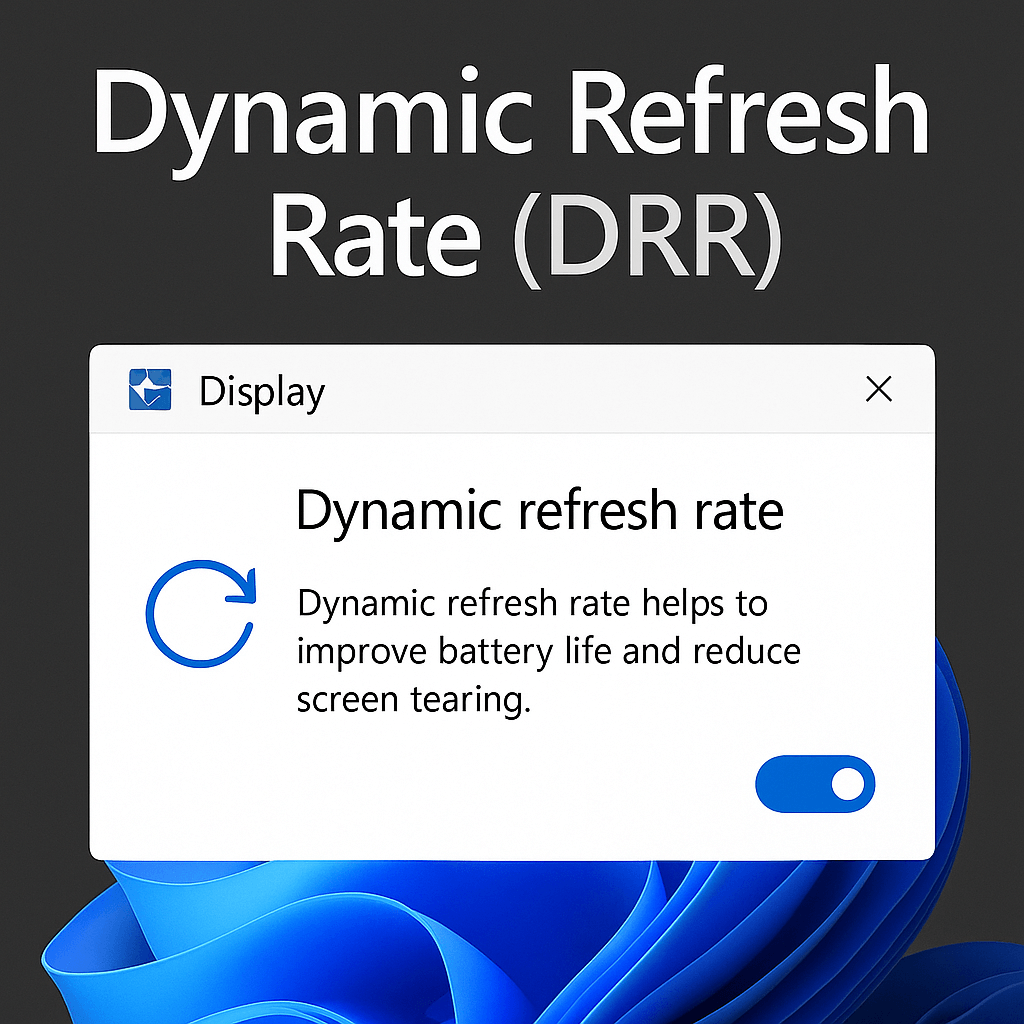
If you have a monitor or laptop with a high refresh rate (e.g. 120Hz), Windows 11 can automatically change the refresh rate depending on what you are doing. This saves battery and keeps things running smoothly.
Where to find:
- Settings > Display > Advanced display
7. DirectStorage technology - faster game loads
Although designed mainly for gaming, this technology allows data to be sent directly from the SSD to the GPU, bypassing the CPU. The result: shorter loading times.
Requirements: NVMe SSD and a supported GPU (e.g. RTX or Radeon newer generation)

8. Advanced Clipboard (advanced clipboard management)
Using Win + V can see not only the last copied text, but the entire history of the clipboard. This is very useful when working with texts or codes.
Tip: Enable clipboard history via Settings > System > Clipboard.

9. GodMode - everything in one place
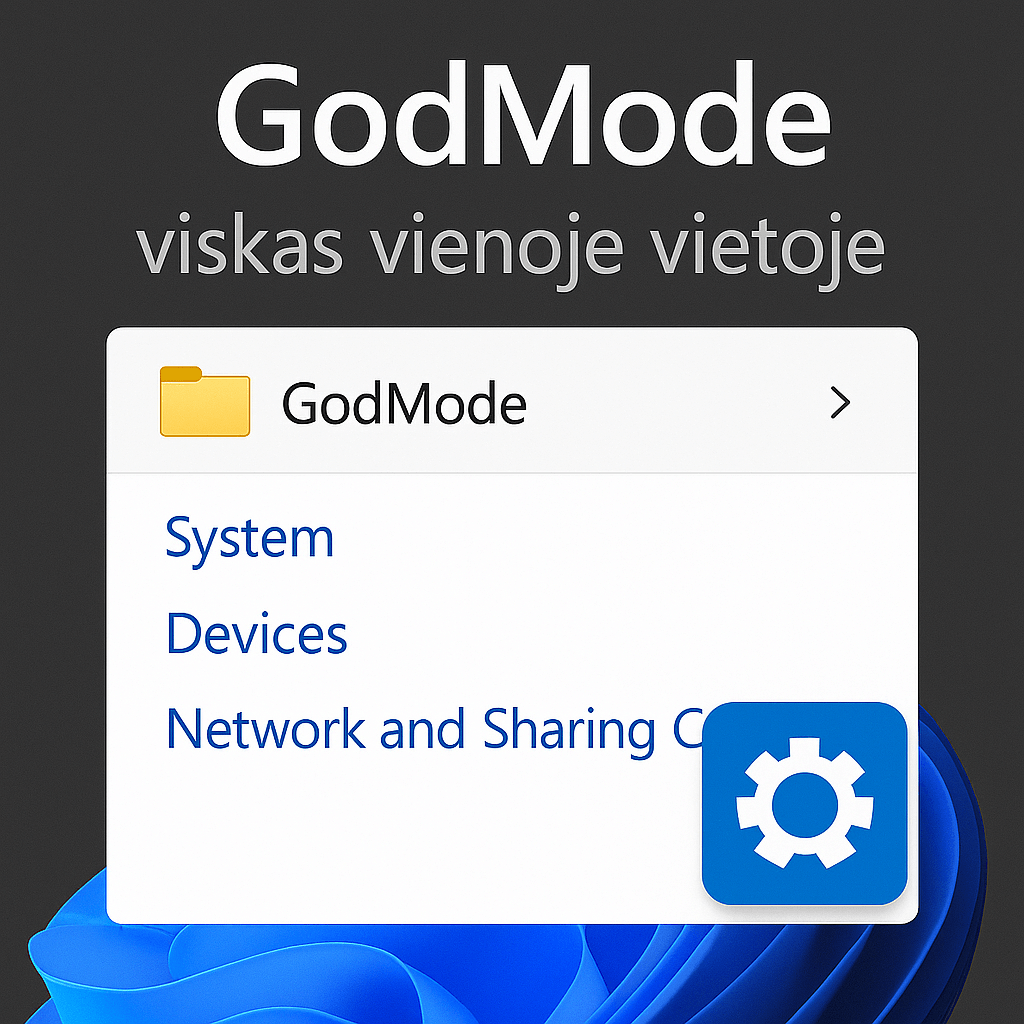
It's a secret control centre where you can access all your settings in one place.
How to activate:
- Create a new folder on your desktop
- Rename it as follows:
GodMode.{ED7BA470-8E54-465E-825C-99712043E01C}
When you open the folder, you'll see dozens (or even hundreds) of settings.
10. Recommendations based on artificial intelligence
Starting with Windows 11 version 23H2, the operating system provides artificial intelligence-based menu recommendations based on your activities. This can help you get to the documents, apps or settings you need faster.
Example: if you worked on an Excel file yesterday, it may appear in the Start menu recommendations.

Finally, make the most of Windows 11 Pro
While Windows 11 Pro looks like just another modern OS, it hides a wealth of possibilities that could revolutionise your working experience.
If you want to work faster, safer and more efficiently, these hidden features are a great way to start.
🔗 Buy an official Windows 10/11 Pro licence!