Digital License Installation Process for Windows in 2026
TL;DR:
- Digital licenses tie activation to hardware and Microsoft accounts, requiring correct account, edition, and internet connection. Preparation, matching Windows edition, using the right account, and verifying settings prevent activation issues during reinstallations. Troubleshooting involves the Activation Troubleshooter, manual commands, and checking license status to maintain activation and compliance.
Getting Windows activated with a digital license sounds simple until it isn’t. You reinstall Windows, expect it to activate automatically, and instead you’re staring at a “Windows isn’t activated” message. The digital license installation process confuses a lot of people because there’s no physical key to type in. Your entitlement lives in the cloud, tied to your Microsoft account and your hardware. This guide walks you through every stage: preparation, installation, activation, verification, and troubleshooting. Whether you’re setting up a single PC or managing licenses across a small business, you’ll finish this knowing exactly what to do.
İçindekiler
- Önemli çıkarımlar
- Understanding the digital license installation process
- What you need before starting
- Step-by-step installation and activation
- Troubleshooting activation failures
- Verifying activation and staying compliant
- My honest take after years of digital license installs
- Get your genuine Windows license sorted today
- SSS
Önemli çıkarımlar
| Nokta | Detaylar |
|---|---|
| Account matching is everything | Sign into the exact Microsoft account linked to your digital license or activation will fail. |
| Edition must match your license | Installing Windows Home when you own a Pro license causes instant activation failure. |
| Internet is non-negotiable | Offline systems cannot complete the digital activation process at all. |
| Troubleshooter before reinstall | Always run the Activation Troubleshooter after hardware changes before attempting a clean reinstall. |
| Verify after every major update | Check activation status after large updates or hardware changes to catch silent deactivations early. |
Understanding the digital license installation process
Before you touch the install button, you need to understand what a digital license actually is. It’s not a sticker on your laptop and it’s not a 25-character code in your email. Digital licenses link activation to a combination of your hardware fingerprint and your Microsoft account identity, verified against Microsoft’s servers every time activation is checked.
This matters because the digital license installation process is really an activation status transition. Windows reaches out to Microsoft’s servers, confirms that your hardware matches a stored entitlement, and marks your copy as activated. No key entry required. But if any piece of that three-part puzzle is wrong, the whole thing stalls.
The three pieces are: your Microsoft account (the one actually tied to the license), your Windows edition (Home or Pro must match exactly), and your internet connection (no exceptions). Get all three right and activation usually takes under two minutes. Miss one and you’ll be troubleshooting for hours.
Think of your digital license as a claim ticket. The ticket only works if you show up as the right person, at the right counter, with the right order number.
What you need before starting
Preparation is where most failed activations begin. People skip steps, assume everything will work out, and then waste an hour fixing avoidable problems. Here’s what to confirm before you start.
Hardware and software checklist
| Item | Why it matters |
|---|---|
| Stable internet connection | Offline systems cannot activate a digital license under any circumstances |
| Correct Windows edition (Home or Pro) | Edition mismatch causes immediate activation failure |
| Microsoft hesabı kimlik bilgileri | Must be the account where the digital license is registered |
| Windows installation media | USB drive or ISO file matching your licensed edition |
| Backup of important data | Protects against data loss during a clean install |
Account and edition verification
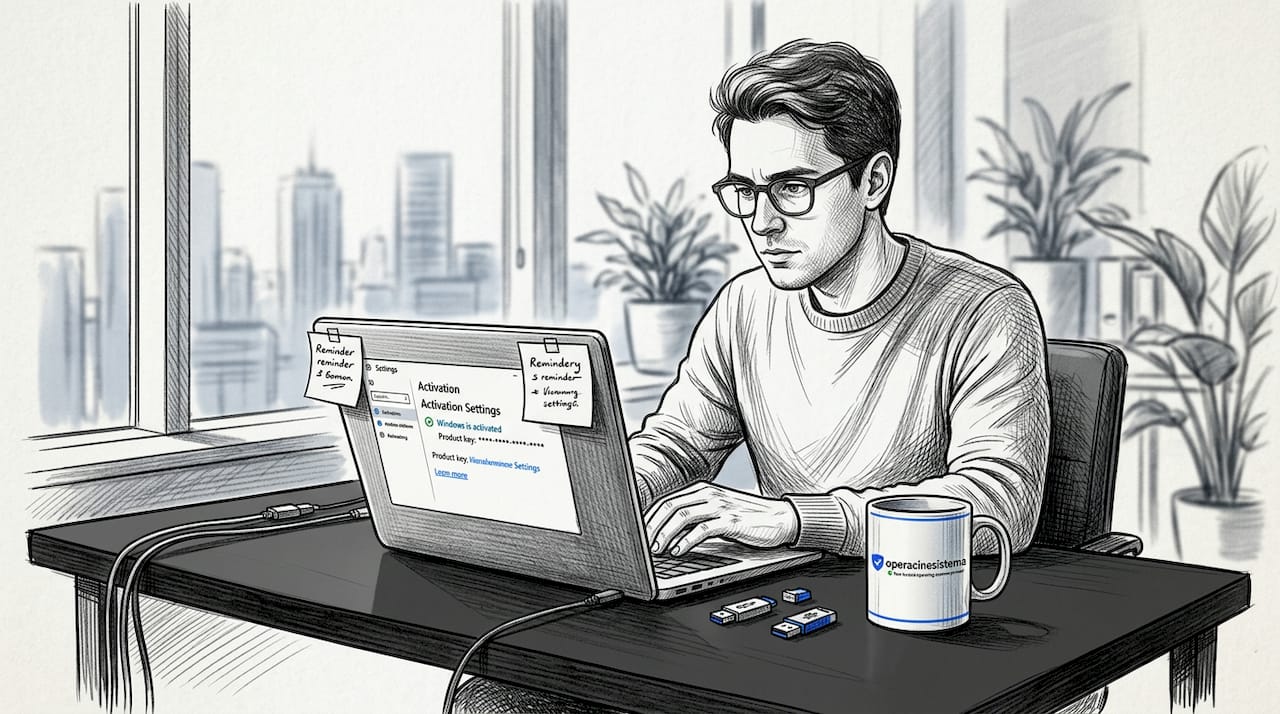
Go into your current Windows settings under System > Activation before you do anything else. You’ll see which edition is currently activated and which Microsoft account is linked. Write those down. If you’re buying a new license, matching edition and account is the single most important thing you can do before spending any money.
For small businesses, this is especially worth double-checking. Work and school accounts (accounts ending in a company domain) are separate from personal Microsoft accounts. Using a work or school account when your license is registered to a personal account is one of the most common unnoticed causes of activation failure.
Network and security settings
Disable your VPN before starting the activation. VPNs route your traffic through servers in other locations, and Microsoft’s activation servers sometimes reject requests that appear to come from unexpected regions. Temporarily turn off third-party security software too. Some firewalls block the ports Windows uses to talk to activation servers.
Profesyonel ipucu: Run Windows Update and install all pending updates before starting a fresh installation. Outdated system files can interfere with activation, and updating first means fewer variables to troubleshoot later.
Step-by-step installation and activation
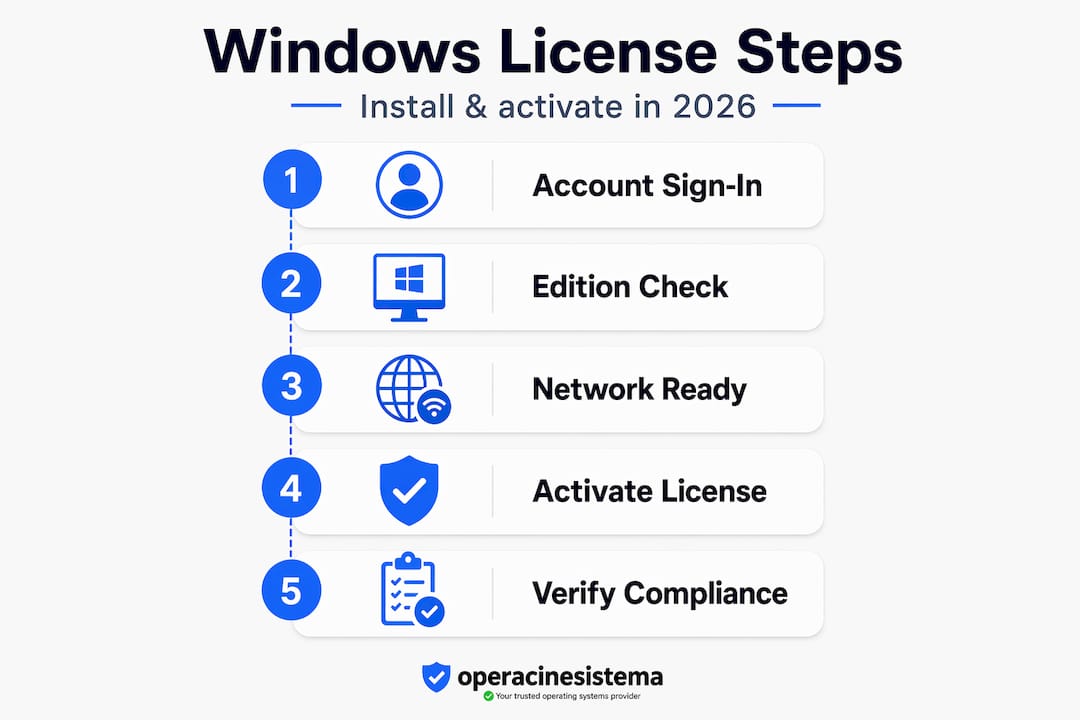
Now you’re ready to actually do this. Follow these steps in order. Skipping steps is how people end up in troubleshooting loops.
-
Create your installation media. Download the official Windows Media Creation Tool from Microsoft’s website. Select the same edition (Home or Pro) that matches your digital license. Create a bootable USB drive using an 8GB or larger drive. You can also find detailed Windows USB setup instructions to guide you through the media creation process.
-
Boot from the USB drive. Restart your PC and boot from the USB. You may need to enter your BIOS or UEFI settings (usually F2, F12, or Del on startup) to change the boot order.
-
Select the correct edition. When the installer asks which version to install, pick the edition that matches your license. If you own a Pro license, select Windows 11 Pro. Do not select Home thinking you can upgrade later without complications.
-
Skip the product key entry when prompted. Click “I don’t have a product key” during setup. This is correct behavior for digital license holders. The license will be detected automatically from your Microsoft account, not from a key you type in.
-
Complete the installation. Let Windows install fully. When setup asks you to sign in, use the Microsoft account linked to your digital license. This is the moment Windows matches your account to your stored entitlement.
-
Wait for automatic activation. After setup completes and you’re on the desktop, Windows automatically reactivates your digital license when it detects the matching account and edition with an active internet connection. This typically takes a few minutes. Check Ayarlar > Sistem > Etkinleştirme to confirm.
-
Force activation manually if needed. If status still shows “Not activated” after 10 minutes, go to Ayarlar > Sistem > Etkinleştirme ve tıklayın Activate. Windows will attempt to contact the activation servers directly. You can also open Command Prompt as administrator and run "slmgr /ato` to force a manual activation attempt immediately.
-
Run the Activation Troubleshooter if activation fails. Under Ayarlar > Sistem > Etkinleştirme, click Sorun Giderme. This tool rebinds your license to current hardware using your Microsoft account. It’s the official Microsoft tool for exactly this situation.
Profesyonel ipucu: The Activation Troubleshooter is most effective right after a hardware change or a clean reinstall. Run it before trying anything else. It silently fixes the most common binding issues without requiring any manual steps.
Troubleshooting activation failures
Even with perfect preparation, activation sometimes fails. Hardware changes are the most common trigger. When you replace your motherboard, your hardware fingerprint changes and Windows may not recognize the stored entitlement. Here’s how to work through it systematically.
When to use each fix
| Problem | Fix to try first | When to escalate |
|---|---|---|
| Activation fails after hardware change | Etkinleştirme Sorun Gidericisini Çalıştır | If troubleshooter can’t find license, verify Microsoft account |
| “Not activated” after clean reinstall | Confirm correct Microsoft account is signed in | Re-run manual activation via slmgr /ato |
| Activation error codes (e.g., 0xC004F034) | Disconnect VPN, disable firewall temporarily | Run system file check (SFC) |
| Yanlış sürüm yüklendi | Reinstall with correct edition ISO | No shortcut here, edition must match |
| VPN or firewall blocking activation | Disable both and retry | Check router-level firewall settings |
Working through common failures
Start with the simplest thing. Confirm you’re signed into the right Microsoft account. Go to Settings > Accounts > Your info and verify the email address. If it says “Sign in with a Microsoft account instead,” you’re on a local account and Windows cannot find your digital entitlement.
If the account is correct, run the Activation Troubleshooter next. It handles the most common post-hardware-change binding issues automatically. For deeper activation infrastructure problems, open Command Prompt as administrator and run sfc /scannow. Repairing activation components via SFC can restore broken activation plumbing before you resort to anything more drastic.
A clean reinstall should be your last move, not your first. Clean reinstalls refresh activation channels but they also reset everything else. Exhaust the troubleshooter, SFC scan, and manual activation attempts first. Check out this detailed Windows activation error guide if you’re dealing with specific error codes.
For small business owners managing multiple PCs, it’s worth noting how license types affect portability. An OEM license stays on one machine forever. A Retail license can move to a new device. Knowing this prevents a lot of troubleshooting that isn’t actually troubleshooting at all. It’s just hitting a license boundary.
Verifying activation and staying compliant
Getting activated is step one. Confirming it and keeping it that way is step two. Here’s how to check your status properly.
How to verify activation status:
- Gitmek Ayarlar > Sistem > Etkinleştirme and look for “Windows is activated with a digital license linked to your Microsoft account.” That exact phrase means you’re good.
- Open Command Prompt as administrator and run
slmgr /xprto see license expiration and activation type. - Koşmak
slmgr /dlvfor full license details including the license edition and channel type.
Bu command line tools for license management give you more detail than the Settings panel does. If you’re managing several machines, slmgr output tells you immediately whether a license is OEM, Retail, or Volume, which matters for compliance tracking.
License type has real-world implications. OEM licenses are permanently tied to the original hardware and cannot be transferred. Retail licenses can move to a new device if you deactivate from the old one first. Volume licenses work differently and typically require a Key Management Service or Active Directory infrastructure. For a clear breakdown of what each type means for you, the guide on Windows license types is worth reading before you buy.
Profesyonel ipucu: Check activation status after every major Windows feature update. Large updates occasionally trigger reactivation checks, and catching a silent deactivation early is much easier than dealing with feature restrictions weeks later.
For small business use, staying compliant also means auditing your licenses periodically. Compliance isn’t just about staying legal. It’s about avoiding the sudden surprises where a machine loses access to personalization features, Microsoft Store access, or security settings because its license silently lapsed.
My honest take after years of digital license installs
I’ve helped a lot of people through Windows activations, and the pattern is almost always the same. The person spent an hour trying to fix the problem before getting to the one thing that actually mattered: they were signed into the wrong Microsoft account.
It sounds obvious when you say it out loud. But in practice, people have three or four Microsoft accounts collected over years of purchases, subscriptions, and old email addresses. They sign into the most familiar one during setup, and it just happens to be the wrong one. The license is on a different account entirely. Windows can’t find the entitlement and shows “not activated,” which then sends people down a rabbit hole of reinstalls and error code searches that never address the real issue.
What I’ve learned is that the fastest path to activation is not a technical fix. It’s confirming three things before you touch a single setting: correct account, correct edition, and working internet. That’s it. Ninety percent of failed activations are one of those three things.
I’ve also seen people treat clean reinstalls as a universal fix. They’re not. A reinstall does not change your license status. It just gives Windows a clean environment to re-detect the same entitlement. If the account is wrong going into a reinstall, it will still be wrong coming out. Verify first, reinstall only if nothing else works.
The one situation where a reinstall genuinely helps is when activation server communication is broken at the OS level. Running sfc /scannow usually handles this. But if system files are too corrupted to repair, a clean install becomes the only path. That’s rare. Most people never need it.
One more thing worth mentioning: if you bought a cheap key from a random marketplace and activation keeps failing or getting blocked, that’s not a configuration problem. That’s a fake or recycled key problem. Genuine digital licenses from a trusted source don’t randomly stop working. They activate, stay activated, and reactivate after reinstalls without drama.
— Danielius
Get your genuine Windows license sorted today
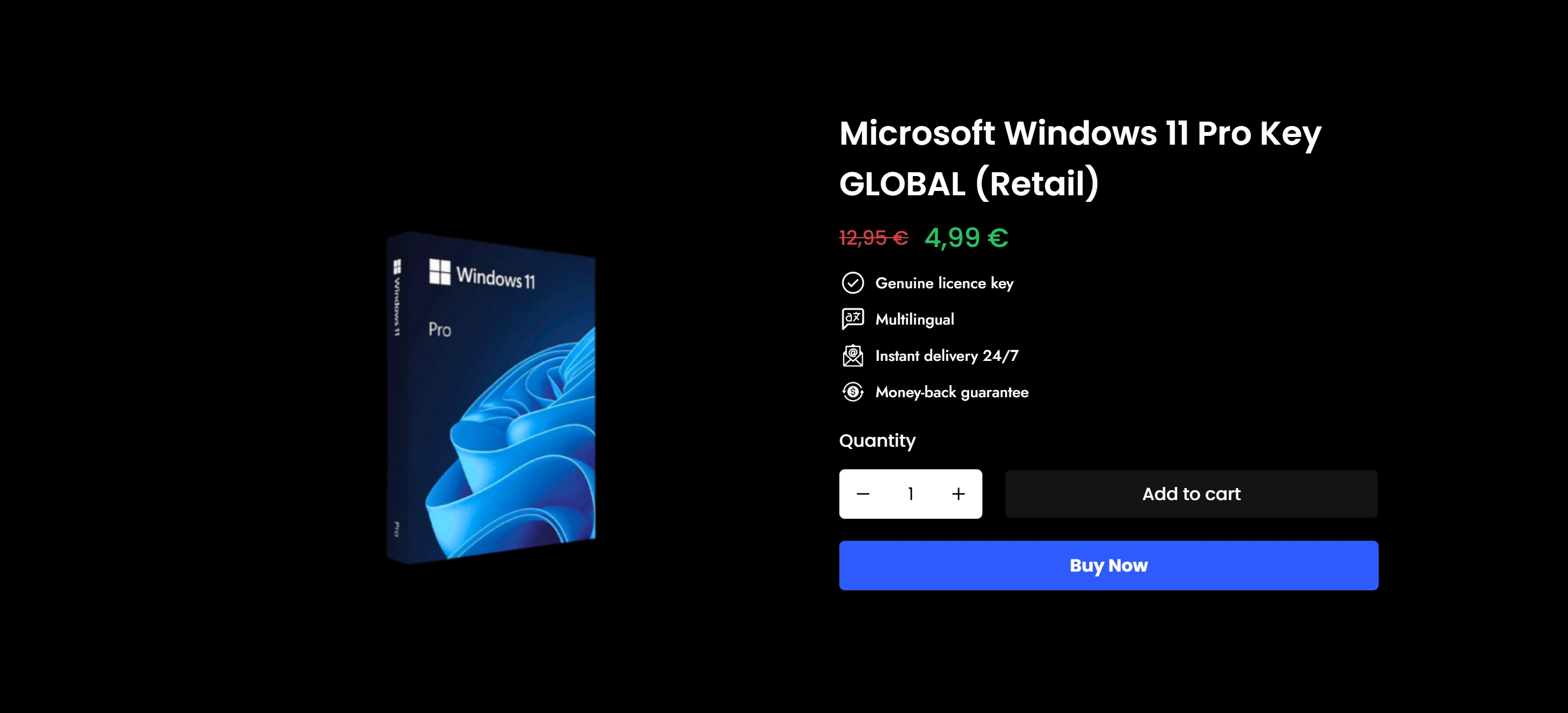
If you’re setting up a new PC or reinstalling Windows for your business, having the right license before you start saves hours of frustration. Operacinesistema offers genuine Windows 10 and Windows 11 Pro digital licenses delivered instantly to your inbox. ✅ No product key confusion. No fake keys. No blocked activations.
Not sure which license type fits your situation? Start with the guide on Windows license types explained to understand the difference between OEM, Retail, and Volume options before buying. If you already know what you need, browse available license keys directly and get your license delivered in minutes. For a full walkthrough on purchasing safely, the secure Windows license buying guide covers every step from selection to activation.
Individual users and small business owners: Operacinesistema’s licenses come with full support, so if activation hits a snag, you’re not alone.
SSS
What is the digital license installation process for Windows?
The digital license installation process is the sequence of steps that install Windows and activate it using a license stored in your Microsoft account rather than a physical key. It requires matching the correct Windows edition, signing into the linked Microsoft account, and maintaining an active internet connection throughout.
Why does Windows say “not activated” after a clean reinstall?
Usually because the Microsoft account signed in during setup does not match the account holding the digital license. Confirm your account at Settings > Accounts > Your info and re-run the Activation Troubleshooter to rebind the license to your current hardware.
How do I manually trigger digital license activation?
Gitmek Ayarlar > Sistem > Etkinleştirme ve tıklayın Activate, or open an elevated Command Prompt and run slmgr /ato. Manual activation forces Windows to contact Microsoft’s servers and validate your stored entitlement immediately.
Does replacing my motherboard invalidate my digital license?
It can. OEM licenses are permanently tied to the original hardware, so a motherboard swap may require purchasing a new license. Retail licenses can be recovered using the Activation Troubleshooter or by contacting Microsoft support to relink the license to your new hardware configuration.
How can I verify my digital license activation status?
Açık Ayarlar > Sistem > Etkinleştirme and look for the phrase “Windows is activated with a digital license linked to your Microsoft account.” For more detail, run slmgr /xpr in an elevated Command Prompt to see the full digital license verification status and license expiration information.