Как проверять лицензии на программное обеспечение Windows и соблюдать требования законодательства
TL;DR:
- Verifying your Windows license correctly ensures compliance and avoids risks like activation failure or penalties.
- Using official tools such as OA3TOOL for OEM, slmgr for Retail, and VLSC for Volume licences provides accurate validation tailored to your license type.
Running a failed software audit is a nightmare no small business owner wants to face. If your Windows license turns out to be unverified, blacklisted, or simply the wrong type for your setup, you could face blocked updates, security vulnerabilities, and serious compliance penalties. The good news? Verifying your Windows license does not require guesswork or third-party tools. With the right method matched to your license type, you can confirm legitimacy in minutes. This guide walks you through exactly how to do it, step by step, starting from the very basics.
Оглавление
- Understand Windows licensing basics
- Gather what you need: Tools and verification checklist
- Step-by-step: How to check and verify license status
- Troubleshooting and common mistakes
- What most guides miss about verifying software licenses
- Where to get help with license verification or purchase
- Часто задаваемые вопросы
Основные выводы
| Пункт | Подробности |
|---|---|
| Know your license type | Identifying OEM, Retail, or Volume licenses is crucial for using the right verification method. |
| Use official Microsoft tools | Rely on built-in Windows checks, slmgr, OA3TOOL, and Volume Licensing Center for accurate validation. |
| Avoid third-party key checkers | External sites offering license checks are unreliable and not recognized for compliance by Microsoft. |
| Troubleshoot using Microsoft guidance | When checks fail, follow official error code guidance and use the Activation Troubleshooter for fixes. |
Understand Windows licensing basics
To verify licenses properly, it helps to understand which type of license you have and why Microsoft uses multiple checks.
Not all Windows licenses are created equal. The type of license you own determines how it was activated, what tools you should use to verify it, and what risks you face if something goes wrong. Jumping straight to a command-line tool without knowing your license type can give you misleading results.
The three main license types
Here is a quick breakdown of the three license types you are most likely to encounter:
- OEM (Original Equipment Manufacturer): These licenses come pre-installed on a device. They are tied to that specific machine’s motherboard and cannot be transferred. If you buy a laptop or desktop from a manufacturer like Dell or HP, the Windows license is usually OEM. The key is embedded in the BIOS or UEFI firmware.
- Retail: You purchased this license independently, either from a store or online. Retail licenses are flexible. You can transfer them to a new device if you deactivate Windows on the old one. These are what most individuals buy when upgrading a machine or building a custom PC.
- Volume: Businesses with multiple machines use Volume Licensing. Instead of individual product keys, Volume Licensing relies on either MAK (Multiple Activation Key) or KMS (Key Management Service) activation. This is the most complex type and requires the most thorough compliance tracking for small business license compliance.
Why license type matters for verification
Each license type has its own verification method. Using the wrong tool gives you incomplete or incorrect data. For example, running slmgr /dlv on an OEM system will show activation information, but it will NOT validate whether the BIOS-injected key matches the installed edition. That requires a completely different tool (more on that in the next section).
Comparison: License types at a glance
| Характеристика | OEM | Retail версия | Volume (MAK/KMS) |
|---|---|---|---|
| Tied to hardware | Да | С сайта | С сайта |
| Передаваемый | С сайта | Да | Управляется централизованно |
| Verification tool | OA3TOOL | slmgr / Settings UI | slmgr, VLSC, WMI |
| Common for | Pre-built PCs | Individuals | Businesses |
| Audit risk | Несоответствие микропрограммного обеспечения | Key reuse | Unlicensed seats |
Microsoft documents multiple ways to monitor and verify activation success, including Volume Licensing Service Center tracking, slmgr /dlv on the client or KMS host, and checking licensing-related events in the Event Log. Understanding your license type is the first step to using the right one.
Risks for small businesses and individuals 🛑
If you are running a small business, the risks go beyond just one PC. Common danger zones include:
- Using OEM licenses on reassigned hardware after a device swap
- Buying discounted “Retail” keys from unofficial sellers that are actually stolen or leaked Volume License keys
- Running KMS activation without understanding how many seats are actually covered
- Assuming a machine is licensed because Windows appears to be activated, without checking the actual license state
Fake or misused keys can be blacklisted by Microsoft at any time, leaving your systems unactivated without warning. That is a serious problem mid-workday.
Gather what you need: Tools and verification checklist
Now that you know your license type, let’s review exactly what tools and resources you’ll need for proper verification.
Before you run any checks, you need to gather some basic information and confirm you have the right access. Rushing into verification without preparation wastes time and can produce results you cannot act on.
What to collect before you start
✅ Your Windows edition (Home, Pro, Enterprise, etc.)
✅ Access to an administrator account on the machine
✅ Your product key, if you have it (not always required for OEM systems)
✅ Basic knowledge of whether your system uses OEM, Retail, or Volume licensing
✅ Internet connection (needed for some online validation steps)
Official tools for Windows license verification
Microsoft lists multiple verification methods for different types of activation technologies. Here are the tools you need to know:
- Windows Activation UI: Found in Settings > System > Activation. This is the quickest, most accessible check for any user.
- slmgr.vbs (Software Licensing Manager): A command-line tool built into Windows. Use slmgr /dlv for detailed licensing info and slmgr /xpr to check expiration. Best for Retail and Volume licenses.
- OA3TOOL: Designed specifically for OEM license validation. This tool checks the BIOS-injected Digital Product Key (DPK) and compares it to the installed Windows edition. Use OA3TOOL /Validate and OA3TOOL /CheckEdition.
- WMI (Windows Management Instrumentation): Useful for IT admins querying license status across multiple machines via scripts.
- Event Viewer: Check licensing-related events to trace activation history and spot errors.
- Volume Licensing Service Center (VLSC): Microsoft’s online portal for businesses to manage and audit their Volume License agreements and seats.
You can also cross-reference your findings using a reliable SMB license checklist that matches your license situation to the right steps.
Tool selection by license type
| Тип лицензии | Primary Tool | Secondary Tool | Admin Rights Needed? |
|---|---|---|---|
| OEM | OA3TOOL | Event Viewer | Да |
| Retail версия | slmgr /dlv | Settings UI | Да |
| Volume (MAK) | VLSC + slmgr | WMI, Event Viewer | Да |
| Volume (KMS) | slmgr /dlv on KMS host | Event Viewer | Да |
Pro Tip: Skip the third-party “key checker” websites entirely. These sites claim to validate your product key online, but they have no connection to Microsoft’s licensing servers. A key that “passes” on one of those sites can still be blocked, stolen, or invalid. Always use the tools listed above and check license validity through official channels only.
Step-by-step: How to check and verify license status
Once your tools are ready, you’re set to start the step-by-step checks.
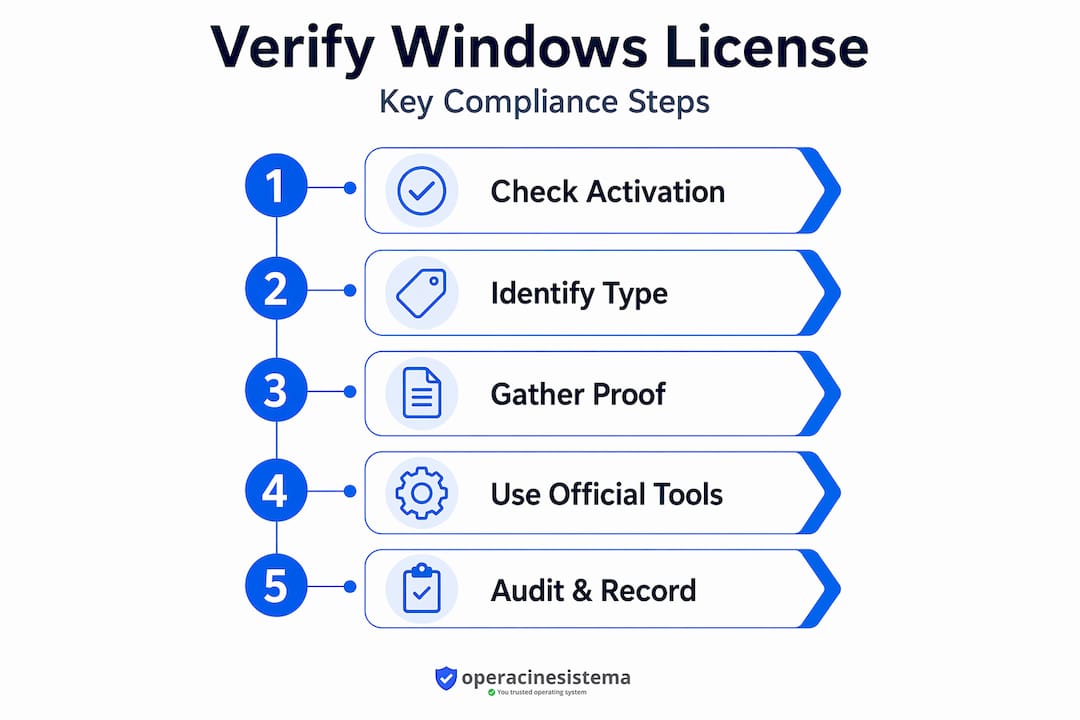
The exact steps differ based on your license type. Work through the section that applies to you. Do not skip steps, because early checks can reveal problems that make later steps unnecessary.
For all license types: Start with Windows Settings
- Нажмите на кнопку Начало menu and open Настройки (значок шестеренки).
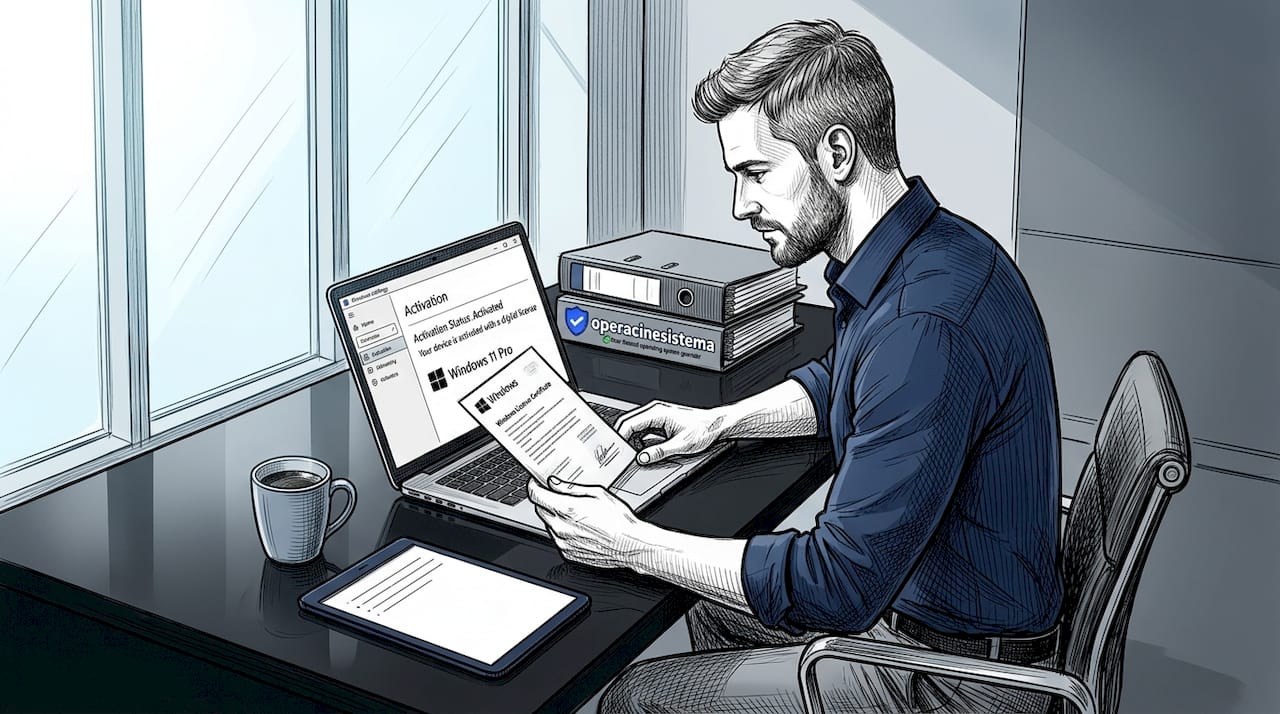
- Перейти к Система, then scroll down and click Активация.
- Look at the activation status. It should say “Windows is activated” with your edition listed.
- If it says “Windows is not activated” or shows an error code, write down that code before proceeding.
This is your baseline check. It tells you whether Windows currently recognizes itself as activated. But it does not confirm the legitimacy of the underlying license. That requires the next steps.
For Retail and Volume licenses: Use slmgr commands
You can manage and check your activation via command line using the steps below.
- Right-click Начало and choose Windows Terminal (Admin) или Командная строка (администратор).
- Type "slmgr /dlv` and press Enter. A dialog box will appear with detailed licensing data, including the license status, remaining rearm count, and activation ID.
- Look for “License Status: Licensed” in the output. Anything else requires further investigation.
- Тип
slmgr /xprand press Enter. This tells you whether your current license will expire, which is important for KMS-activated systems (KMS licenses renew every 180 days and need access to the KMS server). - For Volume License users, log in to the Volume Licensing Service Center (VLSC) at Microsoft’s website and review your agreements, assigned seats, and activation counts.
For volume licenses, Microsoft documents multiple verification methods including slmgr /dlv, WMI queries, and Event Log monitoring for full compliance auditing.
For OEM licenses: Use OA3TOOL, not slmgr
🛑 This is where many people make a costly mistake. Running slmgr /dlv on an OEM-activated machine will show some data, but it will NOT confirm whether the BIOS-embedded key actually matches your installed Windows edition.
For OEM verification, Microsoft recommends OA3TOOL checks rather than relying on slmgr /dlv or /dli output to validate the injected DPK and product ID versus the installed edition.
- Download OA3TOOL from Microsoft’s OEM partner resources (available to manufacturers and enterprise IT teams through official channels).
- Open a command prompt with administrator rights.
- Запускайте
OA3TOOL /Validateto check the integrity of the BIOS-injected key. - Запускайте
OA3TOOL /CheckEditionto confirm the key matches the Windows edition currently installed. - Review the output. A valid OEM system will show matching key and edition data with no errors.
Pro Tip: If you bought a refurbished PC or a pre-built from a third party, always run OA3TOOL before assuming the OEM license is valid. Firmware-level mismatches are more common than people think, especially on machines that have been re-imaged or had their Windows edition changed.
Check Event Viewer for license history
- Нажмите Windows + R, тип
eventvwr.msc, and press Enter. - Navigate to Windows Logs > Application.
- Filter by Source: Security-SPP to see Software Protection Platform events.
- Look for events with IDs related to activation success or failure. Event ID 1003, for example, indicates successful online activation. Errors here can reveal blacklisted keys or activation server issues.
This step is especially useful for businesses conducting a compliance audit, as it provides a timestamped record of every activation event on the machine.
If you run into activation issues during these steps, a solid resource for fixing activation errors can save you significant time troubleshooting on your own.
Troubleshooting and common mistakes
If you run into problems during license verification, these tips will help you resolve issues quickly and safely.
Not every verification check produces a clean result on the first try. Here are the most common problems and how to handle them without making things worse.
Most common verification errors
- Edition mismatch: Your product key is valid for Windows Pro, but Windows Home is installed (or vice versa). This often happens on refurbished machines where someone changed the edition without a matching key.
- BIOS/firmware key mismatch: The OEM key embedded in firmware does not match the currently installed Windows edition. This is an OA3TOOL-specific finding.
- Expired or blacklisted key: The key worked at one point but has since been flagged by Microsoft for misuse, sharing, or fraud. The activation status will show errors or “Not Activated.”
- KMS license expired: KMS-activated Windows needs to contact a KMS server every 180 days. If the machine was offline or the server was unreachable, the license may have lapsed.
- Volume key used on too many machines: MAK keys have a fixed activation count. Exceed it, and further activations will fail.
How to fix common issues
✅ Run Windows Update first. Some activation errors are linked to outdated system files. Microsoft’s official activation troubleshooting workflow starts with updating Windows as the first corrective step.
✅ Use the Activation Troubleshooter. Go to Settings > System > Activation and click Устранение неполадок. This built-in tool can detect and fix common activation problems automatically, especially after hardware changes.
✅ Look up the specific error code. Microsoft maintains documentation for every activation error code. Searching the code directly on Microsoft’s support site gives you precise, accurate guidance.
✅ Check for hardware changes. If you recently upgraded your motherboard, Windows may see it as a new device and deactivate. Retail licenses can be relinked to your Microsoft account in this case.
Pro Tip: If you are stuck after running through these steps, contact Microsoft Support directly before making any changes to the registry, reinstalling Windows, or buying a new key. Making changes without guidance can complicate the issue and make it harder for support to help you.
🛑 Don’t trust third-party key checkers. For business risk, rely on Microsoft’s tools and official support channels. A “green checkmark” from an unofficial site means absolutely nothing for compliance purposes and could give you a false sense of security right before an audit.
For detailed guidance on error resolution by error code, the activation error troubleshooting resource covers the most frequent cases with step-by-step fixes.
What most guides miss about verifying software licenses
Here is an uncomfortable truth: most people verify the wrong thing entirely.
The typical approach is to grab a product key, paste it into a third-party “key checker” website, and wait for a green or red result. If it comes back green, they assume everything is fine. This approach is fundamentally flawed and could cost your business in an audit scenario.
Many third-party “key checker” sites claim to validate product keys, but Microsoft’s own approach focuses on activation status and licensing infrastructure, not external key databases. Those sites are checking keys against leaked databases or running basic format validation. They have no real-time connection to Microsoft’s licensing servers. A key can look perfectly valid on one of those sites and still be stolen, already revoked, or applied to a different edition than the one you have installed.
True license verification is not about the key itself. It is about the state of the system. Is Windows currently activated? Is the activation linked to a valid license type? Does the key match the installed edition? Does the activation history in Event Viewer show a clean record? Those are the questions that matter during an audit.
Seasoned IT professionals and compliance officers do not just check keys. They check activation status, review audit logs, confirm edition matching (using OA3TOOL for OEM systems), and cross-reference Volume License seats in the VLSC. That is what genuine verification looks like.
For small businesses, this distinction is especially critical. If a software auditor comes knocking, showing a “passed” result from an unofficial website will not help you. What you need is documented, system-level evidence of valid activation using Microsoft’s own tools. The difference between those two approaches can mean the difference between a clean audit and a costly compliance violation.
Proactive license management also saves money. Many businesses discover, only during an audit, that they have been running unactivated seats or using wrong-edition keys for months. Building a regular verification routine using the official tools described in this guide prevents those surprises. It also positions you to negotiate from a position of strength if an audit ever does occur.
Take licensing risk mitigation seriously now, before an auditor forces the issue. The cost of verification is zero. The cost of non-compliance can be very real.
Where to get help with license verification or purchase
If you’re looking for practical support or new licenses, these resources make the process safe and straightforward.
Sometimes the verification process reveals a bigger problem: your license is invalid, mismatched, or simply missing. That is not the end of the world. It is actually the best moment to fix the situation properly, before it becomes a compliance issue or a security risk.
На сайте operacinesistema.lt, we specialize in genuine Microsoft Windows licenses for individuals and small businesses. Whether you need a Retail key for a single machine or OEM licenses for a batch of new builds, you can find verified, legitimate options with fast email delivery and full support. If you are unsure whether your current license is valid, start with our license key validation resource to check your current situation before purchasing anything new. And if you need guidance on staying compliant as your team grows, our Windows licensing help page covers the key compliance considerations for small businesses in plain language. Do not wait until an audit forces your hand. 🔥
Часто задаваемые вопросы
How do I know if my Windows license is genuine?
The most reliable way is to check activation status through Windows Settings or use Microsoft’s official tools for your specific license type, since Microsoft documents multiple verification methods including slmgr and the Volume Licensing Service Center.
What is the safest method to verify an OEM Windows license?
Use Microsoft’s OA3TOOL /Validate and /CheckEdition to confirm firmware keys and license edition, rather than relying on slmgr output, because Microsoft recommends OA3TOOL checks specifically for OEM-activated systems.
Can I trust free online license key checker sites?
No. Microsoft does not acknowledge third-party sites, and Microsoft’s approach focuses on activation status and licensing infrastructure rather than external key databases, making those sites unreliable for real compliance.
What should I do if my license fails to activate or validate?
Update Windows first, then run the Activation Troubleshooter, look up the specific error code, and contact Microsoft Support if the issue persists, following the official activation troubleshooting workflow Microsoft documents for these situations.
Is there a way to manage license verification for multiple PCs in my business?
Yes. Volume Licensing users can use the Microsoft Volume Licensing Service Center, WMI scripts, and Event Log monitoring to track compliance across all seats, since Volume Licensing tracking tools are built specifically for this purpose.
Рекомендуем
- Лицензирование Windows для малого бизнеса: соблюдайте требования
- Руководство по покупке безопасных лицензий Windows: пошаговое приобретение программного обеспечения
- Контрольный список лицензий на программное обеспечение 2026: руководство по соблюдению требований для СМБ
- Почему подлинность программного обеспечения имеет значение для малого бизнеса 2026