Windows 11 Pro USB: kopen, installeren, activeren
If you have a new PC build on the bench, a laptop that keeps blue-screening, or a drive that got wiped, you do not want a complicated Windows install. You want a clean install that works on the first try, with a license that activates normally. That is exactly why a Windows 11 Pro USB is still a smart buy in 2026, even though Microsoft also offers downloads.
A USB installer is physical, predictable, and easy to reuse for reinstalls. Pair it with a genuine Windows 11 Pro license and you have the simplest path from blank drive to a fully activated Pro desktop with BitLocker, Remote Desktop, and business-grade controls.
What a Windows 11 Pro USB actually is
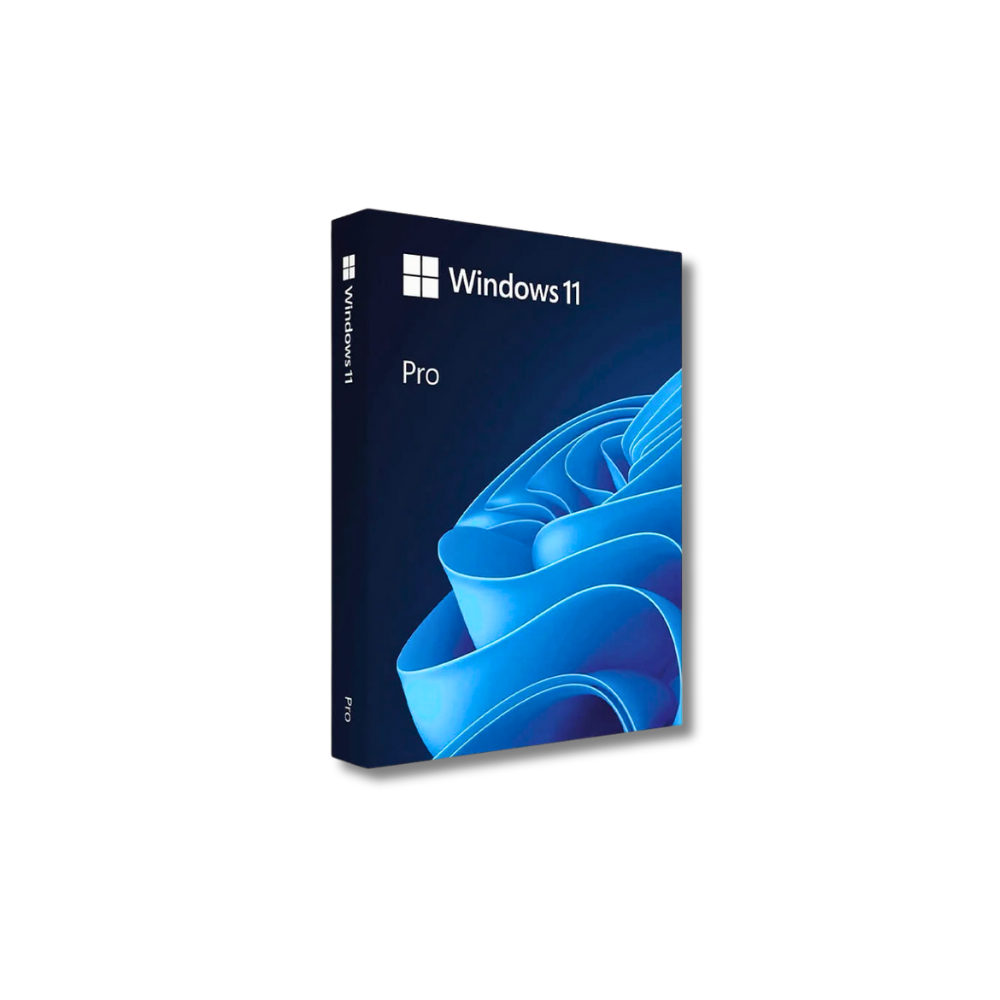
A Windows 11 Pro USB is a bootable flash drive prepared with Windows 11 installation media. You plug it into a PC, boot from it, and run Setup to install Windows on your internal drive.
Two details matter here.
First, the USB is the installer, not the license by itself. Some packages include a product key (or a license card), and some sellers ship only installation media. If you already have a Windows 11 Pro key, the USB is still useful because it turns installation into a 10-20 minute routine instead of a “find the right ISO, find the right tool, hope your download is not corrupted” situation.
Second, Windows 11 Pro is the edition that includes the Pro features. Windows 11 Home will install and run fine for many people, but Pro is what you buy when you need Remote Desktop host, BitLocker drive encryption, Group Policy, Hyper-V, and domain or Azure AD joining.
Windows 11 Pro USB vs digital key delivery
People usually choose between two convenient paths: a digital license key delivered by email or a physical USB package shipped to you. Neither is “better” in every case. It depends on what problem you are solving.
A digital key is fastest when you already have a working Windows environment and internet access. You can download the installer directly and activate after installation. It is also great for remote IT work – you can purchase and forward a key to a user instantly.
A Windows 11 Pro USB is the safer bet when any of these are true: the computer has no operating system, the existing OS is unstable, your internet is slow or limited, or you want a recovery-ready installer you can keep in a drawer. If you are doing multiple reinstalls over time, the USB keeps paying you back.
There is also a trust angle. A physical package feels tangible, and for some buyers that reduces the anxiety that comes with software licensing online. If you are skeptical, choose the format that makes you feel confident and in control.
When a Windows 11 Pro USB is the right choice
A USB installer shines in real-world scenarios where time matters and surprises are expensive.
If you are building a PC, you are starting from zero. A USB boot drive is the normal, fastest workflow.
If you are reinstalling after malware or a corrupted system, you want a clean install from known-good media. A USB installer avoids relying on whatever is currently broken on the machine.
If you manage a small office, a USB makes standardization easier. You can reinstall a workstation, get it patched, then apply your baseline apps. For multiple seats, the key management is separate from the media, but the media is reusable.
If you are traveling or supporting family members remotely, shipping a USB to someone who is not technical can be simpler than walking them through downloads, BIOS menus, and ISO tools. They still need to boot from USB, but the steps are fewer.
Compatibility: what to check before you install
Windows 11 has stricter requirements than Windows 10. Before you plan a clean install, confirm the basics.
Your system should support TPM 2.0 and Secure Boot. Most PCs from the last several years do, but sometimes these are disabled in BIOS/UEFI settings. If Windows 11 Setup says your PC is not supported, it is often because TPM or Secure Boot is turned off.
Make sure you are installing 64-bit Windows 11. Windows 11 does not support 32-bit installs. Almost every modern CPU is 64-bit, but older hardware can be the exception.
Also think about drivers. Windows 11 has great built-in driver support, but if you have a niche Wi-Fi chip or a very new motherboard, it is smart to have network drivers on a second USB just in case you need them during setup.
How to install Windows 11 Pro from USB (the practical way)
You do not need to be an IT pro to do this, but you do need to be methodical.
Step 1: Back up what you cannot replace
A clean install can erase your internal drive. If there is anything you need, copy it to external storage or cloud first. If the PC is not booting, you may need a recovery environment to extract files before you wipe.
Step 2: Boot from the Windows 11 Pro USB
Plug in the USB, power on the PC, and open the boot menu (often F12, F9, or Esc depending on the brand). Select the USB device.
If you do not see the USB, check BIOS/UEFI settings for USB boot and Secure Boot options. On some systems, the USB appears under a UEFI boot list.
Step 3: Run Windows Setup and choose Pro
Follow the prompts for language and keyboard. When asked for a product key, you have options.
If you have your Windows 11 Pro key ready, enter it. If you plan to activate later, choose “I don’t have a product key” and continue, then select Windows 11 Pro when asked for edition. Do not pick Home by accident. Switching editions later is possible, but it is extra friction.
Step 4: Choose install type and drive
For a clean install, choose Custom. Then pick the target drive. If you are replacing everything, delete old partitions and install to the unallocated space. If you are unsure, stop and confirm. This is the point where data loss happens.
Step 5: Finish setup and get online
Windows will restart several times. After you reach the desktop, connect to the internet and run Windows Update. This pulls drivers and security updates quickly.
Activation: what “genuine” looks like
Activation should be boring. That is the goal.
After installation, go to Settings – System – Activation. It should show Windows is activated, or it will prompt you to enter a product key. Once activated, Windows ties the license to your hardware in most cases.
If activation fails, do not assume the worst immediately. Common causes are entering the wrong edition key, temporary activation server issues, or an internet connectivity problem. Double-check you installed Windows 11 Pro (not Home), confirm the key is typed correctly, and try again after updates.
What you want to avoid is “too good to be true” licensing that behaves like a cracked copy or a blocked key. A legitimate license activates through normal Windows activation, without workarounds.
Buying a Windows 11 Pro USB without getting burned
Low-priced Windows licenses are a magnet for sketchy sellers. Your job as a buyer is to reduce risk.
Look for clear statements that the license is original and genuine, plus normal consumer protections like secure checkout and a money-back guarantee. Reviews help, but they are not a replacement for policies you can actually use if something goes wrong.
Also verify what you are receiving. Some listings say “USB” but ship only a key. Others ship media but hide the fact that a license is separate. You want straightforward product copy: what edition, what delivery method, and what activation expectations.
If you prefer a retailer that leans hard on legitimacy, secure payments, and fast fulfillment, operacinesistema.lt sells Windows 11 Pro in both digital-key and USB formats and frames the purchase around safety, genuine licensing, and simple delivery.
Trade-offs and “it depends” moments
A Windows 11 Pro USB is not magic. If your PC is truly unsupported (no TPM 2.0, very old CPU), you may be better off staying on Windows 10 Pro for compatibility, at least until you upgrade hardware.
If you need the absolute latest Windows 11 build on day one, download-based installation media can be more current than an older pre-made USB. You can still update after install, but it is something to consider if you are deploying multiple machines and want everything identical.
And if you are buying for a team, the USB is the easy part. The bigger decision is license management. For small businesses, make sure you have the right number of seats and a process for tracking which key is on which machine.
A cleaner install is a faster computer
A Windows 11 Pro USB is not only about convenience. It is also the cleanest way to reset a machine you rely on. When your installer is ready, your license is legitimate, and your steps are simple, you spend less time troubleshooting and more time using the PC the way Pro is meant to be used: secure, controllable, and built for real work.
If you are on the fence, pick the format that removes the most friction for your situation. The best Windows install is the one you can finish confidently in one sitting, then forget about because it just stays activated and runs.