Kā Windows uzlabo IT drošību profesionāļiem 2026. gadā
Windows powers 71% of desktop computers worldwide, making it the primary target for cybercriminals. This dominance leads to a common misconception: Windows is inherently insecure. The reality? Windows integrates sophisticated defense mechanisms that actively protect IT systems from modern threats. From AI-powered application controls to just-in-time privilege elevation, Windows builds security into every layer of its architecture. Understanding these protections helps IT professionals and small business owners make informed decisions about their security infrastructure and recognize why Windows remains the foundation for secure enterprise computing.
Satura rādītājs
- Understanding Windows Security Architecture
- AI-Powered Application Control For Malware Prevention
- Protection Effectiveness And Addressing Common Threats
- Practical Impact For Businesses And Best Security Practices
- Discover Genuine Windows Licenses And Security Solutions
- Frequently Asked Questions About Windows And IT Security
Galvenie secinājumi
| Punkts | Sīkāka informācija |
|---|---|
| Just-in-time elevation | Windows restricts administrator rights only when needed, reducing privilege exploitation risks. |
| AI-powered app control | Smart App Control blocks untrusted executables, scripts, and macros at the process level. |
| Defender effectiveness | Microsoft Defender achieved 99.1% protection in 2025 real-world malware tests. |
| Multifactor authentication | Phishing-resistant MFA blocks 99% of unauthorized access attempts in Windows environments. |
| Business impact | Companies using Windows-based security reduced incidents by 92% through layered defenses. |
Understanding Windows security architecture
Windows security starts with a fundamental principle: minimize the attack surface by limiting administrative access. Traditional approaches granted users permanent administrator rights, creating opportunities for malware to exploit elevated privileges. Modern Windows reverses this model through Administrator Protection, implementing just-in-time elevation that grants admin rights only for specific tasks.
This architecture separates administrator and standard user profiles at the system level. When you need elevated permissions, Windows temporarily switches to an admin token, executes the task, then immediately reverts to standard user context. This isolation prevents malware running in your standard profile from accessing admin-level system functions. The separation creates a security boundary that stops lateral movement during attacks.
Windows Hello enhances this model by replacing passwords with biometric authentication. Fingerprint and facial recognition verify your identity before granting elevated access, making credential theft significantly harder. Even if attackers compromise your password, they cannot authenticate without your physical presence. This integration transforms identity verification from a weak point into a strong defense layer.
The least privilege principle underpins these protections. By defaulting to minimal permissions and requiring explicit elevation, Windows reduces opportunities for privilege escalation attacks. Malware cannot silently gain system-level access because every elevation triggers user authentication. This approach forces attackers to interact with users, increasing detection chances.
Combining profile separation, biometric authentication, and just-in-time elevation creates layered protection. Each layer compensates for potential weaknesses in others. If one defense fails, additional barriers still block the attack. This redundancy makes Windows security resilient against sophisticated threats targeting multiple vulnerabilities simultaneously.
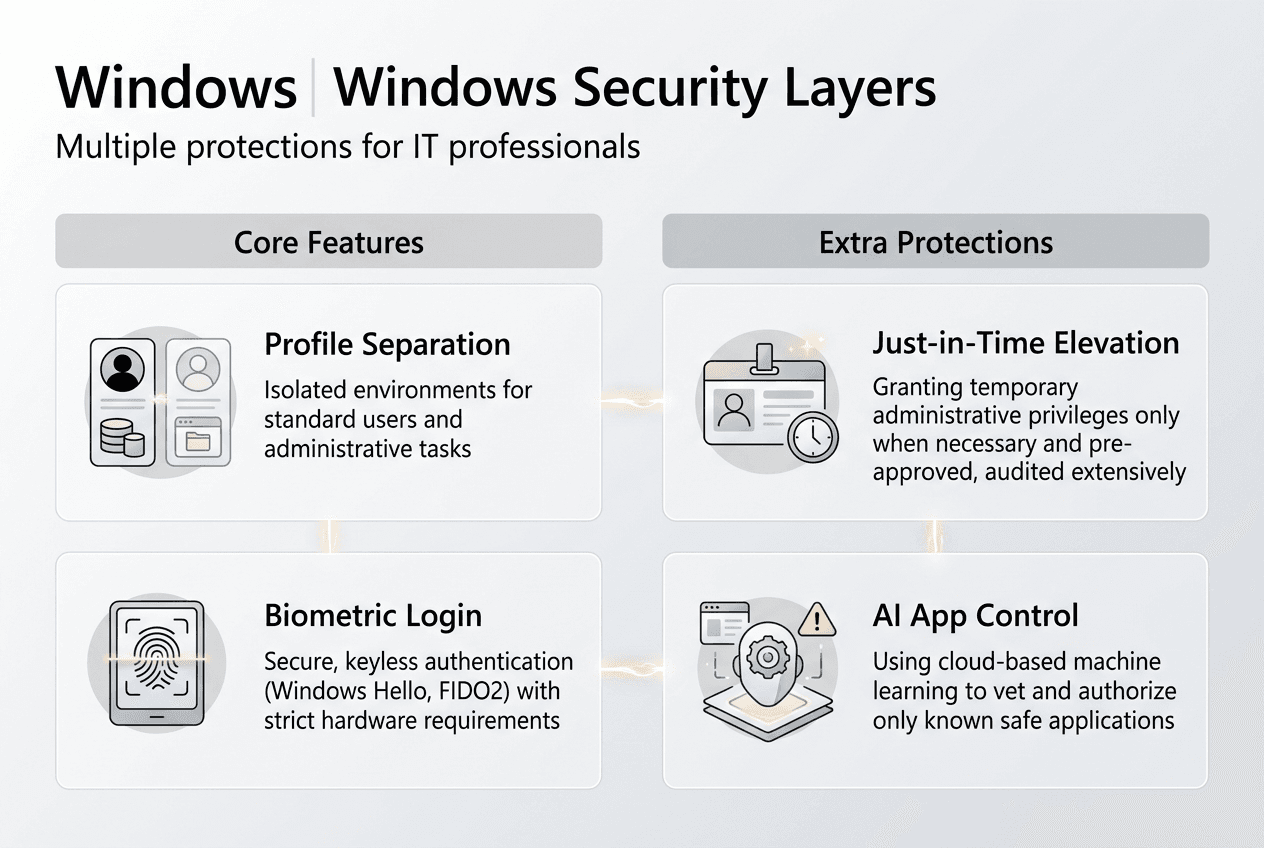
Pro Tip: Enable Administrator Protection in Windows 11 Enterprise through Settings > Privacy & Security > Windows Security > Account Protection. This feature automatically creates separate admin and standard profiles, enforcing just-in-time elevation without disrupting your workflow.
Small businesses should implement these architectural protections as baseline security. Review the Microsoft OS security checklist 2026 for configuration steps. Verify your Windows installation uses genuine Microsoft licenses to access these security features, as counterfeit software often disables critical protections. Follow the secure Windows setup guide during deployment to establish strong security foundations from the start.
AI-powered application control for malware prevention
Windows blocks malicious software before it executes through intelligent application controls. Smart App Control and App Control for Business use AI-driven reputation checks to evaluate every executable, script, and macro attempting to run on your system. These controls operate at the process level, intercepting threats before they can establish persistence or execute payloads.
The AI model analyzes multiple signals to determine application trustworthiness. It examines code signing certificates, publisher reputation, prevalence across Windows devices, and behavioral patterns. Applications from known publishers with strong reputations execute normally. Unknown or suspicious applications trigger blocks or warnings, preventing execution until you explicitly authorize them. This dynamic evaluation adapts to emerging threats without requiring signature updates.

Smart App Control targets consumer and small business users with automatic protection. When enabled, it blocks untrusted executables, scripts, and macros without user intervention. The system learns from your application usage patterns, gradually building a trusted application baseline. This approach balances security with usability, minimizing false positives while maintaining strong protection.
App Control for Business provides enterprise-grade policy management. IT administrators define application allowlists based on publisher, file hash, or path rules. Policies deploy through Microsoft Intune or group policies, ensuring consistent enforcement across all managed devices. This centralized control prevents unauthorized software installation while allowing legitimate business applications.
Comparison of Windows application control features:
| Funkcija | Smart App Control | App Control for Business |
|---|---|---|
| Target users | Consumers, small businesses | Enterprise IT departments |
| Configuration | Automatic with learning mode | Policy-based with manual rules |
| Management | Local device settings | Intune and group policy deployment |
| Elastība | Limited customization | Granular allowlist and blocklist rules |
| Protection scope | Executables, scripts, macros | All code execution including drivers |
These controls eliminate common infection vectors. Malicious email attachments cannot execute because they lack trusted signatures. Drive-by downloads from compromised websites get blocked at launch. Macro-based attacks in Office documents fail because the system prevents untrusted macro execution. By stopping malware before it runs, Windows prevents the initial compromise that leads to data breaches.
Pro Tip: Enable Smart App Control on new Windows 11 installations during setup. Existing systems require a clean install to activate this feature because it needs to establish baseline trust from a known-good state. For businesses managing multiple devices, implement App Control for Business policies through Intune to enforce consistent application security across your fleet.
IT professionals should audit their application control policies quarterly. Review the Windows security checklist for policy templates. Test policies in audit mode before enforcement to identify legitimate applications requiring exceptions. Evaluate Windows Defender effectiveness alongside application controls to ensure comprehensive protection against malware.
Protection effectiveness and addressing common threats
Microsoft Defender Antivirus demonstrates exceptional real-world protection against modern malware. AV-Comparatives testing in 2025 showed Defender achieved 99.1% protection rates in real-world scenarios and 100% detection in online malware protection tests. These results place Defender among the top-performing antivirus solutions, dispelling outdated perceptions about its effectiveness.
Windows defends against sophisticated attacks like process injection through memory protection and privilege controls. Process injection attacks target Windows APIs to inject malicious code into legitimate processes, hiding malware within trusted applications. Windows mitigates these attacks through Data Execution Prevention, Address Space Layout Randomization, and Control Flow Guard. These memory protections randomize memory locations and prevent code execution in data regions, breaking injection techniques.
Least privilege principles compound these defenses. Even if attackers successfully inject code into a process, they inherit only that process’s limited permissions. Without elevated privileges, injected code cannot modify system files, install persistent malware, or access protected data. This containment limits damage from successful exploits.
Windows protection rates against common threats:
| Threat type | Detection rate | Primary defense mechanism |
|---|---|---|
| File-based malware | 99.1% | Real-time scanning and behavioral analysis |
| Online threats | 100% | Cloud-delivered protection and URL filtering |
| Ransomware | 98.7% | Controlled folder access and behavior monitoring |
| Exploit attempts | 97.5% | Memory protection and application control |
| Phishing attacks | 99.0% | SmartScreen and Safe Links integration |
Layered defenses create redundancy that compensates for individual component limitations. Antivirus signatures catch known malware variants. Behavioral analysis detects unknown threats through suspicious activity patterns. Application controls block unauthorized code execution. Memory protections prevent exploit techniques. Privilege restrictions contain successful breaches. When one layer misses a threat, others provide backup protection.
This multi-layered approach explains why Windows security proves effective despite being the primary malware target. Attackers must bypass multiple independent defenses simultaneously to compromise systems. Each additional layer exponentially increases attack complexity and cost, deterring all but the most sophisticated threat actors.
IT professionals should monitor protection effectiveness through Windows Security Center. Review detection logs monthly to identify attack trends and adjust policies accordingly. Verify your deployment uses genuine Windows licenses to receive security updates that maintain protection effectiveness. Follow secure Microsoft software buying tips when purchasing licenses to avoid counterfeit products that compromise security features.
Practical impact for businesses and best security practices
Real businesses achieve dramatic security improvements through Windows-based protections. TechCore Solutions, a small IT services provider, reduced security incidents by 92% after implementing enhanced email security on Windows and Microsoft 365 infrastructure. The company combined Windows security features with cloud-based threat protection, creating an integrated defense that stopped attacks before they reached end users.
Phishing-resistant multifactor authentication plays a critical role in Windows security. The Microsoft Digital Defense Report 2025 confirms MFA blocks 99% of unauthorized access attempts across Windows environments. Traditional password-based authentication fails when attackers steal credentials through phishing or data breaches. MFA requires additional verification factors like biometric authentication or hardware tokens, making stolen passwords useless without physical access to authentication devices.
Small businesses and IT professionals should implement these proven practices to maximize Windows security:
- Enable Windows Hello for Business to replace passwords with biometric or PIN authentication backed by hardware security modules.
- Deploy phishing-resistant MFA using FIDO2 security keys or Windows Hello across all user accounts, especially administrators.
- Configure Smart App Control on all Windows 11 devices during initial setup to establish trusted application baselines.
- Implement least privilege policies by removing unnecessary administrator rights and using just-in-time elevation for administrative tasks.
- Keep Windows updated by enabling automatic updates to receive security patches addressing newly discovered vulnerabilities.
- Use Microsoft Defender as your primary antivirus, supplemented with cloud-delivered protection for real-time threat intelligence.
- Verify software licensing by purchasing official Windows licenses that guarantee access to security updates and support.
These steps create a security foundation that protects against common and sophisticated threats. Each practice addresses specific attack vectors while reinforcing other defenses. Together, they establish the layered protection that makes Windows environments resilient.
“Most small businesses focus on antivirus alone, missing the bigger picture. Effective Windows security requires combining privilege management, application controls, MFA, and regular updates. Each element strengthens the others, creating defense depth that single solutions cannot provide. The businesses seeing 90%+ incident reductions implement all these layers, not just one or two.”
IT professionals managing Windows deployments should audit their security configurations against the Microsoft security checklist for small businesses. Prioritize quick wins like enabling MFA and removing excessive admin rights before tackling complex policies. Document your security baseline and review it quarterly as threats evolve. Ensure all Windows installations use secure Microsoft licenses for SMBs to maintain access to security features and support.
Discover genuine Windows licenses and security solutions
Securing your IT infrastructure starts with legitimate software. Counterfeit Windows installations disable security features, block critical updates, and expose your systems to malware. Genuine Microsoft operating system licenses ensure you receive all security protections discussed in this guide, from Windows Hello to Microsoft Defender updates.
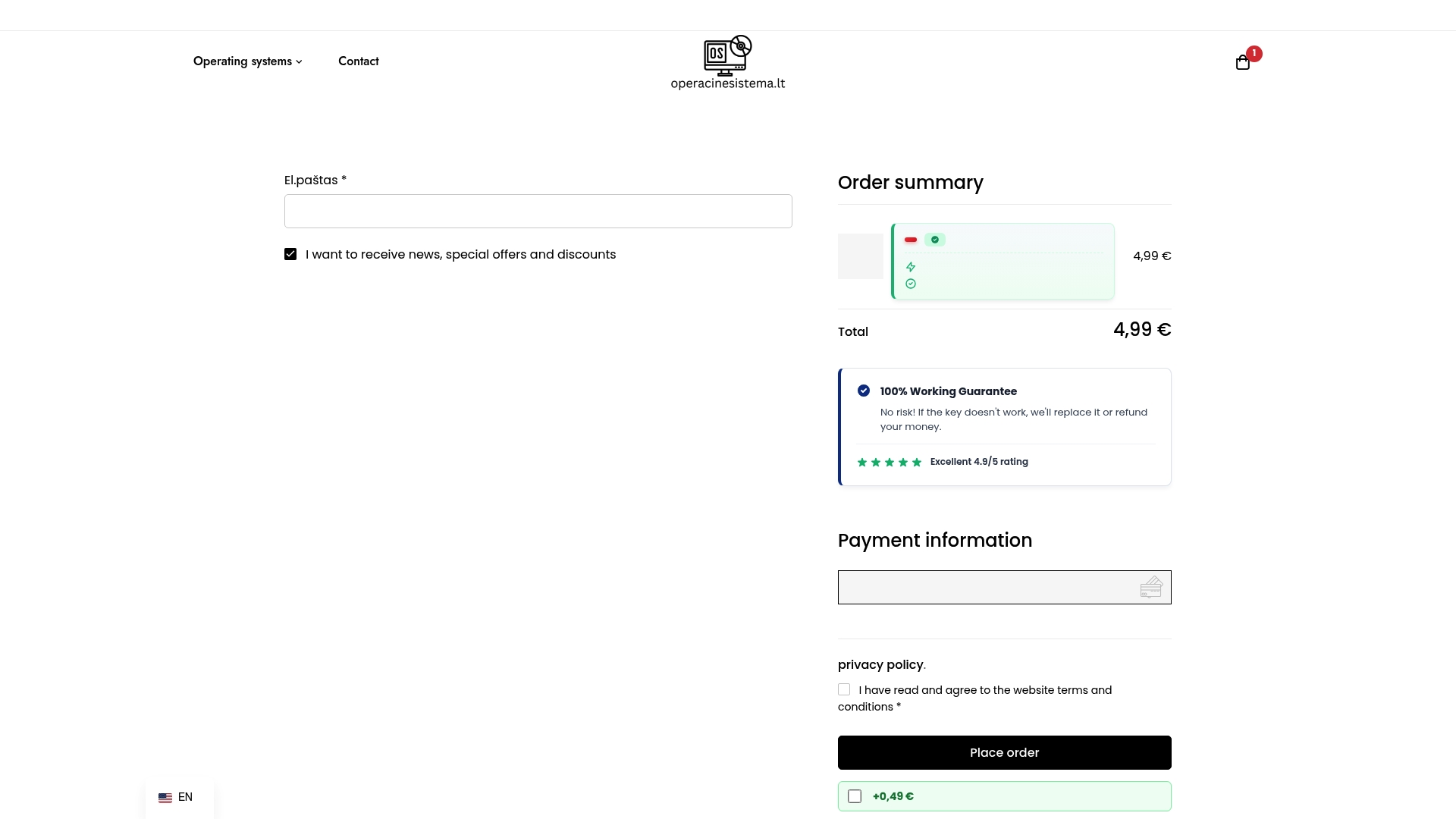
Small businesses need reliable sources for secure Microsoft OS licenses that guarantee authenticity and ongoing support. Purchasing from authorized resellers provides instant digital delivery, full product keys, and access to Microsoft’s security infrastructure. These licenses form the foundation of your security posture, enabling all built-in Windows protections.
Verify your licensing compliance using the software license checklist for 2026 SMB compliance. This resource helps you audit existing installations, identify unlicensed software, and plan license purchases. Understanding official software benefits for small businesses clarifies why investing in genuine licenses reduces long-term security costs and compliance risks.
Frequently asked questions about Windows and IT security
What makes Windows Hello more secure than passwords?
Windows Hello uses biometric authentication or hardware-backed PINs that never leave your device. Unlike passwords transmitted over networks, biometric data stays local and encrypted in the Trusted Platform Module. Attackers cannot phish or steal credentials they never receive, making Hello resistant to remote attacks that compromise traditional passwords.
Can Windows Defender alone protect my business from malware?
Microsoft Defender provides comprehensive protection achieving 99.1% effectiveness in independent tests, making it sufficient for most small businesses. However, complete security requires combining Defender with application controls, privilege management, MFA, and regular updates. No single tool protects against all threats; layered defenses create the redundancy businesses need.
How does just-in-time elevation reduce attack risks?
Just-in-time elevation grants administrator privileges only for specific tasks, then immediately revokes them. Malware running in your standard user profile cannot exploit admin rights because those rights exist only temporarily. This time-limited approach dramatically shrinks the window attackers have to escalate privileges and compromise systems.
Why is official Windows licensing important for cybersecurity?
Genuine Windows licenses provide access to security updates, Microsoft Defender definitions, and support for security features. Counterfeit installations often disable Windows Update and security services, leaving systems vulnerable to known exploits. Official licensing ensures your Windows deployment receives critical patches protecting against emerging threats.
What is the role of multifactor authentication in Windows security?
Multifactor authentication blocks 99% of unauthorized access by requiring multiple verification factors beyond passwords. Even when attackers steal credentials through phishing or breaches, they cannot authenticate without physical access to your second factor. MFA transforms authentication from your weakest link into a strong barrier against account compromise.
How often should small businesses update their Windows security policies?
Review security policies quarterly to address evolving threats and business changes. Monitor security logs monthly for attack patterns requiring immediate policy adjustments. Update application control allowlists when deploying new business software. This regular cadence keeps your defenses aligned with current risks while maintaining operational flexibility.
Ieteicamais
- Microsoft OS drošības pārbaudes saraksts 2026: samazināt ļaunprātīgu programmatūru ar 50%
- Oficiālās programmatūras priekšrocību atklāšana maziem un vidējiem uzņēmumiem 2026. gadā
- Secure Microsoft software buying tips for 2026
- How to activate your Windows OS securely in 2026
- Varför Övervaka Nätverk – Ökad IT-säkerhet 2026