What Is a Home Use Program? Your 2026 Guide
TL;DR:
- Eligible employees can purchase discounted Microsoft 365 subscriptions through their employer’s Workplace Discount Program, verified via corporate email. The program offers approximately 30% savings on Family and Personal plans, which can be shared among household members and installed on up to five devices per user. License access lasts 90 days post-employment termination, emphasizing the importance of employer-sponsored enrollment and proper account management.
The Microsoft home use program is a corporate benefit that lets eligible employees buy discounted Microsoft 365 subscriptions for personal devices at home. Now officially called the Workplace Discount Program, this initiative gives qualifying workers access to Microsoft 365 Family and Personal plans at roughly 30% below retail price. If your employer holds a volume licensing agreement with Microsoft, you may already qualify without knowing it. Students, remote workers, and families with multiple devices stand to gain the most from this program, since it covers legal, fully activated software with no compromises on features.
What is home use program and who qualifies?
The Workplace Discount Program is Microsoft’s formal name for what most people still call the home use program. Eligibility is controlled entirely by your employer. Organizations that hold volume licensing agreements with Microsoft or maintain active Software Assurance contracts can sponsor their employees for discounted home licenses. That means your HR or IT department decides whether the benefit exists at your company, not Microsoft directly.
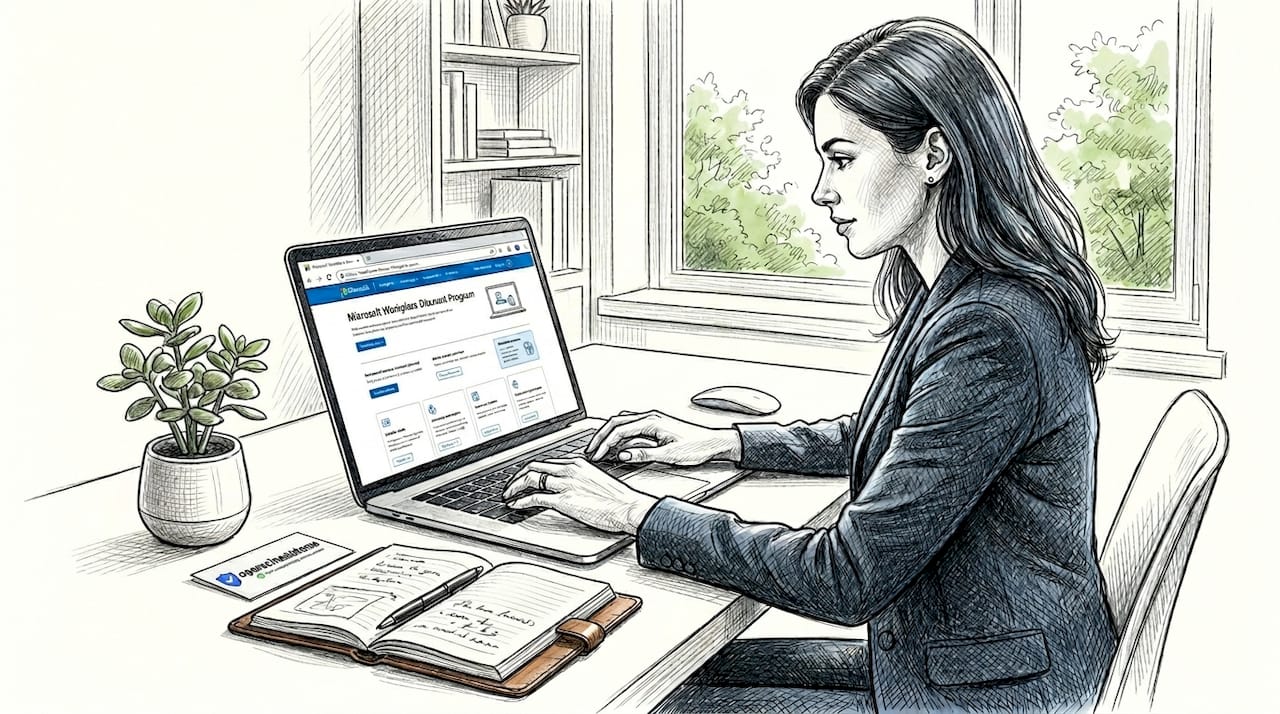
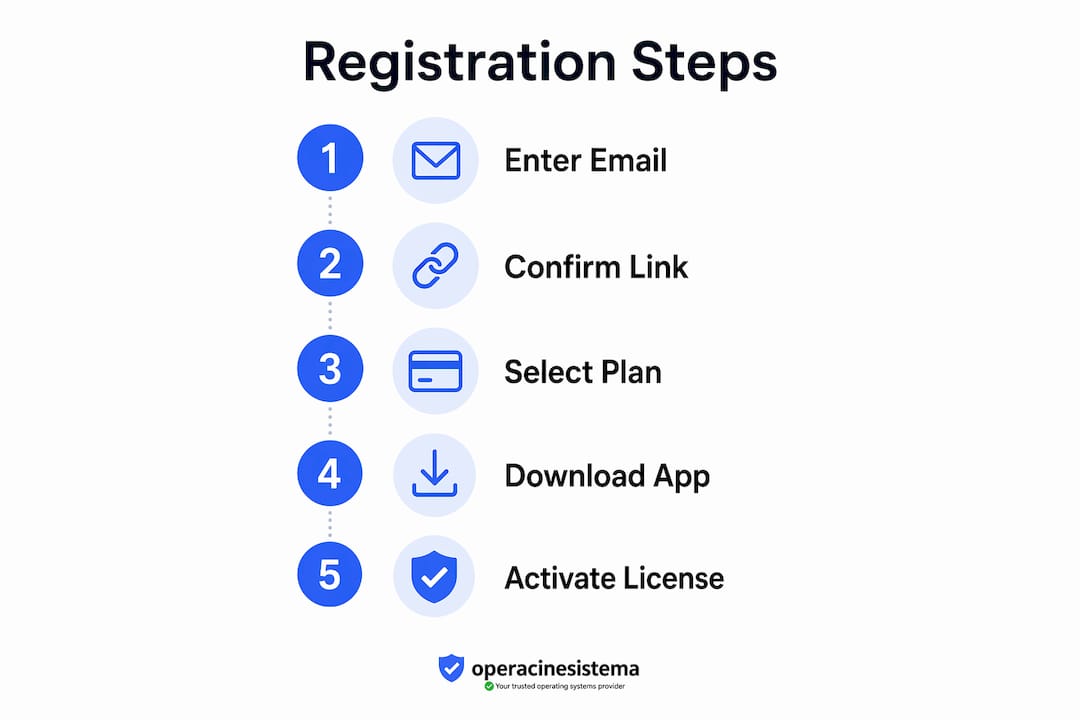
Verification works through your corporate email address. You enter your work email on the program portal, receive a confirmation link, and then connect your personal Microsoft account to complete the purchase. This two-step process keeps the discount tied to active employment. One critical limitation: [enrollment cannot transfer](https://learn.microsoft.com/en-us/answers/questions/5570301/microsoft-workplace-discount-program-(formerly-hom) between different corporate email addresses. If you change jobs or get a new work email, your employer must re-register you from scratch.
Your employment status directly affects your license. If you leave your job, your discounted subscription does not vanish instantly, but it will deactivate. Licensed installs typically deactivate 90 days after employment ends, with warning notifications sent at the 30-day and 60-day marks. That gives you time to either renew at full retail price or find an alternative.
Step-by-step registration overview
- Check eligibility. Ask your IT or HR department whether your organization participates in the Workplace Discount Program.
- Visit the program portal. Go to the Microsoft Workplace Discount Program site and enter your corporate email address.
- Confirm your email. Click the verification link sent to your work inbox.
- Link your personal Microsoft account. Sign in with the personal account you want to use for the subscription.
- Complete the purchase. Select your preferred Microsoft 365 plan and pay the discounted price.
- Install on your personal devices. Download and activate Microsoft 365 on up to five personal devices.
Profesionāļu padoms: If you do not see a confirmation email within a few minutes, check your spam folder. Corporate email filters sometimes block external verification messages.
What Microsoft 365 plans are available through the program?
The Workplace Discount Program currently offers Microsoft 365 Family and Microsoft 365 Personal at a 30% discount compared to retail pricing. That discount held firm even after Microsoft raised retail prices by 30 to 40% in early 2025, which means the gap between what program members pay and what everyone else pays actually widened. Staying enrolled now saves more money in absolute terms than it did two years ago.
A notable 2025 update: limited Copilot AI features are now included in discounted Microsoft 365 plans. Copilot is Microsoft’s AI assistant built into Word, Excel, and other apps. If you do not want it, you can disable it inside the app settings without losing your discount or any other features.
The table below compares the two available plans so you can pick the right fit.
| Funkcija | Microsoft 365 Personal | Microsoft 365 Family |
|---|---|---|
| Users covered | 1 person | Up to 6 people |
| Devices per user | Up to 5 devices | Up to 5 devices per person |
| Storage | 1 TB OneDrive | 1 TB per person |
| Copilot AI | Included (can be disabled) | Included (can be disabled) |
| Discount via program | ~30% off retail | ~30% off retail |
| Vislabāk piemērots | Individual or remote worker | Families and households |
One trap to avoid: if you switch from a discounted plan to a “Classic” Microsoft 365 plan, you lose program eligibility permanently. Classic plans are non-discounted legacy options that Microsoft still offers, and choosing one removes you from the Workplace Discount Program. Getting back in is difficult and sometimes impossible.
Profesionāļu padoms: Stick with the standard Microsoft 365 Family or Personal plan when renewing. Never select a “Classic” variant, even if it appears cheaper at first glance. The long-term discount loss far outweighs any short-term saving.
What are the system requirements for Microsoft 365 from this program?
The software you receive through the Workplace Discount Program is identical to what you would buy at full retail price. That means the same system requirements apply. Your device needs to meet minimum specs or Microsoft 365 will not install or run correctly.
| Device type | Minimum requirement |
|---|---|
| Windows processor | 1.6 GHz dual-core or faster |
| Windows RAM | 4 GB minimum |
| Windows disk space | 4 GB available |
| Mac RAM | 4 GB minimum |
| Mac disk space | 10 GB available |
| macOS version | Recent versions supported |
| Internet connection | Required for activation and updates |
Šie hardware and software prerequisites apply whether you install on a Windows PC or a Mac. An internet connection is not just recommended. It is required for initial activation and for the subscription to stay valid. Microsoft checks license status periodically, so a device that stays offline for extended periods may prompt reactivation.
For tablets and smartphones, the situation is simpler. Microsoft offers free Office apps for iOS and Android that cover basic editing. These mobile apps do not count against your five-device install limit and do not require the full subscription to open and view documents. However, advanced features like tracked changes, pivot tables, and mail merge require the full Microsoft 365 subscription tied to your account.
Key points to keep in mind before installing:
- Your personal Microsoft account must be the one linked to the Workplace Discount Program purchase.
- Signing in with a different account on the same device will not activate the subscription.
- If your employer’s IT team manages your work device, install Microsoft 365 on your personal device only. Work devices typically run separate corporate licenses.
- Check your Microsoft 365 compatibility before purchasing to avoid activation issues.
How the home use program benefits individuals and families
The most direct advantage of the home use program is cost. A 30% discount on Microsoft 365 Family translates to real savings every year, especially after the 2025 retail price increases. For a household with two or three people who all need Word, Excel, and Outlook regularly, the Family plan through the program is one of the most cost-effective ways to get legitimate software.
Legitimacy matters more than most people realize. Pirated or fake Microsoft keys carry serious risks: activation failures, Windows Defender conflicts, data exposure, and sudden deactivation with no warning. The Workplace Discount Program delivers a fully licensed subscription tied to your personal Microsoft account, with the same security and update access as any retail purchase. You get real software, not a gamble.
The Microsoft 365 Family plan can be shared with up to five additional household members, each getting their own 1 TB of OneDrive storage and their own set of five device installs. That is six people covered under one subscription. For a family with teenagers doing homework, parents working from home, and a shared household computer, this sharing capability alone justifies the subscription cost.
Students and remote workers benefit in specific ways:
- Students get access to Word, PowerPoint, and OneNote for assignments, plus 1 TB of cloud storage for files.
- Remote workers get the full desktop versions of Outlook, Teams integration, and Excel without relying on browser-based alternatives.
- Families can cover every household member’s device under one discounted subscription.
- All users get automatic security updates and Microsoft’s built-in malware protection.
Profesionāļu padoms: If you qualify for the Family plan, always choose it over Personal even if you are the only current user. You can add household members later, and the per-person cost drops significantly the moment you share it with even one other person.
For those who want to explore Microsoft 365 free options before committing to a paid plan, there are legitimate paths worth reviewing first.
Galvenie secinājumi
The Microsoft Workplace Discount Program gives eligible employees a 30% discount on Microsoft 365 Family and Personal plans, with eligibility controlled by employer licensing agreements and verified through corporate email.
| Punkts | Sīkāka informācija |
|---|---|
| Program definition | The home use program is now called the Workplace Discount Program, offering 30% off Microsoft 365. |
| Eligibility requirement | Your employer must hold a volume licensing or Software Assurance agreement with Microsoft. |
| License deactivation risk | Installs deactivate 90 days after employment ends, with warnings at 30 and 60 days. |
| Family sharing value | Microsoft 365 Family covers up to 6 people, each with 1 TB of storage and 5 device installs. |
| Classic plan trap | Switching to a Classic plan removes you from the discount program permanently. |
Why I think most people underestimate this program
I have spent years watching people pay full retail price for Microsoft 365 while their employer quietly offered a 30% discount they never claimed. The home use program explanation most companies give is buried in an onboarding document nobody reads. That is a real cost to real people.
The 2025 price increases made this more urgent. Microsoft raised retail prices significantly, but the Workplace Discount Program held its 30% reduction. That means the absolute dollar savings grew. If you are eligible and not enrolled, you are leaving money on the table every single renewal cycle.
The Copilot AI addition is worth a separate comment. A lot of users see “AI features” and assume they are being forced into something they did not ask for. You are not. You can disable Copilot inside each Microsoft 365 app without any penalty to your subscription or discount status. Do not let that addition push you toward a Classic plan. The discount program advantages far outweigh the minor inconvenience of turning off a feature you do not want.
The job-change scenario is where I see the most confusion. People switch employers, lose access, and then assume they need to buy a full-price subscription immediately. You have 90 days. Use that window to check whether your new employer also participates in the program. Many do. If they do not, that 90-day buffer gives you time to plan a budget-conscious transition to a retail or alternative licensed option rather than scrambling.
One more thing: do not try to transfer your enrollment between work emails yourself. It does not work. Your new employer’s IT team needs to register you fresh. Ask them directly on your first week. Most IT departments know the process and can get you enrolled quickly.
— Danielius
Get legal Microsoft software at the right price
If your employer does not offer the Workplace Discount Program, or if you need a Windows license alongside your Microsoft 365 subscription, you still have legitimate, affordable options. At Operacinesistema, we specialize in genuine Microsoft licenses for personal and professional use, including Windows 10 and Windows 11 Pro. Every license we sell is official, verified, and delivered instantly to your inbox. No fake keys. No activation surprises. Before you buy any Microsoft software, check our software license compliance guide to make sure you are getting exactly what you need. You can also browse our full Microsoft 365 licensing resources for plan comparisons and buying guidance.
BIEŽĀK UZDOTIE JAUTĀJUMI
What is the home use program for Microsoft 365?
The home use program, now officially called the Microsoft Workplace Discount Program, lets eligible employees buy Microsoft 365 Family or Personal subscriptions at a 30% discount for use on personal devices at home.
How does the home use program work?
You verify eligibility by entering your corporate email on the program portal, confirm via an email link, and then link your personal Microsoft account to complete the discounted purchase.
What happens to my license if I leave my job?
Your license remains active for 90 days after your employment ends, with warning notifications sent at 30 and 60 days. After 90 days, the subscription deactivates unless you renew at full retail price.
Can I share my Microsoft 365 subscription from the home use program?
Yes. The Microsoft 365 Family plan purchased through the program can be shared with up to five additional household members, each receiving their own 1 TB of OneDrive storage and up to five device installs.
What devices can I install Microsoft 365 on through this program?
You can install Microsoft 365 on Windows PCs and Macs that meet minimum specs: a 1.6 GHz dual-core processor, 4 GB RAM, and 4 GB of available disk space for Windows. Free mobile apps are also available for iOS and Android devices without counting against your install limit.