Acquistare Licenze OS sicure: la vostra guida passo dopo passo
In breve:
- Secure OS licenses must be legal, authentic, and compliant to avoid revocation and penalties.
- Always verify license source, request proper documentation, and avoid gray-market keys to ensure security.
- Regularly review and document license status, activation, and updates to maintain ongoing compliance.
Even experienced IT resellers and small business owners get burned by counterfeit Microsoft OS licenses. You order what looks like a legitimate Windows key, activate it, and everything seems fine — until six months later when Microsoft flags it as invalid, your system locks up, or worse, a software audit reveals you’re running unlicensed software on every machine in your office. The consequences are real: fines, downtime, and security vulnerabilities baked right into a fake OS. This guide walks you through every step of buying a genuine, secure Microsoft OS license so you can avoid those risks entirely.
Indice dei contenuti
- Understand what makes an OS license secure
- Prepare: What you need before you buy
- Follow the step-by-step process for a secure OS purchase
- Verify your license: Avoid pitfalls and ensure compliance
- Maintenance: Keep your OS secure post-purchase
- Our take: What most guides miss about secure OS buying
- Take the next step: Buy secure OS licenses confidently
- Domande frequenti
Punti di forza
| Punto | Dettagli |
|---|---|
| Choose trusted sources | Always buy Microsoft OS licenses from authorized and well-reviewed vendors. |
| Verify every purchase | Check activation and validate your license with Microsoft after your purchase. |
| Keep proper records | Save all documentation and license keys for compliance and future reference. |
| Maintain ongoing security | Regularly update your OS and conduct periodic compliance checks to stay secure. |
Understand what makes an OS license secure
Not all Windows licenses are created equal. Before you spend a single dollar, you need to understand what type of license you’re buying and what makes it genuinely secure. This isn’t just technical jargon — it directly affects whether your software is legal, supported, and protected.
The three main license types
According to OS license fundamentals, there are three core license types you’ll encounter:
| Tipo di licenza | Who it’s for | Key features | Trasferibile? |
|---|---|---|---|
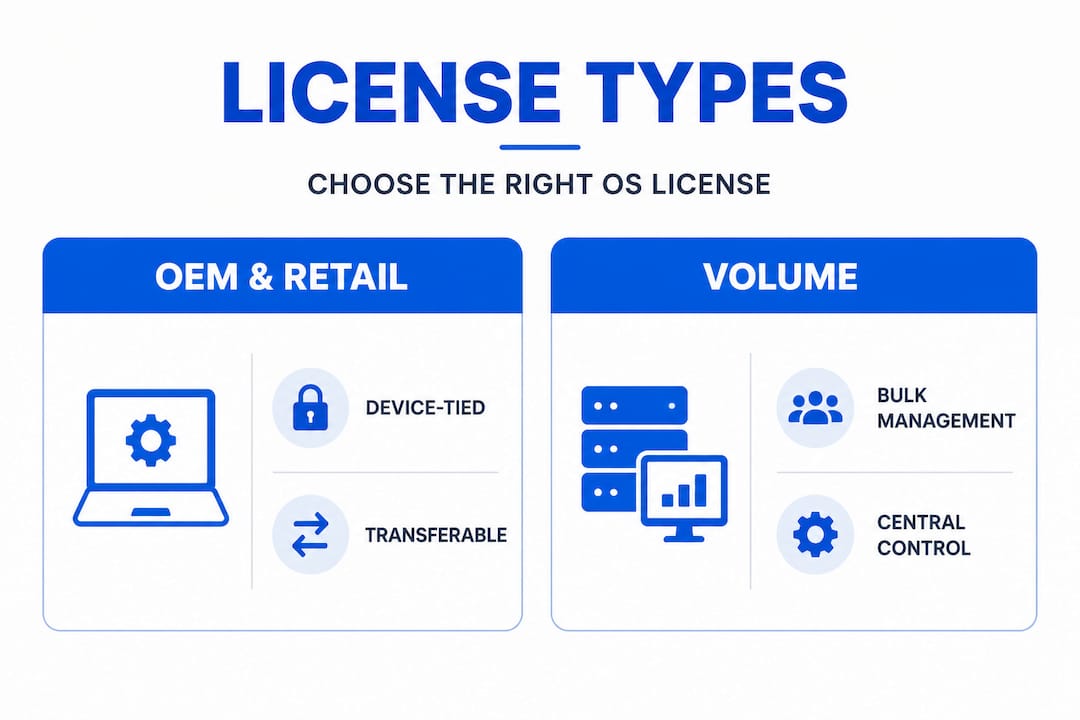
| OEM | Hardware builders, resellers | Tied to a single device | Da |
| Vendita al dettaglio | Individuals, small businesses | Transferable between PCs | Sì |
| Volume | Enterprises, large SMBs | Multi-device, centrally managed | Varies |
Licenze OEM are the most affordable option. They’re designed to be sold alongside hardware and are permanently tied to the first machine they activate on. If your laptop dies, that license generally goes with it. For IT resellers building new machines, OEM keys are a popular choice — but you need to understand the restriction.
Licenze per il commercio al dettaglio cost a bit more, but they give you flexibility. You can move a retail license from one PC to another, which makes them ideal for small businesses that frequently upgrade hardware. If you’re setting up a team of five people and expect machines to change over the next few years, retail is the smarter long-term investment.
Volume licenses are designed for organizations that need to manage many machines from a central dashboard. These are typically purchased directly through Microsoft’s licensing programs and come with dedicated support. They’re overkill for a two-person office but essential for a 50-seat company.
What makes a license actually secure?
A secure license means three things: it’s legal, authentic, e compliant. Legal means the key was sold through a legitimate channel and is properly authorized for your use case. Authentic means the key itself is real and will pass Microsoft’s validation. Compliant means you’re using it in a way that matches the terms of the license agreement.

🛑 Gray-market keys are the biggest risk here. These are real keys that were obtained improperly — bulk keys resold without authorization, keys from regions where prices were lower, or keys stripped from old hardware illegally. They might activate fine at first, but Microsoft can revoke them at any time. Use this secure software purchase checklist to make sure you’re evaluating suppliers the right way before you buy.
Red flags to avoid:
- 🚩 Prices that seem too good to be true (a genuine Windows 11 Pro retail key shouldn’t cost $5)
- 🚩 No documentation offered with the purchase
- 🚩 No refund or replacement guarantee
- 🚩 Seller can’t explain the license source
- 🚩 Keys sold in bulk with no clear licensing terms
Prepare: What you need before you buy
With a clear understanding of license types, here’s what you should have ready before making your purchase. Preparation isn’t optional — it’s what separates buyers who get burned from buyers who stay protected.
Information to gather first
Before you visit any supplier’s website or contact a vendor, nail down these four pieces of information:
- Which OS version do you need? Windows 10 Pro or Windows 11 Pro? Check hardware compatibility first. Windows 11 has stricter requirements, including TPM 2.0. If your machines are older, Windows 10 Pro may be the right call.
- How many licenses do you need? One for yourself, or 20 for a client? Quantity affects which license type makes sense and whether volume discounts apply.
- What is the purpose? Personal use, business deployment, or resale? The intended use determines whether OEM or retail is appropriate, and it affects compliance requirements.
- What hardware are you activating on? Know your system specs before you buy. Activating a license on unsupported hardware creates problems immediately.
| Preparation step | Why it matters |
|---|---|
| Confirm OS version needed | Avoids buying the wrong product |
| Count exact license quantity | Prevents shortfalls or over-purchasing |
| Define use purpose | Ensures correct license type |
| Check hardware specs | Guarantees compatibility before activation |
Verifying your supplier
Il SMB compliance guide outlines exactly what documentation and verification steps SMBs should require before any software purchase. A trustworthy supplier will always be able to answer:
- Where did these licenses originate?
- Are they OEM, retail, or volume?
- What documentation comes with the purchase?
- What is your refund or replacement policy if a key fails?
Documents you should request:
- ✅ Invoice clearly showing the product, quantity, and price
- ✅ Product key delivered securely (encrypted email or private portal)
- ✅ Certificate of Authenticity (CoA) for physical purchases
- ✅ Supplier’s business registration or verifiable contact details
Pro Tip: Search for the supplier’s business name alongside “Microsoft Authorized Reseller” before buying. You can also check customer reviews on independent platforms to see real experiences from other IT professionals.
Take a look at these secure Microsoft buying tips for a more detailed breakdown of how to evaluate a vendor’s credibility before committing to a purchase.
Follow the step-by-step process for a secure OS purchase
Armed with your documentation, follow this reliable process to ensure every step of your OS purchase stays secure. Skipping even one of these steps is where most buyers run into trouble.
Step 1: Choose a trusted supplier with strong reviews and transparent policies
Start here — don’t rush to checkout. A legitimate supplier will have verifiable customer reviews, a clear returns policy, and transparent sourcing. Look for suppliers that specialize in Microsoft OS licenses rather than generalist marketplaces where counterfeit keys run rampant.
Check that the supplier offers:
- Clear product descriptions (OEM vs. retail, version, region)
- Refund policy for non-activating keys
- Visible contact information and support channels
- Positive reviews from verified purchasers, especially from businesses and IT resellers
Step 2: Select the right license type for your needs
Now apply what you learned in the preparation phase. Don’t let a seller push you toward a license type that doesn’t fit your situation. If you’re an IT reseller building custom PCs, OEM is your product. If you’re a business owner who needs flexibility as your team grows, retail is worth the extra cost.
Step 3: Request official documentation before paying
This is non-negotiable. Any legitimate vendor will provide an invoice and clearly specify what product you’re purchasing. Ask for this upfront. If a seller hesitates or says documentation isn’t available, walk away.
🛑 Never pay for a license that doesn’t come with proper paperwork. No documentation means no protection if something goes wrong.
Step 4: Check for digital delivery security and pricing red flags
A reliable Windows license buying guide confirms that secure digital delivery should include encrypted key delivery and a clear activation process. Watch out for:
- Extremely low prices (a $5 Windows 11 Pro key is almost certainly invalid)
- Keys delivered via public chat or unencrypted platforms
- No clear instructions for activation
- No post-purchase support
Digital keys should arrive via encrypted email or a secure customer portal. Physical USB versions should come sealed with verifiable packaging.
Step 5: Install and activate safely
Once your key arrives, use the official Microsoft installation process. Don’t use third-party activators or “cracks.” They expose your system to malware and will cause activation failures that are hard to reverse.
For a full breakdown of safe setup procedures, follow this secure Windows install guide which covers everything from media creation to first activation.
Quick activation steps:
- Download the official Windows ISO from Microsoft’s website
- Boot from the installation media (USB or digital)
- Enter your product key when prompted during setup
- Complete setup and allow Windows to activate automatically
- Confirm activation status in Settings > System > Activation
Pro Tip: Screenshot your activation confirmation screen and save it alongside your invoice. This creates a simple record that protects you during any future IT audit.
Verify your license: Avoid pitfalls and ensure compliance
Once purchased, taking a few minutes to verify your license and keeping good records can save you from massive headaches down the line. Most buyers stop at activation. That’s a mistake.
How to confirm activation status
Aperto Impostazioni > Sistema > Attivazione on Windows 11, or Settings > Update & Security > Activation on Windows 10. You want to see “Windows is activated with a digital license” or “Windows is activated.” Any other message requires follow-up.
Validating through Microsoft channels
Microsoft offers an online tool to check if your product key is associated with a genuine license. You can also call Microsoft Support and provide your key for verification. Legitimate suppliers will encourage this step, not discourage it.
“Verifying your OS license through official Microsoft channels isn’t just for peace of mind — it’s a critical compliance step for any SMB that could face a software audit.”
Common red flags of inauthentic licenses
- 🚩 Activation fails or loops repeatedly
- 🚩 Windows shows a watermark in the corner after activation
- 🚩 You receive a “license not genuine” warning shortly after setup
- 🚩 Microsoft support says the key is already in use or blocked
As highlighted in the SMB compliance resource, post-purchase verification is an essential step for compliance, especially for businesses that manage multiple licenses across teams or client accounts.
Document everything for audits
Use this simple process for record-keeping:
- Save the invoice in a labeled folder (digital or physical)
- Store the product key in a secure password manager
- Screenshot or print the activation confirmation screen
- Note the machine name, activation date, and license type for each device
- Store copies in at least two locations (cloud backup plus local)
Pro Tip: Create a simple spreadsheet that logs each license you own: device name, OS version, license type, purchase date, supplier, and activation status. Update it every time you add or retire a machine. This is a lifesaver during audits.
Use the OS security checklist to make sure you haven’t missed anything after your purchase.
Maintenance: Keep your OS secure post-purchase
Verification doesn’t end with purchase. Staying secure is an ongoing process that requires regular attention and action. Buying a genuine license is step one. Keeping it secure and compliant is step two — and it never really stops.
Enable automatic updates
This sounds basic, but it’s critical. Windows security patches are released regularly, and running an unpatched system is almost as risky as running a fake one. As detailed in this OS update resource, regular updates protect against vulnerabilities that attackers actively exploit.
Enable automatic updates by going to:
Settings > Windows Update > Advanced Options > Turn on automatic updates
Don’t delay major updates either. When Windows prompts you for a feature update, schedule it for a low-traffic period and run it.
Keep purchase records accessible
Your records aren’t a one-time task. Make sure they’re organized and accessible for every team member who manages IT. If you’re an IT reseller, your clients may ask for copies of their license documentation — having it ready builds trust and professionalism.
Ongoing maintenance checklist:
- ✅ Enable and verify automatic updates monthly
- ✅ Review your license inventory every quarter
- ✅ Archive original invoices and certificates of authenticity
- ✅ Check for expiring volume licenses before renewal deadlines
- ✅ Update your license spreadsheet whenever hardware changes
- ✅ Run Windows activation checks after major hardware changes (a motherboard swap can affect OEM license status)
Schedule periodic compliance checks
Don’t wait for an audit to find problems. Schedule a compliance review every six months. Review which machines are running which OS, confirm all keys are activated and genuine, and flag any machines that show activation issues.
Plan for future upgrades
Technology moves fast. Windows 10 support ends in October 2025, which means businesses still running it need to plan their migration to Windows 11. If you’re buying licenses now, buy with the future in mind. If your hardware supports Windows 11, go straight to Windows 11 Pro. If not, budget for hardware upgrades alongside your OS licensing plan.
Pro Tip: If you’re managing multiple machines for clients, stagger your upgrades so you’re not dealing with ten installations at once. A phased rollout is easier to troubleshoot and document.
For a complete walkthrough of the upgrade process, check out this guide on upgrading your OS securely so you can plan ahead without risking security gaps.
Our take: What most guides miss about secure OS buying
After helping businesses and IT resellers navigate Microsoft OS licensing, we’ve noticed a consistent pattern: most buyers focus almost entirely on price. That’s understandable. Budget pressure is real. But the fixation on price is exactly how people end up with gray-market keys that get revoked six months later.
Here’s what most guides won’t tell you. The real cost of a cheap, invalid license isn’t the price of the key itself. It’s the hours your team spends troubleshooting a broken activation. It’s the emergency IT call when a machine locks up during a critical deadline. It’s the potential fine if a software audit catches you running unlicensed software. Add those up and the $15 you “saved” on a gray-market key looks a lot less appealing.
There’s another thing guides consistently skip: treating compliance as a process rather than a one-time checkbox. Most buyers purchase a license, activate it, and never think about it again. Then they replace hardware, and the OEM key doesn’t transfer. Or they upgrade operating systems without checking whether their current license covers the new version. These are small mistakes with big downstream consequences.
We’ve also seen IT resellers make the mistake of buying licenses in bulk from unknown sources to boost their margin. The logic makes sense on paper. But one revoked batch of keys means refunding clients, damaging your reputation, and potentially losing accounts you worked years to build. No margin gain is worth that risk.
The businesses we see handle licensing best are the ones that treat it like any other compliance function. They maintain records. They verify purchases. They schedule periodic reviews. And they source from affordable license solutions that are transparent about their sourcing and backed by real support.
Long-term peace of mind costs a little more upfront. But it costs far less than the alternative.
Take the next step: Buy secure OS licenses confidently
You now have everything you need to buy OS licenses the right way — from understanding license types to verifying activation and maintaining compliance over time. The process doesn’t have to be stressful.
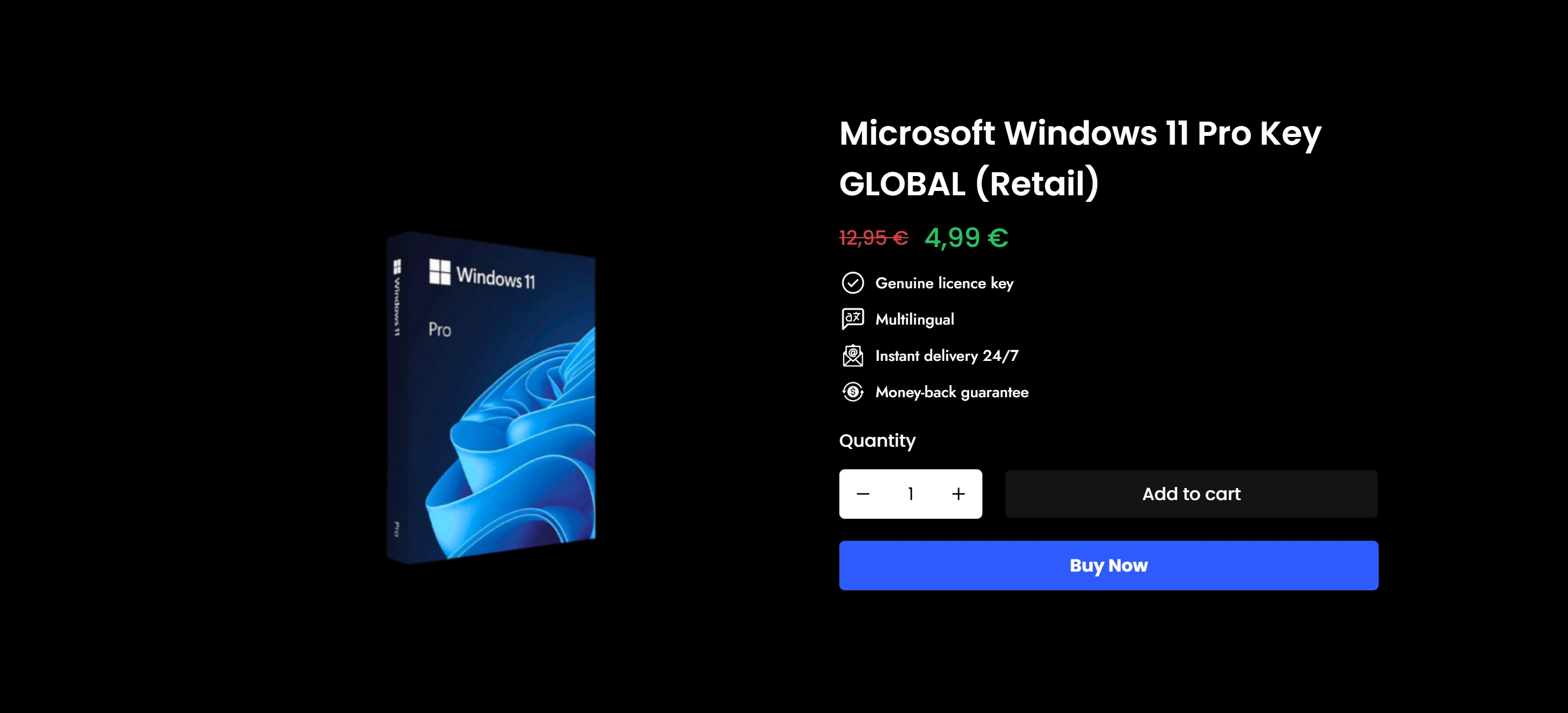
Start with the SMB license compliance checklist to audit what you currently have and identify any gaps before your next purchase. When you’re ready to buy, buy Windows 11 Pro key from a trusted, verified source with instant delivery and a full support guarantee. And if you’re still getting familiar with the landscape, revisit the guide on understanding OS licenses to make sure your next purchase fits your exact situation. Genuine licenses. Fast delivery. Real support. That’s what secure buying looks like in practice.
Domande frequenti
How do I know if a Microsoft OS license is genuine?
Always request official documentation and validate the license key through Microsoft’s online services after purchase to confirm authenticity. A genuine license will activate cleanly and show a confirmed status in your system settings.
What paperwork should I receive with a secure OS license?
You should receive an invoice, a product key, and, for some purchases, a certificate of authenticity — as outlined in the SMB compliance guide. No documentation is a major red flag.
Can I use the same OS license for multiple computers?
No — you need a separate license per device unless you purchase a volume license specifically designed for multi-device deployment. Using one key on multiple machines violates Microsoft’s terms of use.
What should I do if my license key doesn’t activate?
Contact your supplier immediately and request a replacement or refund — and always buy from vendors with a clear support policy, as recommended in this activation troubleshooting resource. A legitimate seller will resolve the issue without argument.
How often should I check compliance for my OS licenses?
Conduct compliance checks at least every six months and whenever you add new licenses, especially during business audits or IT upgrades. Regular reviews prevent small issues from becoming costly problems.