Qu'est-ce que Windows Update : votre guide complet pour 2026
TL;DR :
- Many people treat Windows Update as an inconvenience, ignoring its vital role in system security and stability.
- Recent improvements give users more control by enabling pause options, separate restart scheduling, and clearer update visibility, reducing disruptions and building trust.
Most people treat Windows Update the same way they treat car maintenance. They ignore it until something breaks. The truth is, what is Windows Update really about? It is not just patches and reboots. It is the single most important tool keeping your system safe from attackers, hardware failures, and software bugs. And in 2026, Microsoft has made it smarter and far less disruptive than most users realize.
Table des matières
- Understanding the Windows Update process
- Recent improvements to user control and update experience
- Types of updates managed by Windows Update
- How to view, manage, and pause Windows Updates effectively
- Windows Update reimagined: balancing security with user control
- Secure your Windows experience with genuine licenses
- Questions fréquemment posées
Principaux enseignements
| Point | Détails |
|---|---|
| Windows Update basics | It automatically handles scanning, downloading, installing, and restarting to keep Windows secure and updated. |
| User control enhancements | Recent improvements let you pause updates longer and restart or shut down without forcing updates. |
| Types of updates | Windows manages feature, quality, driver, and firmware updates with varied timing and impact. |
| Manage updates yourself | You can view update history, pause updates, and choose when to install or restart. |
| Genuine licenses matter | Having a valid Windows license ensures smooth and secure update delivery. |
Understanding the Windows Update process
Now that you know why updates matter, let us look at how Windows Update works under the hood.
Windows Update orchestrates scanning, downloading, installing, and committing updates silently in the background. Most of this happens while you are using your PC, not after. Here is what that actually looks like in practice:
- Scan — Windows checks Microsoft’s servers to identify which updates apply to your specific hardware and software configuration. It does not download everything Microsoft has released. Only what your system actually needs.
- Download — Relevant update files are pulled down in the background, using low-priority bandwidth so your browsing and work are not slowed.
- Install — Updates are staged on your system. Many complete installation without requiring any interruption at all. Some, especially kernel-level changes, need a restart to finish.
- Commit — The final step locks the update into your OS. If anything goes wrong during this phase, Windows can roll back automatically to protect your system.
The component managing all of this behind the scenes is called the Update Orchestrator. Think of it as a traffic controller. It sequences and schedules each update task so your computer is not overwhelmed, and so you are not interrupted mid-meeting or mid-deadline.
One thing many users do not realize: Windows checks what updates are applicable before downloading anything. This is not a trivial step. Your device’s hardware IDs, installed drivers, and current OS version all factor in. Two computers running the same version of Windows can receive entirely different update packages. Understanding the full Windows Update workflow explained helps clarify why this personalized approach matters for keeping your system stable.
The restart requirement frustrates people most. But here is the nuance most articles skip: not every update needs one. Security patches for apps and services often complete silently. Restarts are reserved for changes that touch the core operating system files. Microsoft has been reducing how often this happens, which leads us directly to the latest improvements.
Recent improvements to user control and update experience
Understanding how Windows Update works sets the stage for exploring how recent changes improve your control over updates.
Microsoft improved Windows Update to reduce untimely disruption and give users more control over when updates and restarts happen. These are not cosmetic tweaks. They reflect real changes to how the update pipeline operates.
Here is what is new and worth knowing:
- ✅ Pause updates for up to 35 days — You can now pause all updates for up to 35 days at a time, and extend that pause indefinitely by repeating the action. This is a genuine lifeline during critical work periods, travel, or when you are running a mission-critical process that cannot afford instability.
- ✅ Separate restart and shutdown from update installs — Previously, choosing “shut down” or “restart” could silently trigger an update installation. Now, update-specific options are clearly separated. You can shut down or restart without forcing an update cycle.
- ✅ Coordinated update batching — Windows now groups multiple update types together whenever possible. Instead of three separate restarts for a feature update, a driver update, and a firmware patch, the system schedules them to install in one combined session.
- ✅ Driver update visibility — You can now see exactly which drivers are being updated, including details on the hardware component affected. This matters enormously if you are troubleshooting performance issues or compatibility problems after an update.
- ✅ Improved active hours detection — Windows learns when you typically use your PC and avoids scheduling restarts during those windows, even if you have not manually configured active hours.
Ces Windows Update security enhancements are particularly relevant for business users and anyone who cannot afford unexpected downtime. And if you are on Windows 11, many of these improvements are available now.
Pro Tip: Set your active hours in Windows Update settings to match your real work schedule. Windows uses this to avoid scheduling restarts during the hours you are most likely to be working. Go to Settings > Windows Update > Active hours and set your typical start and end times.
Les forced restart controls introduced in 2026 are one of the most requested changes in Windows Update history. Users have long complained about unexpected reboots killing unsaved work. That frustration is now officially part of Microsoft’s design consideration.
Types of updates managed by Windows Update
With an understanding of update improvements, let us explore the specific kinds of updates Windows manages.
Not all updates are equal, and treating them the same way is a mistake. Feature updates typically ship annually and are managed separately due to their size and impact, while quality updates and drivers often install monthly or as needed.
Here is a clear breakdown:
| Update type | Frequency | Size | What it changes |
|---|---|---|---|
| Feature updates | Once a year | Large (2–4 GB) | New OS capabilities, UI changes, major improvements |
| Quality updates | Monthly (Patch Tuesday) | Small to medium | Security patches, bug fixes, reliability improvements |
| Driver updates | As needed | Small | Hardware compatibility and performance for specific components |
| Firmware updates | Rare | Small | Low-level device firmware for BIOS/UEFI components |
Feature updates are the ones that change how Windows looks and behaves. They get the most attention and take the longest to install. Windows 11’s annual releases are a good example. Microsoft manages these separately because a failed feature update requires a different recovery process than a failed security patch.
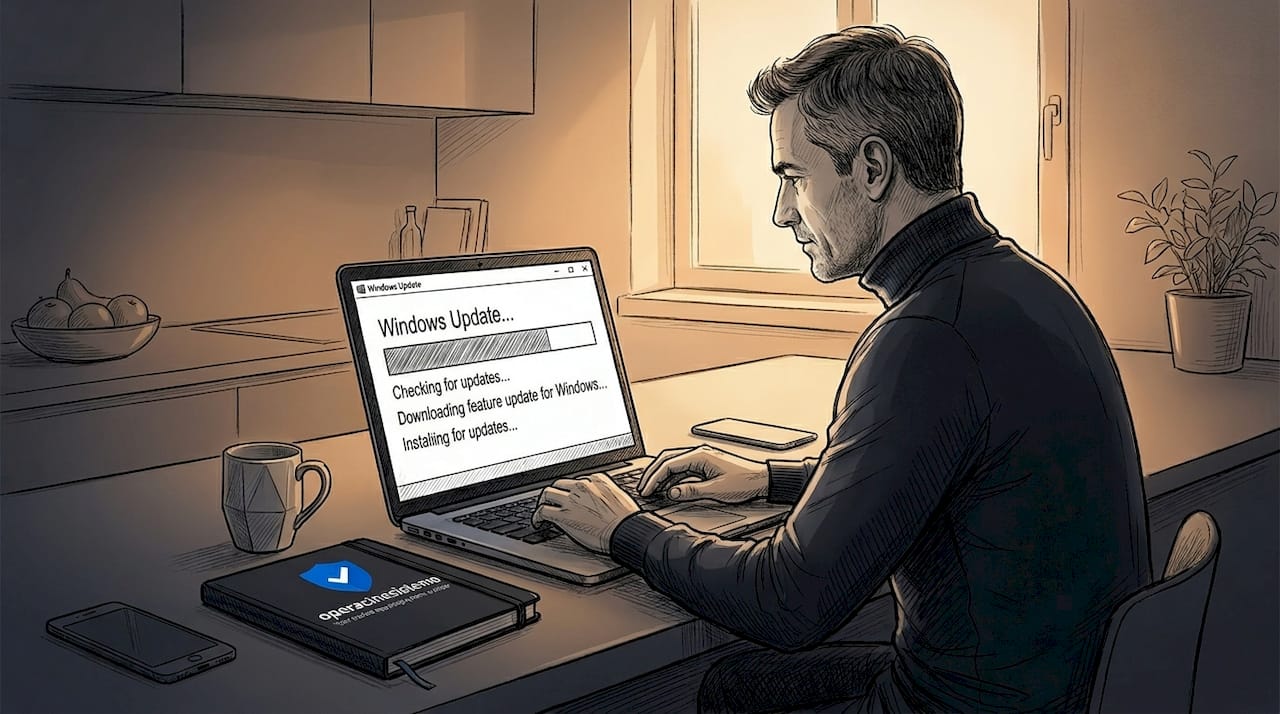
Quality updates are your monthly security lifeline. They ship on the second Tuesday of each month, a schedule so consistent it earned the nickname “Patch Tuesday.” These fix known vulnerabilities that attackers are actively trying to exploit. Delaying them for weeks is how systems get compromised.
Driver updates are often overlooked but critically important for system stability. An outdated GPU driver can cause crashes. An outdated network driver can drop your connection. Windows delivers these through the update pipeline to reduce the risk of users installing incompatible versions from random third-party sites.
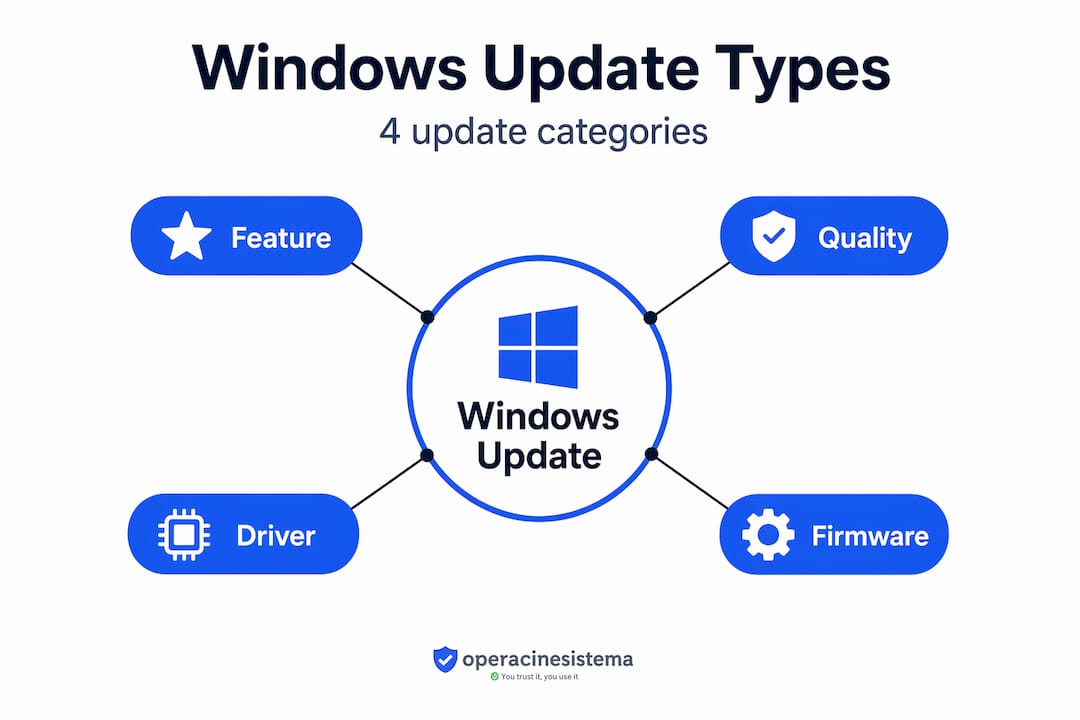
Firmware updates are the rarest and most sensitive. They update the code embedded in your hardware components. Windows handles these carefully and they almost always require a restart.
One practical benefit of Windows managing all four types: you do not need separate tools or manual downloads for most updates. Understanding the differences between update types helps you make smarter decisions about when to pause and when to let updates proceed immediately.
- 🔥 Security patches should never be delayed more than a few weeks
- ⚠️ Feature updates can reasonably wait a month after release to let early bugs surface
- ✅ Driver updates are generally safe to install as they arrive
- 🛑 Never block firmware updates unless a known issue has been reported for your specific hardware
How to view, manage, and pause Windows Updates effectively
Now that you know different update types, here is how you can manage and control them effectively yourself.
Windows Update allows viewing update history and offers user-controlled pause for up to 35 days, extendable indefinitely. Here is exactly how to use these features:
- Open Windows Update settings — Press Touche Windows + I to open Settings, then click Mise à jour de Windows in the left panel. This is your control center for everything update related.
- View your update history — Click Update history to see every update installed on your system, organized by type. You can also view detailed update history to trace when specific patches were applied. This is essential for troubleshooting. If a problem appeared after a specific date, check what installed that day.
- Check for updates manually — Click Check for updates at the top of the Windows Update page. Windows will immediately scan and list any pending updates. This is useful when you want to force an update rather than wait for the automatic schedule.
- Pause updates — Click the Pause updates button and choose your pause duration from the calendar. You can select 1, 2, 3, 4, or 5 weeks. When the pause expires, you can repeat the action to extend it further.
- Configure advanced options — Under Advanced options, you get granular controls including delivery optimization, active hours, and notifications for pending restarts.
- Choose your restart option — When an update is staged and ready, Windows now shows separate options for “Restart now,” “Schedule the restart,” or “Remind me later.” You are not forced to restart immediately.
- Uninstall a recent update — In Update history, scroll down to Uninstall updates. If a recent patch caused a problem, you can remove it here. Quality updates are usually uninstallable. Feature updates have a limited rollback window of 10 days by default.
Ces update management tips apply to both Windows 10 and Windows 11. The interface looks slightly different between versions, but the core options are the same.
Pro Tip: If Windows Update is showing an error or getting stuck, the fastest first step is running the built-in troubleshooter. Go to Settings > System > Troubleshoot > Other troubleshooters and run the Windows Update troubleshooter. It automatically detects and fixes the most common update failures, including corrupted cache files and service conflicts. This handles 80% of Windows Update troubleshooting cases without any manual intervention.
The most common Windows Update troubleshooting mistake is ignoring error codes. When an update fails, Windows gives you a specific error code like 0x80070057 or 0x8007000d. Each code points to a distinct cause. A quick search for that exact code will almost always surface the precise fix. Do not skip this step.
Windows Update reimagined: balancing security with user control
Having learned how to manage updates, let us reflect on the bigger picture behind Microsoft’s Windows Update evolution.
Here is a perspective most update guides will not give you: the history of Windows Update is really a history of Microsoft learning from user resentment.
For years, Windows updates meant one thing to most users. An interruption at the worst possible moment. The infamous “Installing update 1 of 47” screen became a cultural punchline. Laptops restarted in the middle of presentations. Home computers rebooted overnight and lost unsaved documents. The updates were necessary, but the experience built a wall of distrust between users and the update process itself.
That distrust had real consequences. Many users turned off automatic updates entirely. Some ran unpatched systems for months. Security vulnerabilities that Microsoft had already fixed were still being exploited because users had learned that the cure felt worse than the disease. This is not a hypothetical. Microsoft’s focus on reducing update disruption while keeping devices secure shows awareness of these user frustrations and security needs, and the 2026 changes represent a deliberate design shift.
What changed in Microsoft’s thinking? They stopped treating user control as a threat to security and started treating it as a path toward better adoption. Give users real pause controls and they stop disabling automatic updates permanently. Give users visibility into what is installing and they stop fearing the process. The updates keep happening. The resentment decreases. The systems stay secure.
This is worth internalizing for your own update strategy. Security and control are not opposites. The new Windows 11 update philosophy proves it. You can pause aggressively during crunch periods and still maintain a healthy update cadence overall. The key is being intentional. Do not pause and forget. Set a calendar reminder to resume updates within two to three weeks at most. Quality patches fix vulnerabilities that attackers are actively targeting. The longer you leave them pending, the more exposed you are.
One more thing worth saying plainly: none of these controls matter if your Windows installation is not genuine. Unauthorized or fake license keys frequently lose access to Windows Update entirely after Microsoft’s validation checks. That means no security patches, no driver updates, no feature improvements. The system stays stuck and gets increasingly vulnerable over time. Genuine licensing is not just a legal issue. It is a security issue.
Secure your Windows experience with genuine licenses
Understanding Windows Update is crucial, and securing your Windows license ensures you benefit fully from these updates.
🔥 A genuine Windows license is the foundation of a secure system. Without it, Windows Update can be blocked or restricted, leaving your PC exposed to threats that Microsoft has already patched for everyone else. Fake or unauthorized license keys often pass initial activation but fail later validation checks, cutting off your access to updates at the worst possible moment.
Au operacinesistema.lt, we specialize in genuine Microsoft Windows licenses, including Windows 10 and Windows 11 Pro. Our digital keys deliver instantly by email, with full warranty and support. Whether you are a home user, a small business, or an IT reseller, our secure Windows license buying guide walks you through every step of purchasing safely. Not sure which license type fits your needs? Our guide on types of software licenses explains the difference between OEM, retail, and volume options so you choose right the first time.
Questions fréquemment posées
What is Windows Update and why is it important?
Windows Update is the built-in service that scans for applicable updates, downloads the update payloads, and then installs and commits them to keep your OS secure and performing well.
Can I delay or pause Windows updates if I’m busy?
Yes. Windows Update supports pausing for up to 35 days, and you can extend this pause repeatedly without a hard limit, giving you full flexibility around your schedule.
What types of updates does Windows install?
Windows manages four main types: feature updates, quality and security patches, driver updates, and firmware updates. Feature updates ship annually with new OS capabilities, while security and driver updates arrive more frequently to address vulnerabilities and hardware compatibility.
Will my computer restart automatically after updates?
Windows Update may restart your device automatically after some installs, but 2026 controls now clearly separate restart choices from update installs, so you decide when the reboot actually happens.