Types de licences Windows : OEM, détail et volume expliqué
TL;DR :
- Many users mistakenly believe their Windows license is transferable, leading to costly hardware lock-ins. Choosing the correct license type—OEM, Retail, or Volume—depends on your hardware plans, usage, and organization size, affecting legality and future costs. Properly identifying and selecting your license ensures compliance, saves money, and allows hardware flexibility over time.
Picture this: your motherboard just died, you need a new PC, and you want to move your Windows license over. Simple, right? Not quite. Millions of users discover too late that their license was locked to their old hardware all along. Choosing the wrong Windows license can cost you money, create legal headaches, or leave you stuck without a working operating system. Whether you’re a home user, a freelancer, or a small business owner managing a handful of computers, understanding the real differences between OEM, Retail, and Volume licenses is not optional. It’s how you protect yourself and your investment.
Table des matières
- Why license type matters: Avoiding costly mistakes
- Understanding OEM, Retail, and Volume licenses
- How to identify your current Windows license type
- Choosing the best license for your needs and budget
- A realistic perspective: What most license guides miss
- Get your genuine Windows license: Secure, affordable, and compliant
- Questions fréquemment posées
Principaux enseignements
| Point | Détails |
|---|---|
| OEM is device-locked | OEM licenses are affordable but fixed to one computer and cannot be transferred. |
| Retail is flexible | Retail licenses cost more but can be moved to new PCs and are best for upgraders. |
| Volume for organizations | Volume licensing is best for companies managing multiple PCs, not small setups. |
| Check before buying | Always verify your current license type and your future needs before purchasing. |
| Legal sources matter | Only buy from trusted, official channels to ensure compliance and support. |
Why license type matters: Avoiding costly mistakes
Most people think a Windows license is just a license. You buy a key, you activate, done. But the type of license you buy determines your legal rights, your flexibility, and your future costs. Getting it wrong has real consequences.
The legal and financial risks
Using Windows without the correct license type for your situation is not just a technicality. Software audits happen, especially for small businesses. Microsoft has processes in place to verify that licenses on corporate or business machines match the correct channel. If you’re running an OEM license on a machine that’s been swapped around, or using a key that doesn’t match your deployment, you could face compliance issues.
Here are the most common costly mistakes users make:
- 🛑 Buying an OEM key for a laptop you plan to upgrade — once you replace the motherboard, that key stops working on the new hardware.
- 🛑 Assuming all digital licenses are transferable — they’re not. The activation method matters as much as the key itself.
- 🛑 Purchasing Volume licenses as an individual — Volume licensing requires organizational agreements and is rarely available or appropriate for personal use.
- 🛑 Buying fake or gray-market keys — these get blocked by Microsoft updates, leaving you with an unactivated system and no recourse.
🔥 “Retail licenses are intended for end users and are generally the ‘portable’ option compared with OEM because they can be moved to another PC (subject to activation/terms).”
Real-world example: a small graphic design studio buys five OEM keys because they’re cheaper. Two years later, they upgrade three of those machines. Three of their licenses stop working. They now need to buy new licenses they didn’t budget for. That “cheaper” option cost them more in the end.
To stay compliant with Windows licensing from day one, you need to match your license type to your actual use case. It’s not about being a rule-follower. It’s about not wasting money.
Pro Tip: Before buying any Windows license, ask yourself two questions. Will this hardware change within the next three years? Is this PC used commercially? Your answers should directly drive your license choice. You can also check our Windows OS license guide for a clear breakdown built for individuals and small business owners.
Understanding OEM, Retail, and Volume licenses
Now, let’s examine what really distinguishes each type and what each is best for. The three main Windows license types are OEM, Retail (also called Full Packaged Product or FPP), and Volume. Each one behaves differently after activation, and each comes with a different set of rules.
Licences OEM
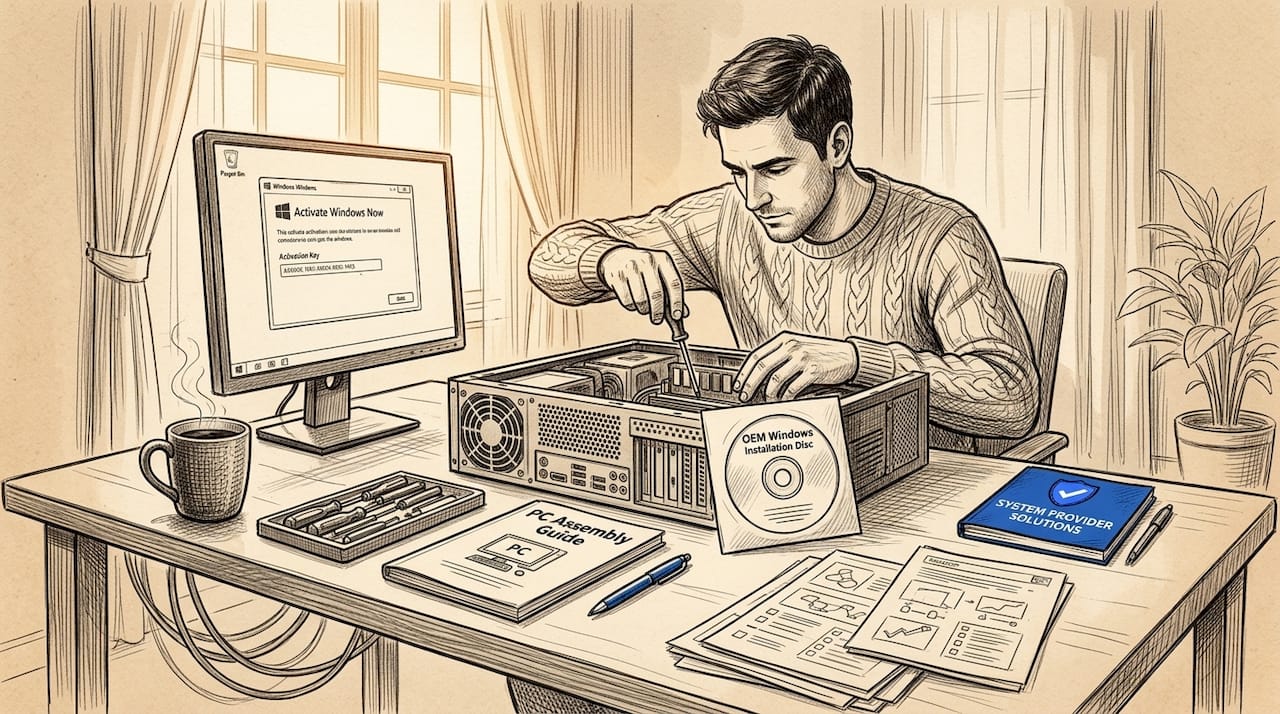
OEM stands for Original Equipment Manufacturer. These licenses are designed to ship with new hardware, either pre-installed by a PC manufacturer or sold alongside a new machine. The key characteristic: OEM licenses are tied to the first device they’re activated on, specifically the motherboard.
What this means in practice:
- ✅ Lower purchase price than Retail
- ✅ Works perfectly for a desktop or laptop you never plan to upgrade significantly
- ❌ Cannot be transferred to a new PC or new motherboard
- ❌ No Microsoft support included (support comes from the hardware manufacturer)
- ❌ If your PC breaks beyond repair, that license is gone
OEM keys are legitimate and fully functional. They’re a great choice when you’re building a permanent desktop workstation or buying a new machine where the license will live indefinitely.
Retail licenses
Retail licenses (sometimes called boxed or FPP licenses) are the most flexible option. As noted, Retail licenses are intended for end users and are generally the portable option compared with OEM. You can install, deactivate, and move the key to a new machine as needed.
What makes Retail stand out:
- ✅ Fully transferable from one PC to another
- ✅ Includes Microsoft direct support
- ✅ Ideal for laptops, regularly upgraded workstations, or situations where hardware might change
- ❌ Higher price point than OEM
- ❌ Only one active installation at a time (you must deactivate on the old machine first)
Retail is the right call when you expect your hardware to change. Freelancers who upgrade their laptops every two or three years, or small business owners who repurpose machines, benefit most from the Retail model.
Licences en volume
Volume licensing is built for organizations managing many computers under a centralized agreement. It uses a different activation mechanism called KMS (Key Management Service) or MAK (Multiple Activation Key). These licenses are not meant for individuals or businesses with just a few PCs.
Volume licensing facts:
- Requires a minimum purchase threshold (often 5 or more licenses depending on the product)
- Managed through Microsoft’s Volume Licensing Service Center
- Designed for IT departments with centralized deployment
- Not cost-effective for micro businesses or home users
Here’s a side-by-side comparison to make the distinctions crystal clear:
| Fonctionnalité | OEM | Vente au détail | Volume |
|---|---|---|---|
| Transférable | ❌ Non | ✅ Oui | ❌ No (device-managed) |
| Prix | 💲 Lowest | 💲💲 Mid-High | 💲💲💲 Highest per deal |
| Soutien | Hardware vendor | Microsoft direct | Microsoft via agreement |
| Cas d'utilisation | Fixed desktops | Laptops, upgraders | Organizations, IT fleets |
| Méthode d'activation | Digital or key | Product key | KMS or MAK |
| Meilleur pour | Individuals, builders | Freelancers, SMBs | Enterprises only |
If you want to explore how these fit into the broader world of software ownership, our guide on other types of software licenses covers the landscape clearly and practically.
How to identify your current Windows license type
Understanding which license you have is half the battle. Here’s how to find out exactly what type of Windows license is active on your machine right now.
Why this matters
Before you upgrade hardware, transfer your system to a new machine, or troubleshoot activation errors, you need to know your license channel. “Digital license” is a term Windows uses that can actually refer to either OEM or Retail. Many users see “Windows is activated with a digital license” and assume they’re good to go. That message alone does not tell you if your license is transferable.
Step-by-step: How to check your Windows license type
- Open the Start menu and type cmd to open Command Prompt. Right-click and select “Run as administrator.”
- Type the command: "slmgr /dli` and press Enter. This gives you the license description and channel (OEM, Retail, or Volume).
- For more detail: Type
slmgr /dlvand press Enter. This shows full licensing details including license status, remaining activation count, and the license description. - Check activation settings directly: Go to Settings > System > Activation. This tells you whether Windows is activated and via what method (digital license linked to your Microsoft account, or product key).
- Check for a physical sticker: Older machines may have a Certificate of Authenticity (COA) sticker with the license type printed on it. Look on the bottom of laptops or the side of desktops.
- Check your Microsoft account: If your license is linked to your Microsoft account, sign in at account.microsoft.com and check your subscriptions and devices section.
💡 The
slmgrcommand is your most reliable tool. It reads directly from the Software Licensing Management service (hence “slmgr”) and gives you the official channel designation. Don’t guess. Run the command.
Common pitfalls when checking:
- “Digital license” is not a type. It’s an méthode d'activation. A digital license can be either OEM or Retail. The
slmgr /dlioutput is the only way to confirm the channel. - Key stickers may not match current activation. Some PCs were relicensed or upgraded, meaning the physical sticker reflects an older license that’s no longer active.
- Mismatched hardware flags: If you’ve done significant hardware upgrades, Windows may flag the license as requiring reactivation. This is especially common with OEM licenses after motherboard changes.
Pro Tip: Use the slmgr activation tool guide to master all the slmgr command switches. It’s the fastest way to diagnose and resolve activation issues without calling support. And if you hit an error, our resource on fixing Windows activation errors walks you through the most common problems step by step.
As Microsoft’s own activation documentation confirms, using the slmgr tool to identify the license channel is the recommended method when troubleshooting whether a license can move to new hardware. Guessing based on how you bought the key is not reliable.
Choosing the best license for your needs and budget
With license options defined and identified, it’s time to turn knowledge into action. Here’s how to match your real-world situation to the right license type.
Real-world decision scenarios
Scenario 1: You have a permanent home desktop or office workstation.
You built a desktop PC two years ago. You don’t plan to change the motherboard. You want stable, legal Windows at the best price. OEM is your answer. The lower cost makes sense because you’re not paying a premium for portability you’ll never use.
Scenario 2: You’re a freelancer with a laptop you upgrade every few years.
You swap laptops regularly as your business grows. You need your license to follow you. Retail is the clear choice. The extra cost pays for itself the first time you move the license to your new machine without buying again.
Scenario 3: You run a small business with 3 to 5 PCs.
You have a mix of fixed and mobile workstations. Some machines might be replaced. A combination of OEM for fixed desktops and Retail for laptops often makes the most economic sense. Volume licensing at this scale is typically overkill and more complex to manage than it’s worth.
Scenario 4: You refurbish or resell PCs.
If you buy used hardware and want to install licensed Windows before resale, you need to be careful. Each machine needs its own valid license. OEM licenses cannot be reused from the previous owner’s motherboard. This is an area where buying from a legitimate, verified reseller matters enormously.
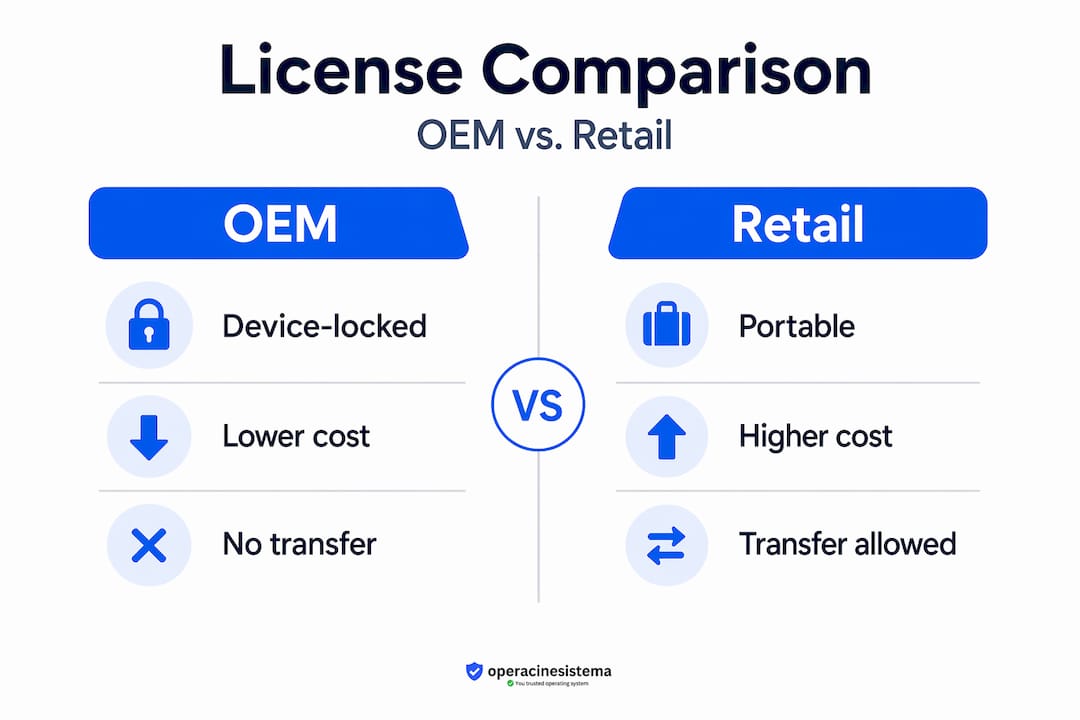
As this breakdown of license economics confirms, OEM is usually cheapest when you accept the device binding, while Retail is best if you expect to replace hardware and want a more transferable license path.
Decision framework: step-by-step
- Will this hardware change within 3 years? Yes = lean toward Retail. No = OEM is fine.
- Is this a business machine subject to audits or compliance checks? Yes = make sure your license type matches your deployment.
- How many PCs are you licensing? 1 to 4 = OEM or Retail. 5+ = consider whether Volume is appropriate, but only with an actual organizational agreement.
- Do you want flexibility to reinstall on different hardware later? Yes = Retail only.
- Are you buying from a verified, legitimate source? Always verify. Fake keys get blocked and leave you stranded.
Summary: When to pick which license
| Your situation | Best license | Why |
|---|---|---|
| Fixed desktop, permanent use | OEM | Lowest cost, no portability needed |
| Laptop or frequently upgraded PC | Vente au détail | Move license when hardware changes |
| Small business, mixed hardware | OEM + Retail mix | Match to each machine’s role |
| Managing 10+ PCs organizationally | Volume | Centralized control, appropriate scale |
| Refurbishing PCs for resale | New OEM per machine | Each device needs its own fresh license |
For additional guidance on keeping your business legally covered, check our windows licensing compliance tips. And when you’re ready to upgrade, our guide on upgrading Windows with correct license makes the process smooth and mistake-free.
A realistic perspective: What most license guides miss
Most Windows license guides stop at the definitions. OEM = locked. Retail = portable. Volume = big organizations. Got it? Great, moving on.
But that’s not how real purchasing decisions work. Here’s what we’ve seen that most guides skip entirely.
The “correct” answer depends on your risk tolerance. If you’re the kind of person who holds onto hardware for five or more years and never changes anything, OEM is absolutely the smart choice. But if you’re someone who upgrades opportunistically whenever a good deal appears, you might regret locking yourself into OEM even if you think you won’t upgrade. Be honest with yourself about your habits, not your intentions.
Retail is undervalued by cost-conscious buyers. Yes, it costs more upfront. But consider the actual math. If you buy an OEM license and then need a new license after a motherboard failure or PC upgrade, you’ve paid twice. One Retail license that moves with you twice over five years is often cheaper total than two OEM licenses in the same period. The sticker price is not the full price.
Volume licensing is almost never right for micro businesses. We see small shops with three or four computers asking whether Volume licensing makes them look more “professional” or saves money. It doesn’t. Volume licensing adds administrative overhead, requires specific agreement types, and is priced for scale that simply doesn’t apply to small teams. Don’t let the word “Volume” make you think it’s a bulk discount for everyone. It’s not.
The digital license channel creates hidden confusion. When you buy a PC that comes with Windows pre-installed and link it to your Microsoft account, you get a digital license. But that digital license is almost always OEM-channel, meaning it’s tied to the hardware. Many users think linking to a Microsoft account makes it portable. It doesn’t automatically change the channel. This is one of the most common misconceptions we encounter.
Refurbishers and resellers live in a complicated space. If you buy a used PC, the original OEM license from the previous owner is typically not legally yours to use. It was tied to their hardware and their purchase. Installing a fresh licensed copy from a legitimate source is both the legal and the practical right move. We’ve seen buyers lose both money and time trying to “reactivate” licenses that were never theirs.
One resource worth understanding as you think through your overall software spend is our perspective on Microsoft licensing best practices, where we look at smart long-term licensing decisions rather than just the cheapest option today.
The bottom line: don’t choose your license based purely on price. Choose it based on how you actually use and replace computers. That’s the decision that protects your money and keeps you legal for years.
Get your genuine Windows license: Secure, affordable, and compliant
You now have a clear picture of OEM, Retail, and Volume licenses. You know the risks of getting it wrong. You know how to check what you have and how to pick what you need. The next step is buying from a source you can actually trust.
Au operacinesistema.lt, every Windows license we sell is genuine, tested, and fully compliant. Whether you need an OEM key for a permanent workstation or a Retail license for a laptop you’ll upgrade in two years, we have secure options for individuals and small businesses at prices that make sense. Our digital keys are delivered instantly by email. Physical USB versions are available for those who prefer a tangible product. We back everything with support and a clear refund policy. Start with our guide to explore software license options to understand exactly what fits your setup, then follow our step-by-step Windows license buying process to purchase with full confidence. For Windows 10 specifically, our guide to legal Windows 10 licenses covers everything you need to know before you buy.
Questions fréquemment posées
Can I transfer my OEM Windows license to a new computer?
No, OEM licenses are tied to the first device they were activated on and cannot be moved to new hardware, even if the old machine is no longer in use.
Is a Retail Windows license worth the extra cost?
Yes, if you upgrade or replace hardware regularly, because Retail licenses can be moved to a new PC after deactivating on the old one, saving you from buying a new license every time.
How do I know what type of Windows license I have?
Run the command slmgr /dli in an elevated Command Prompt. As Microsoft’s activation guidance confirms, this is the most reliable way to see your license channel (OEM, Retail, or Volume).
Should small businesses buy Volume licenses for 2 to 3 PCs?
No. Volume licensing is typically inappropriate unless you’re managing many PCs under an organizational agreement. For just a few devices, OEM or Retail licenses are more cost-effective and easier to manage.
Recommandé
- Licences Windows pour les petites entreprises : rester en conformité
- Conseils pour l'achat de logiciels Microsoft sécurisés en 2026
- Licence Windows 10/11 Pro authentique : comment distinguer la vraie de la fausse et choisir la meilleure version USB - operacinesistema.lt
- Qu'est-ce qu'une licence d'exploitation : un guide pour les particuliers et les PME