Windows 11 S Mode: the pros, cons and how to switch to normal
What is Windows 11 S mode?
Windows 11 S Mode is a special version of the Windows 11 operating system designed to provide better security and performance. In this mode, users can only install apps from the Microsoft Store, and only use the Microsoft Edge browser for web browsing. This protects the system from potentially malicious applications and ensures smoother operation.

Benefits of using Windows 11 S mode
- Increased security: Because only verified apps from the Microsoft Store can be installed, the risk of malware infecting your computer is reduced.
- Improved productivity: Limiting the number of applications running in the background and using optimised applications makes the system faster and more stable.
- Longer battery life: More efficient use of resources leads to lower energy consumption, so laptops run longer without recharging.
Disadvantages of using Windows 11 S mode
- Limited choice of programmes: Because only apps from the Microsoft Store can be installed, some popular apps may not be available.
- Browser selection restrictions: In Windows 11 S mode, Microsoft Edge is the default and only browser, so users cannot use other browsers such as Google Chrome or Mozilla Firefox.
- Limited system settings: Some advanced system settings and features may be unavailable or limited.
How to switch from Windows 11 S mode to normal version
If you decide that Windows 11 S mode doesn't suit your needs, you can switch to the Normal version of Windows 11. Here's how to do it:
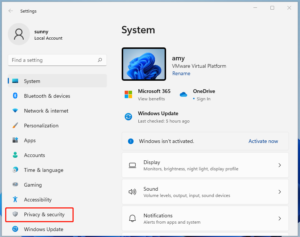
- Open the settings: Click the Start button and select Settings.
- Go to “System”: Select “System” from the left menu.
- Select “Activation”: Find and click the Activation option.
- Find “Switch to Windows 11 Pro”: You should see “Switch to Windows 11 Pro” or a similar option in this section. Click “Go to the Store” next to it.
- Switch off S mode: In the Microsoft Store window that opens, click the “Get” button below the description of “Switch out of S mode”. Confirm your choice.
After these steps, your computer will be switched to Windows 11 Normal and you will be able to install applications from any source and use the browsers you want.
Windows 11 Pro USB: An alternative to S mode
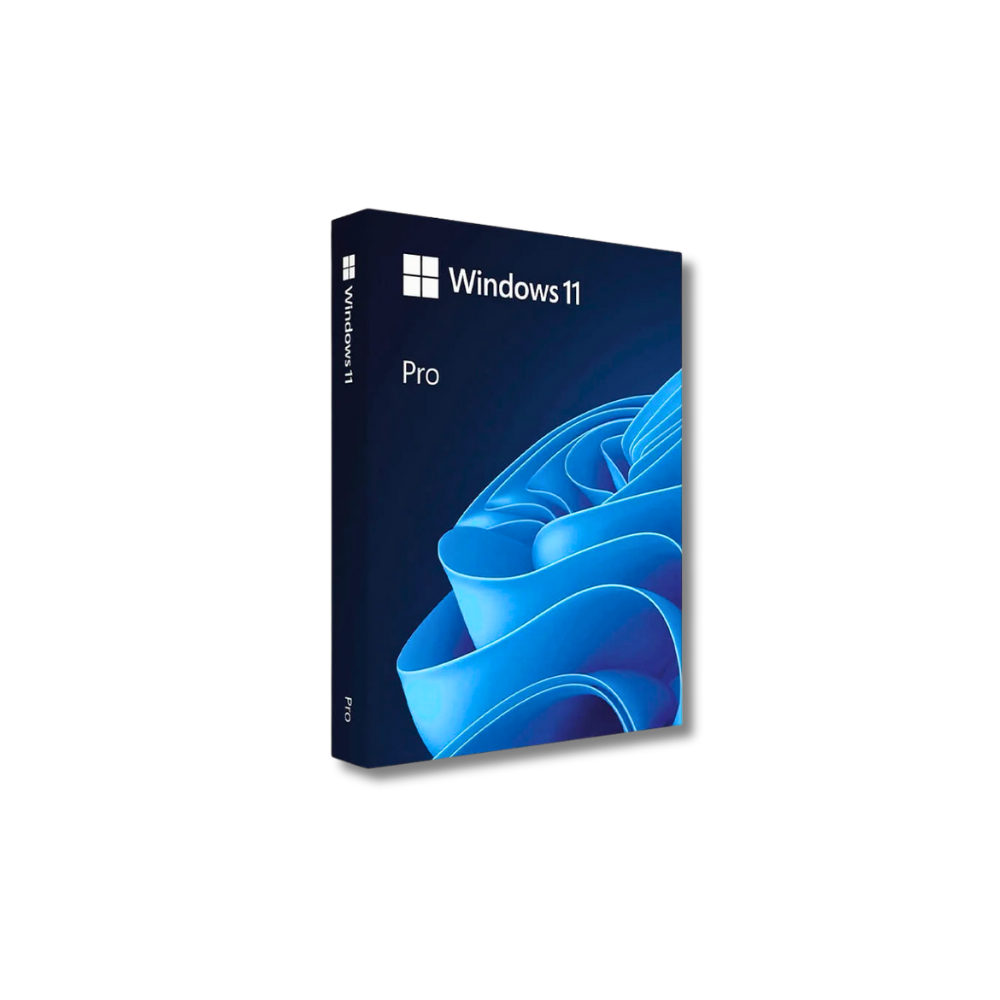
If you want to get a full version of the Windows 11 Pro operating system with more features, you can buy a Windows 11 Pro USB physical storage device. This allows you to easily and quickly install the operating system on your computer. More information here: Windows 11 Pro USB.
Is it worth switching from Windows 11 S mode?
The decision to switch from S mode depends on your needs. If you use your computer for basic tasks such as web browsing, email and document editing, S mode may be appropriate for better security and performance. However, if you need specialised applications that are not available in the Microsoft Store, or if you want to use a different browser, switching to the regular version of Windows 11 will be unavoidable.
In summary, Windows 11 S mode offers a safe and efficient environment for everyday tasks, but has some limitations. Before you decide to switch to the Normal version, carefully assess your needs and the potential changes to security and performance.
Get the physical version of the Windows 11 Pro USB operating system!
If you're looking for a reliable, full-featured version of Windows 11 Pro, you can buy Windows 11 Pro USB physical media at the best price here: Buy Windows 11 Pro USB.