Master USB Windows installers: setup guide for 2026
Many people assume installing Windows requires a DVD drive or complex technical knowledge. That belief is outdated. USB Windows installers have revolutionized system deployment by offering bootable, portable media that works on virtually any modern computer. This guide clarifies their role, walks you through creation methods using both official and third-party tools, addresses common troubleshooting scenarios, and demonstrates practical applications for tech-savvy individuals and small business owners who need reliable, efficient Windows installation solutions.
Table of Contents
- Key takeaways
- Understanding the role of USB Windows installers
- Main tools and methodologies for creating USB Windows installers
- Technical considerations and troubleshooting USB Windows installations
- Practical applications and best practices for USB Windows installers
- Get official Windows licenses and resources for small businesses
- What is the main advantage of USB Windows installers over DVDs?
- Can I use Rufus to bypass Windows 11 TPM and Secure Boot requirements?
- What should I do if my USB Windows installer fails to boot?
- Is USB 3.0 necessary for creating a Windows installer?
Key Takeaways
| Point | Details |
|---|---|
| USB installers role | USB Windows installers provide bootable media that eliminates need for optical drives and speeds up deployment on modern computers. |
| Main tools and methods | Media Creation Tool handles easy standard installations by downloading the latest ISO and configuring the USB automatically. |
| Firmware mode matching | Selecting the correct partition scheme and boot mode is critical to ensure the installer boots on your hardware. |
| USB 3 speeds boost | USB 3.0 speeds significantly reduce installation times compared with USB 2.0 or DVD media. |
| Troubleshooting USB issues | When problems occur, format the USB drive again, disable Secure Boot if required, and avoid reusing media that seems corrupted. |
Understanding the role of USB Windows installers
USB Windows installers contain Windows Setup files or Windows Preinstallation Environment (WinPE) that enable your computer to boot directly from the USB drive and launch the installation process. These bootable drives eliminate the need for optical media entirely, making them ideal for laptops and desktops that lack DVD drives. They also offer significant speed advantages and unmatched portability compared to traditional installation methods.
Creating a USB installer involves formatting the drive with the proper file system, typically FAT32 for UEFI systems or NTFS for legacy BIOS configurations. The process copies Windows ISO image files to the USB drive and establishes bootloaders like bootmgr.efi on the EFI system partition. These bootloaders tell your computer’s firmware how to launch the Windows Setup environment from the USB device.
The practical applications extend beyond simple installations. You can use USB installers for:
- Clean Windows installations on new or reformatted drives
- System recovery when your computer fails to boot normally
- Troubleshooting hardware or software issues in WinPE
- Deploying Windows across multiple machines in small business environments
- Upgrading from older Windows versions without data loss
Pro Tip: Always create your USB installer on a drive with at least 8GB capacity, though 16GB or larger is recommended for Windows 11 to accommodate future updates and additional recovery tools.
“USB bootable media has become the de facto standard for Windows deployment because it combines speed, reliability, and convenience in a single portable package.”
For small businesses managing multiple computers, having a reliable USB Windows installer becomes essential infrastructure. You can quickly respond to hardware failures, set up new employee workstations, or perform maintenance without waiting for shipped media or downloading large files repeatedly. The secure Windows setup guide provides additional context on establishing protected installation environments that prevent malware and unauthorized access during the deployment process.
Main tools and methodologies for creating USB Windows installers
Two primary approaches dominate USB Windows installer creation: Microsoft’s official Media Creation Tool and third-party utilities like Rufus. Each serves distinct use cases and offers different levels of control over the installation media.
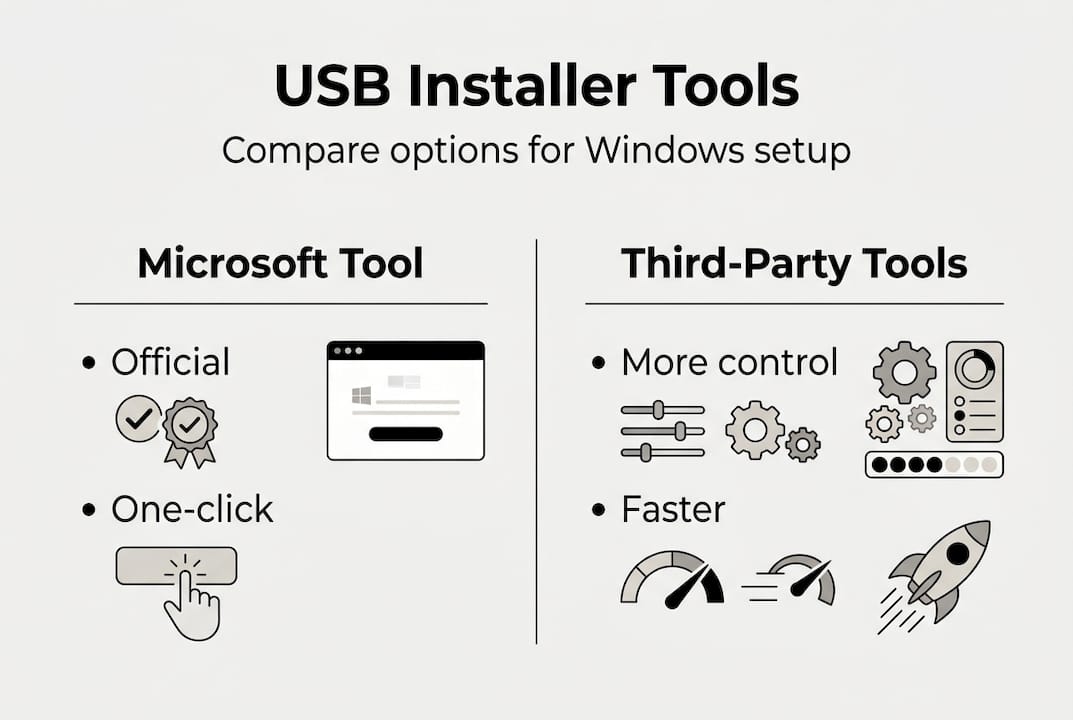
Microsoft’s Media Creation Tool provides the most straightforward path to creating bootable USB drives. It automatically downloads the latest Windows ISO, detects your computer’s specifications, and configures the USB drive with appropriate settings. This official tool guarantees compatibility and includes all current updates, making it ideal for users who want a reliable, no-fuss solution. The tool handles partition schemes, file systems, and bootloader configuration without requiring technical knowledge.

Rufus offers faster creation and detailed customization for users who need more control. This open-source utility lets you select specific partition schemes (GPT or MBR), file systems (FAT32, NTFS, or exFAT), and cluster sizes. More importantly, Rufus includes options to bypass Windows 11 hardware requirements like TPM 2.0, Secure Boot, and minimum RAM specifications through registry modifications applied during USB creation.
| Feature | Media Creation Tool | Rufus |
|---|---|---|
| Speed | Moderate (30-45 min) | Fast (15-25 min) |
| Customization | Limited | Extensive |
| Hardware bypass | From | Yes (TPM, Secure Boot) |
| ISO source | Auto-download only | Local or download |
| Best for | Standard installations | Legacy hardware, customization |
Ventoy represents another approach worth mentioning for advanced users managing multiple Windows versions or diagnostic tools. This utility transforms your USB drive into a multi-boot device that can hold several ISO files simultaneously. You simply copy ISO images to the Ventoy USB drive, and it presents a boot menu allowing you to select which operating system or tool to launch. This eliminates the need to reformat and recreate USB installers when switching between Windows versions.
While Microsoft officially recommends using only the Media Creation Tool, tech-savvy users and IT professionals widely trust Rufus for its reliability and additional capabilities. The Windows 11 Pro USB install guide demonstrates how these tools integrate into complete deployment workflows for small business environments.
Pro Tip: When using Rufus, always verify the SHA-256 hash of downloaded ISO files before creating your USB installer to ensure file integrity and security.
For those exploring comprehensive comparisons of creation tools, Windows 11 media creation alternatives provide detailed analysis of additional utilities beyond the two primary options discussed here.
Technical considerations and troubleshooting USB Windows installations
Successful USB Windows installations depend heavily on matching your USB configuration to your computer’s firmware architecture. Modern computers use UEFI firmware with GPT partition schemes, while older systems rely on legacy BIOS with MBR partitions. Mismatches between these configurations cause the most common boot failures.
UEFI systems require USB drives formatted with GPT partition scheme and FAT32 file system for the boot partition. Legacy BIOS systems need MBR partition scheme and can use either FAT32 or NTFS. When you encounter a computer that refuses to boot from your USB installer, the first troubleshooting step involves verifying this firmware and partition scheme alignment in your BIOS settings.
USB port selection significantly impacts installation speed and reliability. USB 3.0+ ports reduce installation time from 40 to 70 minutes on USB 2.0 down to 18 to 35 minutes. Beyond speed, USB 3.0 ports provide more stable power delivery, reducing the risk of installation failures caused by power fluctuations during the process.
Common troubleshooting scenarios and solutions:
- Boot failure despite correct settings: Disable Fast Boot and Secure Boot in BIOS, then enable CSM (Compatibility Support Module) if available for legacy support
- “No bootable device” error: Reformat the USB drive using diskpart in Windows Command Prompt with clean, create partition primary, format fs=fat32 quick commands
- Installation hangs during file copy: Test with a different USB port, preferably USB 3.0 directly on the motherboard rather than front panel or hub connections
- TPM or Secure Boot requirement blocks installation: Use Rufus with extended Windows 11 installation options enabled to inject registry bypasses
- Reboot loops after initial setup: Check for BIOS updates and verify boot order places the internal drive above the USB installer
Pro Tip: Create a diskpart script saved as a .txt file with the commands clean, create partition primary, active, format fs=fat32 quick, assign to automate USB drive preparation for future installers.
| Issue Type | Primary Cause | Solution Time | Success Rate |
|---|---|---|---|
| Boot failure | Firmware mismatch | 5-10 minutes | 95% |
| Slow installation | USB 2.0 port | Immediate (port change) | 100% |
| TPM block | Hardware requirements | 15-20 minutes | 90% |
| Corrupted files | Bad USB drive | 30 minutes (new USB) | 85% |
Corporate environments may encounter additional complications from BitLocker encryption and group policy restrictions that prevent booting from external media. These security measures require administrative credentials or policy modifications before USB Windows installations can proceed. The Windows installation checklist 2026 addresses these enterprise considerations alongside standard deployment requirements.
Practical applications and best practices for USB Windows installers
Selecting the right tool depends on your specific hardware environment and technical comfort level. Tech-savvy users and small businesses managing diverse hardware fleets benefit from Rufus because it handles legacy systems, bypasses artificial restrictions, and offers granular control over partition schemes and file systems. The difference between Media Creation Tool and Rufus becomes most apparent when deploying Windows across computers manufactured over several years with varying firmware configurations.
Media Creation Tool remains the superior choice for straightforward deployments on modern hardware that meets all Windows requirements. Its automatic configuration eliminates potential errors from manual settings, and the direct download from Microsoft servers ensures you receive the most current Windows build with integrated security patches. This approach works exceptionally well for small businesses standardizing on recent hardware purchases.
Best practices for USB Windows installer management:
- Always backup any existing data on USB drives before formatting them for Windows installers, as the process erases all contents
- Label USB drives clearly with the Windows version, build number, and creation date to avoid confusion when maintaining multiple installers
- Store USB installers in protective cases to prevent physical damage to connectors and flash memory chips
- Test newly created installers on at least one target computer before deploying across multiple machines
- Maintain separate installers for UEFI and legacy BIOS systems if you support mixed hardware environments
- Update your USB installers quarterly to incorporate the latest Windows cumulative updates and security patches
Pro Tip: Use USB drives with LED activity indicators to quickly diagnose whether the computer is actively reading from the installer during boot or if a connection problem exists.
“Small businesses save significant time and reduce deployment errors by maintaining a library of tested USB Windows installers for each hardware generation in their inventory.”
For organizations transitioning to Windows 11, the next generation Windows 11 USB OS represents an evolution beyond traditional installers by providing fully functional portable Windows environments. These advanced USB solutions run complete Windows installations directly from the USB drive without touching the computer’s internal storage, offering unique advantages for secure computing, system recovery, and temporary workstation setups.
When preparing USB installers for client deployments or internal IT use, document your creation process with screenshots and settings used. This documentation proves invaluable when troubleshooting installation issues weeks or months later, as you can verify whether the installer configuration matches the target hardware requirements. Small business IT managers particularly benefit from maintaining standardized procedures that any team member can follow consistently.
Get official Windows licenses and resources for small businesses
Creating USB Windows installers represents only one component of a complete deployment strategy. Genuine Windows licenses ensure legal compliance, access to security updates, and Microsoft support when technical issues arise. Small businesses face particular risks from unlicensed software, including potential legal liability, security vulnerabilities from missing patches, and incompatibility with business applications that verify license authenticity.
The SMB software license checklist 2026 provides a comprehensive framework for managing operating system licenses across your organization. This resource helps you track license assignments, renewal dates, and compliance requirements that increasingly matter as software audits become more common. Maintaining accurate license records protects your business from unexpected costs and operational disruptions.
For Lithuanian small businesses specifically, secure Microsoft OS licenses addresses regional considerations including VAT treatment, local support availability, and procurement options that meet both budget constraints and compliance requirements. Understanding these regional factors helps you make informed decisions about volume licensing versus individual purchases.
The benefits of official software for SMBs extend beyond mere compliance. Genuine licenses unlock access to Microsoft 365 integration, Azure services, and enterprise management tools that streamline IT operations as your business grows. These capabilities become increasingly valuable as remote work and cloud services dominate modern business operations.
What is the main advantage of USB Windows installers over DVDs?
USB installers boot significantly faster than optical media and deliver superior reliability. Modern computers read data from USB 3.0 drives at speeds up to 640 MB/s compared to 16 MB/s for standard DVDs, cutting installation time by more than half. USB drives also eliminate scratched disc problems and work with the growing number of computers manufactured without optical drives.
Can I use Rufus to bypass Windows 11 TPM and Secure Boot requirements?
Rufus includes specific options to bypass TPM 2.0 and Secure Boot checks through registry modifications applied during USB creation. These bypasses enable Windows 11 installation on older hardware that lacks required security features, though Microsoft recommends meeting hardware requirements for optimal security. The Windows 11 Pro USB install guide demonstrates this process with detailed screenshots and explains the security implications of bypassing these requirements.
What should I do if my USB Windows installer fails to boot?
Start by reformatting the USB drive using diskpart commands (clean, create partition primary, format fs=fat32 quick) to eliminate corrupted partition tables. Verify your partition scheme matches your firmware: GPT for UEFI systems, MBR for legacy BIOS. Disable Secure Boot and Fast Boot in BIOS settings, then confirm the USB drive appears first in your boot order priority list. The Windows installation checklist 2026 provides additional troubleshooting steps for persistent boot failures.
Is USB 3.0 necessary for creating a Windows installer?
USB 3.0 is not strictly required but dramatically improves installation speed and reliability. Windows installation from USB 2.0 drives takes 40 to 70 minutes compared to 18 to 35 minutes with USB 3.0, and the faster interface reduces the risk of timeouts or connection interruptions during file transfers. For business environments deploying multiple systems, USB 3.0 drives quickly pay for themselves through time savings alone.