Warum die Aktualisierung Ihres Betriebssystems im Jahr 2026 wichtig ist
Skipping operating system updates might seem harmless, but it exposes you to serious security vulnerabilities and performance issues that compound over time. Many users delay or ignore updates, believing their current setup works fine, yet outdated systems become prime targets for cyberattacks while missing critical improvements. In 2026, keeping your OS current isn’t optional for anyone who values data security, smooth app performance, and reliable hardware compatibility. This guide reveals exactly why regular updates protect your digital life and boost your device’s efficiency.
Inhaltsübersicht
- The Hidden Risks Of Avoiding Operating System Updates
- How Updating Boosts Performance And User Experience
- Ensuring Compatibility With Apps And Hardware Through Updates
- Practical Steps To Keep Your Operating System Updated And Secure
- Secure Your Operating System Licenses And Update Confidently
- Why Is It Important To Update Operating Systems Regularly?
Die wichtigsten Erkenntnisse
| Punkt | Einzelheiten |
|---|---|
| Security patches close vulnerabilities | Updates fix newly discovered security gaps that hackers actively exploit to breach systems |
| Performance improvements enhance speed | OS updates optimize resource management, reducing crashes and extending battery life |
| Compatibility ensures app functionality | Modern software and hardware require updated OS features to run properly |
| Regular updates prevent costly failures | Staying current reduces malware risks and avoids expensive data recovery or system repairs |
The hidden risks of avoiding operating system updates
Outdated operating systems create dangerous security gaps that cybercriminals exploit daily. When you skip updates, you miss critical patches designed to fix vulnerabilities discovered after your OS version shipped. Hackers scan networks specifically for unpatched systems, knowing these machines offer easy entry points for malware, ransomware, and data theft. Not updating OSs increases vulnerability to malware and attacks significantly, turning your computer into a liability rather than a productive tool.
The financial and reputational damage from security breaches far exceeds any inconvenience from installing updates. Small businesses face average costs exceeding $200,000 after ransomware attacks, while individuals lose irreplaceable personal files and financial information. Beyond immediate theft, compromised systems can become zombie devices in botnets, spreading attacks to others without your knowledge. Understanding the impact of unlicensed software 2026 reveals how pirated or outdated systems multiply these risks exponentially.
Common security threats targeting outdated operating systems include:
- Ransomware encrypting your files and demanding payment for recovery
- Spyware monitoring keystrokes to steal passwords and banking credentials
- Phishing exploits leveraging unpatched browser vulnerabilities to install malware
- Zero-day vulnerabilities attackers discover before patches exist, requiring immediate updates when fixes release
Delaying updates transforms your computer from a secure workspace into an open door for cybercriminals seeking easy targets.
Every day you postpone updates increases exposure to these threats. Security researchers publish vulnerability details after patches release, creating a race where attackers develop exploits faster than users update. Systems running OS versions more than six months old face dramatically higher infection rates, as automated attack tools scan for known weaknesses. The Microsoft OS security checklist 2026 emphasizes immediate patching as the single most effective defense against evolving threats.
How updating boosts performance and user experience
Operating system updates deliver tangible speed improvements and stability enhancements that transform daily computing experiences. Engineers constantly refine how OSs manage memory, process tasks, and allocate system resources, with each update incorporating months of optimization work. You’ll notice applications launching faster, fewer unexpected freezes, and smoother multitasking after installing performance-focused updates. Performance optimizations in OS updates can enhance speed and reduce crashes, making older hardware feel responsive again without expensive upgrades.

Battery life improvements represent one of the most appreciated update benefits for laptop and mobile users. Newer OS versions include refined power management algorithms that reduce background activity, dim displays intelligently, and throttle processors during light workloads. These refinements can extend battery runtime by 15-25% compared to outdated versions, letting you work longer between charges. Desktop users benefit from reduced energy consumption and quieter fan operation as systems run cooler under optimized resource management.
Five key performance benefits from the latest OS updates:
- Faster boot times through streamlined startup processes and optimized driver loading sequences
- Reduced memory usage enabling more applications to run simultaneously without slowdowns
- Enhanced disk management improving file access speeds and reducing fragmentation issues
- Better graphics rendering for smoother video playback and gaming experiences
- Improved network stack performance accelerating downloads and reducing latency during online activities
Stability fixes address the frustrating bugs and glitches that disrupt workflows and cause data loss. Each update resolves dozens of reported issues ranging from application crashes to driver conflicts, creating a more reliable computing environment. Users who update regularly experience fewer blue screens, application hangs, and mysterious reboots that waste time and damage productivity. The cumulative effect of these fixes makes updated systems dramatically more dependable than machines running year-old OS versions.
Pro Tip: Schedule updates during off-hours to minimize downtime and speed up installation. Configure your OS to download updates automatically but install them overnight or during lunch breaks, ensuring patches apply without interrupting critical work periods.
Modern OS updates also introduce usability improvements that simplify common tasks and enhance workflow efficiency. Interface refinements make settings easier to locate, new keyboard shortcuts accelerate navigation, and improved search functions help you find files faster. These quality-of-life enhancements accumulate over multiple updates, creating substantial productivity gains for users who stay current. The PC optimisation tool works best when paired with fully updated operating systems, maximizing both software and hardware performance potential.
Ensuring compatibility with apps and hardware through updates
Software developers build applications targeting current and recent OS versions, gradually dropping support for outdated systems as adoption rates decline. When you run an old OS, you’ll find newer application versions refuse to install or critical features fail to work properly. This compatibility gap forces impossible choices between keeping your familiar OS and accessing essential software updates that fix bugs, add features, and maintain security. Many modern apps and hardware require updated OS features to function correctly, making OS updates necessary for maintaining productive workflows.
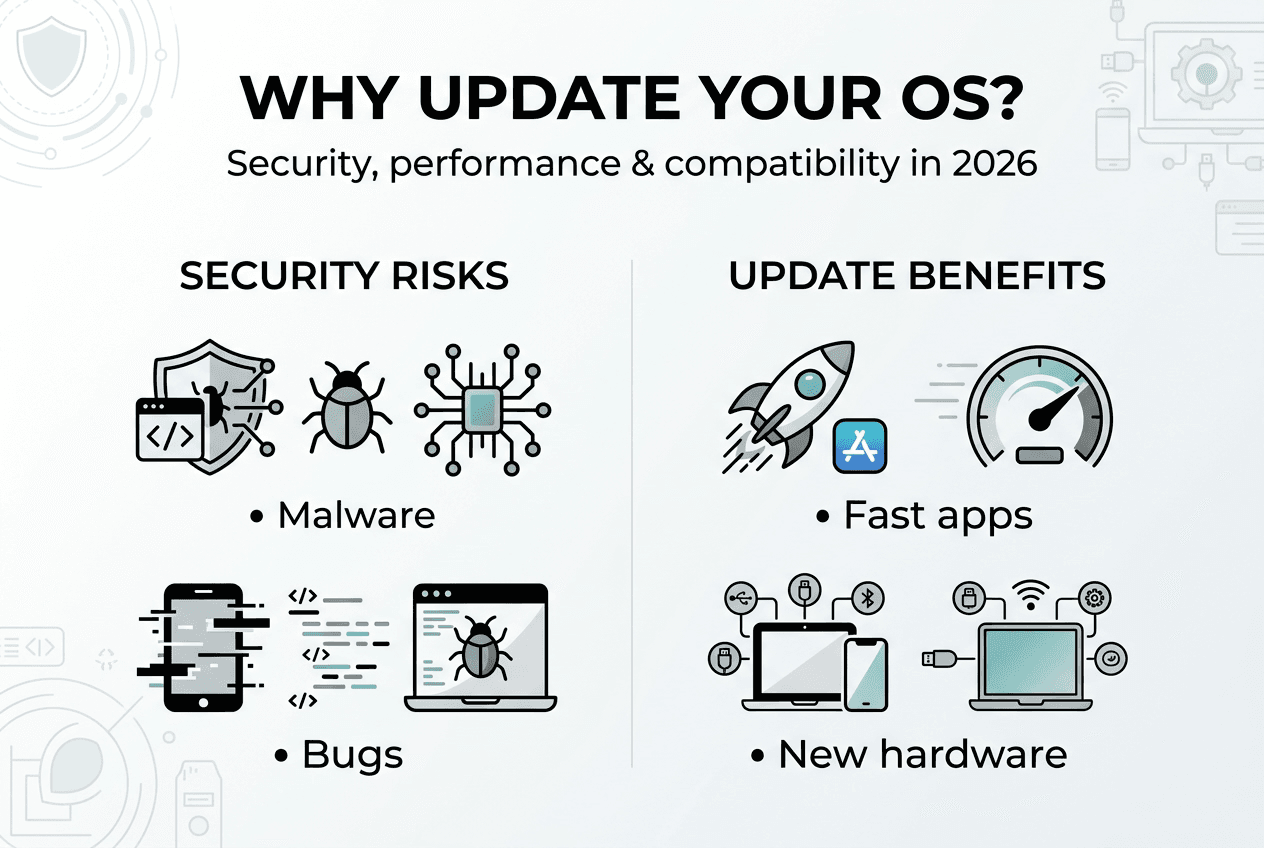
Hardware compatibility suffers equally when operating systems fall behind current standards. Manufacturers release driver updates that leverage new OS capabilities for better performance and stability, but these drivers won’t install on outdated systems. Printers, scanners, external drives, and graphics cards may work poorly or not at all without proper driver support that requires recent OS versions. The frustration of purchasing new hardware only to discover your old OS can’t use it properly drives many users toward necessary updates.
| Merkmal | Outdated OS Version | Updated OS Version |
|---|---|---|
| Application support | Limited to older versions, missing security patches | Full access to latest releases with new features |
| Hardware drivers | Basic functionality, reduced performance | Optimized drivers with full feature support |
| Security protocols | Outdated encryption, vulnerable to attacks | Current standards protecting data and privacy |
| Cloud integration | Poor or no support for modern services | Seamless syncing with cloud storage and apps |
| Peripheral compatibility | Hit or miss with newer devices | Plug and play support for current hardware |
Compatibility benefits from staying current extend across your entire digital ecosystem. Modern video conferencing tools demand updated OS features for background blur, noise cancellation, and screen sharing functionality that older systems can’t provide. Creative applications leverage new graphics APIs available only in recent OS versions, delivering faster rendering and real-time preview capabilities. Even basic productivity software runs noticeably better on updated systems through improved file handling and inter-application communication.
Key compatibility advantages include:
- Smoother video conferencing with enhanced camera and microphone processing
- Faster software launches through optimized application loading mechanisms
- Better peripheral support for USB-C devices, wireless accessories, and high-resolution displays
- Improved cloud service integration enabling automatic backups and cross-device synchronization
- Enhanced gaming performance through updated DirectX or Metal graphics frameworks
The compounding nature of compatibility issues makes falling behind increasingly painful over time. Missing one or two updates might cause minor inconveniences, but systems running OS versions from several years ago face widespread incompatibility affecting most new software and hardware. Catching up requires large update downloads and potentially disruptive system changes, whereas staying current involves smaller, manageable updates that maintain continuous compatibility. Learning how to upgrade operating systems Windows Pro properly ensures smooth transitions that preserve your data and settings while gaining full compatibility with modern technology.
Practical steps to keep your operating system updated and secure
Managing OS updates effectively requires establishing reliable routines that balance security needs with operational convenience. Start by verifying your automatic update settings, ensuring your system checks for and downloads patches regularly without manual intervention. Most modern operating systems default to automatic updates, but configuration changes or group policies might disable this protection. Manually checking for updates weekly catches anything automatic systems missed and confirms your protection stays current.
Backing up important data before major updates prevents catastrophic losses if installations encounter problems. While update failures occur rarely, having recent backups eliminates anxiety about potential issues and enables quick recovery if something goes wrong. Cloud storage services, external hard drives, or network attached storage all provide suitable backup destinations. Schedule backups to run automatically before update installation windows, creating a safety net without requiring manual intervention each time.
Safe updating process for individuals and small businesses:
- Verify your Windows license authenticity to ensure you receive genuine Microsoft updates without security risks from pirated software
- Enable automatic updates in system settings, configuring installation times that minimize workflow disruption
- Create a full system backup to external storage or cloud services before major version upgrades
- Close all applications and save your work before allowing updates to install and restart your computer
- Monitor the update process, noting any error messages that might require troubleshooting or support assistance
- Test critical applications after updates complete, verifying everything works as expected before resuming normal operations
- Review update history periodically to confirm patches installed successfully and identify any failed attempts requiring attention
Pro Tip: Use official update tools and avoid third-party or pirated software updates. Unofficial update sources often bundle malware with legitimate patches, creating security risks worse than running outdated software. Stick with built-in OS update mechanisms or downloads directly from Microsoft’s official website.
Verifying software license authenticity protects you from counterfeit updates that compromise security while appearing legitimate. Pirated operating systems receive modified updates containing malware, backdoors, or disabled security features that expose your data to theft. Purchasing genuine licenses from authorized resellers ensures you receive unmodified patches directly from Microsoft’s secure distribution network. The minimal cost of legitimate licenses pales compared to potential losses from compromised systems running fake updates.
Following best practices when updating helps avoid pitfalls and ensures maximum security throughout the update lifecycle. Document your update schedule, maintain backup routines, and address failed updates promptly rather than ignoring error messages. Small businesses should test updates on non-critical systems before deploying across entire networks, identifying compatibility issues before they disrupt operations. Individual users benefit from joining insider preview programs that provide early access to upcoming features, though production systems should stick with stable release channels.
Monitoring update status helps you catch problems early and maintain continuous protection. Check Windows Update history monthly to verify patches installed successfully, investigating any failures that might leave vulnerabilities unpatched. Failed updates often indicate deeper system issues requiring attention, from corrupted system files to insufficient disk space. Addressing these underlying problems improves overall system health while ensuring future updates complete successfully.
Secure your operating system licenses and update confidently
Protecting your digital infrastructure starts with genuine Microsoft operating system licenses that guarantee secure, unmodified updates directly from official sources. When you purchase authentic Windows licenses, you eliminate risks associated with pirated software while gaining access to the full spectrum of security patches, performance improvements, and compatibility updates Microsoft releases. Operating a legitimate system means every update strengthens your defenses rather than introducing hidden vulnerabilities from counterfeit patches.

Our platform specializes in providing secure Microsoft OS licenses Lithuanian SMBs 2026 need for reliable, compliant computing environments. We offer instant digital delivery of genuine Windows 10 and Windows 11 Pro licenses, enabling immediate installation and activation without waiting for physical media. Detailed guides on how to upgrade operating systems Windows Pro walk you through safe migration processes that preserve your data while bringing systems current with 2026 security standards. Ready to secure your computing environment? Visit our checkout page to purchase authentic licenses backed by comprehensive support and guaranteed Microsoft compliance.
Why is it important to update operating systems regularly?
How often should I update my operating system?
Install security updates immediately when they become available, typically monthly on Patch Tuesday for Windows systems. Feature updates appear semi-annually and should be installed within 30 days after testing on non-critical machines. Delaying security patches beyond one week significantly increases vulnerability to actively exploited threats.
What happens if I never update my operating system?
Your system becomes progressively more vulnerable to malware, ransomware, and data breaches as unpatched security holes accumulate. Application and hardware compatibility deteriorates until new software refuses to install and recent peripherals fail to function. Performance degrades as you miss optimization improvements that make systems faster and more stable.
Do updates really improve computer performance?
Yes, updates deliver measurable performance gains through optimized resource management, faster boot sequences, and reduced memory consumption. Systems running current OS versions typically show 10-20% speed improvements in common tasks compared to year-old installations. Battery life extends significantly on laptops through refined power management algorithms introduced in updates.
Can updates cause problems with my existing software?
Occasionally, updates may introduce temporary compatibility issues with older applications, though these situations occur rarely and usually resolve quickly through subsequent patches. Testing updates on non-critical systems first identifies potential conflicts before they affect production environments. The security and performance benefits far outweigh minimal compatibility risks that proper testing mitigates.
How do I check if my operating system is up to date?
Open Windows Settings, navigate to Update & Security, and click Check for updates to see your current status and available patches. The update history section shows recently installed updates and any failures requiring attention. Verify your system displays a recent installation date, ideally within the past 30 days for security updates.
Will updating erase my files and programs?
Regular security and feature updates preserve all your files, applications, and settings without data loss. Major version upgrades like Windows 10 to Windows 11 also maintain your data but occasionally require application reinstallation for compatibility. Always create backups before major upgrades as a precaution, though modern update processes rarely cause data loss.