Schalten Sie Ihr Betriebssystem frei: Ein umfassender Leitfaden zur Aktivierung von Windows 11
So, you’ve got Windows 11, or you’re thinking about getting it. That’s cool. But what if it’s not fully working, or you want to make sure you’ve got the right version? Figuring out how to activate Windows 11 can seem like a puzzle, especially with all the different license types and upgrade paths out there. This guide is here to break it down, step by step, so you can get your operating system up and running properly without any headaches. We’ll cover getting a legit license, putting in your product key, upgrading to Pro, and checking everything’s okay.
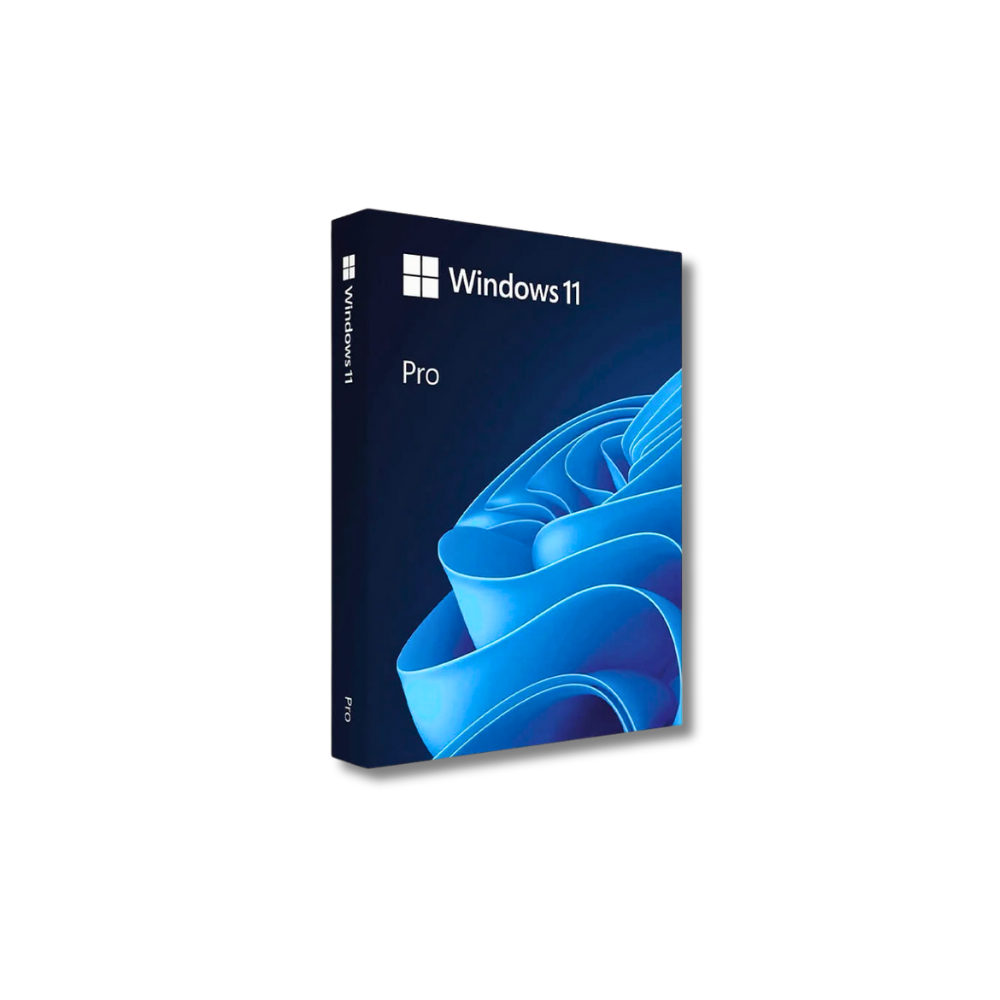
Windows 11 Pro
Wichtigste Erkenntnisse
- Always buy your Windows 11 license from official sources like the Microsoft Store to avoid fake keys that could stop working.
- You can activate Windows 11 using a 25-character product key, either during setup or later through the Settings app.
- Upgrading from Windows 11 Home to Pro is simple via the Microsoft Store, unlocking more features without a full reinstall.
- Check your activation status in Settings > System > Activation to confirm your Windows 11 copy is genuine and up-to-date.
- Retail licenses can be moved to a new PC, but OEM licenses are tied to the original hardware and cannot be transferred.
Acquiring Your Genuine Windows 11 License
Getting a legitimate copy of Windows 11 is the first step to using it properly. It might seem straightforward, but there are definitely some pitfalls to watch out for. You want to make sure the license you buy is real, so you don’t end up with a deactivated system down the road. The source of your license is just as important as the software itself.
Understanding Trusted Purchase Channels
When you’re looking for a Windows 11 license, sticking to official or well-known places is the safest bet. This way, you know you’re getting the real deal, and Microsoft will support it. It means fewer headaches later on.
Here are the best places to look:
- Microsoft Store: You can buy a digital license directly from Microsoft’s website or through the Microsoft Store app that’s already on your PC. It’s super secure, and the key usually links to your Microsoft account, making activation easy.
- Authorized Retailers: Big, reputable electronics stores, both online and physical, sell legitimate copies of Windows 11. These might be in a box with a USB drive or just a digital download code. Just stick to the big names you know and trust.
- Direct from PC Manufacturers: If you’re buying a new computer, Windows 11 often comes pre-installed. This is an OEM license, which is tied to that specific machine.
Windows 11 Pro
Activating Windows 11 With A Product Key
So, you’ve got your shiny new Windows 11 license key, and now it’s time to actually get it working on your computer. This is the part where you tell Microsoft, “Yep, this copy is legit!” It’s not super complicated, but there are a couple of ways you might end up doing it, depending on when you’re entering that 25-character code.
Entering Your Product Key During Setup
If you’re doing a fresh install of Windows 11, the setup process usually prompts you for your product key pretty early on. It’s often one of the first things it asks for after you’ve chosen your language and region. Just type it in when it asks. This is the most straightforward way to activate if you have the key ready. If you happen to skip this step, don’t sweat it; you can always activate later through the settings, which we’ll get to.
Activating After A Fresh Installation
Sometimes, you might have clicked through the setup too fast or maybe you bought your license after installing Windows. No worries, activating after the fact is just as easy. You’ll need to head into the Windows Settings.
Here’s how to do it:
- Open the Settings app. The quickest way is to hit the
Windows key + Ion your keyboard. - In the Settings window, look for
Systemon the left-hand side menu and click it. - Scroll down the main pane until you find
Freischaltungand select it. - On the Activation screen, you’ll see your current status. Look for an option that says
Produktschlüssel ändernand click it. - A small window will pop up asking for your product key. Carefully type in your 25-character alphanumeric key, then click
Weiter.
Windows will then check the key, and if it’s valid, your copy will be activated. You might need an internet connection for this to work.
Changing Your Product Key In Settings
What if you need to switch keys? Maybe you upgraded from Home to Pro, or you got a new key for some other reason. The process is pretty much the same as activating after installation. You’ll go back to the same Freischaltung section in Einstellungen (Settings > System > Activation).
Instead of just activating, you’ll use the Produktschlüssel ändern option again. This is where you can enter a new key if you need to replace the one currently associated with your installation. It’s a good way to manage your license if you ever need to update it or switch to a different edition of Windows 11.
Windows 11 Pro
It’s important to remember that your product key is unique to your license. Using a key that’s already activated on another machine, or one that’s not meant for your region or edition, can lead to activation problems down the line. Always use the key that came with your legitimate purchase.
Upgrading To Windows 11 Pro
So, you’ve got Windows 11 Home running and you’re thinking about stepping up to Pro? It’s a pretty common move, especially if you need features like BitLocker drive encryption or the ability to connect to a domain. The good news is, Microsoft makes this transition fairly straightforward.
Seamless Upgrade From Windows 11 Home
If your computer is already running an activated copy of Windows 11 Home, upgrading to Pro is usually a breeze. You don’t need to wipe your system and start over, which is always a relief. Your files, apps, and settings generally stay right where they are. The process essentially just adds the Pro features on top of your existing Home installation. It’s designed to be a smooth transition, letting you get to work with the new capabilities quickly.
Purchasing An Upgrade License Via Microsoft Store
The easiest way to get your hands on a Windows 11 Pro license for an upgrade is directly through the Microsoft Store. It’s integrated right into Windows itself. Here’s how you typically do it:
- Öffnen Sie Einstellungen on your Windows 11 Home PC.
- Gehe zu System, then click on Freischaltung.
- Look for an option that says something like “Upgrade your edition of Windows” or “Go to the Store.”
- Clicking that will open the Microsoft Store to the Windows 11 Pro upgrade page.
- Follow the prompts to purchase the license. Once the payment goes through, Windows will automatically download and apply the upgrade. You might need to restart your PC afterward.
This method is pretty foolproof because it ties the license directly to your Microsoft account, making future activations easier.
Windows 11 Pro
Unlocking Advanced Features Through Upgrade
What exactly do you get when you move from Home to Pro? Well, it’s more than just a different name. Pro brings a set of tools that are really useful for businesses or power users. For instance, BitLocker is a big one, letting you encrypt your entire hard drive to keep your data safe if your laptop gets lost or stolen. Then there’s Remote Desktop, which lets you connect to your PC from another device, handy if you need to access files while you’re away from your desk. You also get access to Hyper-V for running virtual machines, Windows Update for Business policies, and the ability to join an Azure Active Directory or a standard domain. These aren’t things most casual users need, but if you do, the upgrade is definitely worth considering.
It’s important to remember that while the upgrade process is usually smooth, having a stable internet connection and being signed into your Microsoft account can help prevent hiccups. Sometimes, especially with older hardware or specific configurations, you might run into minor issues, but generally, the path from Home to Pro is well-trodden and reliable.
Verifying Your Windows 11 Activation Status
So, you’ve gone through the process of getting Windows 11 set up, maybe you just installed it, or perhaps you upgraded. Now, how do you actually know if it’s properly activated? It’s not exactly a flashing neon sign, but checking is pretty straightforward. Making sure your Windows 11 is activated is key to getting all the latest security updates and features.
Checking Activation In System Settings
This is the most direct way to see where things stand. You don’t need to be a tech wizard for this. Just follow these simple steps:
- Open the Settings app. The quickest way is to hit the
Windows key + Ion your keyboard. - In the Settings window, look for
Systemon the left-hand side menu and click it. - Scroll down the list of options on the right until you find
Freischaltung. Click on that.
Right there, you’ll see a clear message telling you if Windows is activated. It’s usually pretty obvious – either it says “Windows is activated” or it tells you what’s needed.
Windows 11 Pro
Understanding Activation Status Indicators
When you’re in the Activation settings, you’ll see a few different messages. Most of the time, it’s good news. You might see:
- Activated: This is what you want to see! It means your copy of Windows is genuine and linked to your license. If it says “Windows is activated with a digital license” or “Windows is activated with your organization’s activation service,” you’re all set.
- Not Activated: This means something went wrong, or you haven’t entered a product key yet. You’ll likely see options to activate it here.
- Activation Pending: Sometimes, especially after a hardware change or a recent install, Windows might need a little more time to connect to Microsoft’s servers and confirm your license. Give it a bit and check again.
If you see a specific error code, don’t panic. These codes are actually helpful. They often point directly to the problem, whether it’s a network issue, a problem with your product key, or something else. A quick search for the code can usually point you in the right direction for a fix.
Fehlerbehebung bei Aktivierungsproblemen
Sometimes, even with a valid key, activation can hit a snag. It’s usually not a big deal, and there are a few common fixes.
- Run the Activation Troubleshooter: If you see that Windows isn’t activated, there’s usually a “Troubleshoot” option right there in the Activation settings. Click it, and Windows will try to figure out the problem and fix it automatically. This is especially useful if you’ve recently made significant hardware changes to your PC.
- Check Your Product Key: Double-check that you entered the 25-character product key correctly. Typos happen! If you bought a digital license, make sure you’re signed in with the Microsoft account associated with that license.
- Verify Your Internet Connection: Activation requires a stable internet connection to communicate with Microsoft’s servers. Make sure you’re online and your connection is working properly.
- Contact Microsoft Support: If none of the above works, it might be time to reach out to Microsoft’s support team. They can look into your specific license and help you resolve any lingering activation problems.
Windows 11 Pro
Understanding License Types And Transfers
So, you’ve got Windows 11, but what kind of license are you actually using? It might not seem like a big deal now, but knowing the difference between license types can save you a lot of headaches later, especially if you ever plan on moving your Windows installation to a new computer. It really boils down to two main types for most folks: Retail and OEM.
Retail Licenses Versus OEM Licenses
Think of an OEM (Original Equipment Manufacturer) license like the engine that comes factory-installed in a new car. It’s built for that specific vehicle and is pretty much stuck there for good. When you buy a pre-built computer, it usually comes with an OEM license. This type of license is cheaper upfront, which is nice, but it’s permanently tied to the motherboard of the computer it was first installed on. If that motherboard dies, your license usually goes with it. You can’t just take it out and put it in a different PC. Support for these licenses also typically comes from the computer manufacturer, not directly from Microsoft.
On the flip side, a Retail license is more like buying a high-quality, portable GPS unit. You purchase it separately, and it gives you a lot more freedom. You can install it on your current PC, and if you decide to build a brand-new computer down the line, you can take that Retail license with you. This transferability is the biggest perk of a Retail license. While it usually costs a bit more than an OEM license, that flexibility can be worth it in the long run, especially if you like to upgrade your hardware regularly. Plus, if you run into any issues, you get direct support from Microsoft.
Transferring A Retail License To A New PC
Moving a Retail license to a new machine is generally pretty straightforward, especially if you’ve linked your license to your Microsoft account. When you set up your new PC, you can sign in with your Microsoft account, and Windows will often recognize your license and reactivate automatically. If it doesn’t, you can use the Activation Troubleshooter within Windows. It’s designed to help you sort out activation issues after a hardware change. Just make sure you deactivate the license on your old computer first to avoid any potential conflicts.
Limitations Of OEM License Transfers
Here’s the tough part about OEM licenses: they’re not transferable. Period. That license is legally bound to the original hardware it was installed on. So, if you upgrade a major component like the motherboard in your current PC, Windows will likely deactivate because it no longer recognizes the original hardware configuration. Trying to move an OEM license to a completely different computer is a non-starter. It’s a cost-saving measure for manufacturers, but it means you’re locked into that specific machine for the life of the license. If you’re building your own PC or plan on upgrading components frequently, opting for a Retail license from the start is usually the smarter move.
Windows 11 Pro
Preparing For Windows 11 Installation
So, you’re ready to jump into Windows 11? That’s cool. But before you hit that install button, let’s talk about making sure your computer is actually ready for it and what to do if things go sideways. It’s not just about downloading the latest thing; it’s about being prepared.
Checking System Requirements For Windows 11
First things first, does your computer even play nice with Windows 11? Microsoft put out some specific hardware requirements that are a bit stricter than Windows 10. You’ll need a compatible processor (generally 8th gen Intel or newer), TPM 2.0, and Secure Boot capability. If your machine is older, it might struggle or just not work at all. Microsoft has a tool called the PC Health Check app that you can download and run. It’ll scan your system and give you a clear yes or no on whether you’re good to go. Don’t skip this step; it could save you a lot of headaches later.
Creating Installation Media
Sometimes, you don’t want to just upgrade over your current Windows. Maybe you’re building a new PC, or you want a completely fresh start. In these cases, you’ll want to create installation media. Microsoft offers a couple of ways to do this on their download page:
- Windows 11 Installation Assistant: This is the easiest route if you’re upgrading from Windows 10 on a compatible PC. It basically guides you through the upgrade process.
- Create Windows 11 Installation Media: This tool lets you make a bootable USB drive or DVD. You can then use this to install Windows 11 on a new computer or do a clean install on your current one.
- Download Windows 11 Disk Image (ISO): If you’re a bit more tech-savvy, you can download an ISO file. This is useful for creating bootable media yourself or for setting up a virtual machine.
Remember, if your PC doesn’t meet the minimum requirements, Microsoft advises against installing Windows 11. Doing so might mean you won’t get updates and could run into compatibility problems. Your warranty might also not cover any damage that occurs.
Understanding Installation Options
When you’re actually installing Windows 11, you’ll have a few choices. The most common is the upgrade path, where Windows 11 replaces your current Windows 10 installation. This usually keeps your files and apps, but it’s always a good idea to back things up anyway. If you choose to do a clean install using the media you created, you’ll wipe your drive and start fresh. This is great for getting rid of old junk and potential issues, but you’ll need to reinstall all your programs and copy your files back. There’s also the option to reset Windows 11 after it’s installed, which can fix problems or prepare the PC for a new owner. You can choose to keep your files or remove everything, and then decide between a cloud download or a local reinstall. If you’re selling the PC, you might want to use the ‘clean the drive’ option, though it takes a while.
Windows 11 Pro
Wrapping It Up
So, there you have it. Getting Windows 11 activated is pretty straightforward once you know the steps. Whether you’re starting fresh with a new PC or upgrading an existing one, the process is designed to be quick. Remember, using a genuine license not only unlocks all the features but also keeps your system secure with important updates. If you ever run into trouble, don’t forget there are resources available to help you out. Now go enjoy your fully activated Windows 11 experience!
Häufig gestellte Fragen
Where is the best place to buy a Windows 11 license?
To make sure you get a real, working license, it’s best to buy from official places like the Microsoft Store. Avoid super cheap deals on websites you don’t know, as they might be fake and stop working later.
How do I activate Windows 11 if I already have it installed?
If you need to activate Windows 11 after it’s installed, just go to Settings. Click on ‘System,’ then ‘Activation.’ You’ll see an option to ‘Change product key.’ Enter your 25-character code there, and Windows will activate.
Can I upgrade from Windows 11 Home to Pro easily?
Yes! Upgrading from Windows 11 Home to Pro is pretty simple. You can buy an upgrade license right from the Microsoft Store within Windows. It’s a smooth process that adds Pro features without needing to reinstall everything.
How can I check if my Windows 11 is activated?
You can easily check your activation status in Windows Settings. Go to ‘System’ and then click on ‘Activation.’ It will clearly show you if your copy of Windows is activated or not.
What’s the difference between a Retail and an OEM Windows license?
A Retail license is one you buy separately, and you can move it to a new computer. An OEM license comes pre-installed with a new PC and is stuck to that computer’s main board; you can’t move it.
What should I do if my Windows 11 won’t activate?
If activation isn’t working, first double-check that you typed your product key correctly. You can also try using the troubleshooter in the Activation settings. If problems continue, contacting Microsoft Support might be the next best step.